Close Menu
MyAppsPlus

    Subscribe to Updates

    Get the latest creative news from FooBar about art, design and business.

    What's Hot

    Best Buy Week 2 early Black Friday deals now live: Up to 50% off OLED TVs, appliances up to $1,200 off, Headphones, more

    November 9, 2026

    Why your laptop fans spin up without any warning

    November 9, 2026

    Nearly 80% Planning AI Agents, Assistants or Automations Remain at Basic AI Fluency, New Research Finds

    November 9, 2026
    Facebook X (Twitter) Instagram
    Facebook X (Twitter) Instagram
    MyAppsPlusMyAppsPlus
    Monday, November 9
    • Home
    • Breaking Tech
    • Apps & Software
    • AI & Automation
    • Android
    • iPhone & iOS
    • More
      • Reviews
      • How-To Guides
      • Deals & Discounts
      • Shop
    MyAppsPlus
    Home»Breaking Tech»Why your laptop fans spin up without any warning
    Breaking Tech

    Why your laptop fans spin up without any warning

    myappsplusBy myappsplusNovember 9, 2026004 Mins Read
    Share Facebook Twitter Pinterest Copy Link LinkedIn Tumblr Email Telegram WhatsApp
    Follow Us
    Google News Flipboard
    Why your laptop fans spin up without any warning
    Share
    Facebook Twitter LinkedIn Pinterest Email Copy Link

    With a bit of cleaning and system management, you can keep your laptop fan from jump-scaring you.

    You’re sitting down with your laptop in front of you, getting a bit of light work done, when suddenly you hear what sounds like a jet engine going off. Your computer’s fans start roaring and whirring, but after a short moment, everything is quiet again. If you’ve ever had your laptop fan sound off without warning like this, there are a few possible causes.

    Over the years, laptops have become much better at managing performance and cooling, but even the best laptops of today need strong fans to keep their high-powered components cool in such a compact space. While some fan noise is perfectly normal, persistent or unusually loud bursts can indicate that your laptop is working harder than it needs to. Sudden spikes in fan noise are often caused by intensive background activity or dust restricting airflow. Both are relatively easy to investigate, and there are a few simple ways to check what’s making your laptop work harder and address the problem.

    How to check and clean your laptop fan
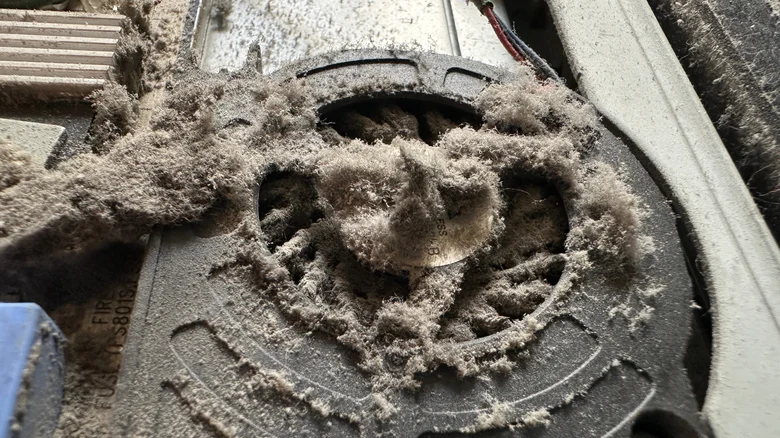
    A laptop fan coated in a thick layer of dust

    The first thing to check if your laptop fan starts acting up is whether it’s getting enough airflow. Make sure you’re using it on a hard, flat surface like a table or desk rather than a bed, sofa, or other soft surface that could block its vents. If the fan continues to run loudly, dust buildup around the fans or air vents could be the issue.

    Luckily, you can typically clean your fans and air vents without taking the machine apart. First, turn off your laptop, unplug any attached devices, and wait for it to cool. Then locate the air vents, which may be on the underside or sides of the device, depending on the model. Use short bursts of compressed air to dislodge dust and debris, following the instructions on the can. You can then wipe away any loose debris with a clean microfiber cloth.

    If this approach doesn’t do the trick, you may need to dismantle your laptop for greater access to the fans. Along with compressed air, you can also use an ESD-safe brush to remove dust from the components. This process may be a little advanced for some users, and the exact method depends on the type of laptop you’re working with. If you’re not comfortable taking apart your laptop yourself, it’s worth getting in touch with a technician. Also, before dismantling the machine, check your warranty terms and manufacturer’s guidance on user repairs, as opening the laptop or carrying out repairs yourself may affect your coverage.

    How to check for intensive background activity

    Woman using a laptop with a large window behind her.

    If your laptop’s fans continue to get extra loud at random intervals, it’s possible the CPU is getting a covert workout. On Windows, tap Ctrl+Shift+Esc to open Task Manager and select Processes to see what’s running. Click the CPU column to sort processes by how much processing power they’re using, putting the biggest resource hogs at the top. Then, head to Startup apps and disable any programs you don’t want launching automatically when you start your laptop. If you’re a Mac user, open Activity Monitor (hit Command+Spacebar to open Spotlight Search if you’re struggling to find it) and head to CPU to identify the processes using the most resources. Click the % CPU column to sort them, then select a process and click the Stop button, then choose Quit.

    Before you get trigger-happy, look out for background processes you can live without instead of quitting them willy-nilly (as doing so can lead to some big crashes). On Windows, if you’re not using programs like Calculator, Gaming Services, News and Interests, Phone Link, CTF Loader or Groove Music, you can generally end their processes. On Mac, you can quit lingering processes associated with apps you’ve already closed, Rosetta applications you’re no longer using and disk image processes that are preventing a disk from ejecting. You can also disable Spotlight indexing if you don’t need your Mac to maintain a fully indexed library.

    fans laptop Laptops spin Your
    Follow on Google News Follow on Flipboard
    Share. Facebook Twitter Pinterest LinkedIn Tumblr Email Copy Link
    myappsplus
    • Website

    Related Posts

    The safest way to store your laptop for a long period of time

    November 9, 2026

    At what length do DisplayPort cables start giving you trouble?

    November 9, 2026

    Apple’s $2,899 MacBook PROLED hides a massive unified memory bottleneck — why I think power users should abandon macOS for Nvidia RTX Spark and AMD Strix Halo

    November 9, 2026
    Add A Comment
    Leave A Reply Cancel Reply

    Top Posts

    Cathay Pacific tests Google AI that dramatically cuts airplane contrails — tiny altitude shifts slash environmental impact by 40% in early trials

    September 8, 2026138 Views

    Save on your groceries, gas, and holiday shopping with this $15 BJ’s membership (Reg. $60) 

    November 4, 202627 Views

    Apple is making Creator Studio an even better deal with new AI features and creative tools

    October 28, 202620 Views
    Latest Reviews

    OpenAI says it reached its goal of creating an automated research intern

    myappsplusSeptember 6, 2026

    Will the iPhone Ultra really be ‘Ultra’? 5 features the foldable could surprisingly ditch, from Face ID to MagSafe

    myappsplusSeptember 6, 2026

    Best TVs of 2026: Expert Tested, Compared and Reviewed

    myappsplusSeptember 6, 2026
    Stay In Touch
    • Facebook
    • YouTube
    • TikTok
    • WhatsApp
    • Twitter
    • Instagram

    Subscribe to Updates

    Get the latest tech news from FooBar about tech, design and biz.

    Most Popular

    Microsoft is ending Windows 11’s web app slop era, and AI now writes native apps in 30 minutes

    September 6, 20260 Views

    Is it safe to buy a refurbished iPhone from Walmart?

    September 7, 20260 Views

    Amazon cargo plane crashes at Miami International Airport, kills 5: Here’s the latest update shared by the company

    September 7, 20260 Views
    Our Picks

    Best Buy Week 2 early Black Friday deals now live: Up to 50% off OLED TVs, appliances up to $1,200 off, Headphones, more

    November 9, 2026

    Why your laptop fans spin up without any warning

    November 9, 2026

    Nearly 80% Planning AI Agents, Assistants or Automations Remain at Basic AI Fluency, New Research Finds

    November 9, 2026

    Subscribe to Updates

    Subscribe to our newsletter and get the latest tech news, app updates, AI trends, smartphone reviews, and exclusive deals delivered straight to your inbox.

    Facebook X (Twitter) Instagram Pinterest
    • About Us
    • Get In Touch
    • Disclaimer
    • Privacy Policy
    • Terms & Conditions
    © 2026 MyAppsPlus. All Rights Reserved.

    Type above and press Enter to search. Press Esc to cancel.