
Close Menu
MyAppsPlus

    Subscribe to Updates

    Get the latest creative news from FooBar about art, design and business.

    What's Hot

    How to watch Melbourne Cup 2026: FREE streams, TV channels for Flemington horse racing

    November 3, 2026

    The reason why some iPhone calls don’t have a decline option, and others do

    November 3, 2026

    A large book-style foldable with room for improvement

    November 3, 2026
    Facebook X (Twitter) Instagram
    Facebook X (Twitter) Instagram
    MyAppsPlusMyAppsPlus
    Tuesday, November 3
    • Home
    • Breaking Tech
    • Apps & Software
    • AI & Automation
    • Android
    • iPhone & iOS
    • More
      • Reviews
      • How-To Guides
      • Deals & Discounts
      • Shop
    MyAppsPlus
    Home»Apps & Software»How to use your phone’s camera to translate anything
    Apps & Software

    How to use your phone’s camera to translate anything

    myappsplusBy myappsplusNovember 3, 2026004 Mins Read
    Share Facebook Twitter Pinterest Copy Link LinkedIn Tumblr Email Telegram WhatsApp
    Follow Us
    Google News Flipboard
    How to use your phone’s camera to translate anything
    Share
    Facebook Twitter LinkedIn Pinterest Email Copy Link

    Our phones have the ability to make sense of other languages (and it requires minimal effort on our part).

    If you’re a frequent traveler, you may frequently encounter signage or other text in foreign languages. That’s all well and good if you have enough knowledge to piece together a translation, but if you can’t even understand the alphabet in question, you’re faced with a much bigger challenge.

    The good news is that your phone’s camera can recognize and translate just about any text in seconds, even if the language uses an entirely different script. While a translation app may seem like the obvious choice for this task, it’s actually not always your best bet. Depending on the languages involved and the context, you may sometimes need more than one tool. Luckily, your phone’s camera is all you need to translate pretty much anything in the real world.

    The simplest way to translate text with your phone’s camera
    Google Translate logo on phone placed on book

    For over a decade now, the Google Translate app has offered a dedicated camera mode. Simply install the app from the Google Play Store on Android or the App Store on iOS, open it, and tap the Camera icon located at the bottom of your screen. This will open up a viewfinder, allowing you to point your phone’s camera at anything in the real world.

    You can select any two of Google Translate’s hundreds of languages for the translation. The default “Detect language” option in thedentify. The app translates text in real time, so you don’t even need to capture an image. You may also want to download frequently-used languages within Google Translate. This allows you to translate text offline — handy if you’re preparing for an upcoming trip

    You can also use Google Lens on Android, which many phones include out of the box these days. This eliminates the need for a dedicated translation app. On Google Pixel phones, Lens is available as a shortcut within the search bar on the home screen. Otherwise, you can find it as an icon in the app drawer. Recent iOS versions also have a translation feature baked into the camera app through the Live Text feature. To access it, open the Camera app on your iPhone and point the device at any text you come across. You should see a yellow frame appear around the text and a grid icon towards the bottom of the viewfinder. Tap this icon and select Translate.

    AI apps can translate text too, and often do a better job
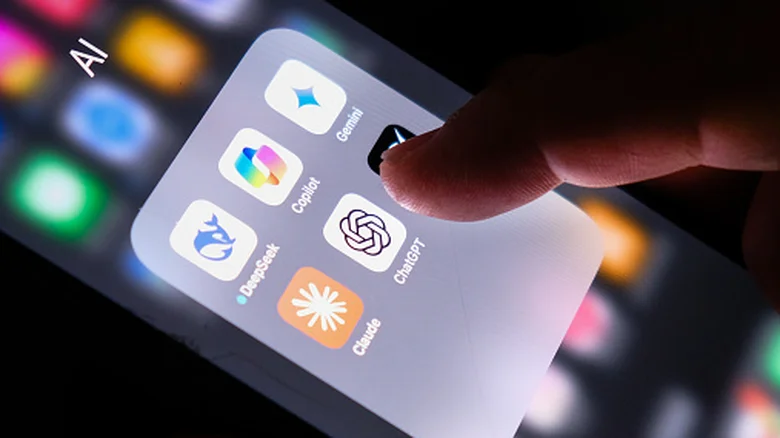
    Person interacting with an AI apps folder on an iPhone

    While Google Translate has served me well, it can fall short of expectations. While traveling in Vietnam, for instance, I found that the app struggled to identify diacritics in printed text through my phone’s camera. This was a major problem because a word can have two completely different meanings depending on whether the letters have the correct diacritics. In my experience, another area where Google Translate stumbles is restaurant menus. Menus often use informal shorthand or a single word, meaning the app may lack enough context for an accurate translation.

    The solution I’ve found is to translate via an AI app. These apps often cannot translate in real time and require an internet connection, but I’ve found that the output quality is far and away better than Google Translate. Modern AI models understand context, so sending a picture of a menu will typically yield food-related translations. Even if your image is blurry or difficult to read, the AI model often understands the intended meaning based on the surrounding text instead of replying with gibberish.

    You can use any AI app such as ChatGPT, Gemini, and Claude. You’ll need to upload a picture of the text you need translated and type a short instruction, such as “Translate to English,” before sending the message. The AI will reply with the translated text, but cannot overlay the translation over your image as Google Translate does. The other downside to this method is that it’s much more expensive — ChatGPT’s free tier limits you to a few image uploads every day, and even then, processing can take a few seconds. Still, I often use it as a last resort whenever traditional translation methods fail me.

    anything Camera phones Translate Your
    Follow on Google News Follow on Flipboard
    Share. Facebook Twitter Pinterest LinkedIn Tumblr Email Copy Link
    myappsplus
    • Website

    Related Posts

    Tesla Adds Grok Files to Intel Cars in Update 2026.38: Will It Be Enabled?

    November 3, 2026

    Is it actually safe to charge your iPhone at airport USB ports?

    November 3, 2026

    Modernized Certification, New Website, Mobile App and More Ways to Connect

    November 3, 2026
    Add A Comment
    Leave A Reply Cancel Reply

    Top Posts

    Cathay Pacific tests Google AI that dramatically cuts airplane contrails — tiny altitude shifts slash environmental impact by 40% in early trials

    September 8, 2026137 Views

    What was the PSX? The souped-up PS2 rarely sold outside of Japan

    September 14, 202617 Views

    Apple is making Creator Studio an even better deal with new AI features and creative tools

    October 28, 202616 Views
    Latest Reviews

    OpenAI warns about how good Astra model is at cracking cybersecurity, releases it anyway because it took ‘years of research and big bets’

    myappsplusSeptember 4, 2026

    Hands-on with Baseus’ tiny PicoGo Pro – a sleek 100W smart display charger for your new Dark Cherry iPhone 18 Pro [Deal]

    myappsplusSeptember 4, 2026

    Judge blocks X rival from using Twitter name, but allows ‘Tweet’ for now

    myappsplusSeptember 4, 2026
    Stay In Touch
    • Facebook
    • YouTube
    • TikTok
    • WhatsApp
    • Twitter
    • Instagram

    Subscribe to Updates

    Get the latest tech news from FooBar about tech, design and biz.

    Most Popular

    This week’s Apple deals for Labor Day: AirPods Pro 3, Studio Display, AirTag 2, Mac mini, more from $5.50

    September 4, 20260 Views

    Beatbot’s Labor Day Sale drops 2026 Sora 70 5-in-1 robotic pool cleaner to $1,099 ($400 off), more from $339

    September 4, 20260 Views

    iPhone Ultra, iPhone 18 Pro, and More: Apple’s September 9 Event Preview

    September 4, 20260 Views
    Our Picks

    How to watch Melbourne Cup 2026: FREE streams, TV channels for Flemington horse racing

    November 3, 2026

    The reason why some iPhone calls don’t have a decline option, and others do

    November 3, 2026

    A large book-style foldable with room for improvement

    November 3, 2026

    Subscribe to Updates

    Subscribe to our newsletter and get the latest tech news, app updates, AI trends, smartphone reviews, and exclusive deals delivered straight to your inbox.

    Facebook X (Twitter) Instagram Pinterest
    • About Us
    • Get In Touch
    • Disclaimer
    • Privacy Policy
    • Terms & Conditions
    © 2026 MyAppsPlus. All Rights Reserved.

    Type above and press Enter to search. Press Esc to cancel.