Close Menu
MyAppsPlus

    Subscribe to Updates

    Get the latest creative news from FooBar about art, design and business.

    What's Hot

    Apple Dodges Question on More Price Hikes as Memory Costs Climb

    November 3, 2026

    ‘Monday Night Football’ same-game parlay picks, bets, props from SportsLine AI

    November 3, 2026

    Bajaj Pulsar N250 SS First Ride Review: More Power, More Tech, More Pulsar!

    November 3, 2026
    Facebook X (Twitter) Instagram
    Facebook X (Twitter) Instagram
    MyAppsPlusMyAppsPlus
    Tuesday, November 3
    • Home
    • Breaking Tech
    • Apps & Software
    • AI & Automation
    • Android
    • iPhone & iOS
    • More
      • Reviews
      • How-To Guides
      • Deals & Discounts
      • Shop
    MyAppsPlus
    Home»Breaking Tech»The reason why some iPhone calls don’t have a decline option, and others do
    Breaking Tech

    The reason why some iPhone calls don’t have a decline option, and others do

    myappsplusBy myappsplusNovember 3, 2026004 Mins Read
    Share Facebook Twitter Pinterest Copy Link LinkedIn Tumblr Email Telegram WhatsApp
    Follow Us
    Google News Flipboard
    The reason why some iPhone calls don’t have a decline option, and others do
    Share
    Facebook Twitter LinkedIn Pinterest Email Copy Link

    Your iPhone‘s incoming call screen isn’t as mysterious as it seems.

    At some point, everyone’s been burned by their iPhone going off in the worst possible place. When you see there’s no option to decline the call, it’s a mad scramble to press every side button or sling the phone through a wall at the speed of sound. But you’ve seen the on-screen option to decline calls before, so what gives? Fair warning: it’s a really simple, forehead-slapping answer. When your iPhone is locked, incoming calls display the “slide to answer” control. When your iPhone is unlocked, you get the option to answer or decline the call.

    Depending on your Incoming Calls setting, Accept and Decline buttons appear in a compact banner or across the entire screen, but both options remain. No, you didn’t disable anything by accident. This is simply how the iPhone operates by default, right out of the box. On the bright side, it’s not set in stone; you can make adjustments

    You don’t need an on-screen button to decline or silence a call, however. You can press the side button twice quickly to decline and send the caller straight to voicemail. Or, you can press either volume button to silence the ring without declining the call. You can do this whether the iPhone screen is locked or not.

    How to respond to an iPhone call without answering it

    The person calling will probably know their call was just rejected if you hit the side button twice the moment your iPhone starts ringing. The practical effect is pretty obvious. Fortunately, rejecting a phone call doesn’t have to come off as rude, because you can let the caller know why you rejected it. An iPhone’s incoming call interface includes a Message option that lets you send a text instead of answering. There are a few useful prepared options, as well as a custom alternative if you prefer.

    If the incoming call pops up as a banner while you’re busy, tap the banner to reveal more options, then select Message. Go with a prepared reply or quickly fire off a text by choosing Custom. Now you can provide some context to the caller and explain why they’re being sent straight to voicemail.

    You can also change the prepared replies well in advance. Open Settings > Apps > Phone > Respond with Text, then select a response and edit it accordingly. For instance, “I’m working right now” and “Please text me; I’m busy” both speak volumes in a few short words. It’s a nifty little feature and only takes a few minutes to set up.

    How to reject unwanted calls on an iPhone
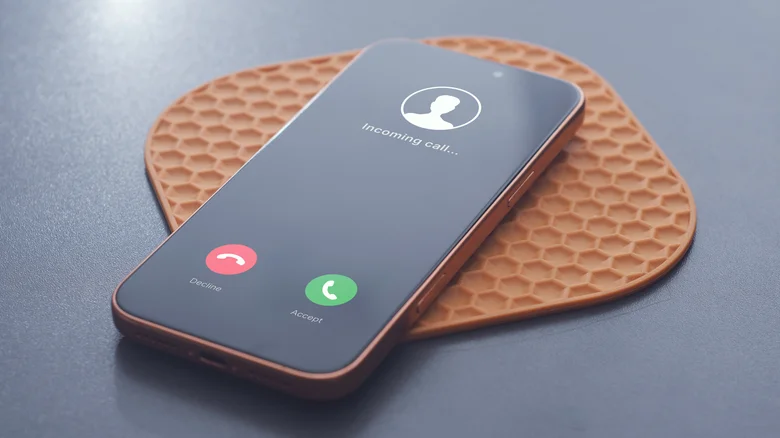
    Incoming iPhone call interface.

    Despite the 1991 Telephone Consumer Protection Act, telemarketers, spam and robocalls are something we all deal with on a regular basis. According to the Federal Trade Commission, there were more than 2.6 million Do Not Call complaints in fiscal year 2025. Some callers are more persistent than others, and even if you block one number, they’ll call back from another slightly different number. But it’s worth the effort to block them all. Find the number you just rejected in Recents, tap it (or the Info button in Classic view), scroll to the bottom of the screen, select Block Caller and confirm.

    You can use a broader setting to screen unknown callers as well. Go to Settings > Apps > Phone > Screen Unknown Callers (iOS 26 and later). From here, you can select Never, Ask Reason for Calling or Silence. Consider the middle option, just in case the unknown number is someone you know and the call is important.

    But if you choose Silence, every unknown call will go straight to voicemail without ringing. Just remember that life comes at you fast, and that unknown number may be someone you recently met or someone who lost their phone and really needs to contact you. Convenience always comes with a caveat or two.

    Apple calls iPhone reason Some
    Follow on Google News Follow on Flipboard
    Share. Facebook Twitter Pinterest LinkedIn Tumblr Email Copy Link
    myappsplus
    • Website

    Related Posts

    Apple Dodges Question on More Price Hikes as Memory Costs Climb

    November 3, 2026

    Athenahealth patients can ask Claude about their medical records now

    November 3, 2026

    Apple recently notified users in 99 countries of potential mercenary spyware attacks

    November 3, 2026
    Add A Comment
    Leave A Reply Cancel Reply

    Top Posts

    Cathay Pacific tests Google AI that dramatically cuts airplane contrails — tiny altitude shifts slash environmental impact by 40% in early trials

    September 8, 2026137 Views

    What was the PSX? The souped-up PS2 rarely sold outside of Japan

    September 14, 202617 Views

    Apple is making Creator Studio an even better deal with new AI features and creative tools

    October 28, 202616 Views
    Latest Reviews

    OpenAI warns about how good Astra model is at cracking cybersecurity, releases it anyway because it took ‘years of research and big bets’

    myappsplusSeptember 4, 2026

    Hands-on with Baseus’ tiny PicoGo Pro – a sleek 100W smart display charger for your new Dark Cherry iPhone 18 Pro [Deal]

    myappsplusSeptember 4, 2026

    Judge blocks X rival from using Twitter name, but allows ‘Tweet’ for now

    myappsplusSeptember 4, 2026
    Stay In Touch
    • Facebook
    • YouTube
    • TikTok
    • WhatsApp
    • Twitter
    • Instagram

    Subscribe to Updates

    Get the latest tech news from FooBar about tech, design and biz.

    Most Popular

    This week’s Apple deals for Labor Day: AirPods Pro 3, Studio Display, AirTag 2, Mac mini, more from $5.50

    September 4, 20260 Views

    Beatbot’s Labor Day Sale drops 2026 Sora 70 5-in-1 robotic pool cleaner to $1,099 ($400 off), more from $339

    September 4, 20260 Views

    iPhone Ultra, iPhone 18 Pro, and More: Apple’s September 9 Event Preview

    September 4, 20260 Views
    Our Picks

    Apple Dodges Question on More Price Hikes as Memory Costs Climb

    November 3, 2026

    ‘Monday Night Football’ same-game parlay picks, bets, props from SportsLine AI

    November 3, 2026

    Bajaj Pulsar N250 SS First Ride Review: More Power, More Tech, More Pulsar!

    November 3, 2026

    Subscribe to Updates

    Subscribe to our newsletter and get the latest tech news, app updates, AI trends, smartphone reviews, and exclusive deals delivered straight to your inbox.

    Facebook X (Twitter) Instagram Pinterest
    • About Us
    • Get In Touch
    • Disclaimer
    • Privacy Policy
    • Terms & Conditions
    © 2026 MyAppsPlus. All Rights Reserved.

    Type above and press Enter to search. Press Esc to cancel.