
Close Menu
MyAppsPlus

    Subscribe to Updates

    Get the latest creative news from FooBar about art, design and business.

    What's Hot

    MyCert flags fake ‘BNM Mobile Security’ app that relays bank card data via NFC

    November 7, 2026

    How iOS can warn you when one of your passwords shows up in a data leak

    November 7, 2026

    How Artificial Intelligence Is Changing the Future of Digital Media

    November 7, 2026
    Facebook X (Twitter) Instagram
    Facebook X (Twitter) Instagram
    MyAppsPlusMyAppsPlus
    Saturday, November 7
    • Home
    • Breaking Tech
    • Apps & Software
    • AI & Automation
    • Android
    • iPhone & iOS
    • More
      • Reviews
      • How-To Guides
      • Deals & Discounts
      • Shop
    MyAppsPlus
    Home»Breaking Tech»The right way to fix your MacBook keyboard if it isn’t responding
    Breaking Tech

    The right way to fix your MacBook keyboard if it isn’t responding

    myappsplusBy myappsplusNovember 7, 2026004 Mins Read
    Share Facebook Twitter Pinterest Copy Link LinkedIn Tumblr Email Telegram WhatsApp
    Follow Us
    Google News Flipboard
    The right way to fix your MacBook keyboard if it isn’t responding
    Share
    Facebook Twitter LinkedIn Pinterest Email Copy Link

    If your MacBook keyboard suddenly stopped working, there are a few fixes to try before taking it in for a repair.

    Few tech problems can disrupt a workday faster than when your MacBook keyboard suddenly stops working. It could be a single stuck key, or your entire keyboard might stop responding. While the most common reaction is assuming you have a hardware problem and looking for repair options, sometimes the issue can be much easier to fix. 

    Software glitches or small particles of dirt under the keys can also cause your keyboard to malfunction, so it’s worth double-checking what’s causing the problem before you panic. We’ll walk through a few fixes you can try if your keyboard isn’t working properly to see if any of them will fix the problem without needing a physical repair.

    Try restarting your Mac and the keyboard
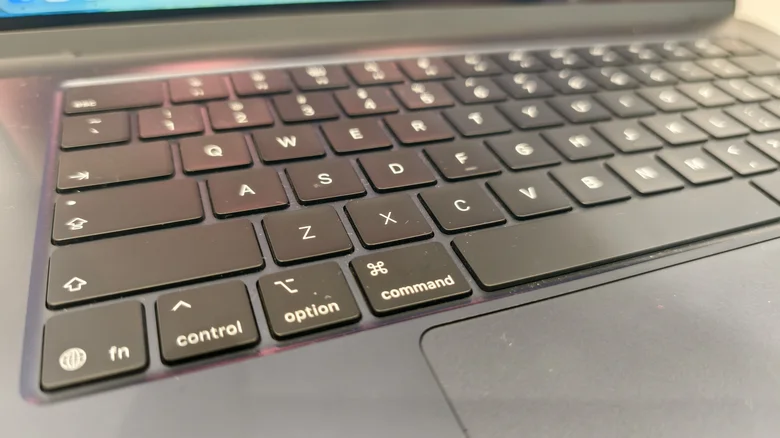
    Close-up of a MacBook keyboard.

    Before tinkering with your keyboard, try the simplest potential fix first: reboot your Mac by clicking the Apple menu and then selecting Restart. If you have a wired keyboard, unplug it and reconnect, making sure it has a good connection. 

    If you’re using a wireless keyboard, turn it off and back on. If that doesn’t fix the problem, open System Settings > Bluetooth and unpair your keyboard, then pair it again, as that may solve temporary problems. With wireless keyboards, low battery power can cause the keys to stop working. Plug your keyboard into the charger if it has a rechargeable battery, or put new batteries in if they’re replaceable.

    If those basic checks didn’t help, there are a few macOS settings you can change. Open System Settings and go to Accessibility, then Keyboard. There, check if you’ve accidentally enabled Sticky Keys or Slow Keys, which change how your Mac recognizes keystrokes. Turn them off if the toggles are on to restore the keyboard to its normal behavior. 

    In case you need to type something while troubleshooting, enable the Accessibility Keyboard in the same menu to bring up an on-screen keyboard. Interacting with it is as simple as clicking the keys with the mouse cursor.

    Cleaning your keyboard and making sure it doesn’t need repair
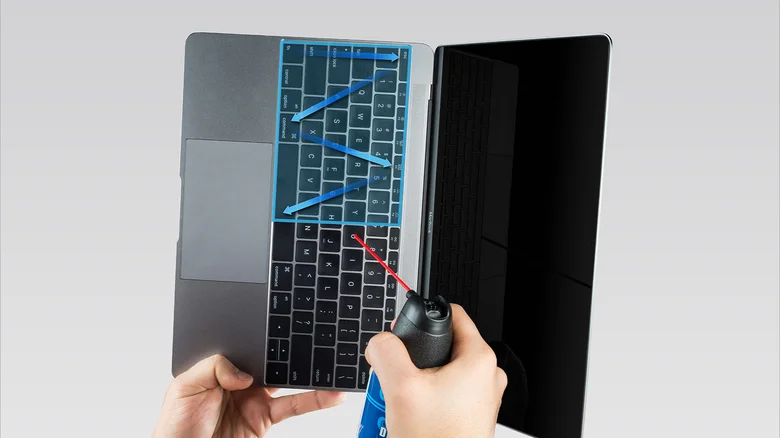
    The exact angle and motion to hold your MacBook when cleaning the keyboard with a can of compressed air.

    If you’ve tried all the steps above without success, there are still a few options left. Start by connecting an external keyboard to your MacBook so you can be sure the problem is with the built-in keyboard and not caused by macOS. Booting your Mac in safe mode can help confirm whether a third-party app is interfering with your keyboard. Shut down your Mac normally from the Apple menu (don’t just put it into Sleep Mode), then press and hold the power button until you see Loading startup options. Select your startup disk, press and hold the Shift key, then click Continue in Safe Mode. Running Apple Diagnostics is also an option.

    If only one or two keys are malfunctioning, the most likely cause is debris stuck in the key mechanism. You can try cleaning the keyboard by holding your MacBook at a 75-degree angle and using compressed air, then rotating the laptop and repeating the process. Another option is to turn your MacBook upside down and gently tap the back cover to push the dirt out of the keyboard. Don’t try to remove the keycaps on your own, as you could end up permanently damaging the key mechanism — the parts are very small and delicate.

    Your last resort is to book an appointment with Apple Support, where a specialist will examine your MacBook to determine whether it needs a keyboard replacement. Older MacBooks released between 2015 and 2019 became notorious for problems with the “butterfly” keyboard, which was more prone to getting stuck due to small particles of dirt. But even the latest MacBooks can suffer from keyboard issues over time, so a replacement may be necessary.

    Apple keyboard MacBook right Your
    Follow on Google News Follow on Flipboard
    Share. Facebook Twitter Pinterest LinkedIn Tumblr Email Copy Link
    myappsplus
    • Website

    Related Posts

    How iOS can warn you when one of your passwords shows up in a data leak

    November 7, 2026

    Amazon’s pre-order discount on the new Apple TV 4K is back ahead of release next week

    November 7, 2026

    How to use your old tablet to build a live streaming setup

    November 7, 2026
    Add A Comment
    Leave A Reply Cancel Reply

    Top Posts

    Cathay Pacific tests Google AI that dramatically cuts airplane contrails — tiny altitude shifts slash environmental impact by 40% in early trials

    September 8, 2026138 Views

    Save on your groceries, gas, and holiday shopping with this $15 BJ’s membership (Reg. $60) 

    November 4, 202627 Views

    Apple is making Creator Studio an even better deal with new AI features and creative tools

    October 28, 202619 Views
    Latest Reviews

    iPhone Duo?

    myappsplusSeptember 5, 2026

    From eating the elderly to selling kids, Afterworld gives you the freedom to do terrible things in the post-apocalypse — ‘We shouldn’t judge the player’ says director

    myappsplusSeptember 5, 2026

    This Dell 16 laptop is ideal for university, especially at the lowest price we’ve seen

    myappsplusSeptember 5, 2026
    Stay In Touch
    • Facebook
    • YouTube
    • TikTok
    • WhatsApp
    • Twitter
    • Instagram

    Subscribe to Updates

    Get the latest tech news from FooBar about tech, design and biz.

    Most Popular

    iPhone Duo?

    September 5, 20260 Views

    From eating the elderly to selling kids, Afterworld gives you the freedom to do terrible things in the post-apocalypse — ‘We shouldn’t judge the player’ says director

    September 5, 20260 Views

    I just went hands-on with the Odyss N1 — a sleek AI necklace that automatically tracks everything you eat

    September 5, 20260 Views
    Our Picks

    MyCert flags fake ‘BNM Mobile Security’ app that relays bank card data via NFC

    November 7, 2026

    How iOS can warn you when one of your passwords shows up in a data leak

    November 7, 2026

    How Artificial Intelligence Is Changing the Future of Digital Media

    November 7, 2026

    Subscribe to Updates

    Subscribe to our newsletter and get the latest tech news, app updates, AI trends, smartphone reviews, and exclusive deals delivered straight to your inbox.

    Facebook X (Twitter) Instagram Pinterest
    • About Us
    • Get In Touch
    • Disclaimer
    • Privacy Policy
    • Terms & Conditions
    © 2026 MyAppsPlus. All Rights Reserved.

    Type above and press Enter to search. Press Esc to cancel.