

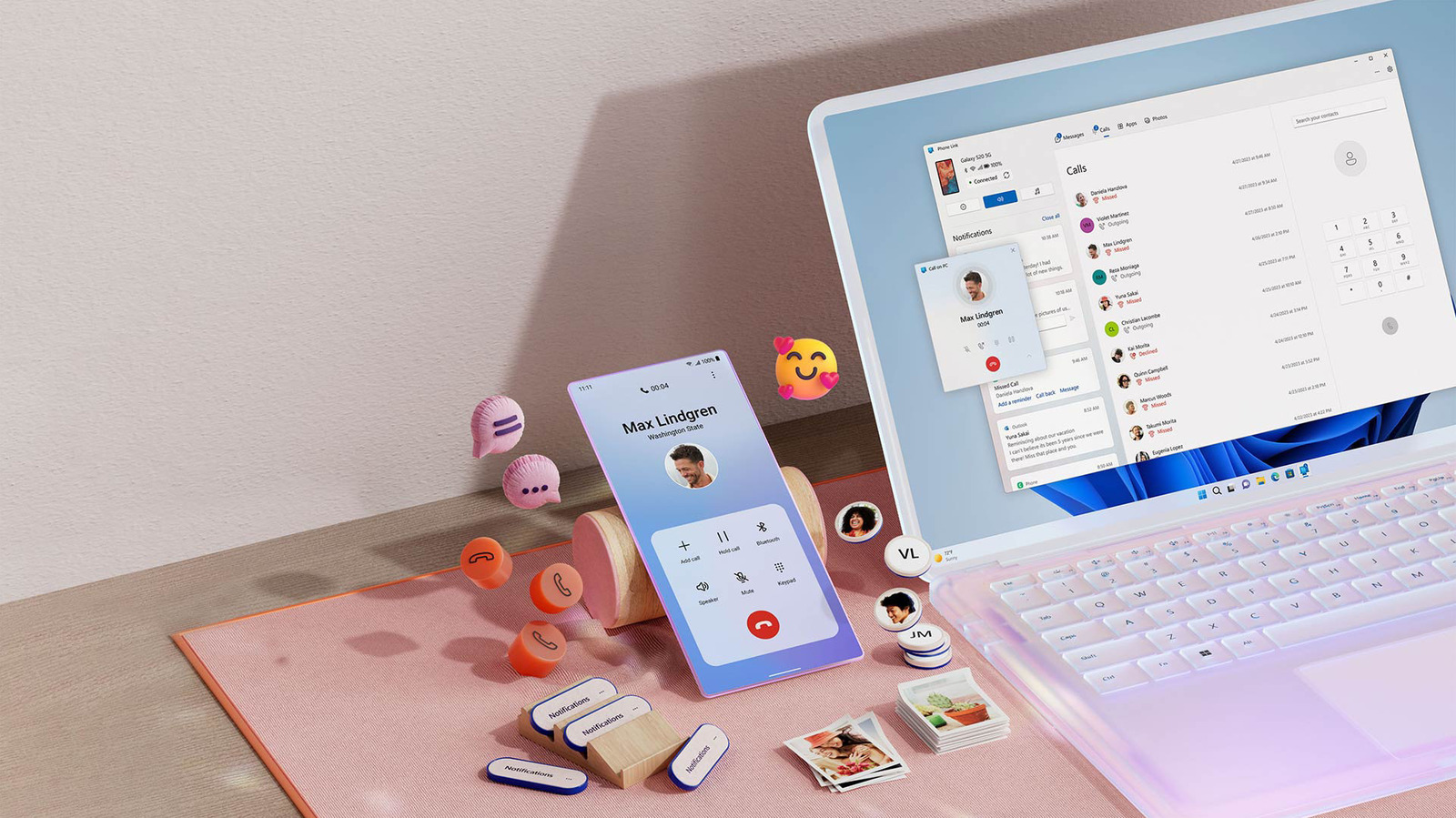
When you need to make an old-fashioned call, Windows can help you avoid reaching for your phone.
It’s easy to go days or even weeks without using your phone to make an actual call. But when you need to call an organization or person who doesn’t use alternative chat platforms, you might prefer to talk on your computer instead of picking up your phone. This makes for easier multitasking, especially if you wear headphones at your desk all the time.
On Windows 11, the Phone Link app is the solution for this. On top of running phone calls through your computer, it can also streamline your setup by enabling texting and notification sync. You have to leap through a few hurdles, and iPhone functionality is more limited compared to Android, but it’s still worth using.
There are other options, such as desktop versions of chat apps like WhatsApp for voice calls, or Google Voice for making calls from a separate number. But if you’re set on making standard calls using your existing number, Phone Link is the best choice.
How to use Phone Link with your iPhone or Android device
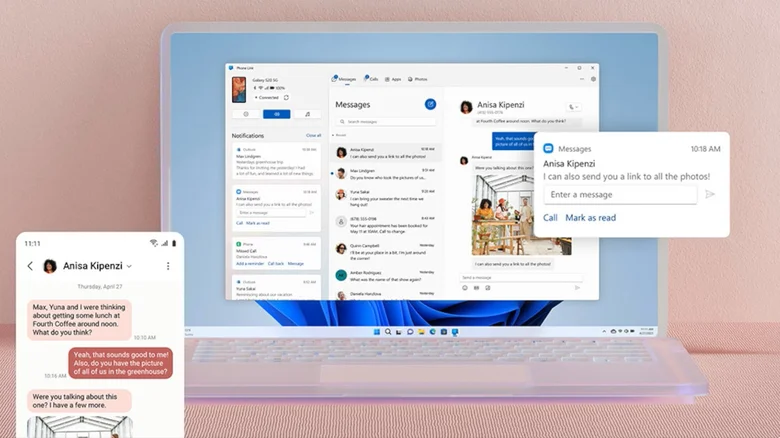
Phone Link is included in recent versions of Windows 11. Before you continue, open the Microsoft Store app and click the Downloads tab on the left. Hit Check for updates, then Update Phone Link to the latest release if needed. You may also want to head over to Settings > Windows Update if it’s been a while since you patched Windows in general.
To get started with pairing an iPhone, open the Phone Link app on your computer by searching for itan a QR code with your phone, which will guide you through that side of the process, including installing the Link to Windows iOS app and pairing your phoneboth your phone and PC for this to complete
Back in Phone Link on your PC, remember to click Pair when the pairing code is displayed. On your iPhone, visit Settings > Bluetooth and tap the info icon next to your PC’s name to change options, including syncing contacts.
The process is largely similar with Android. While Android devices pair to Windows over Wi-Fi or cellular, Bluetooth is still required to make calls. You can begin the process in the Link to Windows Android app if you like, but the results are ultimately the same. Remember to grant any permissions the app asks for if you want to use those features.
Once you’ve done all this, making a phone call through Phone Link’s Calls tab is simple. Search for a synced contact to dial them quickly, or use the dial pad for one-off calls. You shouldn’t have to do anything else to receive incoming calls on on your computer, though it’s always best to keep your phone nearby to ensure a clean signal.
If you plan to take calls on your computer often, grabbing a gaming headset or similar can be a good option to avoid those around you hearing the call while also having a mic always ready.
The Phone Link feature gaps between iOS and Android
If you have an iPhone, Phone Link is limited to calling and texting, as well as viewing and dismissing your phone’s notifications. That’s plenty for a lot of people. To enable or disable any of these functions, open Phone Link on your PC, then click Settings (the gear icon) and choose Features.
Android users get additional power, including the ability to view and copy the last 2,000 photos in their camera roll. That might not sound like much, but it avoids having to sync your Google Photos library directly to your storage drive. If you want to copy a single image into a document or your personal stash, this is a simpler method — once you’ve got Phone Link configured, that is.
Other Android-exclusive tricks include putting your phone into Do Not Disturb, muting your device when it’s playing sound and Now Playing controls for music. It feels like a much more robust solution compared to the basic implementation for iPhone.
Regardless of the phone you’re using, it’s worth going into Phone Link and visiting the options under Settings > General. There, you’re able to adjust the amount of private data displayed in banners, and whether numbered badges are displayed for unread messages and notifications. Those can be irritating, sometimes giving the impression there’s new info to view when it’s actually the same material that’s been sitting on your phone’s lock screen for hours. Phone Link labels everything “unread” until you specifically check or dismiss it.
Meanwhile, you can fight back against spam calls if they’re disrupting you while you work.
