Close Menu
MyAppsPlus

    Subscribe to Updates

    Get the latest creative news from FooBar about art, design and business.

    What's Hot

    Apple iPhone Duo Preorders Sell Out in Minutes as Delivery Dates Slip to 2027

    October 18, 2026

    Is that image real? How to verify Meta AI images in 4 simple steps

    October 18, 2026

    ChatGPT vs Claude vs Gemini for Shopping [2026]

    October 18, 2026
    Facebook X (Twitter) Instagram
    Facebook X (Twitter) Instagram
    MyAppsPlusMyAppsPlus
    Sunday, October 18
    • Home
    • Breaking Tech
    • Apps & Software
    • AI & Automation
    • Android
    • iPhone & iOS
    • More
      • Reviews
      • How-To Guides
      • Deals & Discounts
      • Shop
    MyAppsPlus
    Home»Breaking Tech»What is Apple’s Image Playground app for and how do you use it?
    Breaking Tech

    What is Apple’s Image Playground app for and how do you use it?

    myappsplusBy myappsplusOctober 18, 2026004 Mins Read
    Share Facebook Twitter Pinterest Copy Link LinkedIn Tumblr Email Telegram WhatsApp
    Follow Us
    Google News Flipboard
    What is Apple’s Image Playground app for and how do you use it?
    Share
    Facebook Twitter LinkedIn Pinterest Email Copy Link

    Apple’s image generation tool got some noteworthy updates this fall.

    Sometimes, a text exchange with a friend calls for a super specific image to express a thought. It’s the kind of image that you can’t find in the legion of emoji on your phone, or hiding in your photo library — an angry avocado, or a picture of you and that friend on the moon when you’ve never even been out of the city together. The human experience is complex.

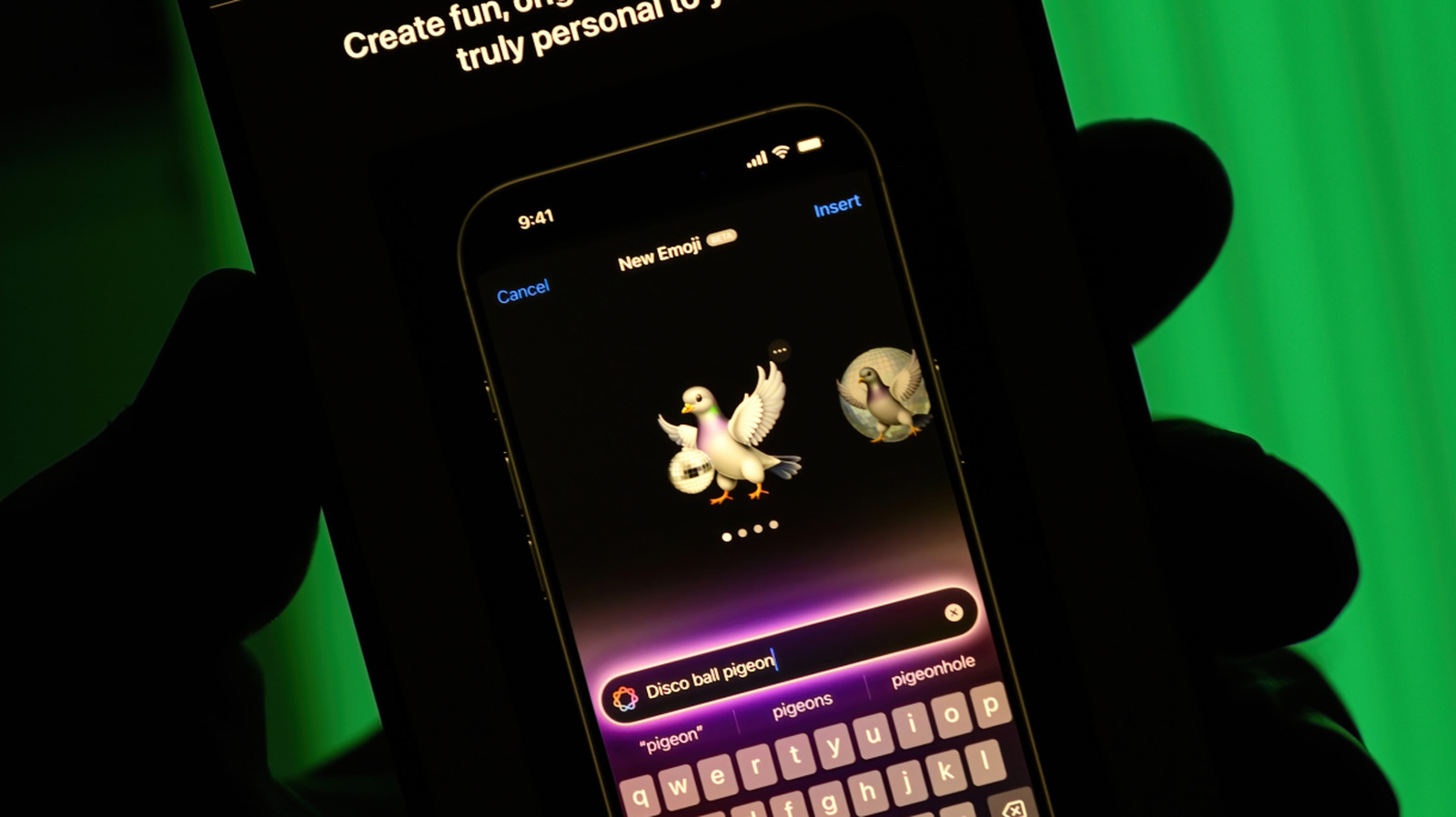
    In times like these, you might turn to an AI image generator to meet your needs. For those in the Apple ecosystem, one option is firing up the Image Playground app as a quick way of creating an image that can be customized, saved and even used as a <a href="https://support.apple.com/en-is/guide/iphone/iph4e76f5667/ios” rel=”nofollow noopener” target=”_blank”>Genmoji in the future. (Genmoji are personalized emoji you can make using Apple Intelligence.)

    If you haven’t used the app, odds are it’s already your phone. Here’s a rundown of what Apple’s Image Playground is and how to use it.

    What is Apple’s Image Playground?

    Apple initially launched Image Playground in December 2024. The app uses Apple Intelligence to generate images on your device that you can save, share or turn into Genmoji. Image Playground is integrated into several Apple apps, like Messages, Keynote and Freeform, so you don’t have to stop what you’re doing and open another app separately.

    To use Image Playground, you’ll need an iPhone 15 Pro or Pro Max, or an iPhone 16 or later with Apple Intelligence turned on. You can also use it on iPads with an M1 chip or later, or the iPad Mini (A17 Pro), as well as Macs with at least an M1 chip.

    The latest version of Image Playground, available with iOS 27, brings a few updates to the app. Perhaps the most notable is that you can now describe what visual style you’re looking for with natural language. Earlier versions of the app let you select a few specific (like illustration), but the new “Any Style” option lets you specify “virtually” any visual approach. Other updates include modifying what you’ve already created with touch and natural language. So, if you ask for an image of a cabin, you can use your finger to select the door, and prompt Playground to change it to red, or even move the selection around. The update also introduces the ability to make Contact Posters and wallpapers for your Lock Screen.

    How do you use it?

    When you open the app, there are several ways you can go about creating an image. If you’re starting from scratch, you can use the prompt box to describe what you want to make. There’s also a menu you can expand featuring styles, like animation and sketch. If you select Genmoji from that list, you’ll be able to save your creation along with any other stickers you have, and use it as you would an emoji. 

    There are other ways to start images, too, beyond entering a natural language prompt. Near the prompt box, you can tap the figure of a person, and select a face from one of your photos. For example, if you pick yourself, you can change which photo you want to use as the reference image, and prompt Playground to maybe show you as an astronaut. Below the image, you can enter additional prompts to make changes or use the touch feature to tweak the image.

    Similarly, next to the icon of the person, there’s a button that lets you use a photo you’ve taken as the basis for the image. When you’re happy with you hath wrought, you can tap the Share button and unleash it on your friends and loved ones.

    Apple Apples image Playground What
    Follow on Google News Follow on Flipboard
    Share. Facebook Twitter Pinterest LinkedIn Tumblr Email Copy Link
    myappsplus
    • Website

    Related Posts

    Apple iPhone Duo Preorders Sell Out in Minutes as Delivery Dates Slip to 2027

    October 18, 2026

    Is that image real? How to verify Meta AI images in 4 simple steps

    October 18, 2026

    Router and modem or gateway: What’s actually in your home network?

    October 18, 2026
    Add A Comment
    Leave A Reply Cancel Reply

    Top Posts

    Cathay Pacific tests Google AI that dramatically cuts airplane contrails — tiny altitude shifts slash environmental impact by 40% in early trials

    September 8, 202668 Views

    Pricing, Benchmarks vs Claude 5.5

    October 12, 202612 Views

    What was the PSX? The souped-up PS2 rarely sold outside of Japan

    September 14, 202610 Views
    Latest Reviews

    Apple Arcade just got this retro-inspired gem

    myappsplusAugust 30, 2026

    Last chance for Anker’s hybrid Prime Power Bank wall charger down at $70

    myappsplusAugust 30, 2026

    What is the release date for Reacher season 4 episode 6 on Prime Video?

    myappsplusAugust 30, 2026
    Stay In Touch
    • Facebook
    • YouTube
    • TikTok
    • WhatsApp
    • Twitter
    • Instagram

    Subscribe to Updates

    Get the latest tech news from FooBar about tech, design and biz.

    Most Popular

    I use Google Chrome every day, and these are my 10 favorite tips and tricks

    August 30, 20260 Views

    How to check if your TV is playing in 4K or not

    August 30, 20260 Views

    Things to know before using your MacBook outside

    August 30, 20260 Views
    Our Picks

    Apple iPhone Duo Preorders Sell Out in Minutes as Delivery Dates Slip to 2027

    October 18, 2026

    Is that image real? How to verify Meta AI images in 4 simple steps

    October 18, 2026

    ChatGPT vs Claude vs Gemini for Shopping [2026]

    October 18, 2026

    Subscribe to Updates

    Subscribe to our newsletter and get the latest tech news, app updates, AI trends, smartphone reviews, and exclusive deals delivered straight to your inbox.

    Facebook X (Twitter) Instagram Pinterest
    • About Us
    • Get In Touch
    • Disclaimer
    • Privacy Policy
    • Terms & Conditions
    © 2026 MyAppsPlus. All Rights Reserved.

    Type above and press Enter to search. Press Esc to cancel.