

Xbox mode doesn’t reinvent the PC gaming experience, but it has a few nice touches.
2026 is the year when Microsoft finally seemed to notice how nightmarish of an experience Windows 11 has become. Windows 11 has received updates to make it suck less and even new features to help it feel fresh.
One of the biggest new additions to Windows 11 is Xbox mode. It’s hard not to see this as a response to Valve’s SteamOS, which is increasingly spoken about in messianic tones by gamers hoping to jump ship from Microsoft’s slop-laden ecosystem. When you activate Xbox mode on a PC, Windows ditches the taskbar and adopts a controller-friendly layout, dropping you into a redesigned Xbox app with all your game libraries loaded up.
Xbox mode started landing on Windows 11 PCs in May, so everyone who regularly installs updates should have it by now. But how to actually get it running isn’t obvious, and neither is how to use it once you do. Before we dive in, make sure you have a gamepad connected — Xbox, PC and PlayStation controllers all work based on our testing. It will also speed up the process later on if you open your digital storefront of choice now.
How to enable and open Xbox mode in Windows 11
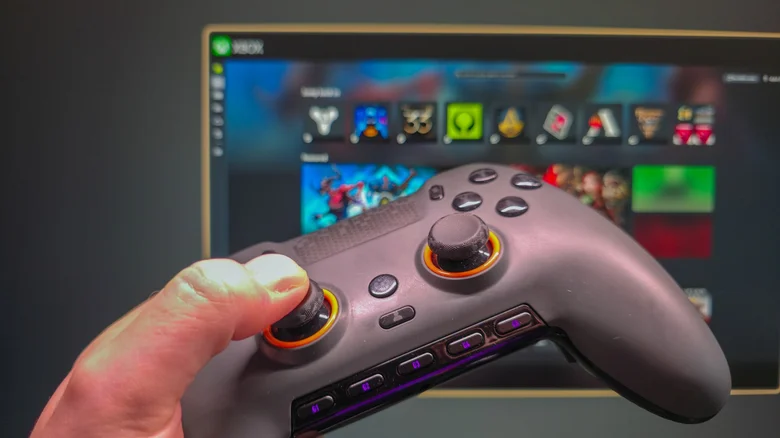
The first step to using Windows 11’s Xbox mode is to ensure that it’s turned on, which it may not be by default. To do so, open Settings by using the Win + I shortcut, then select Gaming > Xbox mode.
Here, if you see an Enable Xbox mode slider, enable it. You may also see a Choose home app section, where you should select Xbox. If you want quicker access to Xbox mode from the desktop, also enable Show Xbox mode in Task View. And if you end up loving the feature and only use your PC for gaming, Enter Xbox mode on startup will save you some time.
Xbox mode is accessible through several paths. The keyboard shortcut Win + F11 toggles between the desktop and Xbox mode. You can also use Win + G to open the Game Bar, click the gear icon in the bar centered at the top of the screen, then choose Enter Xbox mode. If you’re in the Xbox app, you’ll see a shortcut at the top-right of the home page. Lastly, if you enabled the Task View option above, press Win + Tab and you’ll see an Xbox mode shortcut to the right of your open desktops at the bottom of the screen.
While playing, pressing the Windows key on your keyboard enters a task view where you can access the Windows desktop, as well as shortcuts at the top of the screen. To exit Xbox mode, return to the Xbox app home screen and click the Exit Xbox mode button in the top-right. You can also use Win + F11 again.
A common misconception is that Xbox mode brings under-the-hood improvements to performance while gaming, but Microsoft has made no such claim. This is handled by a separate toggle: Settings > Gaming > Game Mode, which “turns things off in the background” to improve your gaming experience. While vague, it’s worth turning this on if you don’t have it enabled already.
What Xbox mode does is get the most computer-y parts of Windows out of the way, replacing them with a full-screen experience dedicated to gaming that’s friendly to use with either a controller or keyboard and mouse. In other words, it’s Microsoft’s answer to the Big Picture Mode in Steam.
What does Xbox mode actually do in Windows 11?
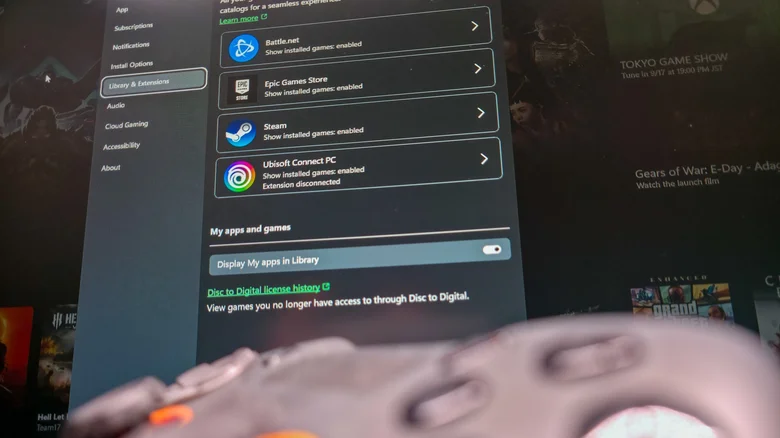
You’ll benefit most from Xbox mode if you have game libraries across multiple providers. If you’ve got World of Warcraft, Fortnite and Counter-Strike on your PC, you need at least three launchers to run them (Battle.net, Epic Games and Steam, respectively). Xbox mode shows you games from all those libraries, as well as Ubisoft Connect and Humble Launcher, in a centralized place. We didn’t test other launchers like the EA App. If you don’t see a particular title, you can pull it into the Xbox app by selecting the plus icon from the top-right of the Library tab.
Launching a game from the Xbox app sidesteps the need to open its launcher, as Xbox will simply target the game executable, which boots the necessary software in the background. This process wasn’t the quickest or smoothest in our testing. Although games launch every time, we recommend opening third-party launchers before starting Xbox mode to speed up the process.
If you’re subscribed to Xbox Game Pass, you’ll be able to access its library through Xbox mode. Surprisingly, the Cloud Gaming tab doesn’t lock you to Microsoft’s services. You can set Nvidia GeForce Now as your default streaming service in the Xbox app’s settings.
Ultimately, Xbox mode in its current form is little more than a souped-up Xbox app with controller mapping and a few extra settings to prevent you from needing to interact with Windows. It’s more useful on handhelds and living room PCs than on a standalone gaming PC. Regardless, with more gamers switching to Linux than ever before, it’s good to see Microsoft exploring improvements to the Windows 11 gaming experience.
