Close Menu
MyAppsPlus

    Subscribe to Updates

    Get the latest creative news from FooBar about art, design and business.

    What's Hot

    “Get this robot out of my house!” How my spouse sense-checks the gadgets I bring home

    September 20, 2026

    Retroid Pocket unexpectedly expands its Duo lineup with a Lite Plus version

    September 20, 2026

    I use cable sleeves like this tidy up cords and keep pets in check, try it yourself for $6.50 (Save 28%)

    September 20, 2026
    Facebook X (Twitter) Instagram
    Facebook X (Twitter) Instagram
    MyAppsPlusMyAppsPlus
    Sunday, September 20
    • Home
    • Breaking Tech
    • Apps & Software
    • AI & Automation
    • Android
    • iPhone & iOS
    • More
      • Reviews
      • How-To Guides
      • Deals & Discounts
      • Shop
    MyAppsPlus
    Home»Breaking Tech»How to use ChatGPT to make stickers for iMessage and WhatsApp
    Breaking Tech

    How to use ChatGPT to make stickers for iMessage and WhatsApp

    myappsplusBy myappsplusSeptember 20, 2026003 Mins Read
    Share Facebook Twitter Pinterest Copy Link LinkedIn Tumblr Email Telegram WhatsApp
    Follow Us
    Google News Flipboard
    How to use ChatGPT to make stickers for iMessage and WhatsApp
    Share
    Facebook Twitter LinkedIn Pinterest Email Copy Link

    It’s a lot easier than you think.

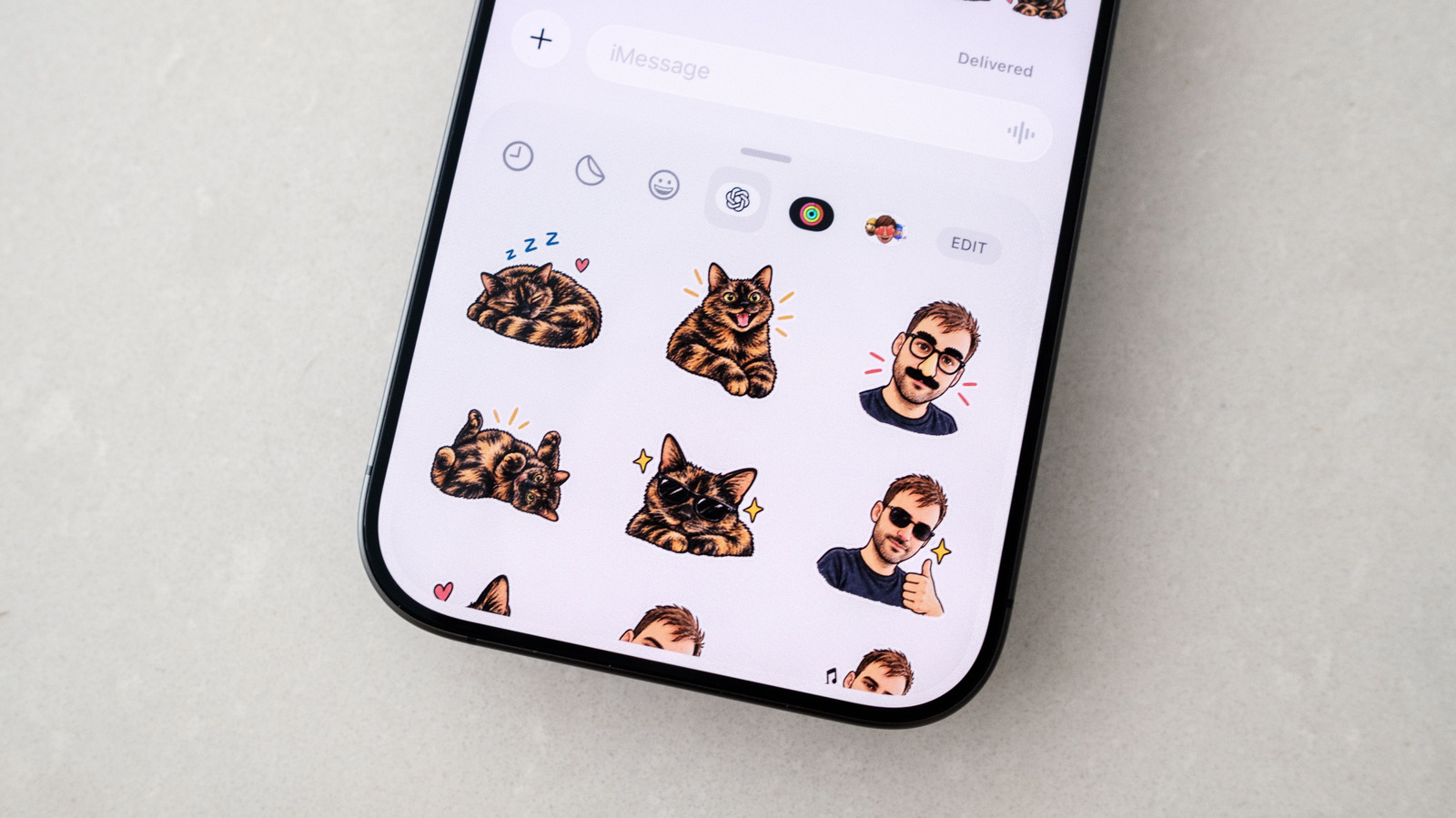
    Who doesn’t love a good sticker? Like emoji, stickers can be a great way to communicate warmth and nuance in a text message, ensuring any emotion you want to convey isn’t lost in between words. Apple has long allowed iOS users to turn their photos into stickers that you can send over iMessage, and while you can add effects to stickers made this way, they’re limited in scope. If you want something a bit more fun, OpenAI recently <a href="https://x.com/ChatGPT/status/2091996384954069032″ rel=”nofollow noopener” target=”_blank”>added a sticker-specific workflow to ChatGPT Images that makes it easy to turn almost any photo into stickers you can send to your friends and family.

    How to generate stickers with ChatGPT
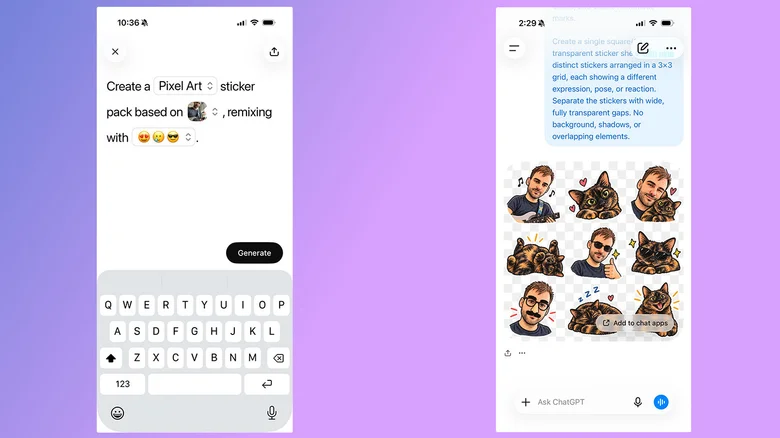
    A pair of screenshots showing how to generate stickers for use in iMessage and WhatsApp.

    The easiest way to generate stickers using ChatGPT is through the mobile app (iOS and Android). Once you have the app open, follow these steps:

    1. Open the sidebar by tapping the menu icon at the top left of the interface.
    2. Select Images.
    3. Under the Trending tab, tap Stickers.
    4. Select a style, reference image or images and set of emoji. The emoji selection is designed to guide ChatGPT.

    After a few moments, ChatGPT will generate a set of nine stickers that you can add to iMessage and WhatsApp. If you’re happy with its output, tap Add to chat apps, followed by either iMessage or WhatsApp to import them to your preferred messaging platform. If you select WhatsApp, you’ll be first asked to name the sticker pack before it’s added to the app. Apple’s iMessage won’t be an option if you’re using an Android phone.

    If you’re not happy the stickers ChatGPT has generated, you can tell it to tweak them by following these steps:

    1. Tap one of the stickers.
    2. Select Edit from the menu that appears.
    3. Describe the changes you want by typing into the prompt bar.

    Outside of the method described above, you can write your own prompt instructing ChatGPT to generate a sticker. It can be useful to do things this way if you want the chatbot to stay more faithful to your original

    Like before, if you’re happy with the result, tap Add to chat app, followed by either iMessage or WhatsApp to export the sticker. Similarly, tap the image and then Edit to ask ChatGPT to modify its output. If at any time you feel ChatGPT completely misunderstood your request, you can tell it to try again from scratch by tapping the three dots icon and then Retry.

    How to send your new stickers to someone
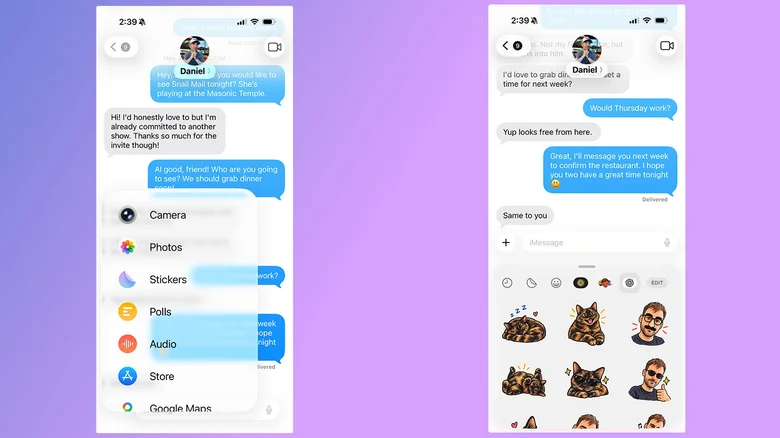
    A pair of screenshots showing how to send stickers over iMessage.

    Once you have a few different stickers you’re happy with, sending them involves going to your favorite messaging app and using the same flow you would use to send regular stickers. In case you need a refresher, here’s how to do that. 

    For iMessage, open the Messages app and:

    1. Open a conversation.
    2. Tap the Plus button.
    3. Select Stickers.
    4. Tap the OpenAI logo toward the top of the compose window.
    5. Select the sticker you want to send.

    For WhatsApp, it’s even easier:

    1. Open a conversation.
    2. Tap the sticker icon (located on the right side of the compose bar). You may need to select a second sticker icon below if you’re served a selection of GIFs.
    3. Choose the sticker you want to send. You’ll find it grouped under whatever name you gave the pack it’s part of.

    One last note: any stickers you generate through ChatGPT will count against your daily and weekly usage limits. Keep that in mind if you’re on a free account, as you may have to wait for your limit to refresh before ChatGPT can complete a request.  

    Apple ChatGPT iMessage Make stickers
    Follow on Google News Follow on Flipboard
    Share. Facebook Twitter Pinterest LinkedIn Tumblr Email Copy Link
    myappsplus
    • Website

    Related Posts

    Retroid Pocket unexpectedly expands its Duo lineup with a Lite Plus version

    September 20, 2026

    Is there any benefit to keeping your smart TV in standby mode?

    September 20, 2026

    Elon Musk’s latest Boring Company pitch involves a Hyperloop between Austin and San Antonio

    September 20, 2026
    Add A Comment
    Leave A Reply Cancel Reply

    Top Posts

    This tiny AI box could save me from upgrading my perfectly good laptop

    September 6, 20263 Views

    New Target ad delivers look at upcoming deals in one of Nintendo’s ‘largest promotions ever’

    September 13, 20262 Views

    Top 10 Best React Native App Development Companies in 2026

    September 12, 20262 Views
    Latest Reviews

    JBL Xtreme 5 drops back to its best price with $100 off at Amazon

    myappsplusAugust 20, 2026

    The best website builders of 2026: 80+ platforms tested to find the easiest ways to build a site.

    myappsplusAugust 20, 2026

    Someone targeted security researchers using a fake crypto conference as a lure

    myappsplusAugust 20, 2026
    Stay In Touch
    • Facebook
    • YouTube
    • TikTok
    • WhatsApp
    • Twitter
    • Instagram

    Subscribe to Updates

    Get the latest tech news from FooBar about tech, design and biz.

    Most Popular

    JBL Xtreme 5 drops back to its best price with $100 off at Amazon

    August 20, 20260 Views

    The best website builders of 2026: 80+ platforms tested to find the easiest ways to build a site.

    August 20, 20260 Views

    Someone targeted security researchers using a fake crypto conference as a lure

    August 20, 20260 Views
    Our Picks

    “Get this robot out of my house!” How my spouse sense-checks the gadgets I bring home

    September 20, 2026

    Retroid Pocket unexpectedly expands its Duo lineup with a Lite Plus version

    September 20, 2026

    I use cable sleeves like this tidy up cords and keep pets in check, try it yourself for $6.50 (Save 28%)

    September 20, 2026

    Subscribe to Updates

    Subscribe to our newsletter and get the latest tech news, app updates, AI trends, smartphone reviews, and exclusive deals delivered straight to your inbox.

    Facebook X (Twitter) Instagram Pinterest
    • About Us
    • Get In Touch
    • Disclaimer
    • Privacy Policy
    • Terms & Conditions
    © 2026 MyAppsPlus. All Rights Reserved.

    Type above and press Enter to search. Press Esc to cancel.