Close Menu
MyAppsPlus

    Subscribe to Updates

    Get the latest creative news from FooBar about art, design and business.

    What's Hot

    T-Mobile is giving away the Apple iPhone 18 Pro for free

    September 12, 2026

    Nothing OS 5.0 Open Beta Hits Phone 4a Pro: What’s New?

    September 12, 2026

    Didn’t Pre-Order iPhone 18 Pro Yet? Here’s How Long the Wait is Now

    September 12, 2026
    Facebook X (Twitter) Instagram
    Facebook X (Twitter) Instagram
    MyAppsPlusMyAppsPlus
    Saturday, September 12
    • Home
    • Breaking Tech
    • Apps & Software
    • AI & Automation
    • Android
    • iPhone & iOS
    • More
      • Reviews
      • How-To Guides
      • Deals & Discounts
      • Shop
    MyAppsPlus
    Home»Breaking Tech»How to use the AI Clean Up tool in iOS 27 to remove unwanted objects in iPhone Photos
    Breaking Tech

    How to use the AI Clean Up tool in iOS 27 to remove unwanted objects in iPhone Photos

    myappsplusBy myappsplusSeptember 9, 2026003 Mins Read
    Share Facebook Twitter Pinterest Copy Link LinkedIn Tumblr Email Telegram WhatsApp
    Follow Us
    Google News Flipboard
    How to use the AI Clean Up tool in iOS 27 to remove unwanted objects in iPhone Photos
    Share
    Facebook Twitter LinkedIn Pinterest Email Copy Link

    Remove those photobombers with even more accuracy than before.

    Apple is adding a bunch of new AI features in iOS 27, with one of the most essential apps, Photos, getting some cool AI upgrades too. There’s one feature in particular that’s getting much better with iOS 27: Clean Up. This tool has been around since iOS 18 redesigned the Photos app, though it’s always lagged far behind its competitors. But thanks to Apple’s new AI models, Clean Up is now much better at removing objects from your photos.

    Before you can use the upgraded Clean Up, your iPhone needs iOS 27. If you’ve already installed the update, the next step is to enable Apple Intelligence if it’s not already. That means you need an iPhone 15 Pro or later. If you have an older iPhone, you won’t be able to take advantage of this feature. 

    Removing objects from your photos with Clean Up
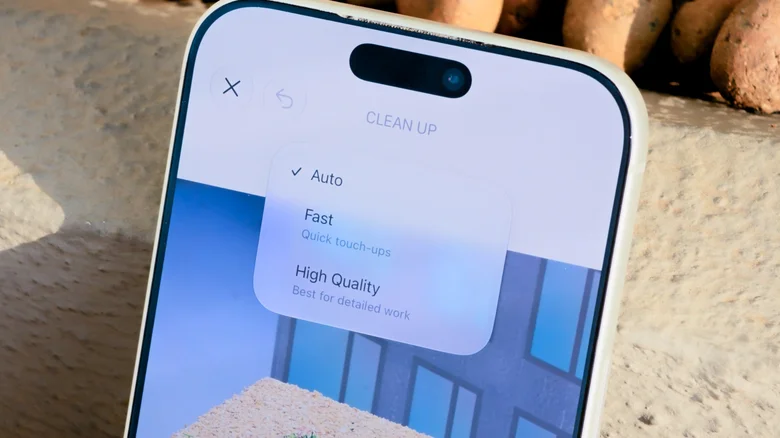
    Choosing between Fast and High Quality for Clean Up in iOS 27 Photos.

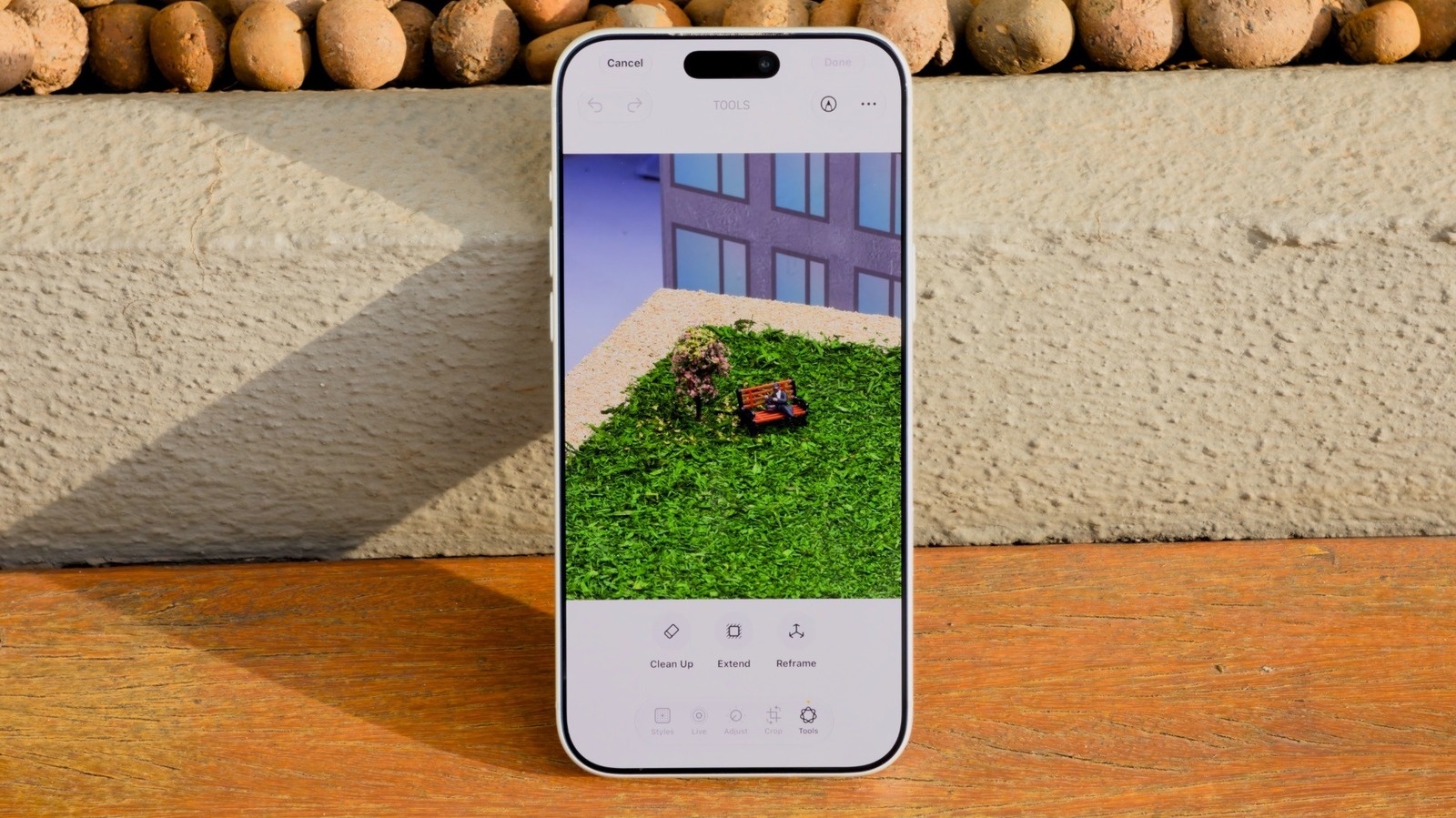
    If you’ve used Clean Up before, you’ll know where to find it in iOS 27. The difference is that it now has some extra controls. To start, choose a photo you want to adjust in the Photos app and tap the Edit button at the bottom. Select Tools and choose Clean Up. You’ll see an Auto button at the top, which lets you change the processing type. Leave this set to Auto to have your phone choose between the other two modes depending on how complex the image is. 

    Fast retouches your photos with a smaller AI model. It gets the job done much faster, but it’s not ideal for more complex retouching. Say you have a photo of a landscape and you want to remove a trash can in the background. Or maybe you need to hide the wiring on the street lights. These are the kinds of edits that the Quick model is most likely to handle well.

    But where Apple’s Clean Up feature has always struggled is with more complex edits. When there are a bunch of people behind you ruining your selfie, that’s where the High Quality option comes in. More advanced AI models can better understand the context of an image. But this improved processing comes at the cost of taking longer and using more battery.
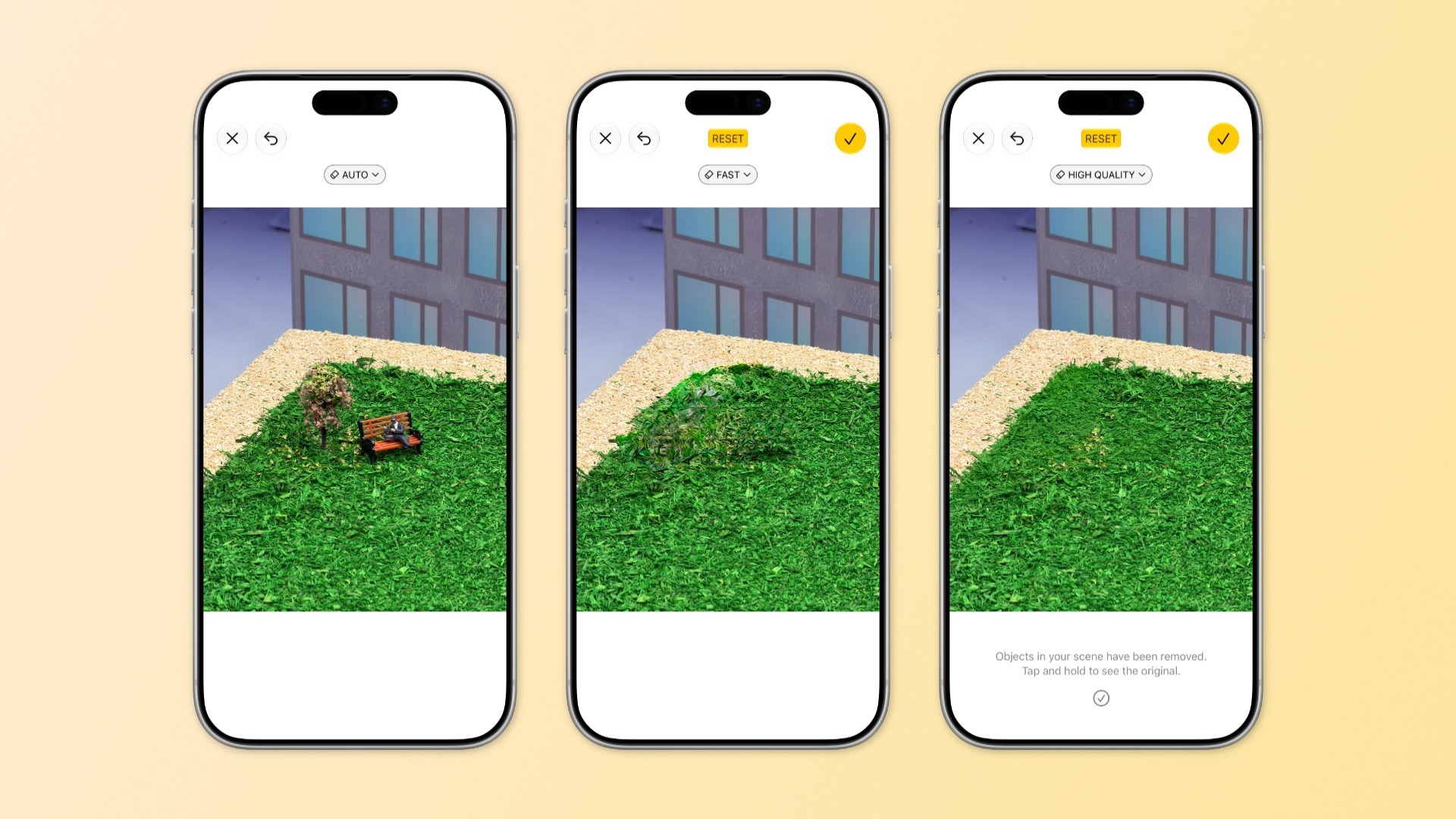
    Original photo (left) vs. Fast edit (center) vs. High Quality edit (right)

    Clean Up often tries to recognize unknown objects that you’ll want to remove from your photo. This doesn’t always work as it should, so it’s more accurate to circle what you want to remove.

    Extending and reframing photos

    For other cases where a photo didn’t come out like you intended, iOS 27 introduces two extra photo-editing features: Extend and Reframe. Extend uses AI to expand the area around your photo. Imagine you took a selfie, but it’s too close to your face. Extend can fix this by understanding the context to generate more of the image around it, filling in what’s already in the photo. Just pinch to zoom out as much as you want. It may take a while before you see the results, but that’s normal.

    Reframe is different: it changes the perspective and angle from which you originally took the photo. For example, maybe you weren’t looking at the camera when the picture was taken. Reframe lets you change that without retaking the photo. The results are hit or miss, though. Some photos appear natural. Others end up looking like AI slop, with the model hallucinating objects or even people who weren’t originally there. It’s worth a try if you really don’t like the original photo, but don’t get your hopes up. Improving your smartphone photography in the first place should have better results.

    Apple clean remove tool unwanted
    Follow on Google News Follow on Flipboard
    Share. Facebook Twitter Pinterest LinkedIn Tumblr Email Copy Link
    myappsplus
    • Website

    Related Posts

    T-Mobile is giving away the Apple iPhone 18 Pro for free

    September 12, 2026

    How to add your driver’s license to Apple Wallet and where you can use it

    September 12, 2026

    Top Stories: Apple Event Recap With iPhone Duo, iPhone 18 Pro, Apple Watch, and AirPods

    September 12, 2026
    Add A Comment
    Leave A Reply Cancel Reply

    Top Posts

    The 6 AI-free Linux distros I recommend most

    August 19, 20263 Views

    AI, automation, robot dogs ensure on-site nuclear safety

    September 7, 20262 Views

    This tiny AI box could save me from upgrading my perfectly good laptop

    September 6, 20262 Views
    Latest Reviews

    Apple Wallet driver’s licenses are coming to North Carolina, but there’s a catch

    myappsplusAugust 18, 2026

    3 Japanese AI Stocks Turning Automation Spending Into Real Revenue

    myappsplusAugust 18, 2026

    Apple: DOJ’s latest challenge in antitrust case ‘fails at every level’

    myappsplusAugust 18, 2026
    Stay In Touch
    • Facebook
    • YouTube
    • TikTok
    • WhatsApp
    • Twitter
    • Instagram

    Subscribe to Updates

    Get the latest tech news from FooBar about tech, design and biz.

    Most Popular

    Apple Wallet driver’s licenses are coming to North Carolina, but there’s a catch

    August 18, 20260 Views

    3 Japanese AI Stocks Turning Automation Spending Into Real Revenue

    August 18, 20260 Views

    Apple: DOJ’s latest challenge in antitrust case ‘fails at every level’

    August 18, 20260 Views
    Our Picks

    T-Mobile is giving away the Apple iPhone 18 Pro for free

    September 12, 2026

    Nothing OS 5.0 Open Beta Hits Phone 4a Pro: What’s New?

    September 12, 2026

    Didn’t Pre-Order iPhone 18 Pro Yet? Here’s How Long the Wait is Now

    September 12, 2026

    Subscribe to Updates

    Subscribe to our newsletter and get the latest tech news, app updates, AI trends, smartphone reviews, and exclusive deals delivered straight to your inbox.

    Facebook X (Twitter) Instagram Pinterest
    • About Us
    • Get In Touch
    • Disclaimer
    • Privacy Policy
    • Terms & Conditions
    © 2026 MyAppsPlus. All Rights Reserved.

    Type above and press Enter to search. Press Esc to cancel.