Close Menu
MyAppsPlus

    Subscribe to Updates

    Get the latest creative news from FooBar about art, design and business.

    What's Hot

    Why your Roku keeps randomly turning off (and how to fix it)

    September 13, 2026

    The Godox C100 is the weirdest camera and the weirdest light meter I’ve ever used — it’s an intriguing concept, but it misses the mark on both counts

    September 13, 2026

    Robotic Systems Emerge for Cell and Gene Therapy Manufacturing

    September 13, 2026
    Facebook X (Twitter) Instagram
    Facebook X (Twitter) Instagram
    MyAppsPlusMyAppsPlus
    Sunday, September 13
    • Home
    • Breaking Tech
    • Apps & Software
    • AI & Automation
    • Android
    • iPhone & iOS
    • More
      • Reviews
      • How-To Guides
      • Deals & Discounts
      • Shop
    MyAppsPlus
    Home»Breaking Tech»How to transfer data from your old iPhone to a new one
    Breaking Tech

    How to transfer data from your old iPhone to a new one

    myappsplusBy myappsplusAugust 26, 2026004 Mins Read
    Share Facebook Twitter Pinterest Copy Link LinkedIn Tumblr Email Telegram WhatsApp
    Follow Us
    Google News Flipboard
    How to transfer data from your old iPhone to a new one
    Share
    Facebook Twitter LinkedIn Pinterest Email Copy Link

    Quick Start makes things a lot easier.

    Until a few years ago, setting up a new iPhone always meant losing something. Half your settings gone. Some apps needed reinstalling from scratch and you wouldn’t know until you went looking for them. Some people just gave up and started from zero. Years of app data gone. Apple fixed most of that with Quick Start.

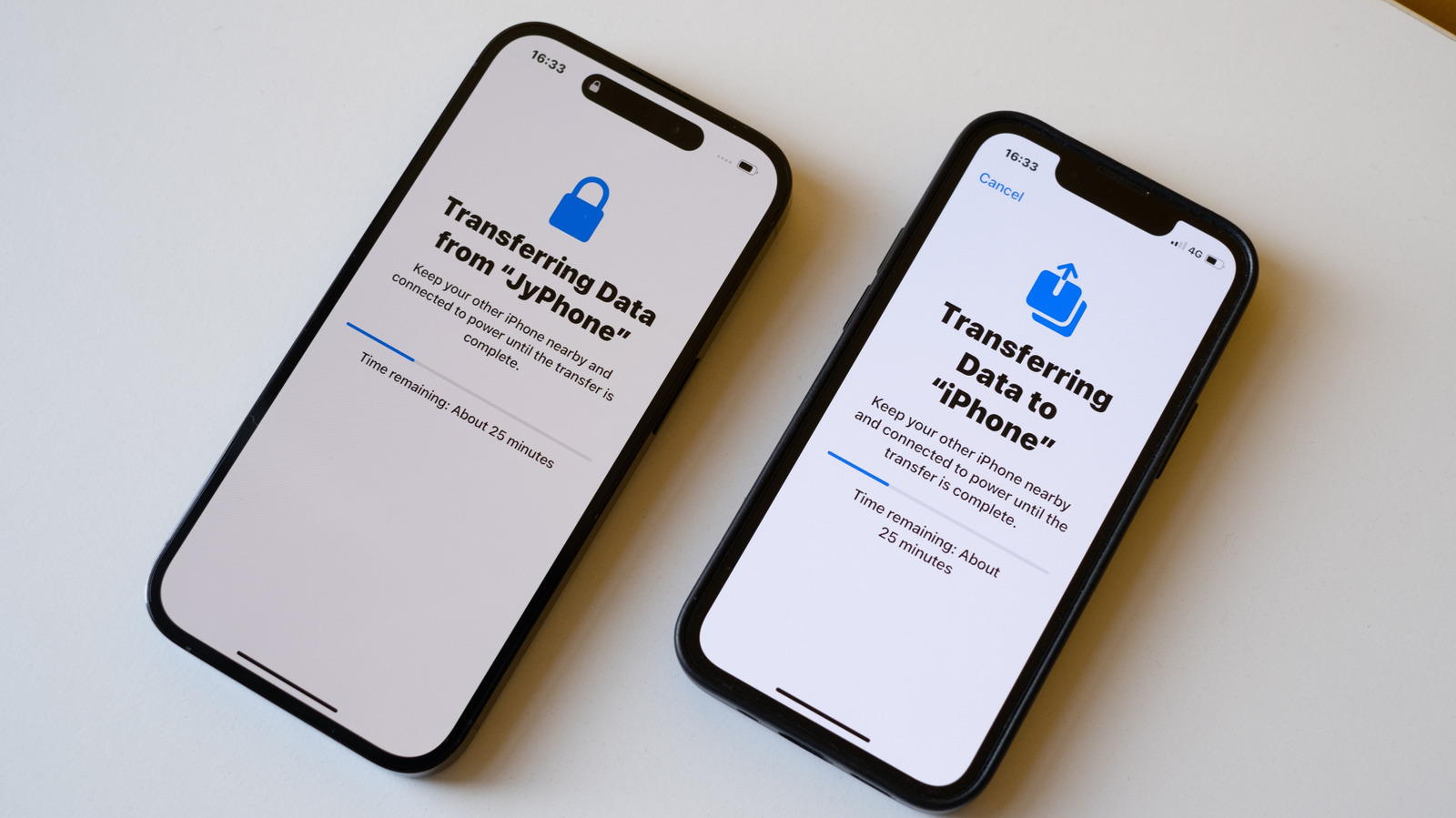
    Unlike before, when you needed a Mac or PC to back up your iPhone and transfer data to a new one, Quick Start does it all wirelessly. It’s as simple as placing the two devices next to each other and then following a few steps to transfer everything: contacts, photos, messages and even app settings. And if for some reason wireless isn’t working for you, connecting the two iPhones with a cable can fix everything.

    Using Quick Start to move your data between iPhones
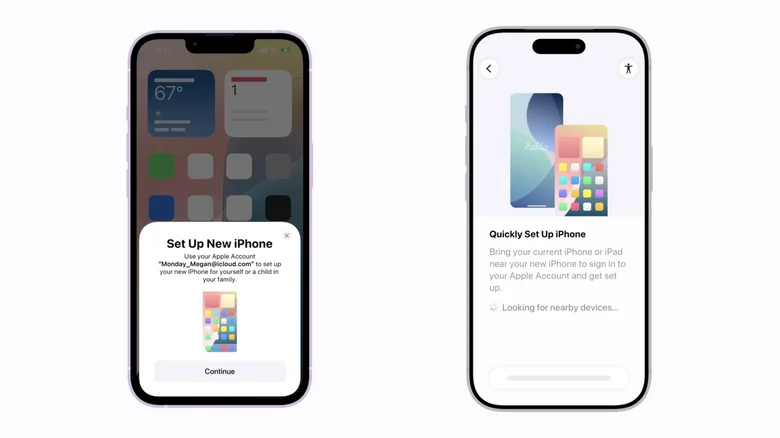
    Setting up a new iPhone.

    Quick Start is one of those “magical” Apple features. Just turn on your new iPhone next to your old one, confirm you want to use your Apple ID for setup, and Quick Start takes it from there. Your old iPhone shows an animation on the new one for you to scan with its camera. That’s what pairs the two devices and kicks off the transfer.

    Now you’ll go through some basic iPhone setup steps, such as entering your current passcode and setting up Face ID or Touch ID. When your new iPhone asks how you want to proceed, choose your most recent iCloud backup or transfer everything from your old iPhone using direct transfer.

    Are you in a hurry to start using your new phone? Choosing iCloud is your best option, since it downloads the essentials first and does the rest in the background. but it takes much longer when you have a lot of photos, videos and more on your old phone. iCloud is usually the fastest option, especially when you have a good Wi-Fi connection available.

    Troubleshooting common transfer issues
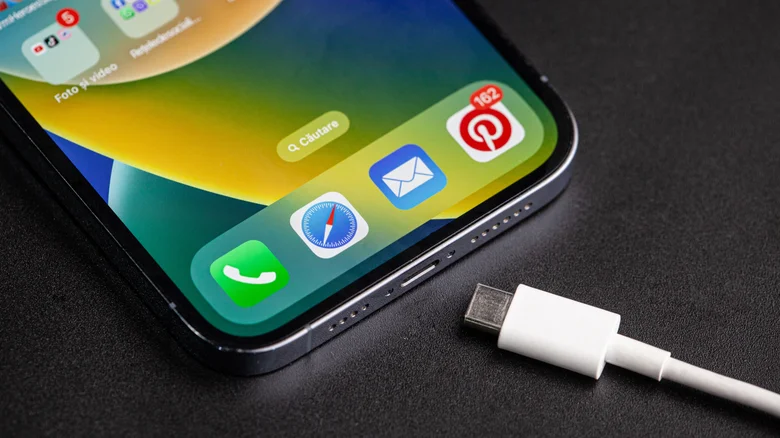
    iPhone and a USB cable.

    Quick Start usually works fine for most people, but that doesn’t mean things can’t go wrong. In some cases, the transfer may end up stalling due to a weak Wi-Fi signal or simply because you have a lot of data to transfer. Don’t sit there watching the progress bar. Restarting your iPhone safely cancels the process, and you can start over.

    A wired connection can be helpful when wireless transfer fails. Find a USB-C or, if your phone is older, a Lightning cable. Plug both devices in. The cable in the box is limited to USB 2 speeds, though. It’s fine for charging, but not great for moving large amounts of data. While base iPhone models have USB 2 ports, iPhone 15 Pro and newer Pro models support USB 3 transfers at up to 10Gbps. That’s over 20 times faster than USB 2, so the difference in transfer speed is huge. You just need the right cable.

    Some people may run out of storage space on their new device during the transfer. This usually happens when switching from a device with more storage than the new one. If that happens, offload some large files from your old phone before trying again. Also worth checking: both phones should be running the latest version of iOS. Mismatched software versions are a common reason the whole setup fails outright.

    Transferring data from an iPhone without having your old one on hand
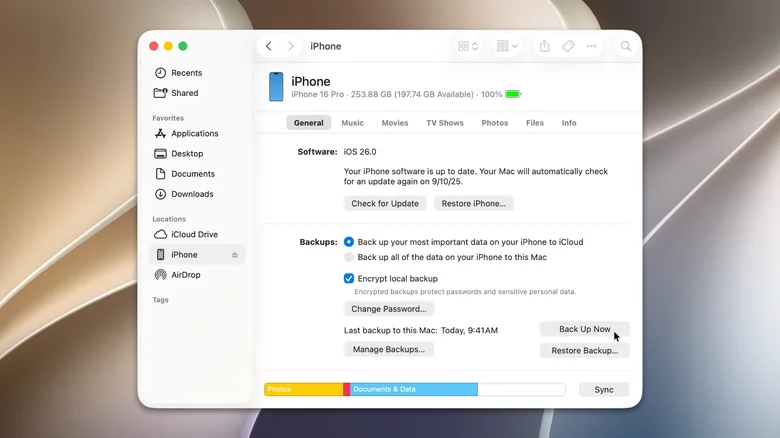
    Managing iPhone backup from a Mac or PC.

    You might not have your old iPhone in hand when the new one shows up – trade-ins are the usual reason. If that’s the case, don’t worry about it. Back up your data to iCloud while you still have your old phone with you. Your new iPhone will give you the option to sign in to your Apple Account. Then, restore from an iCloud backup.

    A Mac or PC works too. Plug your iPhone into the Mac or PC. Mac users will see the iPhone icon right in the sidebar. Go there and look for “Back Up Now. Windows takes an extra step first: you’ll need the Apple Devices app from the Microsoft Store. It’s a free app, though. With the new iPhone in hand, connect it to that same Mac or PC. It’ll pop up in Finder or the Apple Devices app almost immediately. Restore Backup is the button you want. Give it a few minutes and your data will all be back in a couple of minutes.

    Apple data From Smartphones Transfer
    Follow on Google News Follow on Flipboard
    Share. Facebook Twitter Pinterest LinkedIn Tumblr Email Copy Link
    myappsplus
    • Website

    Related Posts

    Why your Roku keeps randomly turning off (and how to fix it)

    September 13, 2026

    iPhone 18 Pro Exclusive: Apple CEO John Ternus on why the new variable aperture camera is the ‘best of both worlds’

    September 13, 2026

    Why do routers have so many antennas?

    September 13, 2026
    Add A Comment
    Leave A Reply Cancel Reply

    Top Posts

    The 6 AI-free Linux distros I recommend most

    August 19, 20264 Views

    AI, automation, robot dogs ensure on-site nuclear safety

    September 7, 20262 Views

    This tiny AI box could save me from upgrading my perfectly good laptop

    September 6, 20262 Views
    Latest Reviews

    Why Fluper is the No.1 Mobile App Development Company in the UAE, Saudi Arabia, and the Middle East.

    myappsplusAugust 18, 2026

    How New Kuwait And Indonesia Tech Deals At Baker Hughes (BKR) Have Changed Its Investment Story

    myappsplusAugust 18, 2026

    Google is reportedly planning to move all Pixel production out of China

    myappsplusAugust 18, 2026
    Stay In Touch
    • Facebook
    • YouTube
    • TikTok
    • WhatsApp
    • Twitter
    • Instagram

    Subscribe to Updates

    Get the latest tech news from FooBar about tech, design and biz.

    Most Popular

    Why Fluper is the No.1 Mobile App Development Company in the UAE, Saudi Arabia, and the Middle East.

    August 18, 20260 Views

    How New Kuwait And Indonesia Tech Deals At Baker Hughes (BKR) Have Changed Its Investment Story

    August 18, 20260 Views

    Google is reportedly planning to move all Pixel production out of China

    August 18, 20260 Views
    Our Picks

    Why your Roku keeps randomly turning off (and how to fix it)

    September 13, 2026

    The Godox C100 is the weirdest camera and the weirdest light meter I’ve ever used — it’s an intriguing concept, but it misses the mark on both counts

    September 13, 2026

    Robotic Systems Emerge for Cell and Gene Therapy Manufacturing

    September 13, 2026

    Subscribe to Updates

    Subscribe to our newsletter and get the latest tech news, app updates, AI trends, smartphone reviews, and exclusive deals delivered straight to your inbox.

    Facebook X (Twitter) Instagram Pinterest
    • About Us
    • Get In Touch
    • Disclaimer
    • Privacy Policy
    • Terms & Conditions
    © 2026 MyAppsPlus. All Rights Reserved.

    Type above and press Enter to search. Press Esc to cancel.