Close Menu
MyAppsPlus

    Subscribe to Updates

    Get the latest creative news from FooBar about art, design and business.

    What's Hot

    New Polish jet-powered drone looks a lot like a miniature B-2 Spirit stealth bomber, and there’s a good reason why

    September 15, 2026

    A dancing dog mascot, 23 screws, 9 parts: Inside Dell’s attempt to show Japanese kids how computers work and how to assemble one

    September 15, 2026

    Oppo confirms global Find X10 Pro Max launch powered by MediaTek’s latest flagship chip

    September 15, 2026
    Facebook X (Twitter) Instagram
    Facebook X (Twitter) Instagram
    MyAppsPlusMyAppsPlus
    Tuesday, September 15
    • Home
    • Breaking Tech
    • Apps & Software
    • AI & Automation
    • Android
    • iPhone & iOS
    • More
      • Reviews
      • How-To Guides
      • Deals & Discounts
      • Shop
    MyAppsPlus
    Home»Android»How to manually update Android Auto (and what it might mean if you can’t)
    Android

    How to manually update Android Auto (and what it might mean if you can’t)

    myappsplusBy myappsplusSeptember 15, 2026003 Mins Read
    Share Facebook Twitter Pinterest Copy Link LinkedIn Tumblr Email Telegram WhatsApp
    Follow Us
    Google News Flipboard
    How to manually update Android Auto (and what it might mean if you can’t)
    Share
    Facebook Twitter LinkedIn Pinterest Email Copy Link

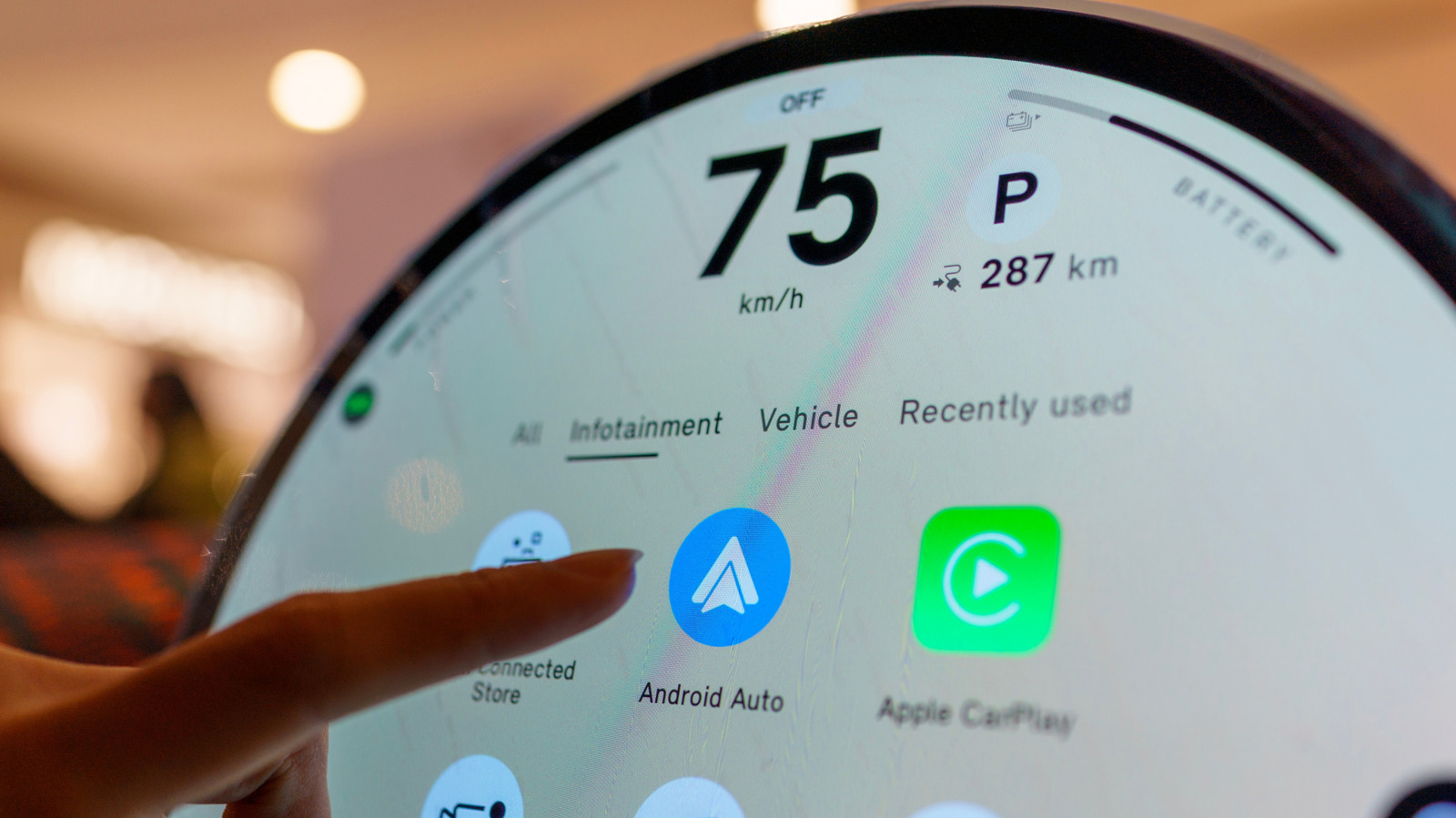
    The app lives in the Play Store, so start there if you want to update.

    Even though Android Auto appears on your car’s infotainment display, all of its features are powered directly by your smartphone. And like most things on your phone, it can receive regular updates over the internet to fix bugs and add new functionality. We’ve seen Google add its Gemini voice assistant, support for widgets and even overhaul the visual look of the platform to better match the modern Android identity of late.

    While Android Auto should keep itself up to date in most cases, you can also update it manually if you’re running into issues or are anticipating a particular feature.

    How to update Android Auto and does it update automatically?
    Netflix in Play Store with update and uninstall buttons

    The Google Play Store is responsible for keeping Android Auto up-to-date. This is because Android Auto is packaged as a regular app rather than a core system component. The latter would mean only getting updates

    In practical terms, this means that Android Auto should be updated automatically in the background like any other app on your phone. These updates can fail sometimes, though, or be delayed indefinitely if your phone doesn’t detect a Wi-Fi network. By default, the Play Store won’t use cellular data to automatically update apps in the background.

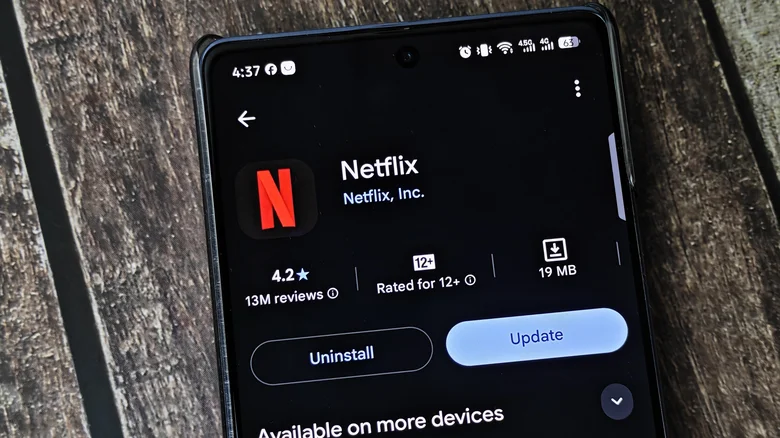
    Luckily, you can easily check whether you’re on the latest version of the app by heading into the Play Store and searching for Android Auto. This is where you’d see an option to manually update the app, as pictured above. If you simply see the Uninstall button here, it means you’re already on the latest version available for your device. As a sanity check, click on the three-dot menu to the top-right and ensure that the Enable auto update option is selected.

    If you’re using Android Auto on an older phone, keep in mind that you need Android 9.0 or higher to receive the latest updates. That said, Android 9.0 was released all the way back in 2018 so it’s not a problem for most devices.

    How to force an Android Auto update

    If the Google Play Store doesn’t allow you to update Android Auto, you may already have the latest version installed. However, if you’re experiencing glitches or other issues, you can try resetting the app.

    Within the Settings app on your phone, navigate to Apps > See all apps > Android Auto > Storage and cache. Finally, tap Clear storage. This will reset any preferences you’ve saved within the Android Auto interface, but it won’t delete any data stored within other apps like Google Maps or Spotify. Simply reconnect your phone to your car and check whether the issue has been resolved.

    If you’re still dealing with bugs, you can also go one step further and try the oldest version of Android Auto available on your phone. To do this, navigate to Apps > See all apps > Android Auto again but this time look for the three-dot menu to the top-right corner of your screen. You should see an Uninstall updates button here. Tap it and your phone will roll back to the earliest version included with your phone.

    You can try using this older version of Android Auto to begin with. If it offers a more stable experience, you can temporarily disable auto-updates within the Play Store and hope that a future update fixes the problem. Alternatively, you can try updating to the latest version and check if the fresh installation offers a noticeable improvement.

    Android Auto manually update What
    Follow on Google News Follow on Flipboard
    Share. Facebook Twitter Pinterest LinkedIn Tumblr Email Copy Link
    myappsplus
    • Website

    Related Posts

    Google rolling out September 2026 update for Pixel Watch 2, 3, & 4

    September 15, 2026

    What the iPhone Duo’s Camera Can and Can’t Do

    September 15, 2026

    2 ways Android users can take advantage of Apple’s MagSafe accessories

    September 15, 2026
    Add A Comment
    Leave A Reply Cancel Reply

    Top Posts

    The 6 AI-free Linux distros I recommend most

    August 19, 20264 Views

    AI, automation, robot dogs ensure on-site nuclear safety

    September 7, 20262 Views

    This tiny AI box could save me from upgrading my perfectly good laptop

    September 6, 20262 Views
    Latest Reviews

    New iOS 26 and macOS Tahoe updates fix 30 security vulnerabilities: what you need to know

    myappsplusAugust 18, 2026

    ICE agents can’t wear Meta glasses while they work, official memo warns

    myappsplusAugust 18, 2026

    Ubiquiti sued by Ukrainian families over claims its tech powered Russian battlefield drones

    myappsplusAugust 18, 2026
    Stay In Touch
    • Facebook
    • YouTube
    • TikTok
    • WhatsApp
    • Twitter
    • Instagram

    Subscribe to Updates

    Get the latest tech news from FooBar about tech, design and biz.

    Most Popular

    New iOS 26 and macOS Tahoe updates fix 30 security vulnerabilities: what you need to know

    August 18, 20260 Views

    ICE agents can’t wear Meta glasses while they work, official memo warns

    August 18, 20260 Views

    Ubiquiti sued by Ukrainian families over claims its tech powered Russian battlefield drones

    August 18, 20260 Views
    Our Picks

    New Polish jet-powered drone looks a lot like a miniature B-2 Spirit stealth bomber, and there’s a good reason why

    September 15, 2026

    A dancing dog mascot, 23 screws, 9 parts: Inside Dell’s attempt to show Japanese kids how computers work and how to assemble one

    September 15, 2026

    Oppo confirms global Find X10 Pro Max launch powered by MediaTek’s latest flagship chip

    September 15, 2026

    Subscribe to Updates

    Subscribe to our newsletter and get the latest tech news, app updates, AI trends, smartphone reviews, and exclusive deals delivered straight to your inbox.

    Facebook X (Twitter) Instagram Pinterest
    • About Us
    • Get In Touch
    • Disclaimer
    • Privacy Policy
    • Terms & Conditions
    © 2026 MyAppsPlus. All Rights Reserved.

    Type above and press Enter to search. Press Esc to cancel.