Close Menu
MyAppsPlus

    Subscribe to Updates

    Get the latest creative news from FooBar about art, design and business.

    What's Hot

    Partners must help customers ‘rethink’ supply-chain processes for agentic AI, says Kinaxis’ Andrew Bell

    November 16, 2026

    5 of my favorite Hoka running shoes are in the Black Friday sales — save up to 30% on the Clifton, Bondi and more

    November 16, 2026

    Samsung Galaxy Z Fold 8 now $450 off in Amazon’s early Black Friday sale

    November 16, 2026
    Facebook X (Twitter) Instagram
    Facebook X (Twitter) Instagram
    MyAppsPlusMyAppsPlus
    Monday, November 16
    • Home
    • Breaking Tech
    • Apps & Software
    • AI & Automation
    • Android
    • iPhone & iOS
    • More
      • Reviews
      • How-To Guides
      • Deals & Discounts
      • Shop
    MyAppsPlus
    Home»Breaking Tech»How to get warnings about speed cameras in Apple CarPlay
    Breaking Tech

    How to get warnings about speed cameras in Apple CarPlay

    myappsplusBy myappsplusNovember 16, 2026004 Mins Read
    Share Facebook Twitter Pinterest Copy Link LinkedIn Tumblr Email Telegram WhatsApp
    Follow Us
    Google News Flipboard
    How to get warnings about speed cameras in Apple CarPlay
    Share
    Facebook Twitter LinkedIn Pinterest Email Copy Link

    CarPlay is just the messenger, while your navigation app does all the hard work.

    With all the rage and controversy over Flock cameras, speed cameras (or speed traps) have taken a back seat. Most of us have to deal with speed cameras (though they’re banned in some states and limited in others), and Apple CarPlay is one way to handle them. While CarPlay itself doesn’t send out speed camera warnings, alerts can be turned on for whichever navigation app you use. It stands to reason that Apple CarPlay users default to Apple Maps, but there are other, equally useful alternatives like Waze and Google Maps. There’s always a caveat, however. Regardless of the nav app you use, mobile speed traps, by definition, move around a lot. Unless someone reports the new position on a given app, you won’t get a warning.

    Mobile speed detectors (in some form or another) have been around since the first speeding arrest in the US in 1899. A NYC taxicab driver named Jacob German was caught going 12 mph in an Electrobat (nearly the speed of light back then) in an 8 mph zone. The mobile units in those days were police officers on bicycles. Fortunately, modern technology provides drivers with information as it changes, but there’s no such thing as a navigation app that knows where every camera is at all times.

    Getting your navigation app to speak up

    In Apple Maps, there is no camera switch to toggle on or off. Camera alerts are automatic in supported regions. Waze, a compatible CarPlay navigation app, turns camera alerts on by default. You have the option to fine-tune them as well. In the Waze app, open Settings > Alerts and Reports > Reports > Cameras. Each camera type has its own toggles for “Show on map” and “Alert while driving.” Make sure any changes made in the Waze app take place before connecting to CarPlay, because Waze only applies them the next time you connect and go for a drive.

    Google Maps is similar yet has slightly different settings. On CarPlay, tap “Report” to pinpoint a mobile speed camera so other drivers can see when using the app. If you want information provided by other drivers, open Google Maps in CarPlay and tap Settings > Alert options > All alerts. 

    Some navigation apps will send warning alerts without actively navigating, as long as the app is running passively in the background. Radarbot sends alerts for fixed and red light cameras through CarPlay if you have a Gold membership. Roadar adds Flock cameras to the mix, along with other license plate readers mixed in, with speed and red light camera alerts. If you’re more concerned about Flock cameras, FlockHopper is free and works with CarPlay as well.

    Does Apple CarPlay tell you the speed limit?
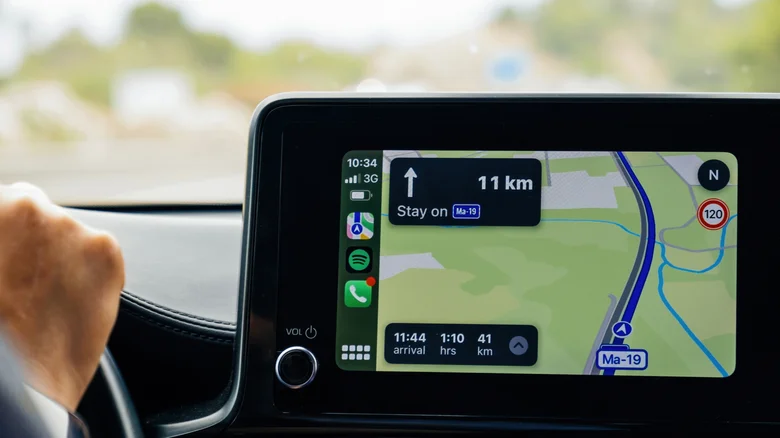
    Dashboard diplay with Apple CarPlay on the screen, showing speed limit, directions, and time to arrival.

    It can, though it depends on what navigation app you’re using. With Apple Maps, the Speed Limit toggle is in Settings > Apps > Maps > Driving. The posted limit will appear on screen while you navigate. With the Waze app, make sure you’re disconnected from CarPlay, open Waze and tap Settings > Speedometer > Show Speedometer > Set Preferences > Show Speed Limit. Google Maps is similar to Waze, with the speed limit located in the speedometer settings. Open the Google Maps app, tap your profile picture and tap Settings > Navigation > Driving > Speedometer.

    Stock CarPlay doesn’t include a speedometer, but apps like Waze and Google Maps will display current speeds through CarPlay if you want. Both Google Maps and Waze will warn you if your speeds climb too high, and Waze will give you a heads-up if speed limits are about to drop sharply. In response to car manufacturers ditching CarPlay, Apple introduced CarPlay Ultra, which displays your current speed on the instrument cluster, unlike regular CarPlay. CarPlay Ultra is fully integrated, so it’s not an informational speed display, as Google Maps makes clear about its own speedometer.

    About Apple EVs and Transportation speed warnings
    Follow on Google News Follow on Flipboard
    Share. Facebook Twitter Pinterest LinkedIn Tumblr Email Copy Link
    myappsplus
    • Website

    Related Posts

    Apple Seeks 200,000 People for AI Health Study

    November 16, 2026

    How one 13-year-old is helping solve a huge solar panel limitation

    November 16, 2026

    Apple wants 200,000 iPhone owners to grade AI answers about their health

    November 16, 2026
    Add A Comment
    Leave A Reply Cancel Reply

    Top Posts

    Save on your groceries, gas, and holiday shopping with this $15 BJ’s membership (Reg. $60) 

    November 4, 202629 Views

    Google’s new AI shopping cart tracks deals across stores

    October 25, 202628 Views

    Get Up to 38% Off Acer, Alienware, HP and More During Woot’s Laptop Sale

    October 23, 202627 Views
    Latest Reviews

    iPhone Ultra is coming, here’s what the final rumors say

    myappsplusSeptember 9, 2026

    LG Smart TVs Caught Recording Audio in Standby and Scanning Your Network

    myappsplusSeptember 9, 2026

    Vikings & Legends Global Announce U.S. Bank Stadium Enhancements for 2026

    myappsplusSeptember 9, 2026
    Stay In Touch
    • Facebook
    • YouTube
    • TikTok
    • WhatsApp
    • Twitter
    • Instagram

    Subscribe to Updates

    Get the latest tech news from FooBar about tech, design and biz.

    Most Popular

    Vikings & Legends Global Announce U.S. Bank Stadium Enhancements for 2026

    September 9, 20260 Views

    IKEA just launched a Matter-enabled driver that makes your integrated cabinet lights part of your smart home

    September 9, 20260 Views

    Latest Dell Technologies Research Reveals that AI Ambition Outpaces Readiness Across Singapore

    September 9, 20260 Views
    Our Picks

    Partners must help customers ‘rethink’ supply-chain processes for agentic AI, says Kinaxis’ Andrew Bell

    November 16, 2026

    5 of my favorite Hoka running shoes are in the Black Friday sales — save up to 30% on the Clifton, Bondi and more

    November 16, 2026

    Samsung Galaxy Z Fold 8 now $450 off in Amazon’s early Black Friday sale

    November 16, 2026

    Subscribe to Updates

    Subscribe to our newsletter and get the latest tech news, app updates, AI trends, smartphone reviews, and exclusive deals delivered straight to your inbox.

    Facebook X (Twitter) Instagram Pinterest
    • About Us
    • Get In Touch
    • Disclaimer
    • Privacy Policy
    • Terms & Conditions
    © 2026 MyAppsPlus. All Rights Reserved.

    Type above and press Enter to search. Press Esc to cancel.