

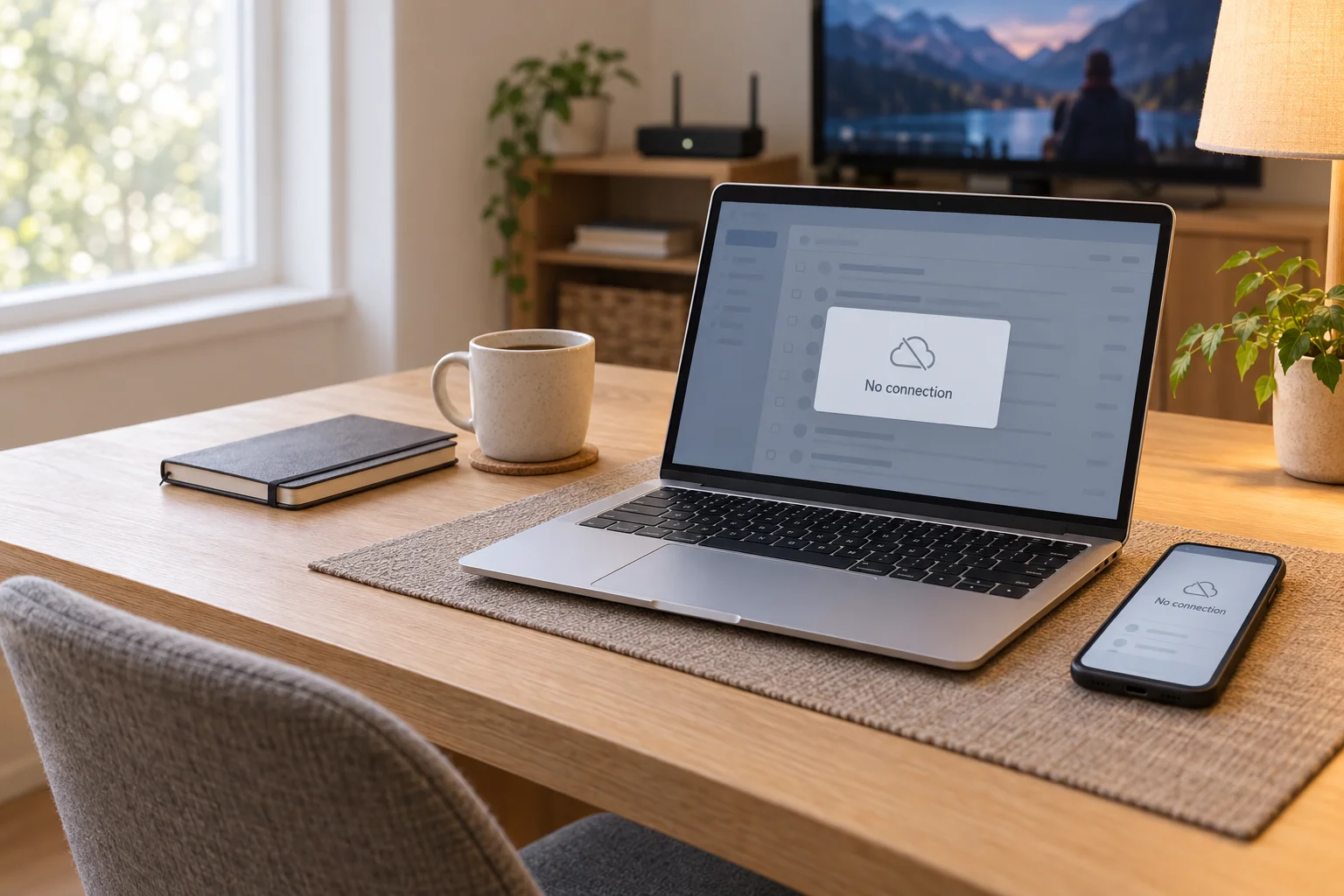
You go to check your email, and instead of your inbox, Gmail throws up a gray “No connection” banner. Meanwhile Netflix is streaming just fine and your group chat won’t stop buzzing. So what’s going on?
Here’s some good news: this is one of the most common Gmail hiccups out there, and it almost never means something’s seriously wrong. Most of the time it’s a small local glitch, a stuck app, a stale cache, or a VPN getting in the way. Gmail itself is rarely actually down. We’ll start by ruling out a real Google outage, then walk through fixes for your browser, Android phone, or iPhone. We’ll also clear up the confusion around Gmail’s offline mode, which is a completely different (and completely intentional) feature.
Quick Diagnosis: Is It Really Gmail, or Just You?
Before you start clearing caches and flushing anything, take 60 seconds to figure out whether the problem’s on Google’s end or yours. That way you’re not troubleshooting a problem that was never yours to fix in the first place.
- Check your general internet connection. Open any other website or app, like a news site or YouTube. If those work fine, your internet’s fine, and the problem’s specific to Gmail.
- Check the Google Workspace Status Dashboard. This is Google’s public, real-time health page for Gmail and its other services. If there’s a real outage, you’ll see it here first. Honestly, it’s worth checking this any time any Google service acts up, including Gmail.
- Try Gmail on a different device or network. If Gmail loads fine on your laptop but not your phone (or vice versa), that confirms the issue is local to one device, not Google’s servers.
If the dashboard’s all green and Gmail works elsewhere, keep reading. The fix is almost certainly on your end, and it’s usually a quick one.
General Fixes for Any Device
These fixes work regardless of whether you’re on a laptop, Android phone, or iPhone. Think of them as the “turn it off and on again” starting point (and you know how well that trick works on pretty much everything!).
- Restart the browser or app completely: Don’t just refresh the tab; fully close Chrome, Safari, or the Gmail app and reopen it. A stuck background process is one of the most common causes of the “no connection” banner.
- Toggle your connection: Switch Wi-Fi off and back on, or flip on Airplane Mode for 10 seconds and turn it off again. This forces your device to grab a fresh connection instead of clinging to a dead one.
- Sign out and back into your Google account: This resets the connection Gmail has with Google’s servers and clears out any corrupted session data.
- Clear your browser’s cache and cookies: Old, corrupted cache files can quietly break how Gmail loads. Think of your cache as a junk drawer; it’s useful until it’s so stuffed that nothing works right anymore.
- Try a different network: Switch from Wi-Fi to mobile data (or vice versa) to see if the issue follows you. If Gmail connects fine on a different network, your router or ISP might be the culprit.
Clearing Cache and Cookies in Chrome
- Open Chrome and click the three-dot menu in the top-right corner.
- Go to Settings > Privacy and security > Clear browsing data.
- Select Cookies and other site data and Cached images and files.
- Set the time range to All time for a thorough clean-out.
- Click Clear data.
Flushing DNS on Desktop
DNS is basically the internet’s phone book: it translates “mail.google.com” into an actual server address. If your computer’s got a stale or corrupted entry cached, Gmail might fail to connect even though everything else works fine.
On Windows, open Command Prompt and run:
ipconfig /flushdnsOn macOS, open Terminal and run:
sudo dscacheutil -flushcacheYou’ll be prompted for your Mac’s password since this uses sudo, that’s normal.
Once you’ve flushed DNS, close and reopen your browser, then reload Gmail.
Android-Specific Fixes
If you’re only seeing the error on your Android phone, the cause is often buried in a permission or data-saving setting you didn’t even know existed.
- Check Gmail’s mobile data permission: Android lets you restrict individual apps from using mobile data, and if Gmail got flagged (even by accident), it’ll act like it’s offline the second you leave Wi-Fi.
- Go to Settings > Apps > Gmail.
- Tap Mobile data & Wi-Fi (or Data usage, depending on your Android version).
- Make sure Background data and mobile data usage are both allowed.
- Turn off Data Saver (or add Gmail as an exception): Data Saver’s great for stretching a limited data plan, but it can restrict background syncing hard enough that Gmail can’t check for new mail.
- Go to Settings > Network & internet > Data Saver.
- If it’s on, either turn it off or tap Unrestricted data and enable Gmail there.
- Force-stop the app and clear its cache: This is the Android equivalent of restarting your router, a quick reset that clears out whatever glitch was tripping things up.
- Go to Settings > Apps > Gmail > Storage.
- Tap Force stop, confirm, then tap Clear cache (not “Clear data,” which would sign you out and remove local settings).
- Disable your VPN: VPN apps route your traffic through a different server, and some configurations block or delay the connection Gmail needs. Turn the VPN off completely and see if Gmail reconnects. If it does, you’ve found your culprit. Try switching servers or protocols in the VPN app before turning it back on full-time.
iPhone-Specific Fixes
iOS handles apps a little differently than Android, so the fixes look a bit different too. The goal’s the same though: reset whatever’s stuck.
- Force-close and reopen the Gmail app: Swipe up from the bottom of the screen (or double-click the Home button on older iPhones) to see your open apps, then swipe Gmail away to close it. Reopen it and see if the connection comes back.
- Update the app, or reinstall it: An outdated version of Gmail can develop bugs that Google’s already fixed in a newer release.
- Open the App Store and tap your profile icon.
- Scroll down to see if Gmail has a pending update, and install it if so.
- If updating doesn’t help, delete the Gmail app entirely and reinstall it from the App Store; this clears out any corrupted local files a simple update won’t touch.
- Remove and re-add your Google account: Here’s a quirk of the Gmail iPhone app worth knowing: you can’t just “sign out” like you might expect. Instead, you remove the account and add it back.
- Open the Gmail app, tap your profile picture, and select Manage accounts on this device.
- Tap your account, then tap Remove from this device.
- Reopen Gmail and add your account again by tapping Add another account.
- Disable your VPN: Just like on Android, a VPN can silently block Gmail’s connection to Google’s servers. Go to Settings > VPN (or General > VPN & Device Management on newer iOS versions) and turn it off temporarily.
Gmail Offline Mode: A Different Feature Entirely
This is where a lot of people get confused, and honestly, it’s an easy mix-up to make. The “No connection” error is Gmail failing to connect when it’s supposed to be online. Gmail offline mode is the opposite: it’s a feature you turn on on purpose so you can read, search, and reply to email with zero internet connection at all, like on a plane.
Offline mode only works in the Chrome browser (not Safari, Firefox, or Edge), needs a single Gmail tab, and won’t work in Incognito mode. To set it up:
- Open Gmail in Chrome and click the gear icon, then See all settings.
- Click the Offline tab.
- Check Enable offline mail.
- Choose how many days of mail to sync (7, 30, or 90 days) and whether to download attachments.
- Click Save changes.
If you’re on a Google Workspace account (through work or school) and offline mode won’t turn on at all, that’s likely because your admin hasn’t enabled the Gmail web offline setting for your organization yet. That one’s out of your hands; it needs an admin to flip it on in the Google Admin console.
Error Messages Quick Reference
Settings to Double-Check
- Mobile data permission (Android): Go to Settings > Apps > Gmail > Mobile data & Wi-Fi; confirm background data isn’t blocked.
- Data Saver (Android): Go to Settings > Network & internet > Data Saver; confirm Gmail isn’t restricted.
- VPN status (any device): Check whether a VPN app is actively connected and try disconnecting it.
- Offline mail setting (Chrome): Go to Gmail Settings > See all settings > Offline; confirm it matches what you actually want (on or off).
- Browser mode: Confirm you’re not accidentally troubleshooting inside an Incognito or Private window, where cache-clearing fixes and offline mode won’t behave normally.
When to Contact Google Workspace Support
Most “No connection” errors resolve with the steps above within a few minutes. But it’s time to escalate if:
- The Google Workspace Status Dashboard shows an active outage affecting Gmail, and you just need to wait it out (in which case there’s nothing to “fix,” just check back).
- You’re on a work or school Google Workspace account, and the issue affects multiple people in your organization at once; that points to an admin-level or domain-wide problem, not something you can fix from your own device.
- You’ve tried every fix above across multiple devices and networks, and Gmail still won’t connect.
If it’s a personal Gmail account, use Google’s Gmail help center to report the issue. If it’s a Workspace account, contact your organization’s IT admin first, since they manage settings (like offline mail access) you can’t control yourself. If it’s a broader outage, they can escalate directly to Google Workspace support.
Prevention Tips
- Keep the Gmail app updated: Turn on auto-updates in the App Store or Google Play Store so you’re not stuck running a buggy older version.
- Be mindful with VPNs: If you rely on a VPN daily, test Gmail after connecting to catch interference early instead of during an inbox emergency.
- Don’t over-restrict Data Saver: If Gmail’s one of your most-used apps, add it as an exception rather than fighting with it every time you need an email.
- Bookmark the Status Dashboard: Keeping the Google Workspace Status Dashboard handy means you’ll never waste 20 minutes troubleshooting your own device during an actual Google outage.
Wrapping Up
Nine times out of ten, Gmail’s “No connection” error is just a small local glitch, not Google falling over. A quick cache clear, app restart, or VPN toggle usually gets you back in your inbox in a few minutes. If you take away one thing from this guide, make it this: check the Status Dashboard first. It saves you from chasing a problem that was never yours to solve.
