

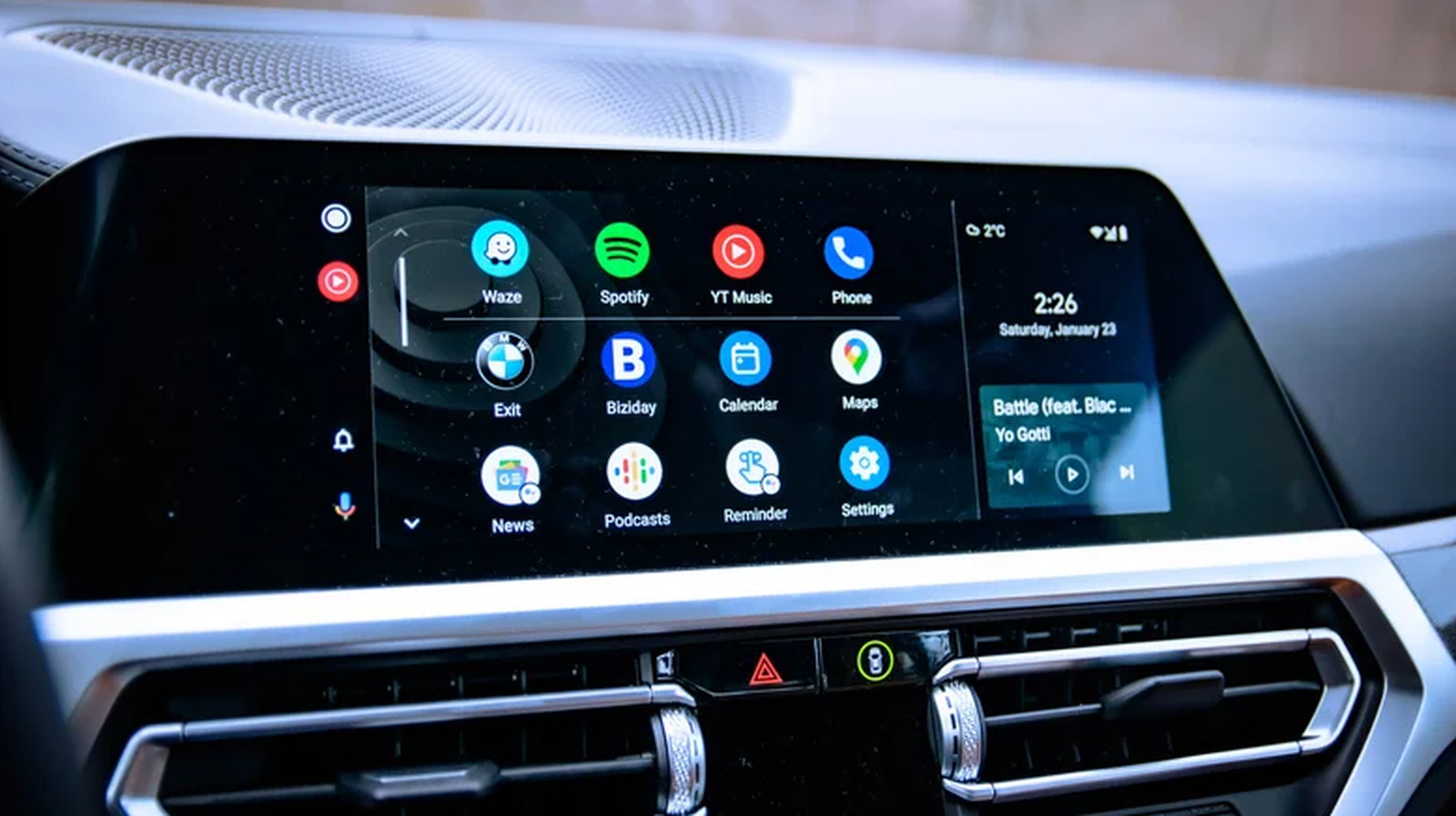
If they’re vanishing from the launcher without warning, there’s an easy way to bring them back.
Android Auto is designed to make driving safer and more connected, offering easy access to essential tools like navigation, music and messaging directly on your car’s display. Some 250 million people use Android Auto, so it’s become a reliable part of the daily commute for a large chunk of the world’s population. The platform isn’t without its quirks, of course, and one of the most common issues users encounter is apps vanishing from the launcher without warning.
Thankfully, such problems are quite easy to fix. In most cases, a missing app isn’t gone for good. It’s been quietly deactivated by your phone’s battery optimization settings running in the background. Similarly, hiding an app from Android Auto doesn’t require any work on your part, as you can simply remedy it
Whether you’re trying to find an app that’s gone missing or want to hide a few you don’t actually use, there are only a few steps for you to follow.
Why are some apps not showing up in Android Auto?
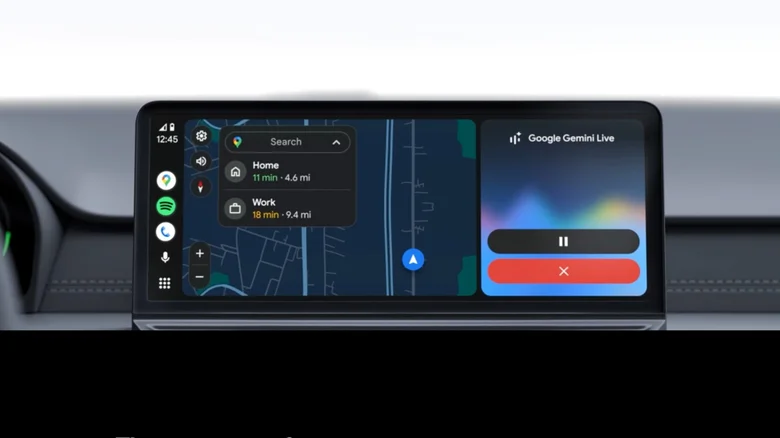
Missing apps are one of the most common frustrations Android Auto users experience, but it’s not always down to Android Auto itself. On Samsung phones, in particular, Android has a feature that automatically disables unused apps. This feature automatically disables apps you haven’t opened recently to save battery life. The apps are still on your phone, but if they’re disabled, they also get removed from Android Auto’s app launcher until they’re re-enabled.
So, if an app you previously used in Android Auto has disappeared, there’s a good chance it’s simply been deactivated by your phone.
How to make apps visible in Android Auto again
Getting a hidden app back on your car’s screen is quite straightforward. Here’s what you have to do:
-
Look for the app on your phone and launch it. You might have to update it first, if one is available.
-
Reconnect to Android Auto. The next time you open the app launcher in Android Auto, the app should be visible again.
That’s all to it, really — no settings menu, no reinstallation or anything. Opening the app signals to Android that it’s active again, which restores it to the Android launcher.
How to stop apps from disappearing automatically
The easiest way to ensure apps don’t vanish from your Android Auto launcher is to actually use them. Of course, if you fall out of the habit of listening to audiobooks, for example, it’s natural that the app will just go into hibernation. It’s actually easier to prevent Android from auto-disabling your apps with a simple tweak:
-
Open your phone’s Settings.
-
Go to Battery (or Battery and device care), then Background usage limits and look for Auto disable unused apps or put unused apps to sleep.
-
Turn the setting off.
How to customize Android Auto
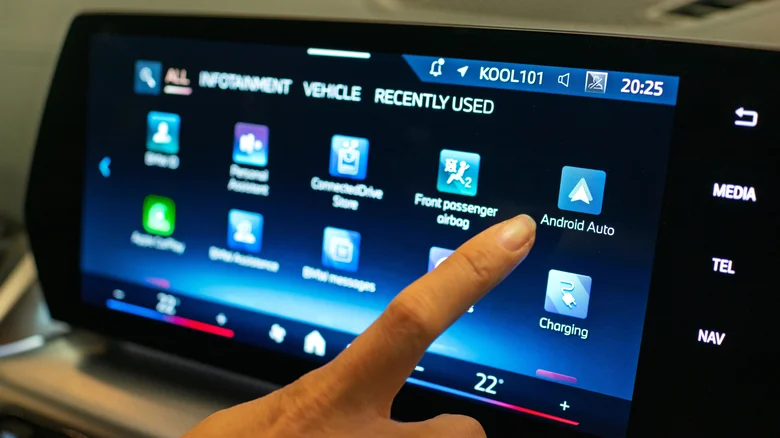
One of the things you can do to improve your Android Auto experience is to clean up the apps that show up on the screen.
You can do this on your car’s Android Auto display by going to Settings > Connected devices > Android Auto > Customize launcher and checking boxes for the apps you want to see and unchecking for those you don’t really use.
Why aren’t all phone apps showing on Android Auto? Well, one important thing to keep in mind is that not all apps are actually compatible with Android Auto. Only those that are designed to work with the platform will actually show up in the launcher menu. So you won’t be able to find games or Netflix on there, for instance, but you most definitely will find messaging apps, Google Maps and Spotify.
How to hide apps in Android Auto
Android Auto doesn’t have a dedicated “hide app” feature within its interface, so you can’t long-press on an app icon on your car’s screen to remove it like you would on a phone.
That said, you do have control over what appears in the launcher. The best way to do this is to simply customize the Android Auto launcher and decide which apps show up and which ones don’t. You’ll just have to retrace the same steps mentioned above to move apps in and out.
Whether you’re using a wired version of Android Auto or you’ve converted to the wireless version, the infotainment system can be extremely useful when navigating about town. There are so many things to do with the platform, especially if you dive into Android Auto’s developer menu and tune it to your own taste.
