Close Menu
MyAppsPlus

    Subscribe to Updates

    Get the latest creative news from FooBar about art, design and business.

    What's Hot

    Apple @ Work: Remote AppleCare log collection is one of the most underrated updates in macOS 27

    October 10, 2026

    Can you use a screen protector with your foldable phone?

    October 10, 2026

    ICYMI: What landed for AI builders in September 2026

    October 10, 2026
    Facebook X (Twitter) Instagram
    Facebook X (Twitter) Instagram
    MyAppsPlusMyAppsPlus
    Saturday, October 10
    • Home
    • Breaking Tech
    • Apps & Software
    • AI & Automation
    • Android
    • iPhone & iOS
    • More
      • Reviews
      • How-To Guides
      • Deals & Discounts
      • Shop
    MyAppsPlus
    Home»Breaking Tech»How to drop a pin on Google Maps
    Breaking Tech

    How to drop a pin on Google Maps

    myappsplusBy myappsplusOctober 10, 2026003 Mins Read
    Share Facebook Twitter Pinterest Copy Link LinkedIn Tumblr Email Telegram WhatsApp
    Follow Us
    Google News Flipboard
    How to drop a pin on Google Maps
    Share
    Facebook Twitter LinkedIn Pinterest Email Copy Link

    Google Maps has most of the world mapped out, but you can mark anywhere that isn’t yet.

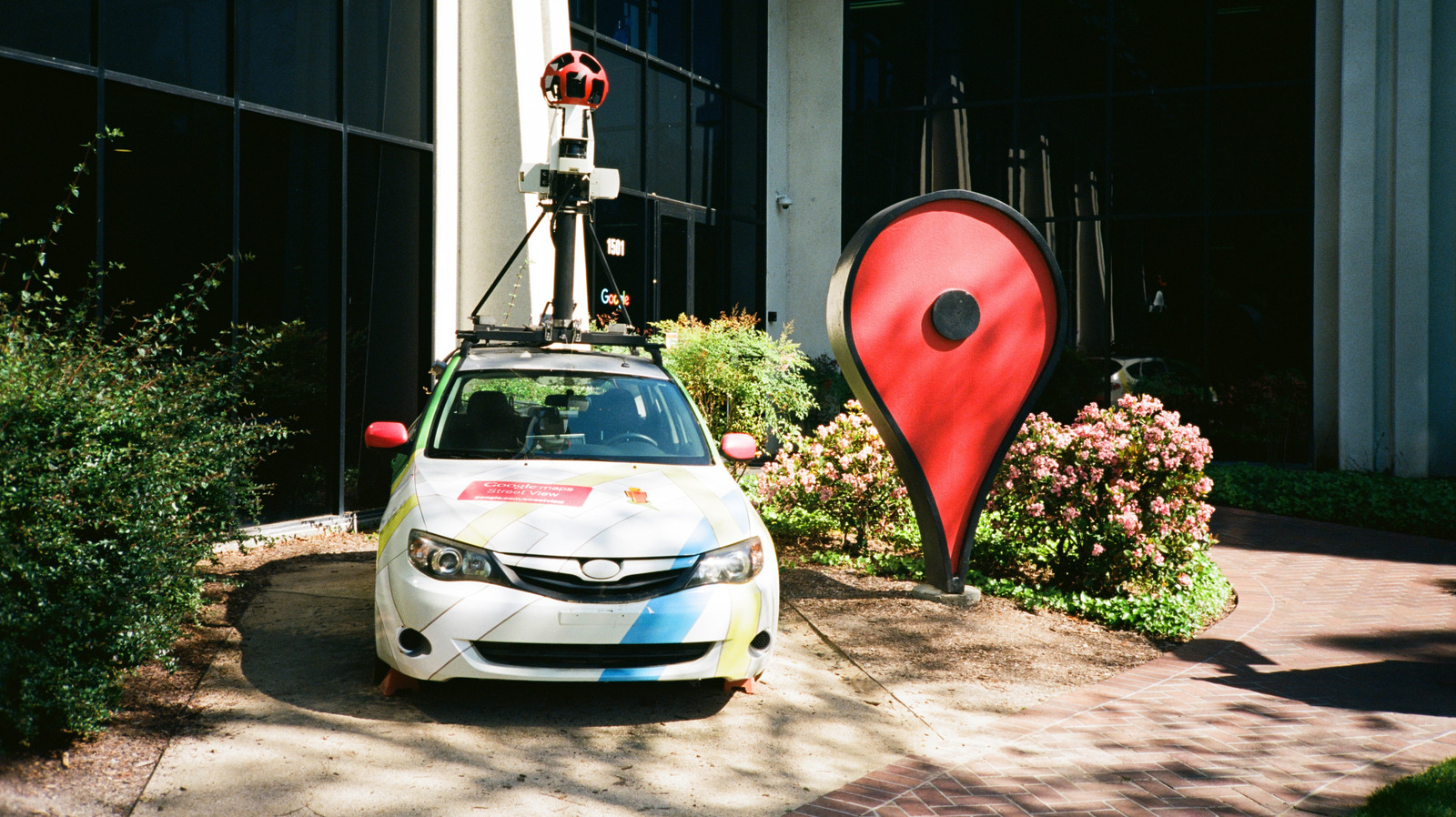
    Since Google Maps first came online in 2005, the little red pin has been its defining symbol, and it’s one you can take control of yourself. Even if where you are isn’t a specific business or address, you can easily drop a pin within the app to save a location. Whether you’re trying to meet up with friends in the park, mark a scenic viewpoint for future visit or remember where you left your bike, dropping a Google Maps pin can be incredibly useful.

    Over its lifetime, Google Maps has debuted a lot of advanced features, from 3D mapping to telling you how busy a business is. Sometimes, though, the simplest feature is the most useful: telling you how to get from point A to point B. If your point A or B isn’t officially on the map, putting it there yourself is easy.

    1. Open the Google Maps app.

    2. Find the location you wish to pin, then press and hold on the spot.

    3. If desired, add a label by scrolling across the options next to Directions and hitting Add label. This lets you set a custom name for the place instead of using its GPS coordinates, and adds it to the Labeled section of the Saved tab.

    4. To save the pin for yourself, tap Save in the same list. Choose a list and add a note about the spot if needed.

    5. To share the location with others, scroll through the list and tap Share, then choose your sharing method.

    On a computer, there’s an extra quick step, but it’s still easy to access and share the exact coordinates that come along with a pin:

    1. Go to the Google Maps website.

    2. Click the area that you wish you share. A gray dot will appear on the map, and you’ll see the GPS coordinates appear in a small box at the bottom of the screen. 

    3. Click those GPS coordinates to open the standard Google Maps info panel for that spot. From there, use the same steps as above to Save, Add a label or Share the place.

    4. As an alternative, you can right-click any spot on the map to show a list of options. Click the GPS coordinates to copy them or click Share this location to do so faster. Directions from here and Directions to here can also be useful if you don’t need to save the pin.

    Other useful Google Maps location features
    Close-up of the Google Maps mobile app logo.

    In lieu of sharing a pin to direct people to a location, you can also live-share your own location for a set time with the following steps:

    1. Open the Google Maps app.

    2. Tap your profile picture in the upper-right corner and select Location sharing.

    3. Select Share location (or New share), then choose the amount of time you want to share your location for. Alternatively, choose Until you turn this off to do so indefinitely. 

    4. Finally, select a contact’s Google account to share directly to their Maps app, or select More options to send

    For an even more customized experience, you can also create an entire map by using Google’s My Maps feature. With this, you can add multiple layers for different location types (like parks, restaurants and tourist attractions). It’s great for having an entire vacation itinerary all in one place, or keeping a detailed map of business clients for quick navigation. 

    Each custom map can have up to 10,000 lines, shapes, or places, meaning in addition to precise addresses, you can denote custom areas as well. These can only be created on desktop, but are viewable in the mobile app.

    drop Google Maps
    Follow on Google News Follow on Flipboard
    Share. Facebook Twitter Pinterest LinkedIn Tumblr Email Copy Link
    myappsplus
    • Website

    Related Posts

    Can you use a screen protector with your foldable phone?

    October 10, 2026

    Engadget review recap: The best of 2026

    October 10, 2026

    A grief-stricken road trip, The Traitors on the go and other new indie games worth checking out

    October 10, 2026
    Add A Comment
    Leave A Reply Cancel Reply

    Top Posts

    What was the PSX? The souped-up PS2 rarely sold outside of Japan

    September 14, 20269 Views

    Can reviews settle disputes that marked first two seasons?

    September 21, 20268 Views

    Experts call for leveraging AI, breaking key tech bottlenecks to propel advanced manufacturing

    September 19, 20266 Views
    Latest Reviews

    OpenAI renews push to get Apple’s trade secret theft lawsuit tossed

    myappsplusAugust 27, 2026

    5 Android Phones That Outperform The OnePlus 15

    myappsplusAugust 27, 2026

    My housemate keeps losing their keys, so I bought them these AirTag dupes that are better value

    myappsplusAugust 27, 2026
    Stay In Touch
    • Facebook
    • YouTube
    • TikTok
    • WhatsApp
    • Twitter
    • Instagram

    Subscribe to Updates

    Get the latest tech news from FooBar about tech, design and biz.

    Most Popular

    OpenAI renews push to get Apple’s trade secret theft lawsuit tossed

    August 27, 20260 Views

    5 Android Phones That Outperform The OnePlus 15

    August 27, 20260 Views

    My housemate keeps losing their keys, so I bought them these AirTag dupes that are better value

    August 27, 20260 Views
    Our Picks

    Apple @ Work: Remote AppleCare log collection is one of the most underrated updates in macOS 27

    October 10, 2026

    Can you use a screen protector with your foldable phone?

    October 10, 2026

    ICYMI: What landed for AI builders in September 2026

    October 10, 2026

    Subscribe to Updates

    Subscribe to our newsletter and get the latest tech news, app updates, AI trends, smartphone reviews, and exclusive deals delivered straight to your inbox.

    Facebook X (Twitter) Instagram Pinterest
    • About Us
    • Get In Touch
    • Disclaimer
    • Privacy Policy
    • Terms & Conditions
    © 2026 MyAppsPlus. All Rights Reserved.

    Type above and press Enter to search. Press Esc to cancel.