

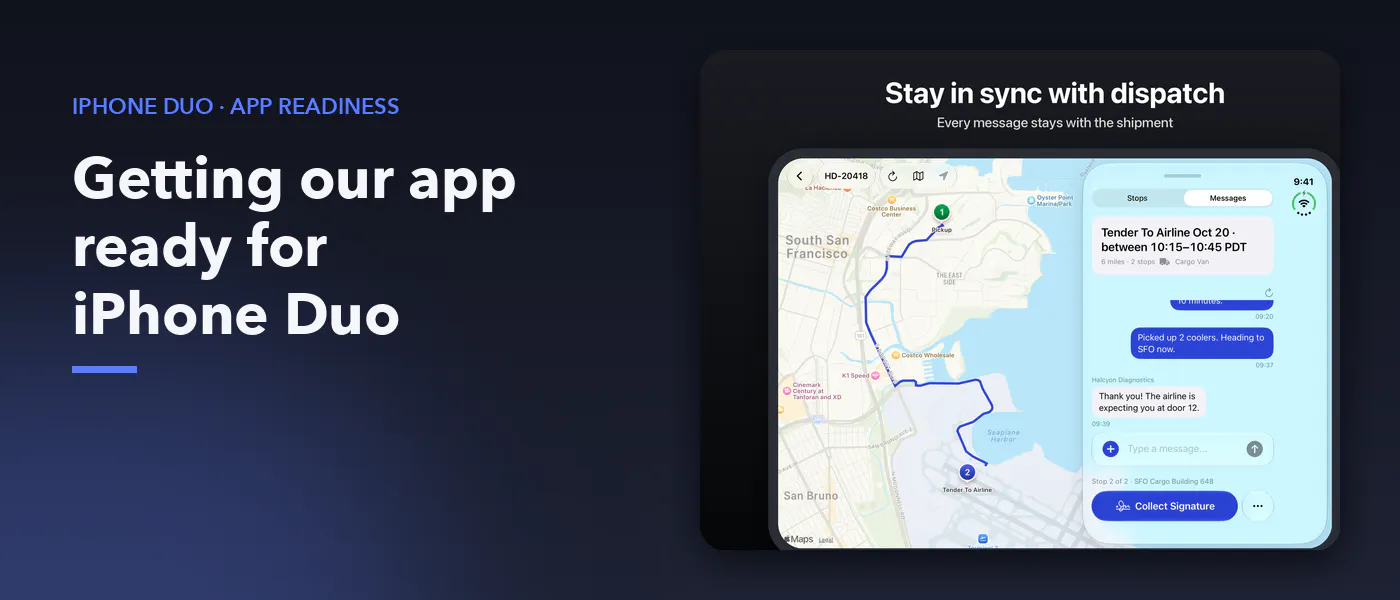
Our courier app launched on the iPhone Duo simulator but there was no back button on the Messages screen. The details sheet covered the navigation controls. On a map, part of the route could easily be out of view.
These were gaps in our app. We wanted to fix them before marking the app ready for the Duo. Much of the work involved how our existing interface worked in a differently-shaped window. Once the map, sheets and navigation started to play well together, we could produce a screenshot of the app for the App Store in an unfolded state.
In our driver screens we show a route on a map, delivery details, messages and actions for proof of delivery. On a narrow iPhone, a bottom sheet lets the driver switch between the details and the map. On the Duo, both could be shown at once.
Opening the app was the beginning
In this wider view, the relationship between the views changed. At times, the system would present the sheet next to the map. And navigation buttons could appear in a space occupied by the sheet. In the narrow view, we had assumptions about this layout. They no longer held up.
We started this work using the iOS 27.1 Duo simulator and Xcode 27.1 beta tooling. The observations below are of that tooling, not necessarily of every release of Xcode or of every piece of Duo hardware.
We didn’t save the version of the beta build used to take our screenshots. You could check Apple’s release notes for Xcode 27.1 and test for tooling issues in that version.
Work out where the sheet actually is
In our first pass at this, we used size classes to work out whether the sheet would be docked. In three places in our code we guessed at that.
But a size class doesn’t tell us where the sheet might end up. It’s up to the system whether to present the sheet on one side of the map. We wanted the content of the sheet, the map and navigation to all agree on the layout.
Instead of guessing, we took a measurement of the sheet and the map. And we compared the horizontal position of the sheet with the bounds of the map.
struct SheetPlacement: Equatable {
    var map: ClosedRange<CGFloat>?
    var sheet: ClosedRange<CGFloat>?

    var isDocked: Bool {
        guard let map, let sheet else { return false }
        let width = map.upperBound - map.lowerBound
        return sheet.lowerBound - map.lowerBound > width / 4
            && map.upperBound - sheet.upperBound < 32
    }
}
Each view reports its frame through SwiftUI’s onGeometryChange modifier. We compare the horizontal bounds of the sheet and map to determine whether the sheet is docked. So if you pull up or down on a bottom sheet, our decision about whether to dock it doesn’t change.
The narrow layout puts details below the map. The unfolded layout places them beside it. These existing fixture captures compare display layouts, not a before-and-after repair.
Put the back button where the driver can reach it
The thresholds support our sheet-and-map layout. They aren’t part of a broader SwiftUI docking system. Most importantly, we now provided the same answer about the position of the sheet to each of the views involved.
Most obviously, this broke Messages. In our unfolded state, we showed a rail on the trailing edge of the navigation bar. When the sheet docked, it covered this rail (including the back button).
A screen can feel open, yet still be limiting for the user. We wanted the same map and navigation actions regardless of where the sheet appeared.
When the sheet is docked, we hide the navigation bar. But we add those actions over the top-leading corner of the map. When the sheet returns to the bottom, we restore the normal navigation bar.
.toolbar(placement.isDocked ? .hidden : .automatic,
         for: .navigationBar)
.overlay(alignment: .topLeading) {
    if placement.isDocked {
        controls()
            .frame(maxWidth: .infinity, alignment: .leading)
            .padding(.trailing, placement.trailingInset)
    }
}
This inset on the trailing edge represents how much of the screen the docked sheet would occupy. That way, the driver could see some of the map and the controls.
And we made the controls respond to Dynamic Type. ViewThatFits first shows them in a single row. But as the available space shrinks, it pushes the actions on the map into a second row.
Even on a wide device, there may not be enough room for the controls once we add the sheet and larger text. So we included a medium height on our bottom sheet. That way the driver could see details of the sheet while still seeing some of the map.
The back button and map actions remain visible beside Messages. This existing store composition uses fictional fixture data.
Give a side sheet useful states
It didn’t make sense to include this option when the sheet was docked. The map was already visible next to it. And at half height, the content of the sheet got cut off.
So we dropped the medium detent when the sheet was docked. In the bottom sheet layout, we leave it up to the content.
And we needed to add a transition. If the sheet was at medium height when it docked, taking away that option could leave it in a collapsed state. So in our sheet, we moved that selection to the expanded state. The driver shouldn’t need to re-open the details if the size of the window changed.
This was a subtle change to the state of our sheet, but one that affected its appearance. Now the options in our sheet depend on its placement. And when the sheet moves from one placement to another, we preserve useful actions.
Frame the route in the space that remains
The map required two changes. First, the size of the window wasn’t the same as the area we could use for the route. The docked sheet covered the trailing side of the map.
We add trailing safe-area padding to the map based on the docked sheet’s width. This keeps the route framed in the visible area while the map continues to draw behind the sheet.
Second, when we unfold, fold, rotate or dock a sheet, the visible area changes. MapKit could keep its camera across these sizes. And the route could well fall out of view.
We check the size of the map and its safe area. We cancel any pending refit of the map and wait 300ms for the layout to complete. Then we refit the route.
refitTask?.cancel()
refitTask = Task {
    try? await Task.sleep(for: .milliseconds(300))
    guard !Task.isCancelled else { return }
    var transaction = Transaction()
    transaction.disablesAnimations = true
    withTransaction(transaction) { cameraPosition = .automatic }
    await Task.yield()
    withAnimation(.easeInOut(duration: 0.3)) {
        cameraPosition = .region(region)
    }
}
Why do we clear the camera? Well, if we applied the same region, we might do nothing. And 300ms was something we added, not required by the platform.
Taken together, the refit and inset allow the route to reflect what the driver could see in the window. Just changing the size of the window wasn’t sufficient.
Keep the checks about using the app
With these changes we could check, for example, whether after unfolding the window, the driver could see the route, read its details, access the actions on the map and get back from Messages.
We also need to check larger text and switch layouts while a sheet is already open. Launching directly into a wide window can miss problems with the camera position or sheet selection during a resize.
In our Android Fold work, I found a bottom sheet in the middle of the screen could hide the route on a wide window. We changed the layout so the details would appear next to the map. That change required decisions about space. So did many of the ones I made in my app.
In its October 28 announcement of the new MacBook Pro with a touchscreen, Apple suggested developers could try touch interactions in their iPadOS and iOS apps on this display. We haven’t tested our app on this hardware. For an app that runs on Mac, we’d check the same sheet and navigation behavior with pointer, keyboard, and touch input.
Then capture the layout for the App Store
Once we’d fixed my app, we could have taken screenshots of its behavior on the unfolded screen. To do that, our capture tools needed workarounds.
In our beta testing, XCUIScreen.main picked the cover display even when the inner panel was in use. Our fastlane helper selected the largest nonblank image from all the screens.
let screenshot = XCUIScreen.screens
    .map { $0.screenshot() }
    .sorted { area($0.image) > area($1.image) }
    .first { !isBlank($0.image) }
    ?? XCUIScreen.main.screenshot()
In our setup, the inactive display produced a black image. For our fixture scenes, choosing the largest nonblank image let us select the active display’s screenshot. We also checked capture dimensions to reject images from the wrong display.
After rebooting, the simulator lost its unfolded posture. To work around this, we wrote a watcher that restored the unfolded posture after reboot.
We launched our app directly into fixture scenes because test taps could reach the cover display instead of the visible panel. This made captures repeatable, but didn’t replace testing user navigation. But this didn’t eliminate the value of testing navigation in the app for someone using it.
In its screenshot specs (check as of October 28) Apple does allow 2853 x 2007 or 2007 x 2853 images of the unfolded screen. Our capture tool rotates and resizes the image for use in the landscape slot.
Apple says from April 2027, apps using the iOS 27.1 SDK or later will need Duo screenshots.
The screenshots showed the result of the app fixes: reachable controls, sheet states suited to their placement, and a route framed in the visible map area.
Before you take screenshots of your own Duo, go into key screens for your app and move the window around them. What gets selected, what moves and what doesn’t? These checks helped us find the fixes we needed before submitting our screenshots and getting our app up to date with a first class Duo experience.
