


Put those dusty keys to much better use.
Most of the keys on your keyboard have an important purpose, but that’s not the case for all of them. While the letters, numbers, most symbols and modifier keys like Shift are all vital, when was the last time you intentionally pressed a key like F7 or Scroll Lock? These keys are useless at best, and in some cases hitting the wrong one (like Caps Lock or Insert) can interrupt you and waste time.
In addition to disabling annoying keys, it’s also easy to remap any key to another function. If you never type in all caps, changing the Caps Lock key to do something else justifies its prime real estate on the keyboard. Take some time to map your keys more sensibly, and the time you spend typing will become more efficient.
The best way to remap keyboard keys
There are a couple of ways to change what keys do on Windows. For most people, the best option is Keyboard Manager, one of the many tools inside Microsoft’s free PowerToys suite. If you don’t have PowerToys installed already, grab it from the Microsoft Store or GitHub.
Once it’s open, select Keyboard Manager on the left sidebar and turn on the Enable Keyboard Manager slider. Next, click Remap a key to open a panel, followed by Add key remapping. Under Select, choose the key you want to overwrite by either clicking Select and typing it, or choosing it from the dropdown below this. Then, do the same under To send: to pick what the remapped key becomes.
For example, if you select Caps Lock on the left and Delete on the right, then pressing Caps Lock will have the same effect as the Delete key; it won’t toggle caps anymore. You can repeat this process multiple times to remap different keys.
You have a few other options beyond single keys for the To send: section. Key combos work, allowing you to enter shortcuts like Ctrl + Shift + Esc to launch Task Manager. The dropdown menu also has controls like Help, Play/Pause Media and Start Mail that are easy to miss. Pick Disable from the top of the list to shut off a key without changing its function.
Alternatively, change the Send Key/Shortcut box to Send Text, and your remapped key will write the text you enter in the box below. While this can be helpful for common text like your email address or phone number, a text expansion utility like Beeftext or a clipboard manager like ClipClip are better productivity tools for entering these repeated snippets.
Finally, try the Remap a shortcut panel to change shortcuts in a given app or across the system. For instance, if you use Ctrl + P all the time but find it uncomfortable to reach, change it to Ctrl + Q.
Keys that are good nominees for remapping
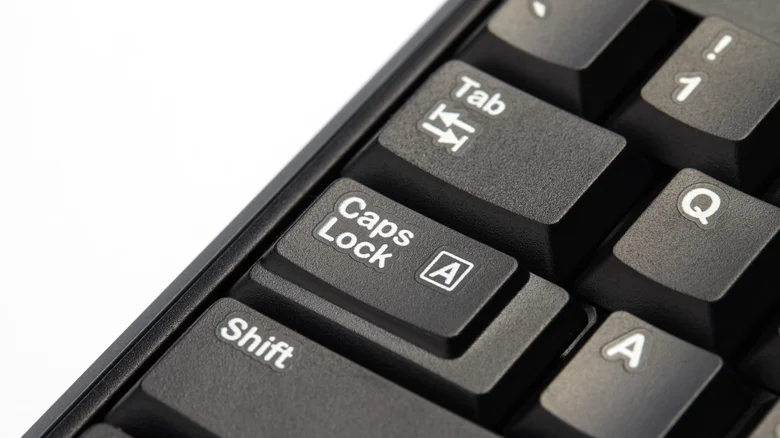
Look down at your keyboard, and you’ll probably recognize a handful of keys you barely use, which are the best candidates for remapping:
- Unless you need to type in all caps for your work, the Caps Lock key is something most people hit without realizing that results in having to fix a bunch of text later. I’ve set this to another Backspace key so it’s easy to erase with either hand.
- The Insert key toggles between Insert and Overtype modes, but this isn’t consistent across apps, and you probably prefer one or the other. I have this remapped to the Browser Search function, which also opens Windows search.
- The Scroll Lock key is only used to change what the arrow keys do in Excel. If you don’t use it, try remapping it to something like Browser Favorites or Browser Home.
- Pause/Break does almost nothing aside from Win + Pause opening the About panel of Settings, so you can put it to better use.
- If you only use the Alt and Control keys on one side, the others are good remapping candidates.
- The F1 through F12 keys are of varying usefulness. Some are common (like F5 for refreshing a browser page), while others (like F9) are barely used.
What actions to remap depends on your workflows and keyboard. If yours doesn’t have media keys, try remapping another key to Play/Pause for easy music control without having to buy a new keyboard.
PowerToys is a great solution for key remapping because it’s simple and easily reversible (toggle the app off to remove all changes temporarily). If you close its background process, keys will go back to normal, so it’s important to keep the app running at startup. It only affects your user account, and changes don’t apply on the Windows login screen. Plus, PowerToys has tons of other great features and is a first-party tool.
SharpKeys does a similar job, but because it makes changes to the Registry, the key remaps affect everyone and aren’t as easy to reverse. Utilities from top gaming keyboard manufacturers like Logitech and Razer are a good option for game-specific changes.
