

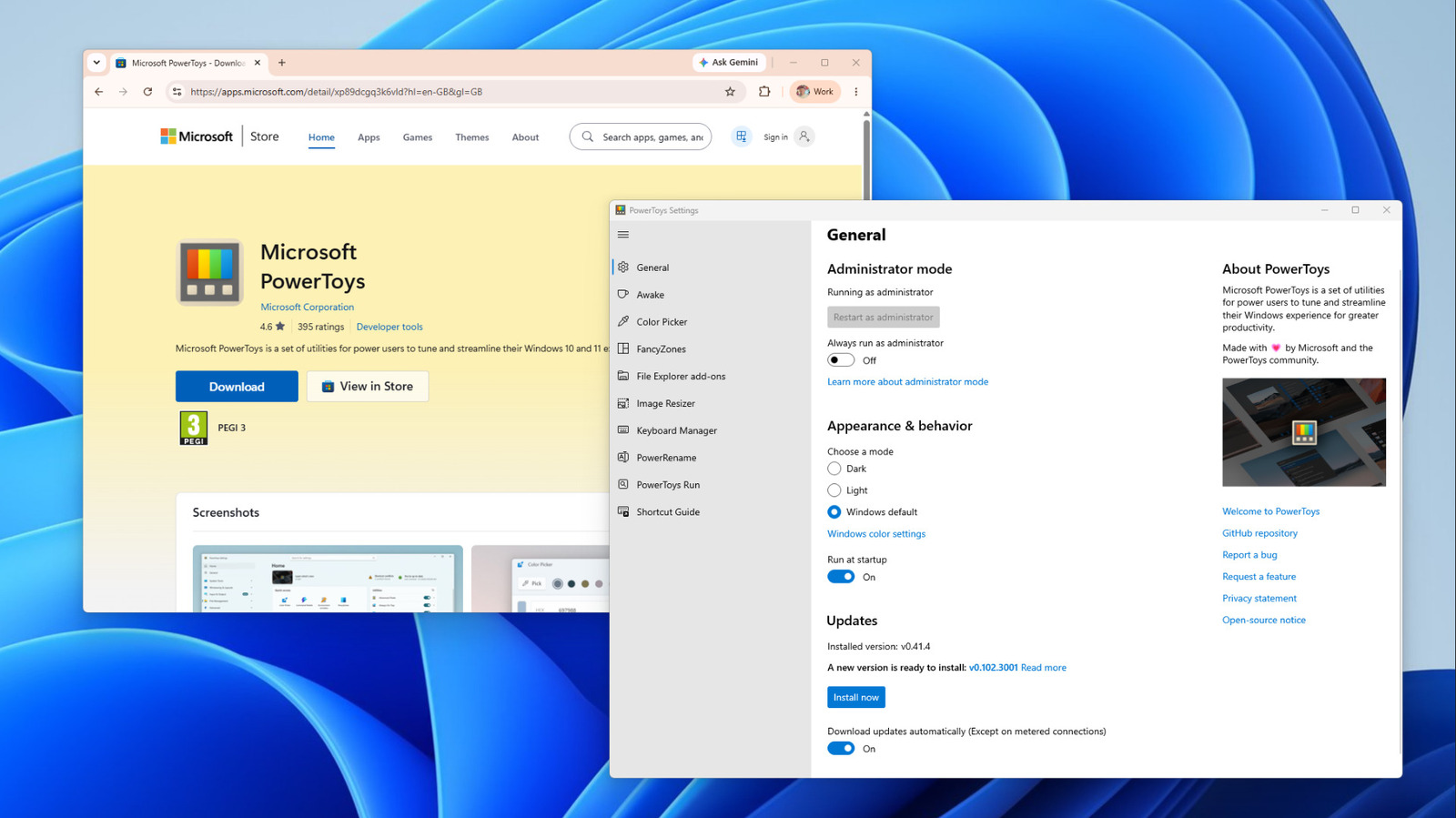
Microsoft’s free utility pack arranges windows, renames files in bulk and can now be scripted from the terminal.
Many of us find our workdays starting the same way, with that repetition continuing throughout the day. You’ll switch your PC on, open your browser, Slack, WhatsApp and Spotify, then spend the next couple minutes dragging each window to sit roughly where it was yesterday. Later, you’ll rename a folder of screenshots one after the other. None of it takes terribly long, but it adds up, and Windows doesn’t do much to help.
Microsoft PowerToys can handle most of these little chores. It’s a free collection of more than 30 utilities that the Windows developer maintains and offers for free on GitHub under an MIT license. It runs on Windows 11 or Windows 10 version 2004 and newer, on both x64 and ARM64 PCs. You can install it from the Microsoft Store, GitHub orwerToys –, and have the option to toggle each utility within on or off
Sure, you don’t need PowerToys. But if you do the same small jobs every day, a handful of its tools will make them a little bit easier and quicker. If you only install it for one module, it should be FancyZones. Using it goes alongside changing settings that improve your Windows 11 experience to make your everyday PC use better.
Arranging windows with FancyZones and Workspaces
The best feature by far, and one I’ve been using since I bought my ultrawide monitor in 2021, is FancyZones. It splits your screen into “zones” that windows snap into. Once you’ve installed PowerToys, press Win + Shift + ` (the backtick key) to open the layout editor. There, pick a template or select Create new layout to build a Grid (which you divide and merge) or a Canvas (where zones can overlap).
If that shortcut doesn’t work from the start, open PowerToys by searching for it in the Start menu, then on the Home tab, enable the slider for FancyZones.
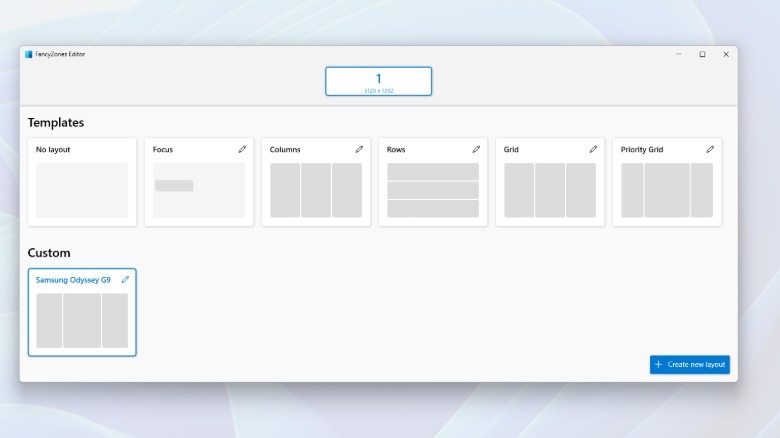
Once you’ve created a layout or chosen a template, hold Shift while dragging a window and the zones light up; drop it on one and it’ll automatically resize to fit. That means each app you use all the time can have a fixed spot in your eyeline, while turning on Move newly created windows to the last known zone sends apps back to their zones every time they reopen.
You’re also able to give custom layouts a number, then apply it with Win + Ctrl + Alt plus that number.
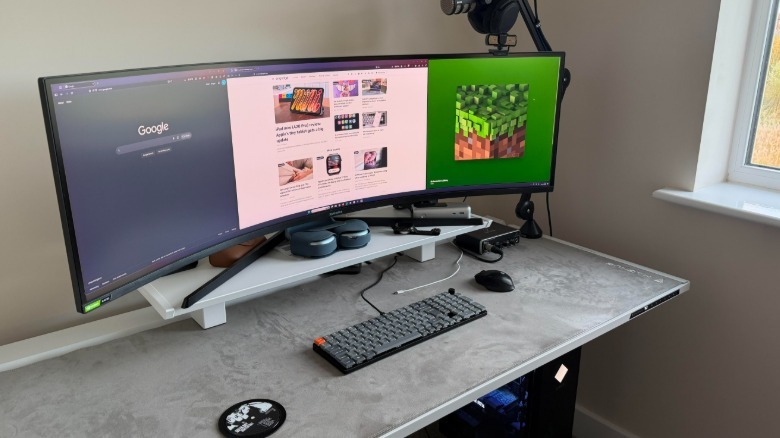
The Workspaces utility goes a step further by automatically opening the apps for you. Press Win + Ctrl + ` to launch its editor (enable it in PowerToys if this doesn’t do anything), select Create workspace, arrange your apps and hit Capture. You can then add command-line arguments to each app and save the setup as a desktop shortcut.
Bear in mind that PowerToys can’t tell an app where to open, so it launches each one then moves it into position. You’ll see the windows jump into place as they load.
Renaming files and remapping keys
PowerRename can rename hundreds of files at once. Select them in bulk by left-clicking and dragging, then right-click and choose the Rename with PowerRename option. You’ll get search and replace fields with a preview of each new name. You can use regular expressions, counters that start from any number and variables that pull in each file’s creation date. For photos, it can read EXIF data, so a folder full of IMG_ files can be renamed to the date each shot was taken and the camera it was taken with. If you get it wrong, just Ctrl + Z the entire batch.
Keyboard Manager, meanwhile, remaps keys and shortcuts across Windows or inside specific apps, which it identifies by process name, such as msedge.exe for Edge. A shortcut can also expand text, open a URL or launch an app, while tap-alone remaps let a key pressed by itself do something different while still working normally inside shortcut combos. Some core combinations like Win + L and Ctrl + Alt + Del can’t be remapped, though. The remaps only work when PowerToys is running in the system tray, making them easy to disable temporarily if needed compared to other remapping methods.
Command Palette, which Microsoft introduced in 2025 as the next iteration of PowerToys Run, is a launcher. Hit Win + Alt + Space and begin typing to open an app, work out a sum, run a command after a > or search the web after ??. It’s essentially a quick-access shelf that pins your favorite commands under the search box, launchable with Alt + 1 through Alt + 9. Run is still included if you prefer it, though.
Scripting PowerToys from the command line
You can also control PowerToys from the terminal, giving you options to automate work rather than just speeding it up. Its 0.102 release added command-line tools for Advanced Paste, Light Switch, Peek, PowerDisplay and the PowerToys settings. It also put the FancyZones, Image Resizer, File Locksmith and PowerDisplay commands on the system PATH so they run from any folder.
The settings tool, for example, can turn individual utilities on and off even when PowerToys isn’t running, and a single command line — PowerToys.FancyZones.CLI.exe s columns --all — applies the columns layout to every monitor at once. Those commands can run unattended with the Task Scheduler, Windows 11’s built-in automation tool. Point a task’s Start a program action at a PowerToys command and set it to fire at logon or on a schedule which, among other uses, can apply your FancyZones layout as you sign in.
As for whether PowerToys slows your PC down, some of its utilities keep a helper process running in the background so they open instantly, which uses memory even when you’re not using them. Microsoft also warns that Keyboard Manager can hurt performance in games and that FancyZones’ options to show zones on all monitors while dragging may affect performance. Switch off any utility you don’t use, and you shouldn’t have a problem.
