

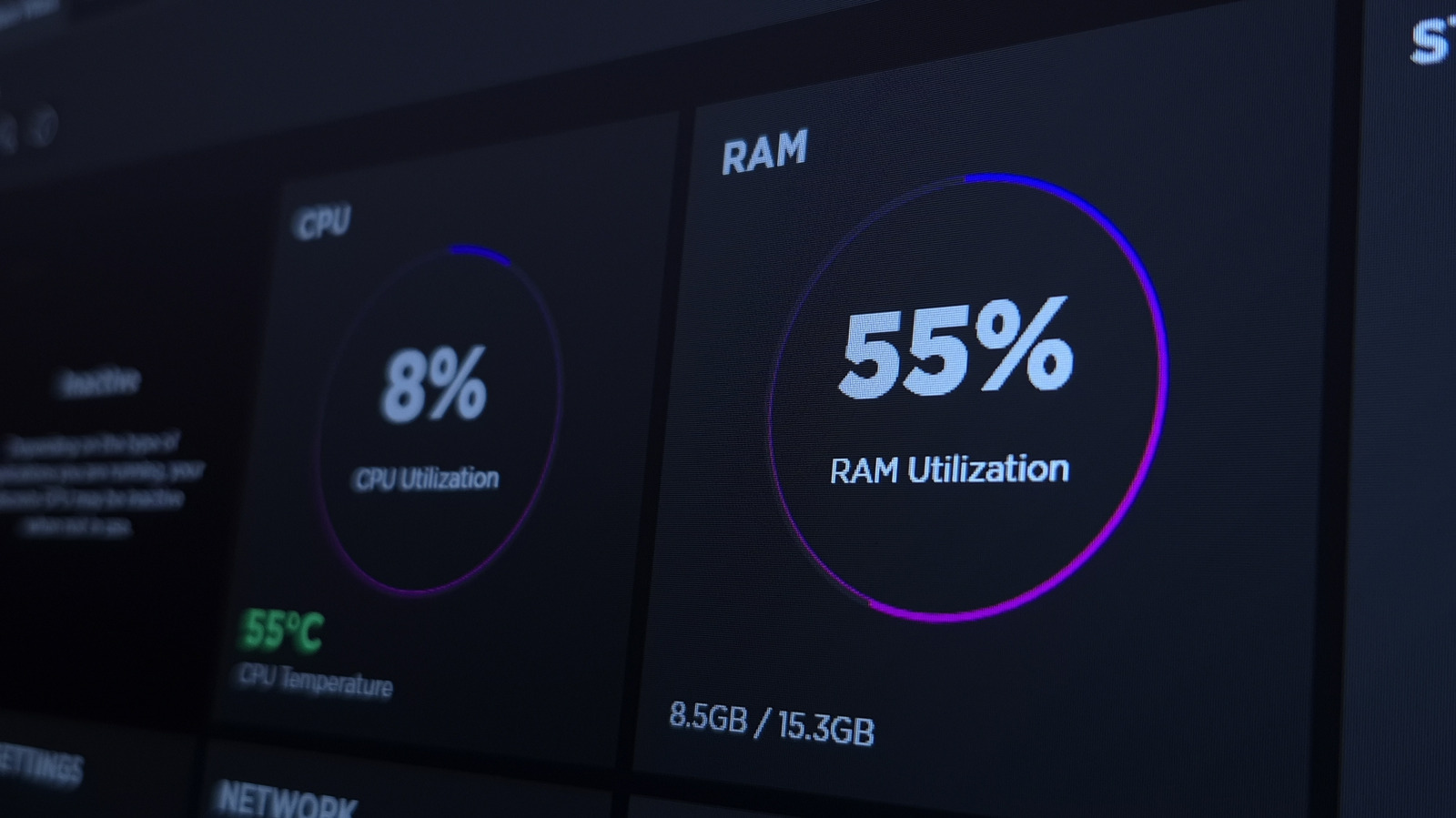
High RAM usage isn’t always a problem that needs a fix.
Open Task Manager on a Windows 11 PC, and it’s easy to panic no matter how much RAM you have. Even without many apps open, your computer will likely be using more than 50 percent of its memory. And while this seems like a problem, most of the time it isn’t. While 16GB of RAM is the standard for modern computers, that doesn’t mean it’s no longer enough just because your PC is using almost all of it. This has more to do with how modern versions of Windows manage memory.
First, it’s worth taking a look at what RAM is used for. Your computer’s memory temporarily stores data that your processor needs to run apps and open files. It offers much faster speeds than your hard drive or SSD, so it’s much quicker to access data from. The more RAM you have, the more items your computer can keep open and ready for you to switch between. Multitasking gets a lot better with more RAM.
What’s actually using your RAM
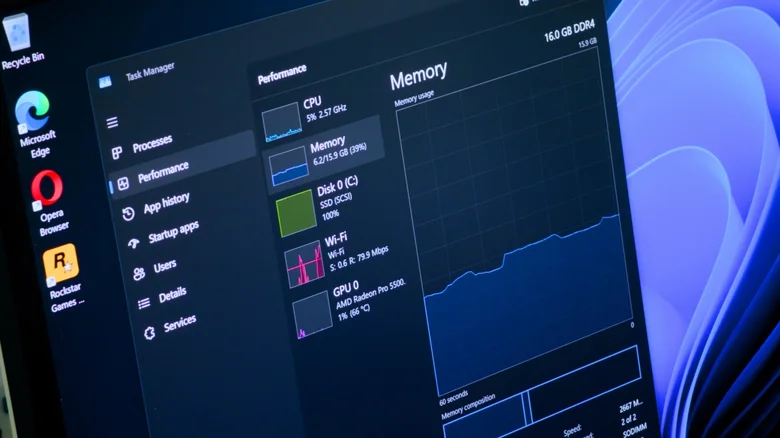
The latest versions of Windows treat RAM as something to be used, not something to conserve. In the past, your computer would use only the RAM needed to run the programs you currently have open. However, unused RAM doesn’t do anything for you — it ends up being a waste of resources. What Windows does now is figure out what you might need to run soon and keep that in RAM. That could be an app you open often, or a file you’re regularly working on. This makes your computer feel a lot faster, because Windows has already preloaded what you need.
All of this happens under a process called SysMain (or SuperFetch in older versions of Windows). It learns your computer usage habits to keep important parts cached in standby memory. If you open Chrome every morning, there’s a good chance Windows will keep it in RAM for you. The time it takes to open an app that’s preloaded in RAM is significantly shorter than loading it from your storage drive. As a result, you may notice that your PC is using more than half of its available RAM, or sometimes almost 100 percent.
To see what’s going on, press Ctrl + Shift + Esc to open Task Manager. Then go to the Performance tab on the left and select Memory — ignore In use and look at Available instead. Cached data counts as available because Windows can reclaim it instantly. The more RAM you have, the more Windows can use to keep your apps and files cached. That’s why you shouldn’t worry about how much RAM is being used in standby.
When high RAM usage becomes a problem
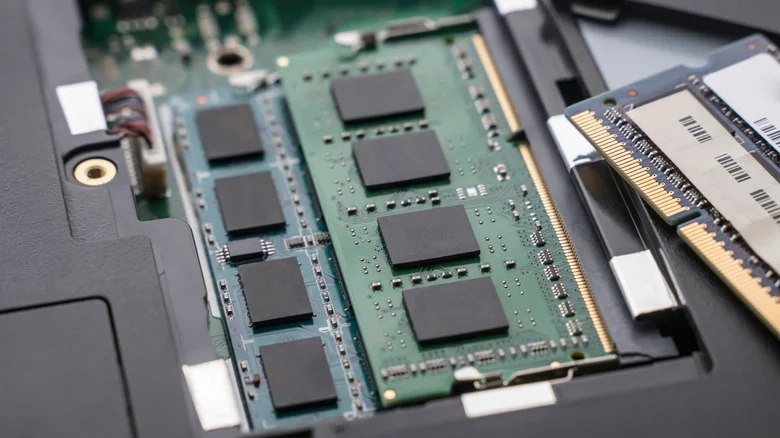
Despite this smart management, excessive RAM usage can still sometimes be a problem. If you’ve noticed your computer running slowly or apps crashing, or you’re getting alerts that your computer is “low on memory,” there might be something else going on.
In that case, check the Processes tab in Task Manager to see which apps are using the most RAM, and close any you don’t need. Restart your PC if it’s been a while, too. This will fix memory leaks (an issue where a program doesn’t return memory it’s done using to the available pool). Be sure to disable startup apps you don’t use so they aren’t hogging memory in the background.
Some third-party “memory cleaner” apps claim to help reduce RAM usage, but there are generally not worth using. While they might reduce the percentage of memory in use, having apps switch to the page file (part of your storage drive Windows uses as backup, pretend RAM) makes them slower. These apps also aren’t a long-term solution, since the system will eventually reload everything again.
Some people choose to disable SysMain entirely and revert to the old RAM management system. While we wouldn’t recommend this in most cases, on an older PC with a mechanical hard drive, the constant preloading can keep the disk busy and make the system sluggish. If that’s the case for you, press Win + R, type services.msc and look for SysMain. Open its Properties, click Stop and set the startup type to Disabled. This will prevent Windows from preloading files and apps into your RAM.
But again, we don’t recommend this unless you’re on an old system with an HDD that’s starved for RAM. If you’re still stuck with 8GB of RAM (or less), the proper solution is upgrading to 16GB or more — even though RAM is more expensive than ever. In the meantime, you can also try changing a few settings to improve your experience on Windows 11 PCs.
