

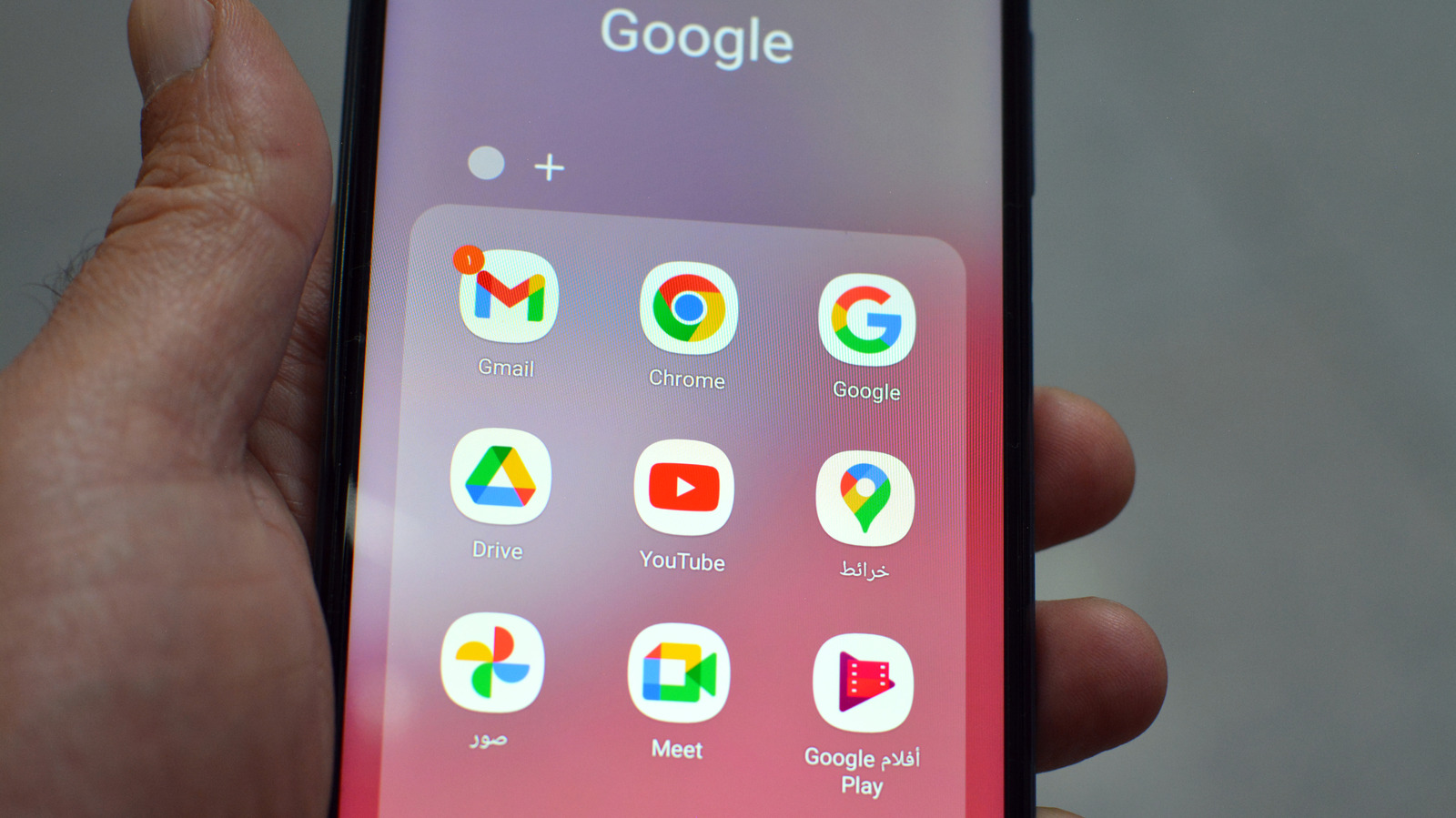
Your inbox isn’t ghosting you…probably.
When your email stops working, it can disrupt your entire day, as the world was reminded when many of Microsoft‘s services went down recently. It’s perhaps even more annoying when the email app that stops working is Gmail, given that Google says more than 3 billion people are using it at this point. The good news is that if your Gmail app stops working on your Android phone, the list of likely problems is fairly short and fixing nearly all of them doesn’t require a ton of technical expertise.
One of the most common issues for your emails lagging behind is that you haven’t updated Gmail in forever. Google pushes regular updates to the Gmail app through the Play Store, and running older builds can cause messages to stop syncing and notifications to vanish. Your app may even freeze entirely. Internet connectivity issues are another common factor and so are misconfigured sync settings, whether at the app level or the device’s system level.
Furthermore, there’s the chance Gmail’s local cache has become corrupted over time, which can lead to erratic behavior that’s quite easily fixed. Or perhaps the problem isn’t even with you, but rather with Google itself. Sometimes the company’s servers experience outages or disruptions; it doesn’t happen often, but when it does there’s no amount of troubleshooting you can do on your end to fix the problem.
Is your Gmail app outdated or is your internet connection the problem?
Before digging into any settings, it’s best to rule out two of the most common issues that may cause Gmail to lag behind: an outdated app and a bad internet connection.
Let’s start with updating your Gmail app. Open the Play Store, tap your profile icon in the top right corner and then go to Manage apps & devices. Tap over to the Manage tab and organize the apps by name so it’s easier to scroll down to Gmail. Press on Gmail to select it and run any updates if they’re available. Alternatively, you can tap on the Updates available filter at the top and see if Gmail made the list or not.
If there’s nothing there, you should run a check on your internet connection. Open a browser and try loading any website. If it doesn’t load, that’s obviously why you’re not getting any new emails. This is particularly important if you’re connected to a public Wi-Fi network because your phone may appear to have an internet connection, but the speeds may be split between so many people that you’re simply not getting much. Plus, some Wi-Fi networks require you to complete a sign-in page in your browser before the connection fully activates.
Finally, the last thing you can do without diving into settings is to check if there’s a Google service outage. If your connection and app version both check out, you should check out Google’s Workspace Status Dashboard. If Gmail is suffering a service disruption, you’ll see an exclamation mark next to it. If there’s a full outage, you’ll see a red X icon.
Why won’t Gmail sync new emails on my Android device?
If all systems are online, updating the app and confirming your internet connection did not work, the issue is likely tied to sync settings within the Gmail app itself or at the Android system level.
First, let’s check in-app sync settings. Go ahead and open Gmail, tap the menu icon and go to Settings. Select your account and scroll down to Data usage. Confirm that the box next to Sync Gmail is checked.
Next, let’s check the system-level sync settings. Open your phone’s Settings > Accounts and backup > Manage accounts and tap on your Google Account. Tap on Sync account and make sure Gmail is toggled alongside Contacts, Keep Notes, and Calendar.
If you’ve added a POP or IMAP account, you can review server settings for non-Gmail accounts. Open Gmail > Menu > Settings and select the affected account. Check the server settings for accuracy because any incorrect incoming or outgoing settings will block syncing entirely.
When a corrupted cache or full storage causes Gmail issues
If everything’s checked out until now and the problem persists, there are still things you can try. A corrupted cache or device storage limitation can also be a problem.
First, you have to clear the Gmail app cache. Go to Settings > Apps > Gmail > Storage and tap Clear cache. This will remove temporary files that may have become corrupted without touching your emails, drafts or any account data. Once you do this, return to the Gmail app info screen and tap Force Stop. Relaunch the app and see if it’s back to normal.
You could also check your device’s available storage. When a phone’s storage is nearly full, apps can fail to sync new data, including Gmail. So, freeing up some space by removing an app you haven’t used in forever or deleting pics and vids that have already been backed to the cloud could solve the issue. Don’t forget the good old “have you tried turning it off and on again” as a final step because that might simply clear out any remaining glitches.
Working through these solutions should have fixed your Gmail sync problems on your Android phone. If you’ve done everything and Gmail still isn’t syncing, the issue may still be with Google servers rather than your device. Go back to the Status Dashboard to see if they maybe updated the info in the time it took you to troubleshoot the problem.
