

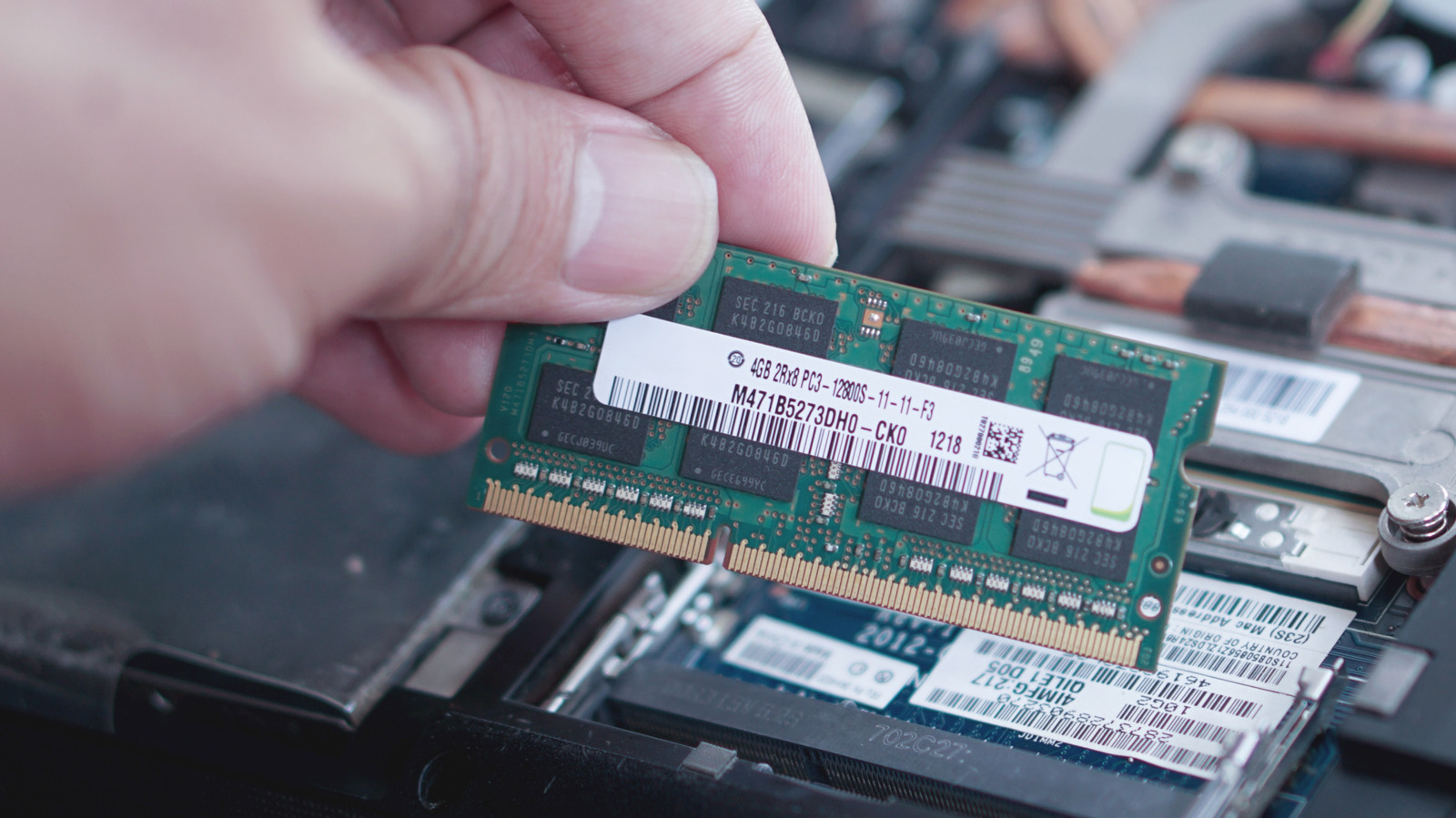
If you’ve got memory issues, Microsoft’s built-in diagnostic tool could come in handy.
While your computer’s SSD or hard drive is where all of your apps, documents and the Windows operating system itself are stored, it is the RAM that handles the data you’re actively working with. It temporarily stores information about the apps and data that the processor needs quick access to. This is why RAM issues often lead to major performance problems, app crashes, unexpected restarts and the infamous Blue Screen of Death (BSOD). You could always walk down to your nearest computer repair shop and have a certified technician take a look, but Windows offers a handy tool that lets you check for memory problems yourself.
The Windows Memory Diagnostic utility comes pre-installed and runs a series of tests designed to check whether your computer’s RAM can store and return data reliably. Any discrepancies between the data that has been written to memory and what is read back could indicate that something may be wrong with how your RAM is functioning.
Think of it like writing down a message on a piece of paper and handing it to someone for safekeeping. If you wrote down “computer” but got back a piece of paper that read “cmoputre,” you’d know something went wrong after you handed it to that person. Windows Memory Diagnostic performs a similar test with your RAM, repeatedly writing and reading information while checking for errors in the data that is returned.
While it’s easy to run, finding the results afterward isn’t as intuitive.
How to run Windows Memory Diagnostic
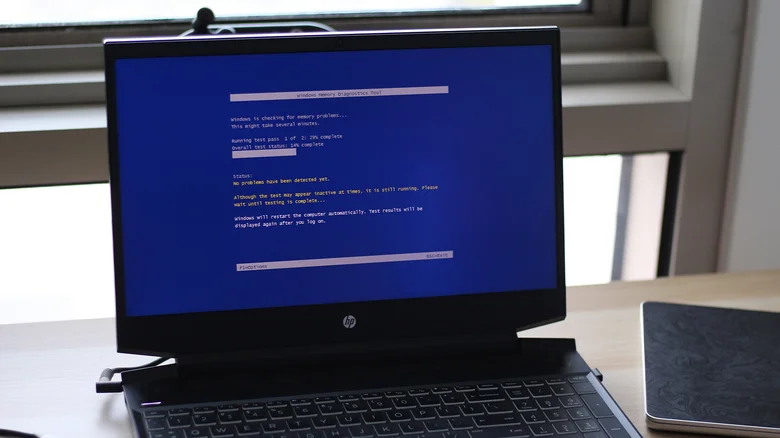
To avoid your computer’s RAM being occupied by the operating system and other applications, the diagnostic tool works outside the regular Windows environment. Before initiating the test, it’s recommended that you save all of your work.
The easiest way to access the utility is by opening the Start Menu, searching for “Windows Memory Diagnostic” and clicking the first result. Alternatively, you can press Windows + R, type in mdsched.exe and hit enter. A dialogue box appears, prompting you with two options. Assuming you’re eager to start the test, click on Restart now and check for problems (recommended).
Your computer will now restart, load the Windows Memory Diagnostic utility and automatically begin the test. You’ll find some information like the current test pass and overall test percentage indicators, but you can hit F1 on your keyboard to customize how the test is carried out. Here, you can choose between the Basic, Standard and Extended test mix options, each of which runs a different series of memory tests. Extended is the most thorough of the three but takes the longest to finish. You can also alter the pass count of the test, going all the way up to 15 repeats for a more thorough scan.
Once it’s done running the test, your computer will restart into the Windows operating system as usual. Though the tool says that the test results “will be displayed again after you log on,” they don’t always pop up automatically. Regardless, you can access the results through Event Viewer by searching for it
Accessing results using Event Viewer
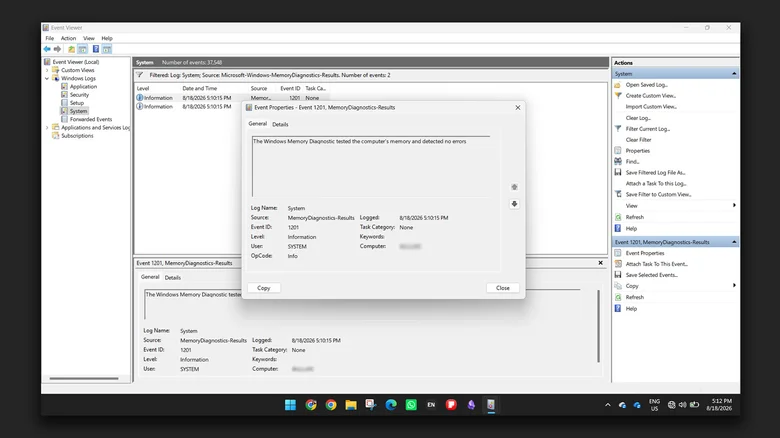
The Windows Event Viewer is a powerful built-in interface that lets you access detailed logs about system, security and application events that occur on your computer. This includes the results that any diagnostic tool has returned. There’s a lot of information that Event Viewer displays when you first launch it, so it’s understandable if you feel a bit overwhelmed. What we’re specifically looking for, though, is the log created by Windows Memory Diagnostic when it finished.
Luckily, we can filter through all of this to find what we need. Expand the Windows Log section on the left and navigate to System. In the Actions pane on the right, click on Filter Current Log. Next, click on the arrow next to the Event sources field and check only the MemoryDiagnostics-Results option. Click OK, and Event Viewer will display only the logs related to the memory test.
Double-click on each of the results until you find one with a description that either confirms that the test didn’t find any errors with your computer’s RAM or warns that hardware problems were detected. Although it may show no errors were found, that won’t completely rule out possible memory issues. You can always re-run Windows Memory Diagnostic again by using the Extended test mix and increasing the number of passes.
If the test does detect hardware issues and you’re confident enough to do so, you can try removing and testing each RAM stick individually. This might help narrow down the particular module that’s giving you trouble. If you know your way around the BIOS, you could also disable any XMP or EXPO memory profiles that are sometimes known to push your RAM beyond its default specifications and cause system stability issues.
