

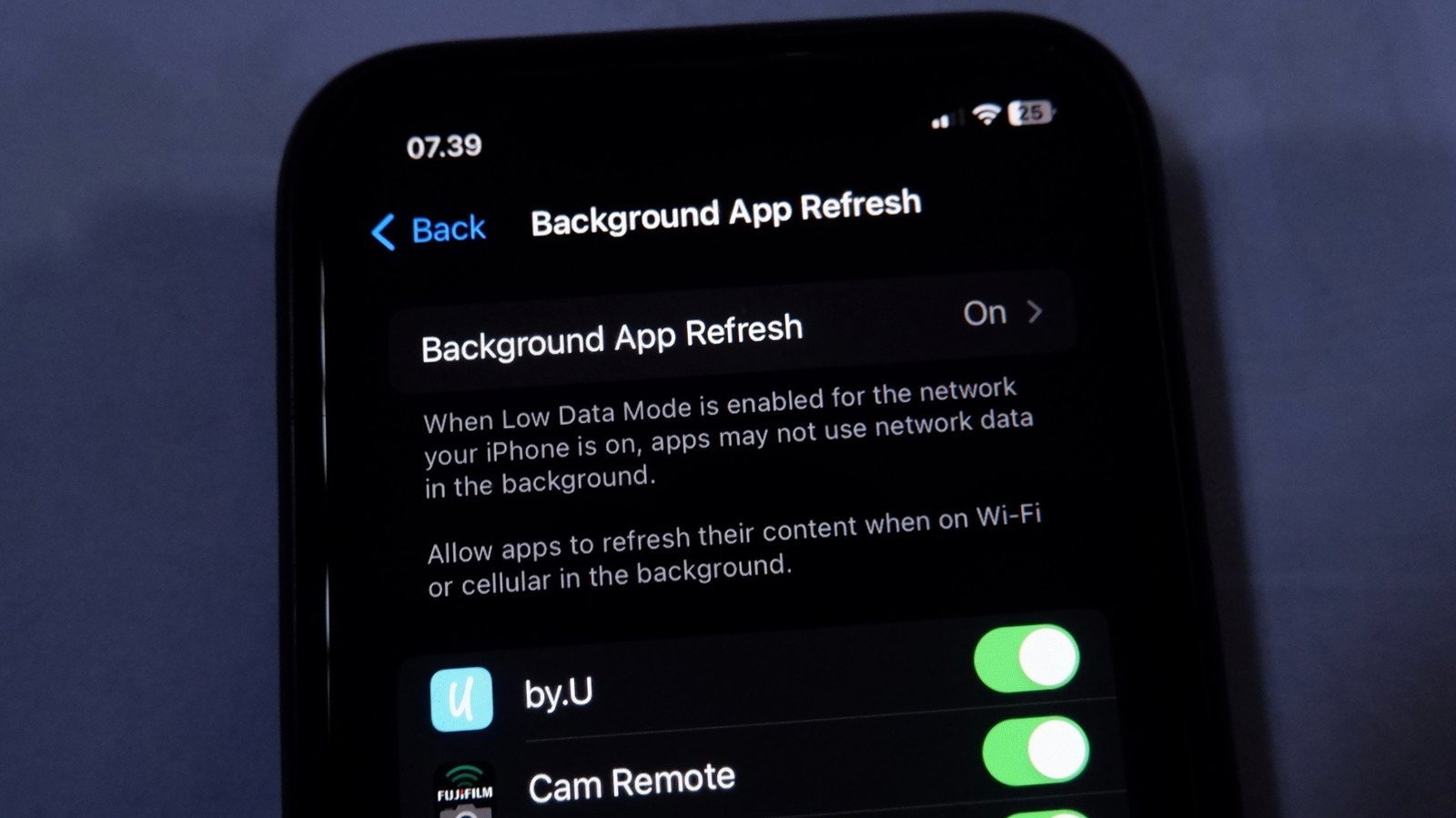
Apps updating in the background is convenient, but they don’t all need to do that.
When you’re trying to improve battery life on your iPhone or use less data, one of the first settings you’ll probably check is Background App Refresh. It’s much easier to know what your active app is doing compared to dozens of apps working in the background, which is why this control exists.
But what does this feature actually control, and when should you turn it off? As with many phone features, the answer is about balance. You probably don’t want to turn off Background App Refresh entirely, but you should configure it to avoid wasting resources.
What is Background App Refresh for?
Upon visiting Settings > General > Background App Refresh, you’ll see the explanation of this feature: “Allows apps to refresh their content . . . in the background.” While that’s vague, the Apple Support page on switching apps provides a bit more information on how apps enter a “suspended state” shortly after you stop using them. Combined with evidence from real-world usage, this gives us enough to work with.
Background App Refresh lets apps fetch new information from the internet even when you aren’t actively using them. We know this is solely about internet activity since the Settings page has an option to choose whether this works on cellular data or only Wi-Fi. The setting has lots of uses, such as:
- Weather apps can update your location and fetch the latest report as you travel around.
- Cloud tools like Google Photos and OneDrive can sync files and back up your photos.
- Podcast apps will download new episodes of shows (if you’ve set them up to do so).
- Social media apps can pull new posts so you don’t see content from hours ago upon opening.
- News apps can have the latest stories ready to show.
What almost all of these have in common is preloading content so you don’t have to wait for an update when you open the app.
Should I use Background App Refresh?
It’s convenient not having to open apps to keep them updated, especially if you have a lot on your phone. For instance, it’s annoying to open your podcast app on the bus, only to find that the latest episode didn’t download like you expected.
But you probably don’t need automatic updating for every single app on your phone. And thankfully, it’s a granular option. Visit Settings > General > Background App Refresh to review its setup. Tap Background App Refresh at the top to choose whether it functions on Wi-Fi & Cellular Data or only on Wi-Fi (good for saving carrier data). You can also disable background refreshing entirely by choosing Off.
Otherwise, you’ll see a list of (nearly) all the apps on your phone here. While they may all be enabled by default, many apps don’t need this permission. It’s smart to keep background refresh on for any apps you use regularly or rely on for real-time information. I recommend leaving it enabled for apps that deal with travel, navigation, file syncing, reminders, productivity and similar.
Conversely, background refreshes aren’t necessary for food or shopping apps, most games or apps for browsing websites (like Wikipedia or IMDb). If you barely ever open it, you probably don’t need regular updates to its content.
While disabling apps here, be aware that disabling Background App Refresh does not suppress notifications. Even if an app isn’t fetching new data in the background, it will still show notifications as long as you’ve enabled them and they aren’t blocked by a Focus. In most cases, disabling an app’s background refresh will result in, at worst, you having to wait a few seconds for new data to load. If you aren’t sure about one, try disabling it and see how the experience changes.
You have other options for controlling background data
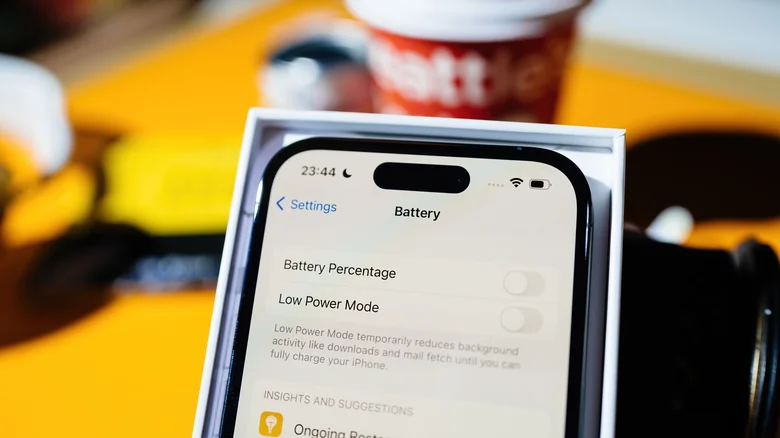
When you enable Low Power Mode on your phone (accessible through Control Center), background refresh for all apps is disabled. This provides a great secondary option when you generally want apps to fetch data in the background, while having a preservation method for times when maximum battery life is paramount.
If you ever find an app is using too much data all the time, you can prevent it from using mobile data entirely, not just in the background. Head to Settings > Cellular and tap Show All under the Cellular Data list of apps. Disable the slider for any app, and it will only connect to the internet on Wi-Fi.
This menu also shows how much data apps have used in the “Current Period,” which is not terribly useful since the “period” only changes when you manually reset it. Scroll to the bottom of the Cellular page and tap Reset Statistics, then use your phone for a while to get an idea of typical consumption.
Finally, a per-network toggle can be helpful here. Visit Settings > Cellular and tap your mobile carrier if you have more than one SIM installed. Then, choose Data Mode > Low Data Mode to limit background activities so only active apps can use the network. Apple Support has a list of activities that change in this mode, if you’re curious. You can do the same for a Wi-Fi network (important when using a mobile hotspot) under Settings > Wi-Fi. Tap the network name followed by the i icon next to it, then enable the Low Data Mode slider.
With a combination of Background App Refresh to prevent activity you definitely don’t need and the other modes for saving battery and data when the situation calls for it, you can avoid undesired work in the background.
