Close Menu
MyAppsPlus

    Subscribe to Updates

    Get the latest creative news from FooBar about art, design and business.

    What's Hot

    LG’s 17-Inch Gram Max Touchscreen Laptop Is $550 Off at Best Buy

    November 3, 2026

    Yvonne Bajela is bringing $17M in fresh capital to Europe’s startup scene

    November 3, 2026

    AI Fighter Pilots Academy, where Saab trains its AI Agents

    November 3, 2026
    Facebook X (Twitter) Instagram
    Facebook X (Twitter) Instagram
    MyAppsPlusMyAppsPlus
    Tuesday, November 3
    • Home
    • Breaking Tech
    • Apps & Software
    • AI & Automation
    • Android
    • iPhone & iOS
    • More
      • Reviews
      • How-To Guides
      • Deals & Discounts
      • Shop
    MyAppsPlus
    Home»Breaking Tech»This hidden Windows 11 menu can save you valuable time when troubleshooting
    Breaking Tech

    This hidden Windows 11 menu can save you valuable time when troubleshooting

    myappsplusBy myappsplusNovember 2, 2026003 Mins Read
    Share Facebook Twitter Pinterest Copy Link LinkedIn Tumblr Email Telegram WhatsApp
    Follow Us
    Google News Flipboard
    This hidden Windows 11 menu can save you valuable time when troubleshooting
    Share
    Facebook Twitter LinkedIn Pinterest Email Copy Link

    Windows 11 has a sneaky menu that connects you with key tools.

    Windows 11 is full of little menus that allow you to manage your computer’s processes, optimize its systems and troubleshoot any potential errors. However, it can be a nuisance to know all the right hotkeys and where to look for some of the more obscure areas of your device. Luckily, one of the easiest ways to debloat and manage Windows 11 is with a hidden menu you may not have heard of.

    This hidden menu goes by a few names, including both the Quick Link Menu and the Windows-X Menu. The latter name is in reference to how you find this secret area, which is by hitting the Win+X keys. Hitting those buttons and opening that menu will allow you to parse a curated selection of other menus and options — granting you access to a myriad of management options in one place.

    How to access the Quick Link Menu
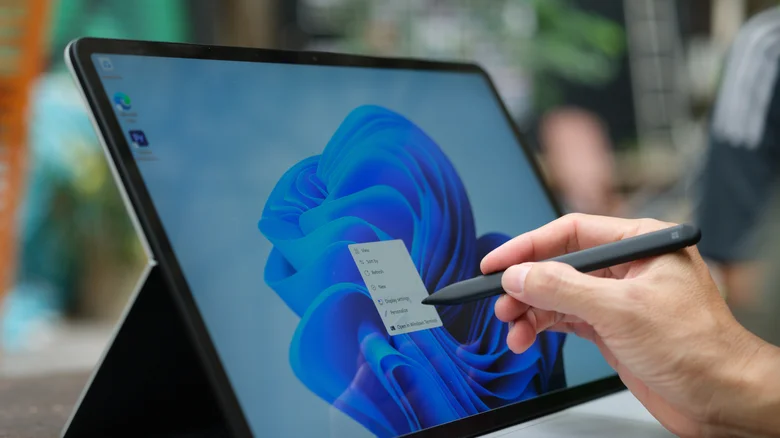
    Windows 11 being used with a stylus.

    If you want to take a glance at this Quick Link Menu, just hit those aforementioned Win+X keys. The menu will then pop up on the left side of your screen, right above where the Windows logo resides on the taskbar. This will reveal a few of the standard features you’ll usually find in the Start menu or pinned to the taskbar — such as Settings, File Explorer, Search, Shutdown options and so on. However, you’ll also find a number of features usually buried in your Settings (including Installed Apps, System, Power Options and Network Connections) or behind other hotkeys (such as Mobility Center, Event Viewer, Disk Management, Computer Management and Task Manager).

    You can also customize this Quick Link layout by heading to File Explorer and type %LOCALAPPDATA%MicrosoftWindowsWinX into the address bar. The three folders kept in this area store the shortcuts found in the menu, and you can move the shortcuts around them. You can also rename the apps by renaming these shortcuts, and can add new shortcuts by dragging apps from elsewhere in the File Explorer and into one of these folders.

    The best troubleshooting tools in the Quick Link Menu
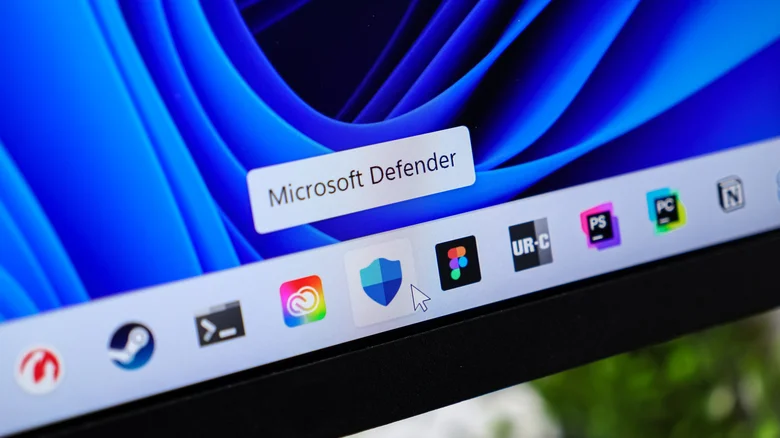
    Windows 11 taskbar displayed on a monitor, with the cursor hovering over Microsoft Defender.

    Those non-Settings options are especially important, as using Windows-X here allows you to forgo memorizing many hotkeys and access some excellent menu features. Task manager is an obvious one, as it’s an important tool in monitoring Windows’ background processes. Task Manager can close non-responsive programs, use its Processes tab to monitor activity, the Startup tab to review processes and disable any inessential resource hogs, and much more.

    Similarly, Event Viewer can also help you troubleshoot elusive PC issues, chiefly by running its aptly-named Windows Memory Diagnostic Tool. If you’re experiencing random crashes, file corruption, or suspect hardware problems, you can open Event Viewer from the Win+X menu and navigate Window Logs > System > Filter Current Log and select MemoryDiagnostics-Results in the Event Sources section, all of which will give you a readout on any extant issues with your system. Disk Management (which lets you read the status of different disk partitions active on your machine) and the Mobility Center (which, for laptop users, allows you to configure display, keyboard and wireless settings) can help you keep tabs on your computer in similar ways.

    Computing hidden Microsoft this Windows
    Follow on Google News Follow on Flipboard
    Share. Facebook Twitter Pinterest LinkedIn Tumblr Email Copy Link
    myappsplus
    • Website

    Related Posts

    Yvonne Bajela is bringing $17M in fresh capital to Europe’s startup scene

    November 3, 2026

    Apple Watch’s AI features for rewinding and recapping conversations begin beta testing

    November 3, 2026

    Samsung’s Privacy Display may be coming to more Galaxy phones – what we know

    November 3, 2026
    Add A Comment
    Leave A Reply Cancel Reply

    Top Posts

    Cathay Pacific tests Google AI that dramatically cuts airplane contrails — tiny altitude shifts slash environmental impact by 40% in early trials

    September 8, 2026137 Views

    What was the PSX? The souped-up PS2 rarely sold outside of Japan

    September 14, 202617 Views

    Apple is making Creator Studio an even better deal with new AI features and creative tools

    October 28, 202616 Views
    Latest Reviews

    OpenAI warns about how good Astra model is at cracking cybersecurity, releases it anyway because it took ‘years of research and big bets’

    myappsplusSeptember 4, 2026

    Hands-on with Baseus’ tiny PicoGo Pro – a sleek 100W smart display charger for your new Dark Cherry iPhone 18 Pro [Deal]

    myappsplusSeptember 4, 2026

    Judge blocks X rival from using Twitter name, but allows ‘Tweet’ for now

    myappsplusSeptember 4, 2026
    Stay In Touch
    • Facebook
    • YouTube
    • TikTok
    • WhatsApp
    • Twitter
    • Instagram

    Subscribe to Updates

    Get the latest tech news from FooBar about tech, design and biz.

    Most Popular

    This week’s Apple deals for Labor Day: AirPods Pro 3, Studio Display, AirTag 2, Mac mini, more from $5.50

    September 4, 20260 Views

    Beatbot’s Labor Day Sale drops 2026 Sora 70 5-in-1 robotic pool cleaner to $1,099 ($400 off), more from $339

    September 4, 20260 Views

    iPhone Ultra, iPhone 18 Pro, and More: Apple’s September 9 Event Preview

    September 4, 20260 Views
    Our Picks

    LG’s 17-Inch Gram Max Touchscreen Laptop Is $550 Off at Best Buy

    November 3, 2026

    Yvonne Bajela is bringing $17M in fresh capital to Europe’s startup scene

    November 3, 2026

    AI Fighter Pilots Academy, where Saab trains its AI Agents

    November 3, 2026

    Subscribe to Updates

    Subscribe to our newsletter and get the latest tech news, app updates, AI trends, smartphone reviews, and exclusive deals delivered straight to your inbox.

    Facebook X (Twitter) Instagram Pinterest
    • About Us
    • Get In Touch
    • Disclaimer
    • Privacy Policy
    • Terms & Conditions
    © 2026 MyAppsPlus. All Rights Reserved.

    Type above and press Enter to search. Press Esc to cancel.