

Is your Starlink Wi-Fi slower than it should be? A simple change in the app can help, though it comes with a few trade-offs worth knowing first.
While Starlink has had a lot of bad press in 2026 — mostly because of reported slowdowns in Ukraine and its general association with Tesla and SpaceX CEO Elon Musk — there’s no denying that for some people, it may be their best or only internet option. That’s because Starlink satellites have wide global coverage, reaching areas inaccessible not just to landline connections but potentially competing cellular and satellite services as well.
There are a variety of ways Starlink can be optimized, an obvious one being dish placement. Less obvious, though, is controlling how your system broadcasts Wi-Fi. You’d think the hard part would be capturing signals from space, after all, not bouncing them a few more feet to your laptop or TV.
What we’re specifically talking about here is splitting your Wi-Fi into separate 2.4 and 5GHz networks in the Starlink app. We’ll explain what that means, why it can be beneficial and when you may want to stick with the normal unified setting.
Why splitting your Starlink Wi-Fi might provide a speed boost
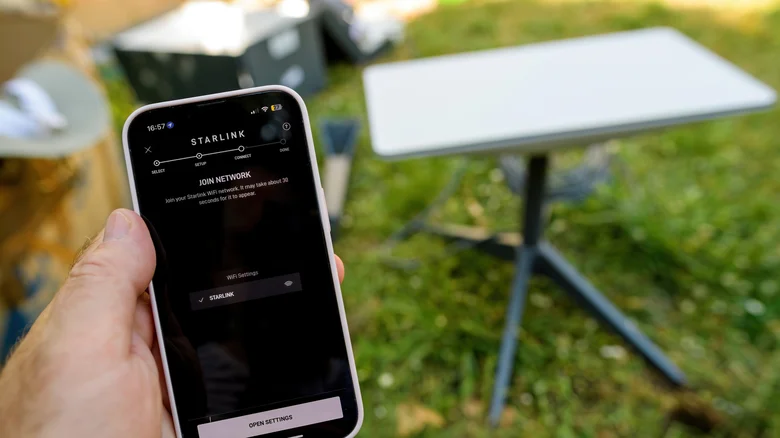
If you already know why you’d want to split Wi-Fi, let’s cut to the chase. All you have to do is find and select the Add Network option, then toggle Split Network. You’ll be asked to name the two new networks, which should probably include “2.4” and “5” so you can tell which network your devices are connecting to.
For everyone else, it helps to know that most Wi-Fi routers are dual-band, broadcasting over two main frequency bands, 2.4 and 5GHz. Starlink’s bundled hardware doesn’t currently support the newer 6GHz band, even when it’s equipped with Wi-Fi 7. The reason a split might help is that 5GHz is inherently faster than 2.4GHz. Shorter wavelengths translate not just into higher potential speeds but more non-overlapping channels. Overlap can result in congestion and interference. For devices that support 5GHz, then, forcing them to use the band all the time may result in noticeable speed boosts. As with any Wi-Fi network, exact performance figures are going to depend on a variety of factors, including not just your router but the range and kinds of devices connecting to your network.
As if that weren’t enough, some low-power devices, such as many Wi-Fi smart LED light bulbs, are 2.4GHz-only. If they’re competing with devices that could be on 5GHz, they might be encountering unnecessary congestion of their own.
When splitting your Starlink Wi-Fi can cause problems

The first potential issue here is range. The 2.4GHz band offers the greatest reach of any Wi-Fi band, typically up to 150 feet (45 meters) indoors, versus 5GHz’s 50 to 75 feet (15 to 25 meters). It also offers better penetration through walls and other obstacles. In some scenarios, then, limiting devices to 5GHz may result in a flaky signal or none at all where things were previously stable. Under a unified network, devices can flip between bands automatically as needed.
The other major concern is that devices on one network ID might not be able to talk to those on the other. They should be able to on paper, and naturally, that won’t matter if all they have to do is communicate with the internet. But if you do encounter this issue, it can wreak havoc, particularly with a mix of smart home accessories that require specific bands. You may not be able to configure them all to work together, let alone trigger complex automations.
One final problem is convenience. Reassigning a bunch of devices to new networks can be a hassle, and to deal with range, you may have to manually switch some mobile devices every time you take them into a particular room. If you’re not encountering any performance barriers with your existing setup, you might want to leave Starlink untouched.
