

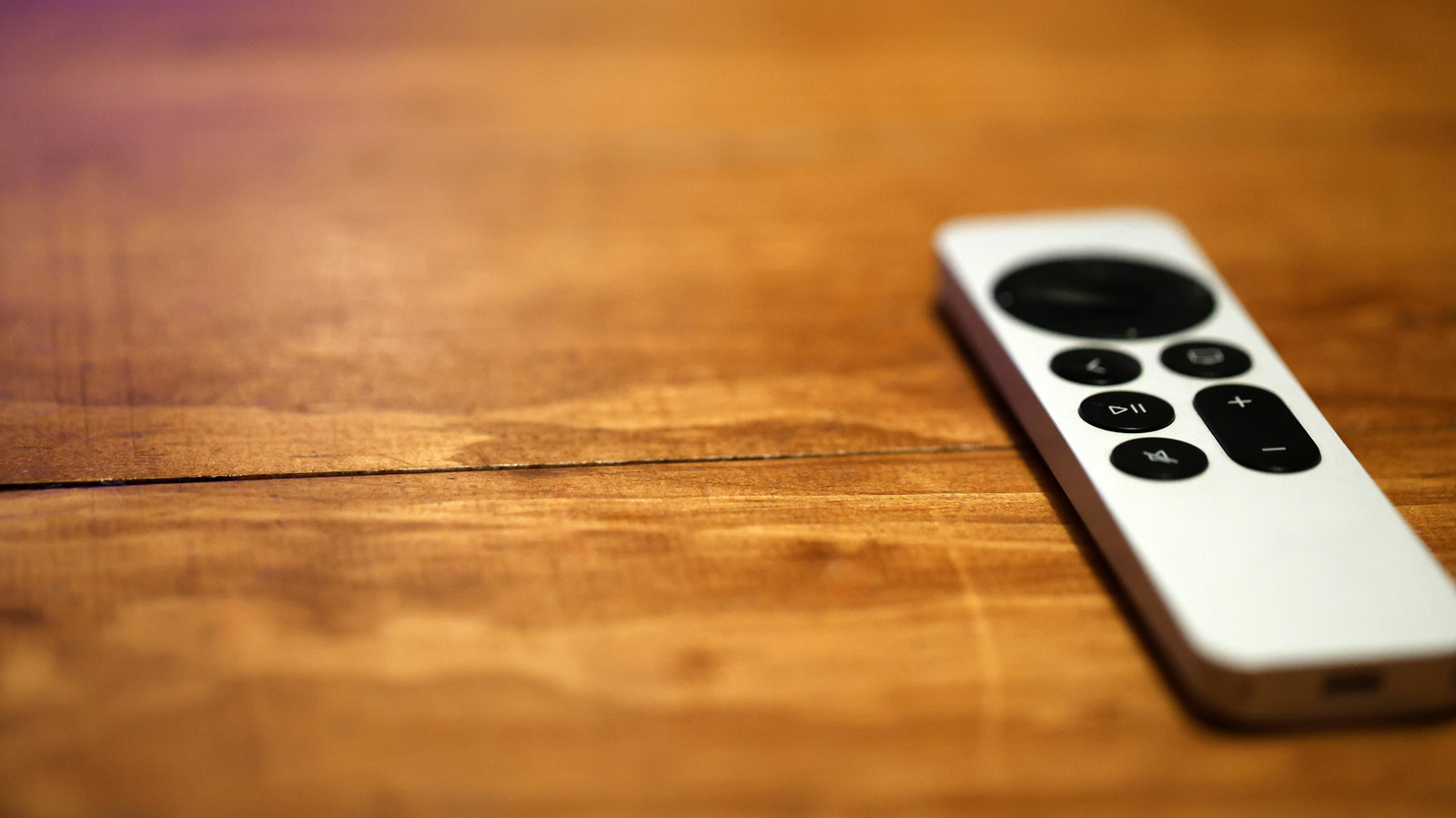
Lost in the cushions again? Here is how to find your remote without buying a new one.
Is there anyone in the world who owns a TV and hasn’t lost the remote at least once? Unlikely, right? Now that remotes are slimmer and more compact, it’s an even more prevalent occurrence. Losing your Apple TV remote is just as easy, of course. It can slip between couch cushions, end up under the blankets or get left somewhere when someone gets up from the couch to grab some water. The good news, however, is that your smartphone can actually help you find your Apple TV remote anywhere in your home.
Apple has a dedicated Remote app that will let you locate the device much like you’d use an AirTag. To find a missing Apple TV remote, you just have to pop open the app and hunt for the “Locate Remote” button, which will then trigger a beeping sound from the remote itself if you have the 2026 Apple TV 4K model. That helps if the thing’s buried under the cushions.
In the meantime, you could also use that same Remote app to turn your phone into a fully functional Apple TV controller. Android users have some workarounds too. As long as your phone is connected to the same Wi-Fi network as your Apple TV, you can regain control within minutes. You just have to know how.
How to find your Apple TV remote with your iPhone

If you’ve dug through the couch cushions, turned over every blanket, looked under the sofa and checked your kid’s toy bins and still haven’t found the remote, it’s time to bring out the big guns. And by big guns, we mean to launch the Apple TV Remote app. This tool requires an iPhone running iOS 17 or later, while the Apple TV must have tvOS 17 or later. You have to open the Control Center on your iPhone and then tap on the Apple TV Remote. From there, tap the device list, tap Find and follow the prompts on your iPhone to locate your remote. The onscreen circle grows and grows and the text changes from far to near to here in a techy game of Hot and Cold.
The new Siri Remote that Apple released with its refreshed Apple TV 4K in October 2026 has Precision Finding hardware, which means it’s easier to find with onscreen directional arrows and live distance guidance. There’s even a built-in speaker that plays a chime to locate it. Previous models only come with proximity searching, so you’ll have to rely on your phone to find the remote.
What to do if you still can’t find your Apple TV remote
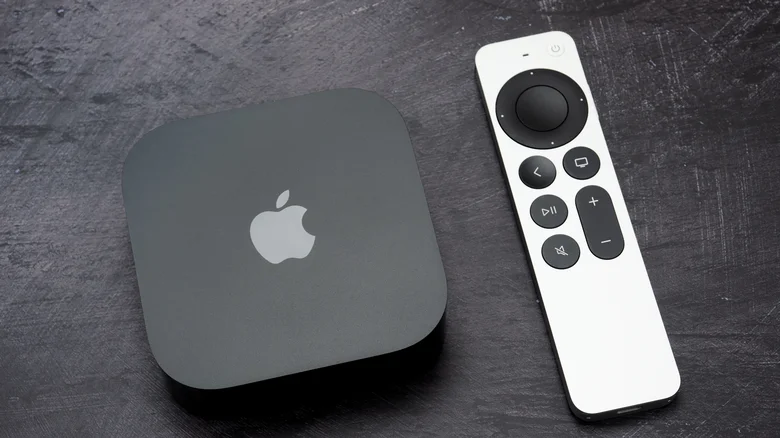
In case your remote is nowhere to be found and not even the built-in location feature is of help, then you have to try out a different method. You could, of course, order a new remote, but that’s not absolutely necessary, and a new Apple TV is supposed to last long enough that losing a remote shouldn’t push you to replace the whole setup.
To use the Apple TV remote, you just need to access your iPhone’s or iPad’s Control Center. As we already discussed, you have to tap on the Apple TV Remote button and then on your Apple TV or smart TV that’s AirPlay-compatible from the list. You might need to enter a four-digit passcode to confirm the connection.
Once that’s set up, you can use your phone as a TV remote to do things like control volume, open and close the device, switch streaming apps, control playback and so on. Everything you can do with the actual, physical Apple Remote, you can do with this app.
If you’re an Android user, there’s no official Apple-made remote app to use. There are, however, workarounds to replace your lost Apple TV remote without spending money. Third-party apps like Remote for Apple TV are available on the Google Play Store and replicate the core remote functionality of the physical remote. You’ll need to download the app, ensure your Android phone is connected to the same Wi-Fi network as the Apple TV and type in the onscreen code for pairing. Then you use the digital remote to hunt for your next binge-worthy show.
See? Losing the Apple TV remote doesn’t have to derail your viewing session. The Remote app is the fastest and most reliable solution whenever you can’t find the remote and you really want to turn down the volume or swap the app. Once you can hear your own thoughts again, you can resume your search for the device.
