Close Menu
MyAppsPlus

    Subscribe to Updates

    Get the latest creative news from FooBar about art, design and business.

    What's Hot

    Meta’s Muse can now make calls on your behalf (if you have a paid subscription)

    November 13, 2026

    Google launches Intelligent Eyewear glasses: $395+, pre-order today, ships Dec. 10

    November 12, 2026

    This compact flagship might be my new favorite

    November 12, 2026
    Facebook X (Twitter) Instagram
    Facebook X (Twitter) Instagram
    MyAppsPlusMyAppsPlus
    Friday, November 13
    • Home
    • Breaking Tech
    • Apps & Software
    • AI & Automation
    • Android
    • iPhone & iOS
    • More
      • Reviews
      • How-To Guides
      • Deals & Discounts
      • Shop
    MyAppsPlus
    Home»Breaking Tech»How to use the Live Text feature on your iPhone
    Breaking Tech

    How to use the Live Text feature on your iPhone

    myappsplusBy myappsplusSeptember 27, 2026014 Mins Read
    Share Facebook Twitter Pinterest Copy Link LinkedIn Tumblr Email Telegram WhatsApp
    Follow Us
    Google News Flipboard
    How to use the Live Text feature on your iPhone
    Share
    Facebook Twitter LinkedIn Pinterest Email Copy Link

    Live Text makes it easy to interact with text you see anywhere by pointing your iPhone’s camera at it.

    A feature called Live Text leverages your iPhone’s camera to instantly interact with text you point at. It’s available on iPhones back to the XS line running iOS 15 and later. When viewing a website, sign, poster, flyer or nearly else in your camera frame, you can copy or share it, look up information or even translate. 

    It’s similar to the Visual Intelligence feature, but doesn’t require an iPhone compatible with Apple Intelligence and is limited to interacting with text. All you need to do is hold your phone up, tap the Live Text button on-screen and choose the option you want.

    This feature is especially useful for travelers, but there are many ways to use it in everyday life, such as:

    • Capturing information about an upcoming event you see on a flyer.
    • Sharing the contents of a written note with colleagues instead of taking a screenshot.
    • Looking up a website or sending an email without having to input the address.
    • Contacting a phone number posted on a sign.
    • Converting currencies.
    • And much more!

    Using Live Text is simple
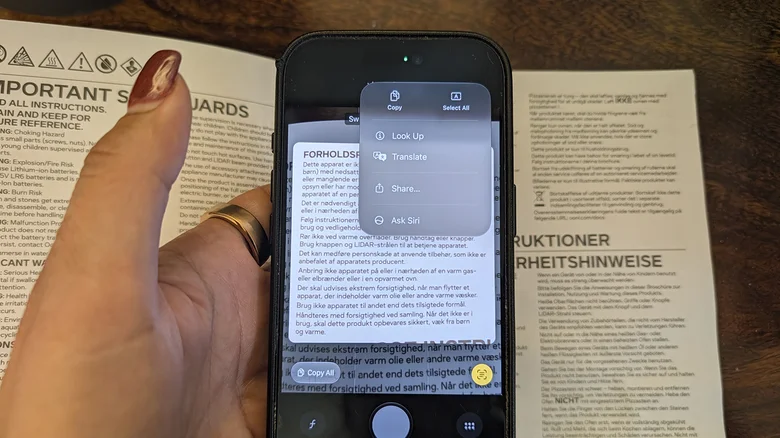
    A hand holding an iPhone 17 Pro up to an instruction manual showing the various options for Live Text.

    Christine Persaud for Engadget

    To use Live Text with a compatible iPhone like the new iPhone 18 Pro, open the Camera app, position the desired text in the viewfinder and wait for a yellow frame to appear around the text. Once you see that, tap the tiny grid icon (three lines with four corners around it) at the bottom-right. Choose an option from the menu, like Translate or Copy, or use the grab points to capture the portion of text you want (like a website address). You can also choose to Select All.

    You have tons of options to work with the selected text. A basic method is to copy and paste the contents as text into apps like Messages, Notes or Mail. Try Share for quicker sending than copy and paste can provide, or for using other methods like AirDrop. You can also Look Up a web address or information you want to research, or Translate text in another language. 

    Some content pulls up a quick action at the bottom of the screen for making a call, visiting a website, starting an email, converting currencies and other common actions. If you don’t want to use it, you can turn Live Text off by going to Settings > Camera and turning off Show Detected Text.

    Live Text vs. Visual Intelligence
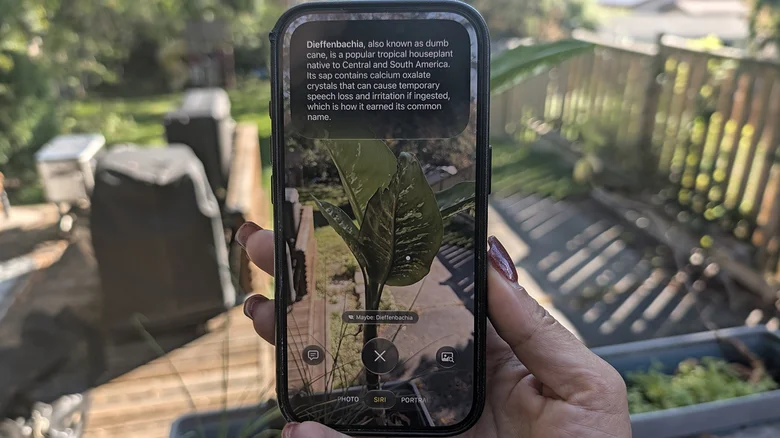
    A hand holding up an iPhone to a plant and using Visual Intelligence to learn about it through the camera.

    Apple introduced Visual Intelligence with iOS 18.1 as part of Apple Intelligence back in September 2024. Apple’s take on Google Lens works a bit differently than Live Text, going beyond text to analyze much more. It requires an iPhone compatible with Apple Intelligence (iPhone 15 Pro, 15 Pro Max, or newer).

    There are a few ways to activate it. First, make sure you have Siri turned on (Settings > Siri). Long-press the Camera Control button (if present), customize the Action button to call up Visual Intelligence (Settings > Action Button > Visual Intelligence) or select Siri from the Camera app if you have Siri AI enabled. You can also access it from the Lock Screen or Control Center if you add the icon there (pull down from the top-right, press and hold any blank space to open the edit menu, select Add a Control and choose Visual Intelligence). 

    Once activated, hold the phone up to something, like a plant or a landmark. From there, you’re able to get more context from Siri, run a Google Image Search or use ChatGPT to look up more information. You can point the phone to a business sign to get information like hours of operation, menu, reviews or even a reservation window.

    Additionally, Visual Intelligence will interact with text just like Live Text. Once activated, you can translate, read aloud or summarize as well as tap a phone number, email address, or website to open it in a relevant window. Live Text happens organically when the phone detects text in the frame of the Camera app, while Visual Intelligence expands on this to provide even more information in a specific camera mode.

    Apple feature live text Your
    Follow on Google News Follow on Flipboard
    Share. Facebook Twitter Pinterest LinkedIn Tumblr Email Copy Link
    myappsplus
    • Website

    Related Posts

    Meta’s Muse can now make calls on your behalf (if you have a paid subscription)

    November 13, 2026

    Roku drops smart home products to focus on streaming – what that means for your devices

    November 12, 2026

    Democrats launch Nvidia investigation, write scathing letter on Huang’s ‘scheme’ with Trump

    November 12, 2026
    Add A Comment
    Leave A Reply Cancel Reply

    Top Posts

    Cathay Pacific tests Google AI that dramatically cuts airplane contrails — tiny altitude shifts slash environmental impact by 40% in early trials

    September 8, 2026138 Views

    Save on your groceries, gas, and holiday shopping with this $15 BJ’s membership (Reg. $60) 

    November 4, 202627 Views

    Apple is making Creator Studio an even better deal with new AI features and creative tools

    October 28, 202623 Views
    Latest Reviews

    Ryzen AI Max+ PRO 495 mini PCs with 192GB RAM emerge — Acemagic, GMKtek, Framework debut ultra-expensive ‘supercomputers’ that can handle 300B-parameter

    myappsplusSeptember 7, 2026

    You don’t need to spend more than $500 on a great queen mattress and we’ve got the lab data to prove it

    myappsplusSeptember 7, 2026

    AI, automation and delivery apps: What food-tech layoffs mean for Canada

    myappsplusSeptember 7, 2026
    Stay In Touch
    • Facebook
    • YouTube
    • TikTok
    • WhatsApp
    • Twitter
    • Instagram

    Subscribe to Updates

    Get the latest tech news from FooBar about tech, design and biz.

    Most Popular

    Ryzen AI Max+ PRO 495 mini PCs with 192GB RAM emerge — Acemagic, GMKtek, Framework debut ultra-expensive ‘supercomputers’ that can handle 300B-parameter

    September 7, 20260 Views

    You don’t need to spend more than $500 on a great queen mattress and we’ve got the lab data to prove it

    September 7, 20260 Views

    WhatsApp will soon let users chat with third-party AI agents

    September 7, 20260 Views
    Our Picks

    Meta’s Muse can now make calls on your behalf (if you have a paid subscription)

    November 13, 2026

    Google launches Intelligent Eyewear glasses: $395+, pre-order today, ships Dec. 10

    November 12, 2026

    This compact flagship might be my new favorite

    November 12, 2026

    Subscribe to Updates

    Subscribe to our newsletter and get the latest tech news, app updates, AI trends, smartphone reviews, and exclusive deals delivered straight to your inbox.

    Facebook X (Twitter) Instagram Pinterest
    • About Us
    • Get In Touch
    • Disclaimer
    • Privacy Policy
    • Terms & Conditions
    © 2026 MyAppsPlus. All Rights Reserved.

    Type above and press Enter to search. Press Esc to cancel.