Close Menu
MyAppsPlus

    Subscribe to Updates

    Get the latest creative news from FooBar about art, design and business.

    What's Hot

    NYT Strands hints and answers for Sunday, September 13 (game #924)

    September 12, 2026

    One problem with Android Auto can be fixed with a simple update

    September 12, 2026

    LG’s denial over TV spying claims ‘does not address the full privacy picture’, experts say — after report accuses it of making ‘216,000,000 spy TVs’

    September 12, 2026
    Facebook X (Twitter) Instagram
    Facebook X (Twitter) Instagram
    MyAppsPlusMyAppsPlus
    Saturday, September 12
    • Home
    • Breaking Tech
    • Apps & Software
    • AI & Automation
    • Android
    • iPhone & iOS
    • More
      • Reviews
      • How-To Guides
      • Deals & Discounts
      • Shop
    MyAppsPlus
    Home»Breaking Tech»How to soft and hard reset your iPhone
    Breaking Tech

    How to soft and hard reset your iPhone

    myappsplusBy myappsplusAugust 30, 2026004 Mins Read
    Share Facebook Twitter Pinterest Copy Link LinkedIn Tumblr Email Telegram WhatsApp
    Follow Us
    Google News Flipboard
    How to soft and hard reset your iPhone
    Share
    Facebook Twitter LinkedIn Pinterest Email Copy Link

    If your phone’s acting up or you’re transferring it to someone else, you’ll need to reset it.

    When trying to troubleshoot iPhone issues, there are several escalating steps that can be taken as potential fixes, including both soft and hard resets. Before you resort to taking your phone in for repairs, consider some basic troubleshooting at home.

    The tech community at large has long been split about the specific definitions of soft and hard resetting. To some, a soft reset means restarting a device, while a hard reset is a complete factory reset that erases all data. To others, a factory reset is a completely separate concept, and instead the difference between a soft and hard reset is whether a restart was done through a device’s menus or by cutting the power manually. To add even more confusion, where does clearing your settings, but not erasing all of your data, land on this scale?

    It can all get very convoluted, and there’s no definitive answer. However, for the sake of this article, we’ll be looking at three types of useful resets under the following definitions:

    • Restarting: Rebooting your phone without losing any data

    • Soft Reset: Clearing all settings without wiping out data

    • Hard Reset: A complete reset of the phone, erasing all data

    How to force restart your iPhone

    Restarting your phone can be beneficial for myriad reasons, and it’s often the best first step to iPhone troubleshooting — the old recommendation of turning something off and on again is always a good place to start. It acts as a quick refresh, clearing your RAM and closing any problematic programs. If the usual dual press of the side button and volume up button doesn’t prompt the power slider on your phone to appear, you can force your iPhone to restart with the following steps:

    1. Press and quickly release the volume up button, then do the same with the volume down button

    2. Press and hold the side button until the Apple logo appears; this can sometimes take more than 10 seconds, so be patient

    How to soft reset your iPhone
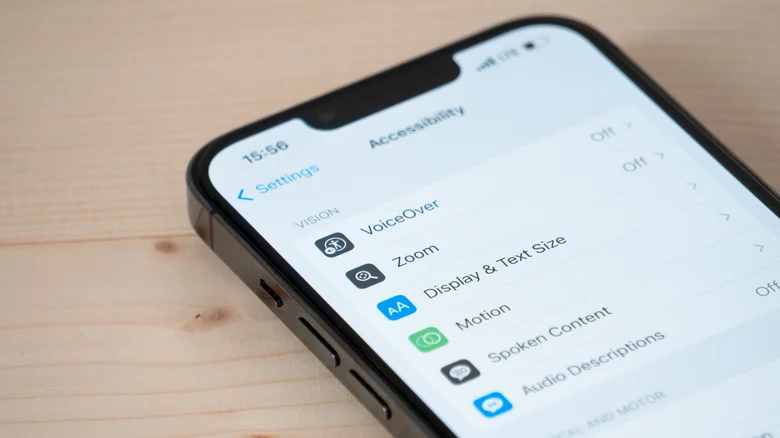
    An iPhone on the Accessibility settings screen.

    A soft reset of all your iPhone’s settings is a good next step in trying to flush out a problem. It’s a middle ground between a simple restart and losing all of your data, though you should be aware of what settings you’ll need to redo after the reset. Network settings (i.e., Wi-Fi and Bluetooth), any Apple Pay cards, location and privacy permissions you’ve given to apps and websites, display and sound settings (like your wallpaper, alarms, ringtones and Liquid Glass settings), and any words your keyboard has learned over time will all be reset.

    To clear all of these settings in your phone, follow these steps:

    1. Select Transfer or Reset iPhone

    2. Choose which settings to delete; for a complete settings wipe, select Reset All Settings. Or more finely tune your selection based on why you’re resetting (if you’re resetting because of network issues, for example, you could select Reset Network Settings).

    How to hard reset your iPhone

    As a last resort when troubleshooting, or if you’re getting rid of your iPhone, you can give the device a hard reset, which will completely erase all data on the device. For iPhone problems that seem unsolvable, sometimes starting with a blank slate is the answer. It’s recommended that, before you do this, you create an iCloud backup of your device as a safety precaution. To initiate a factory reset, you’ll need to make sure you know your Apple Account password and phone passcode, then follow these steps:

    1. Select Erase All Content and Settings, then hit Continue

    2. Choose to either keep or delete your eSIM; if you delete it, you’ll need to reactivate your plan with your cellular carrier

    3. Enter your iPhone passcode and Apple password, then watch as all your data is erased.

    Apple Hard reset Smartphones soft
    Follow on Google News Follow on Flipboard
    Share. Facebook Twitter Pinterest LinkedIn Tumblr Email Copy Link
    myappsplus
    • Website

    Related Posts

    One problem with Android Auto can be fixed with a simple update

    September 12, 2026

    How to change Amazon Alexa’s voice and personality

    September 12, 2026

    Tesla says it will finally unveil the second generation Roadster on October 1

    September 12, 2026
    Add A Comment
    Leave A Reply Cancel Reply

    Top Posts

    The 6 AI-free Linux distros I recommend most

    August 19, 20263 Views

    AI, automation, robot dogs ensure on-site nuclear safety

    September 7, 20262 Views

    This tiny AI box could save me from upgrading my perfectly good laptop

    September 6, 20262 Views
    Latest Reviews

    Apple Wallet driver’s licenses are coming to North Carolina, but there’s a catch

    myappsplusAugust 18, 2026

    3 Japanese AI Stocks Turning Automation Spending Into Real Revenue

    myappsplusAugust 18, 2026

    Apple: DOJ’s latest challenge in antitrust case ‘fails at every level’

    myappsplusAugust 18, 2026
    Stay In Touch
    • Facebook
    • YouTube
    • TikTok
    • WhatsApp
    • Twitter
    • Instagram

    Subscribe to Updates

    Get the latest tech news from FooBar about tech, design and biz.

    Most Popular

    Apple Wallet driver’s licenses are coming to North Carolina, but there’s a catch

    August 18, 20260 Views

    3 Japanese AI Stocks Turning Automation Spending Into Real Revenue

    August 18, 20260 Views

    Apple: DOJ’s latest challenge in antitrust case ‘fails at every level’

    August 18, 20260 Views
    Our Picks

    NYT Strands hints and answers for Sunday, September 13 (game #924)

    September 12, 2026

    One problem with Android Auto can be fixed with a simple update

    September 12, 2026

    LG’s denial over TV spying claims ‘does not address the full privacy picture’, experts say — after report accuses it of making ‘216,000,000 spy TVs’

    September 12, 2026

    Subscribe to Updates

    Subscribe to our newsletter and get the latest tech news, app updates, AI trends, smartphone reviews, and exclusive deals delivered straight to your inbox.

    Facebook X (Twitter) Instagram Pinterest
    • About Us
    • Get In Touch
    • Disclaimer
    • Privacy Policy
    • Terms & Conditions
    © 2026 MyAppsPlus. All Rights Reserved.

    Type above and press Enter to search. Press Esc to cancel.