Close Menu
MyAppsPlus

    Subscribe to Updates

    Get the latest creative news from FooBar about art, design and business.

    What's Hot

    A new nuclear age for the US? X-energy reveals more on its 214,000-square-foot Tennessee plant with 5-metric-ton uranium capacity

    September 27, 2026

    How to improve CarPlay navigation if you use Google Maps over Apple Maps

    September 27, 2026

    NYT Connections hints and answers for Monday, September 28 (game #1205)

    September 27, 2026
    Facebook X (Twitter) Instagram
    Facebook X (Twitter) Instagram
    MyAppsPlusMyAppsPlus
    Sunday, September 27
    • Home
    • Breaking Tech
    • Apps & Software
    • AI & Automation
    • Android
    • iPhone & iOS
    • More
      • Reviews
      • How-To Guides
      • Deals & Discounts
      • Shop
    MyAppsPlus
    Home»Breaking Tech»How to improve CarPlay navigation if you use Google Maps over Apple Maps
    Breaking Tech

    How to improve CarPlay navigation if you use Google Maps over Apple Maps

    myappsplusBy myappsplusSeptember 27, 2026004 Mins Read
    Share Facebook Twitter Pinterest Copy Link LinkedIn Tumblr Email Telegram WhatsApp
    Follow Us
    Google News Flipboard
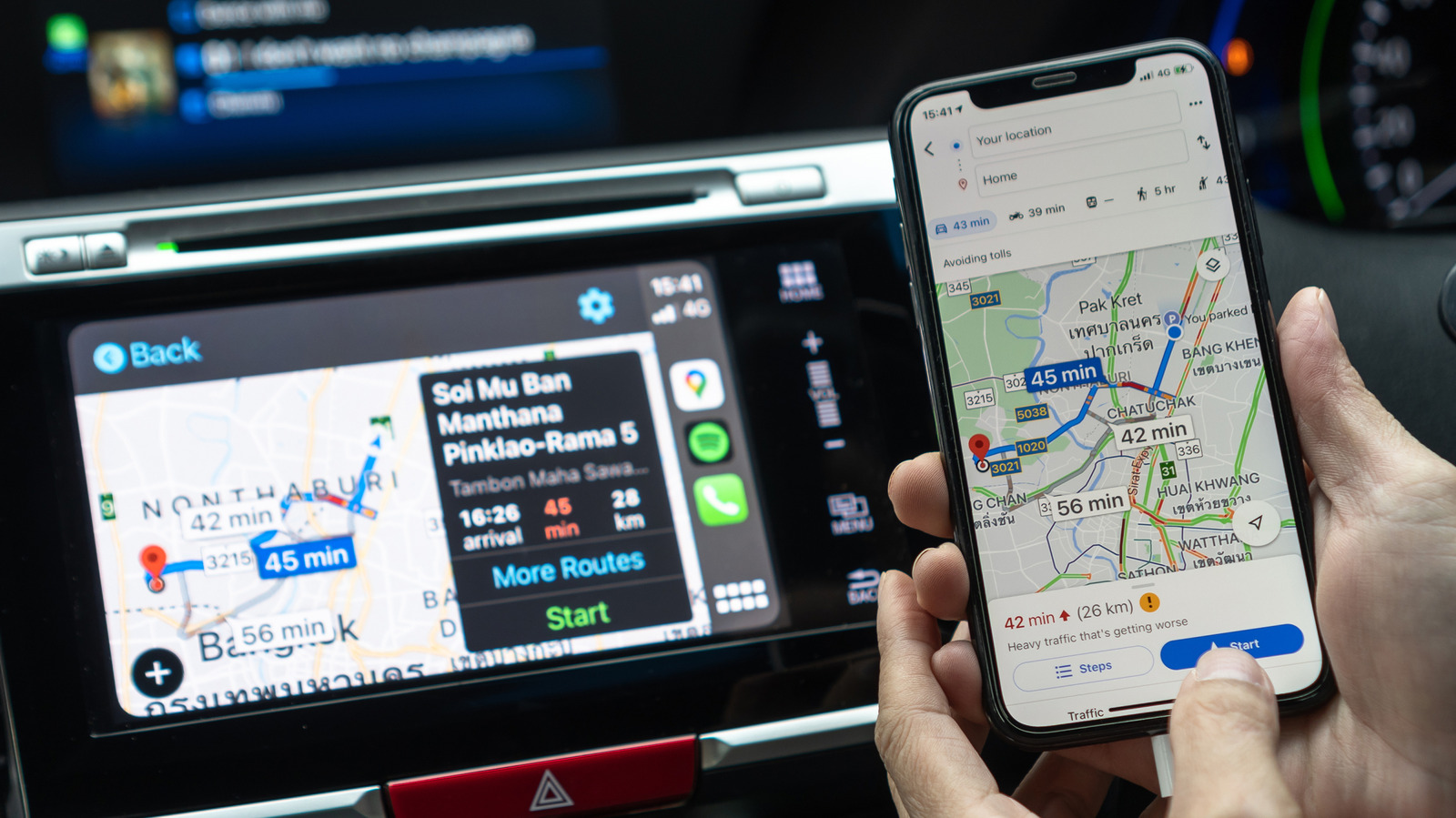
    How to improve CarPlay navigation if you use Google Maps over Apple Maps
    Share
    Facebook Twitter LinkedIn Pinterest Email Copy Link

    A few tricks provide a seamless Google Maps experience in your car with CarPlay.

    Apple Maps has improved a lot since its troubled launch, but many people still prefer Google Maps. That could be because of the traffic data, better business listings or just out of habit. The good news is that you can use Google Maps in Apple CarPlay just like any other supported app. 

    Apple has always been restrictive when it comes to changing the iPhone’s default apps. In the EU and Japan, local regulations allow you to choose your favorite navigation app as the default. This means when you ask Siri for directions or tap an address, your iPhone and CarPlay will use your preferred app instead of Apple Maps. If you’re in one of these regions, you’ll find this toggle in the Default Apps menu on your iPhone, located under Settings > Apps. Select Google Maps as your default maps tool there for the best experience.

    Otherwise, Apple Maps will remain the default navigation app on CarPlay, but there are a few tricks you can use to improve your navigation experience with Google Maps in your car. While it’s not particularly smooth, one of the easiest is adding “on Google Maps” to the end of Siri requests in the car to avoid Apple Maps opening by default.

    Adding Google Maps to your CarPlay Home Screen
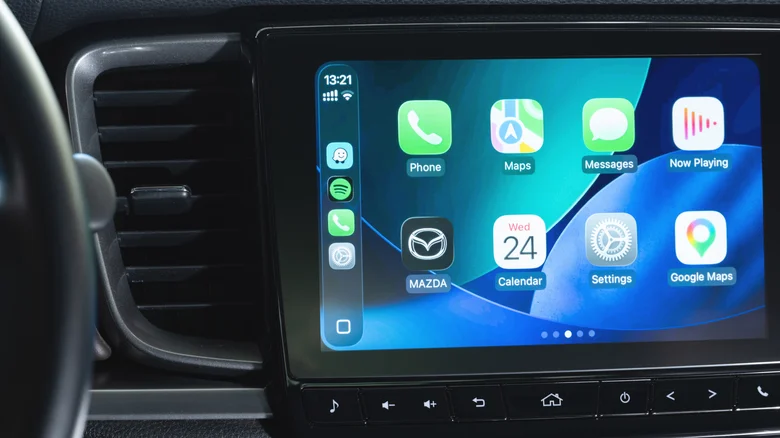
    CarPlay Home Screen with the Google Maps icon on it along with various other apps.

    If you’re outside the EU and Japan, there are still ways to use Google Maps in CarPlay more seamlessly. One is to place Google Maps on the first page of your CarPlay Home Screen: in your iPhone’s Settings, go to General > CarPlay. Choose on your car and select Apps. Here, you can rearrange the order in which apps appear on your Home Screen — just drag Google Maps near the top and it’ll be one of the first apps you see in your car. 

    If Google Maps isn’t showing up on CarPlay at all, this is the first place to look. Of course, you’ll need to download Google Maps to your iPhone from the App Store first (among the dozens of CarPlay apps available). Scroll to the bottom of this menu and tap the green Plus icon to add it if needed.

    Adding Google Maps to your CarPlay dashboard is another method to reach it faster. Instead of looking for the app every time, you can add a widget for quicker access. Go back to CarPlay’s settings on your iPhone, but this time, tap Widgets instead of Apps. There, find and add a Google Maps widget. 

    Some cars also offer a split-screen CarPlay dashboard, accessible by swiping right to the leftmost panel. This usually includes a mini-map. Start a route in Google Maps once, and it should take over that panel from then on.

    Other tricks for fast navigation
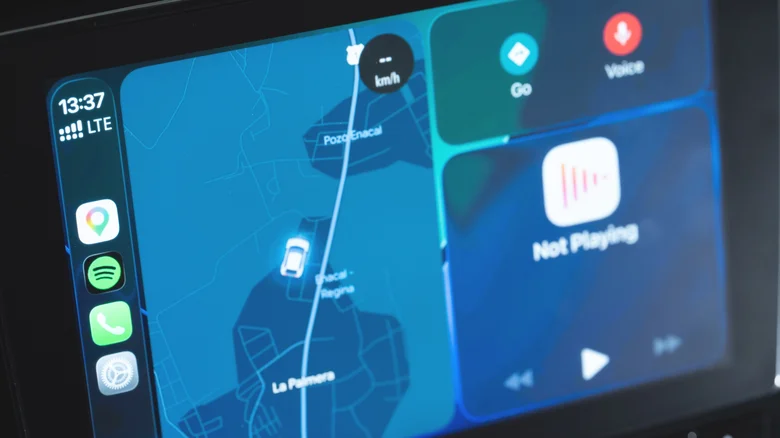
    CarPlay Dashboard showing the navigation widget.

    There are other best practices within the Google Maps app that will make navigation easier on CarPlay. Adding your home and work addresses is a good first step, so you can start common routes with a single tap. 

    To configure these, open Google Maps on your iPhone and tap your profile picture at the top-right. Then go to Settings > Location & privacy. Scroll down until you find Home and work addresses. Select this, then use the three-dot menu for each option to add or adjust it as needed. They’ll be waiting for you on CarPlay.

    When going on a long trip, having offline maps downloaded is important, especially to avoid problems if you lose your cellular connection. Again in Google Maps on your iPhone, tap your profile picture and select Offline Maps. Choose the areas you want to keep downloaded for navigation without an internet connection. It’s a good idea to download these maps using a Wi-Fi connection, since maps of large cities can use a lot of data.

    You can also change how the map looks. Tapping the compass button switches between north-up and heading-up, and the day and night themes can be set to change automatically if you visit Settings > Appearance in CarPlay. Don’t forget to change other important CarPlay settings, too.

    Apple CarPlay Google Improve navigation
    Follow on Google News Follow on Flipboard
    Share. Facebook Twitter Pinterest LinkedIn Tumblr Email Copy Link
    myappsplus
    • Website

    Related Posts

    Here’s what I’d like to see Apple do right in a screenless fitness tracker

    September 27, 2026

    When is it worth using a bike computer over a smartphone?

    September 27, 2026

    Why it’s important to not put your PC on the floor

    September 27, 2026
    Add A Comment
    Leave A Reply Cancel Reply

    Top Posts

    Can reviews settle disputes that marked first two seasons?

    September 21, 20266 Views

    Microsoft resolves issues after software updates

    September 22, 20263 Views

    Do Tech Industry CEOs Really Earn an Average of 10,000 Yuan Per Day? Calculating Daily Salaries of Top Elite Employees in the Tech Sector

    September 20, 20263 Views
    Latest Reviews

    The reasons Siri may not work on CarPlay

    myappsplusAugust 23, 2026

    Augury’s first appearance in Gartner’s APM Market Guide signals that plant AI is moving toward agent-led automation

    myappsplusAugust 23, 2026

    I took the Volvo EX60 and BMW iX3 on 400-mile road trips — and range anxiety is officially dead

    myappsplusAugust 23, 2026
    Stay In Touch
    • Facebook
    • YouTube
    • TikTok
    • WhatsApp
    • Twitter
    • Instagram

    Subscribe to Updates

    Get the latest tech news from FooBar about tech, design and biz.

    Most Popular

    The reasons Siri may not work on CarPlay

    August 23, 20260 Views

    Augury’s first appearance in Gartner’s APM Market Guide signals that plant AI is moving toward agent-led automation

    August 23, 20260 Views

    I took the Volvo EX60 and BMW iX3 on 400-mile road trips — and range anxiety is officially dead

    August 23, 20260 Views
    Our Picks

    A new nuclear age for the US? X-energy reveals more on its 214,000-square-foot Tennessee plant with 5-metric-ton uranium capacity

    September 27, 2026

    How to improve CarPlay navigation if you use Google Maps over Apple Maps

    September 27, 2026

    NYT Connections hints and answers for Monday, September 28 (game #1205)

    September 27, 2026

    Subscribe to Updates

    Subscribe to our newsletter and get the latest tech news, app updates, AI trends, smartphone reviews, and exclusive deals delivered straight to your inbox.

    Facebook X (Twitter) Instagram Pinterest
    • About Us
    • Get In Touch
    • Disclaimer
    • Privacy Policy
    • Terms & Conditions
    © 2026 MyAppsPlus. All Rights Reserved.

    Type above and press Enter to search. Press Esc to cancel.