

Spam calls are apparently here to stay, but you have ways to fight back.
Spam calls should be a bygone concern, but unfortunately they’re still a plague many of us deal with. Services like Truecaller have helped with caller identification and spam filtering for years. But since Android and iOS have gotten great at handling spam calls on their own, you don’t need to rely on a third-party app — much less pay a subscription — to avoid unwanted callers.
In addition to functions on your phone, your carrier may offer its own spam protection features. Depending on the company, these might be enabled by default. If not, check your online account or the carrier’s app for a spam protection toggle.
Filtering unwanted calls on iPhone
If you have an iPhone, navigate to Settings > Apps > Phone. The most important option is under the Call Filtering section; enable Spam and calls that your carrier identifies as junk won’t ring. They’ll be automatically sent to voicemail, and in the Phone app’s Calls tab, they appear under the Spam section (accessible under the top-right button).
To further keep your call logs tidy, enable the Unknown Callers option in the same Settings box. With this, recent calls from non-contacts appear under the Unknown Callers section (available. Use Mark as Known to remove a given number from this section if needed
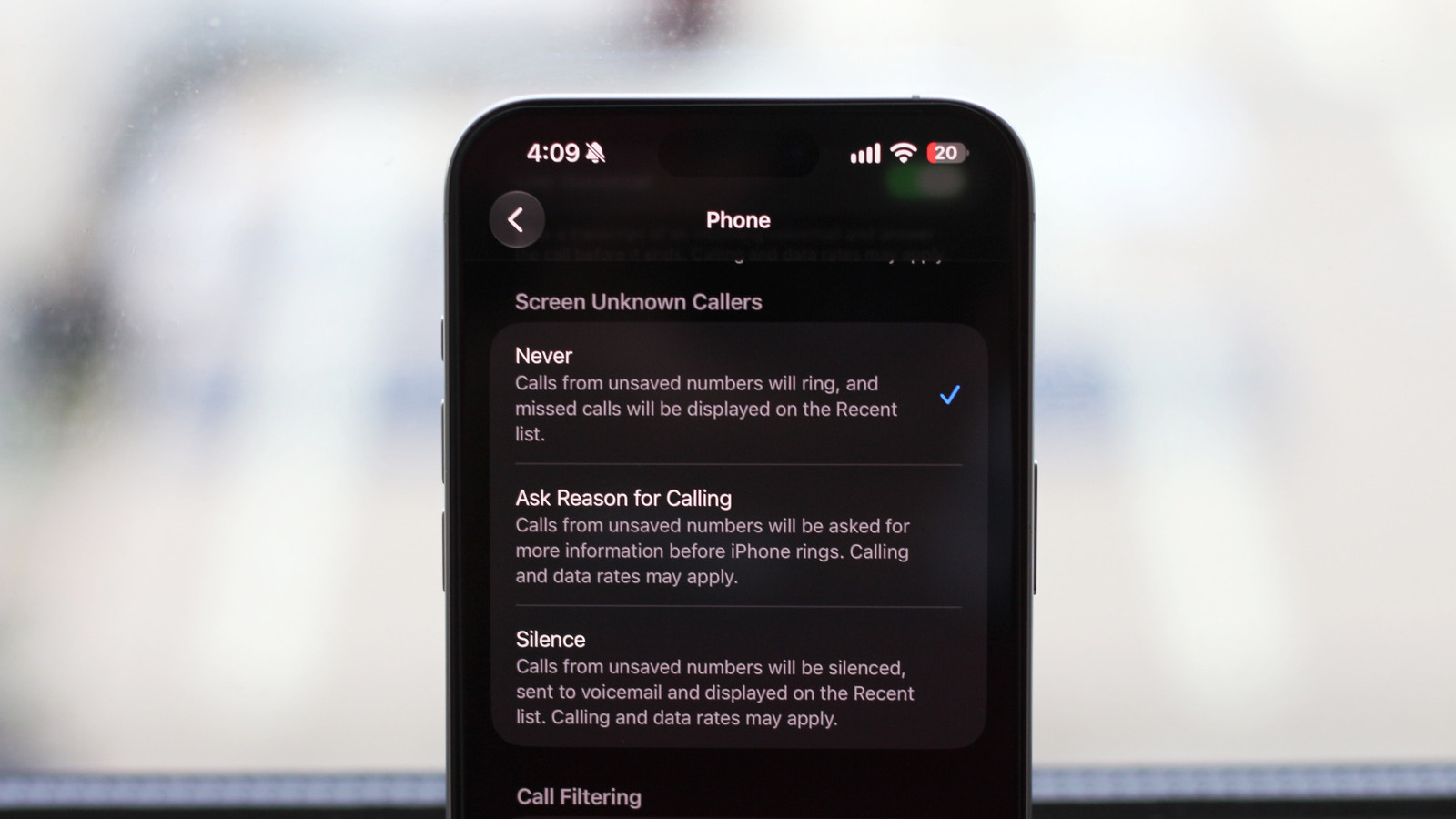
Back on the Settings page, review the Screen Unknown Callers section, where you have three options. Never is the default, where every incoming call rings normally. The most aggressive approach is Silence, which mutes all incoming calls from numbers not saved in your contacts and sends them to voicemail. You can view these silenced calls on the same Calls tab of the Phone app.
Ask Reason for Calling is a good middle ground; with this, your iPhone will screen unknown callers and ask them why they’re calling. You’re able to view a live transcript of the caller’s response on your screen and decide whether the call is worth answering. Call Screening is only available in select countries on iPhones running iOS 26 or newer.
While you presumably have friends and family saved in your contacts already, make sure to save any other numbers that contact you regularly, like doctors’ offices or work clients. These options are great for shutting up spammers, but you’ll need to be a little more vigilant to avoid missing legitimate calls from unsaved numbers.
Managing spam calls on Android
Most Android phones offer spam detection for calls, although availability and capabilities vary depending on your phone’s model, its Android version and the dialer app you use. The official <a href="https://play.google.com/store/apps/details?id=com.google.android.dialer” rel=”nofollow noopener” target=”_blank”>Phone app by Google is what most Android manufacturers ship with their devices, and it comes with caller ID and spam detection built-in. If your phone uses a different dialer, poke through its settings to look for a similar solution, or download Google’s Phone app and set it as the default dialer.
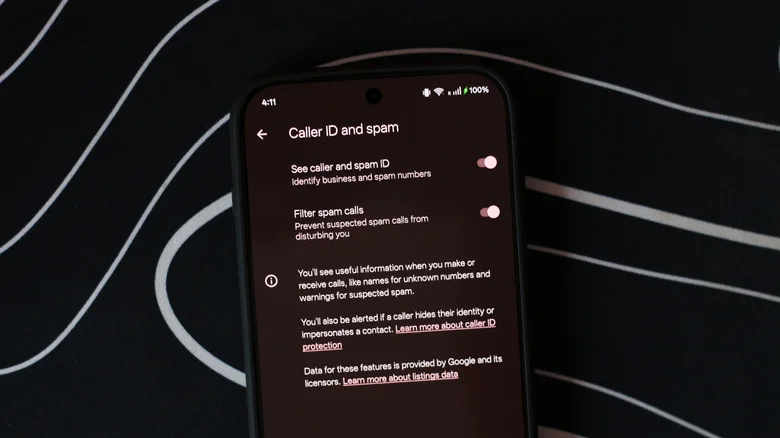
Launch the Phone app, tap the hamburger menu (three horizontal lines) at the top-left and choose Settings. Under the Call Assist section, tap Caller ID and spam. Here, enable See caller and spam ID to have the app warn you of an incoming potential spam call before you answer it. To go further, enable Filter spam calls to automatically silence suspected junk calls.
You can still view missed calls and voicemails from unknown callers in the Phone app. For both of these features to work, you’ll need a phone running Android 6.0 or newer, with the latest version of the Phone app by Google installed and set as the default.
Some Android phones, including ones from Samsung and Google, feature enhanced call screening options akin to the Ask Reason for Calling feature on iPhone. If you own a Pixel 6 or newer, launch the Phone app and navigate to Settings > Spam and Call Screen > Call Screen to set up this feature. On supported Samsung phones, open the Phone app, tap the three-dot icon in the top-right corner and navigate to Settings > Call screening.
