
Close Menu
MyAppsPlus

    Subscribe to Updates

    Get the latest creative news from FooBar about art, design and business.

    What's Hot

    Google is giving schools a choice: Allow AI or lose Google Search

    November 3, 2026

    Google will disable Search for students unless schools accept AI features in ‘Guided Learning’ push

    November 3, 2026

    These muscle-reading wearables let you use voice input without speaking a word

    November 3, 2026
    Facebook X (Twitter) Instagram
    Facebook X (Twitter) Instagram
    MyAppsPlusMyAppsPlus
    Tuesday, November 3
    • Home
    • Breaking Tech
    • Apps & Software
    • AI & Automation
    • Android
    • iPhone & iOS
    • More
      • Reviews
      • How-To Guides
      • Deals & Discounts
      • Shop
    MyAppsPlus
    Home»Breaking Tech»How to factory reset your Steam Deck
    Breaking Tech

    How to factory reset your Steam Deck

    myappsplusBy myappsplusSeptember 19, 2026023 Mins Read
    Share Facebook Twitter Pinterest Copy Link LinkedIn Tumblr Email Telegram WhatsApp
    Follow Us
    Google News Flipboard
    How to factory reset your Steam Deck
    Share
    Facebook Twitter LinkedIn Pinterest Email Copy Link

    There are a couple of ways to go about it.

    The Steam Deck is nothing short of a fantastic gaming handheld, but like any other computer, it can work perfectly today and suddenly start malfunctioning the next day. Most times a simple system restart gets the device back in working shape. Other times, it takes a not-so-simple factory reset to get things back in order.

    If your Steam Deck has been plagued with performance issues, corrupted files or maybe an unbearable bug, a factory reset is usually the silver bullet and is also a great way to prepare the device for sale. But that bullet erases everything, both the good and the bad, including your beloved games if they’re installed on the Steam Deck itself. So before going ahead with the reset, back up your save files, controller layouts and anything else living outside your Steam Cloud’s reach. You can factory reset your Steam Deck from the Settings menu. If your unit no longer powers on normally, you can reset it from recovery mode instead.

    You can trigger a factory reset using your console without needing a computer or USB drive. Simply:

    1. Press the Steam button to open the main menu.

    2. Select Settings.

    3. Select System.

    4. Scroll down to Advanced section near the bottom of the page.

    5. Choose Reset to Factory State.

    6. Toggle on Reinstall SteamOS if you’re troubleshooting.

    7. Confirm your action.

    Your Steam Deck will begin preparing the device for the reset, and after that it’ll wipe your device. The process takes around 10-15 minutes depending on how much data you have stored. If you have a microSD card inserted, the factory reset shouldn’t touch it, but it’s best to take it out before starting anyway. Also, you’ll need an internet connection to reinstall SteamOS after the reset.

    Resetting your Steam Deck will erase everything saved to your internal storage and take the device back to the state it was in out of the box. So, if you’re just trying to fix an issue and not preparing the device for a new owner, it’s best to go through all available troubleshooting methods like restarting the device, checking for a pending software update or rolling back to a previous SteamOS version if you think an update caused the problem. Lastly, in the case that you’re just preparing your Steam Deck for a new owner, toggle off Reinstall SteamOS. It’s faster and wipes only your personal data.

    How to factory reset your Steam Deck from recovery mode
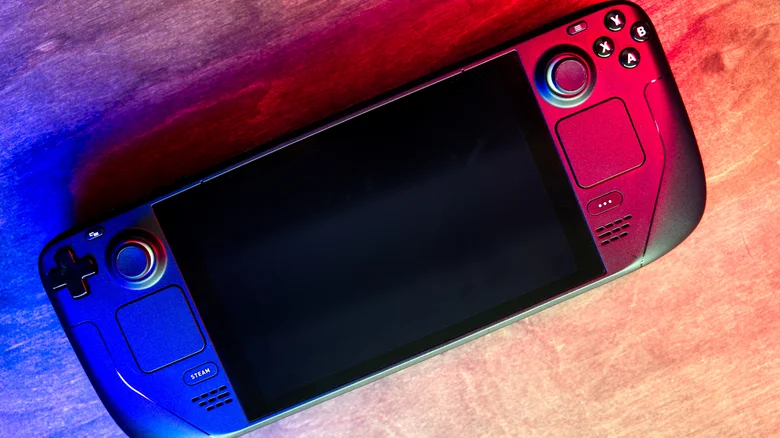
    A black Steam Deck laying on a wooden surface.

    If your Steam Deck is having issues booting normally, you can use recovery mode to factory reset it.

    1. First, make sure the device is completely powered off by pressing the power button for 10 seconds.

    2. Hold the Power button and the “…” button.

    3. Continue holding the “…” button once you hear the boot sound.

    4. Do it correctly, and you’ll enter the SteamOS menu.

    5. Scroll to “ERASE USER DATA FROM DECK.”

    6. Use A to select.

    Afterward, you’ll see lines of commands and your Steam Deck will proceed to erase all user data, including user settings, local games and save data. If you want to roll back your Steam Deck to a previous version, you can do it from the same SteamOS menu.

    • Use the steps above to enter the SteamOS menu.

    • Select the option named Previous SteamOS-(followed by its exact build number).

    Your Steam Deck will restart into the previous version of SteamOS while retaining all your user data. Do note that the rollback only lasts until the next restart.

    Factory gaming reset Steam Your
    Follow on Google News Follow on Flipboard
    Share. Facebook Twitter Pinterest LinkedIn Tumblr Email Copy Link
    myappsplus
    • Website

    Related Posts

    Netflix thinks AI might save you from scrolling aimlessly for something to watch

    November 3, 2026

    Researchers warned of North Korean hacking tactics years before record $6.3B Binance heist

    November 3, 2026

    Ten years later, ‘Pokémon Go to the polls’ still haunts the internet

    November 3, 2026
    Add A Comment
    Leave A Reply Cancel Reply

    Top Posts

    Cathay Pacific tests Google AI that dramatically cuts airplane contrails — tiny altitude shifts slash environmental impact by 40% in early trials

    September 8, 2026138 Views

    Liene PixCut S1 Photo Printer and Sticker Cutter Review

    October 31, 202617 Views

    Apple is making Creator Studio an even better deal with new AI features and creative tools

    October 28, 202617 Views
    Latest Reviews

    OpenAI warns about how good Astra model is at cracking cybersecurity, releases it anyway because it took ‘years of research and big bets’

    myappsplusSeptember 4, 2026

    Hands-on with Baseus’ tiny PicoGo Pro – a sleek 100W smart display charger for your new Dark Cherry iPhone 18 Pro [Deal]

    myappsplusSeptember 4, 2026

    Judge blocks X rival from using Twitter name, but allows ‘Tweet’ for now

    myappsplusSeptember 4, 2026
    Stay In Touch
    • Facebook
    • YouTube
    • TikTok
    • WhatsApp
    • Twitter
    • Instagram

    Subscribe to Updates

    Get the latest tech news from FooBar about tech, design and biz.

    Most Popular

    This week’s Apple deals for Labor Day: AirPods Pro 3, Studio Display, AirTag 2, Mac mini, more from $5.50

    September 4, 20260 Views

    Beatbot’s Labor Day Sale drops 2026 Sora 70 5-in-1 robotic pool cleaner to $1,099 ($400 off), more from $339

    September 4, 20260 Views

    iPhone Ultra, iPhone 18 Pro, and More: Apple’s September 9 Event Preview

    September 4, 20260 Views
    Our Picks

    Google is giving schools a choice: Allow AI or lose Google Search

    November 3, 2026

    Google will disable Search for students unless schools accept AI features in ‘Guided Learning’ push

    November 3, 2026

    These muscle-reading wearables let you use voice input without speaking a word

    November 3, 2026

    Subscribe to Updates

    Subscribe to our newsletter and get the latest tech news, app updates, AI trends, smartphone reviews, and exclusive deals delivered straight to your inbox.

    Facebook X (Twitter) Instagram Pinterest
    • About Us
    • Get In Touch
    • Disclaimer
    • Privacy Policy
    • Terms & Conditions
    © 2026 MyAppsPlus. All Rights Reserved.

    Type above and press Enter to search. Press Esc to cancel.