Close Menu
MyAppsPlus

    Subscribe to Updates

    Get the latest creative news from FooBar about art, design and business.

    What's Hot

    This magnetic accessory brings true flash back to phones

    October 19, 2026

    Best smartphones reviewed by Notebookcheck

    October 19, 2026

    Galaxy Z Fold 8 up to $570 off, Galaxy Tab S12 + FREE $200 gift card, Sony 1000XM6 buds, more

    October 19, 2026
    Facebook X (Twitter) Instagram
    Facebook X (Twitter) Instagram
    MyAppsPlusMyAppsPlus
    Monday, October 19
    • Home
    • Breaking Tech
    • Apps & Software
    • AI & Automation
    • Android
    • iPhone & iOS
    • More
      • Reviews
      • How-To Guides
      • Deals & Discounts
      • Shop
    MyAppsPlus
    Home»iPhone & iOS»How to draw and sketch in Freeform app on macOS 27
    iPhone & iOS

    How to draw and sketch in Freeform app on macOS 27

    myappsplusBy myappsplusOctober 19, 2026004 Mins Read
    Share Facebook Twitter Pinterest Copy Link LinkedIn Tumblr Email Telegram WhatsApp
    Follow Us
    Google News Flipboard
    How to draw and sketch in Freeform app on macOS 27
    Share
    Facebook Twitter LinkedIn Pinterest Email Copy Link

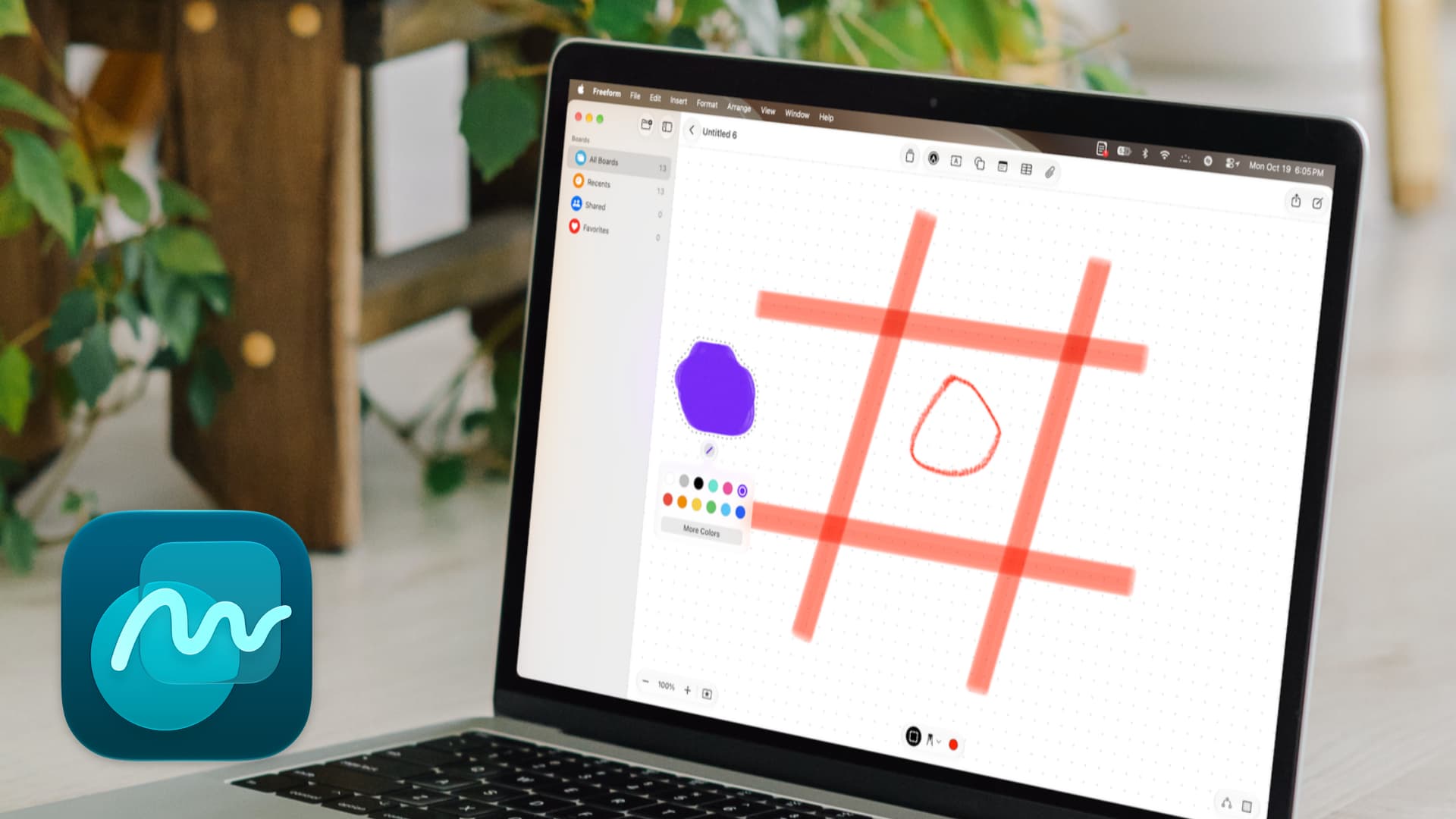
    Learn how to use the new drawing and sketching tools in the Apple Freeform app on Mac running macOS 27 Golden Gate.

    macOS 27 has added a new native drawing option to the Notes app and the Freeform app. Before this, if you wanted to sketch something quick on your Mac, you had to use the touchscreen on your iPhone or iPad as a companion drawing board. This setup was definitely cool and even useful at times, but it came with challenges, which we have discussed in our Notes app post.

    The new macOS Golden Gate update keeps that old Continuity feature while also adding built-in drawing tools that rely on your Mac’s trackpad and mouse. These sketching tools in Freeform now give you more options to create your digital whiteboard the way you like.

    On top of that, if you have used Freeform, you know that your boards (projects) syncApple Vision Pro. Having the option to draw on Mac now means that if you draw on a board on iPad, you can access, edit, fine-tune, etc., right on your Mac when you’re away. The opposite is also true: you can do a quick sketch on Mac and then use the Apple Pencil on iPad to improve it

    A suggestion before you begin

    Three-finger drag is turned off by default on Mac. So, when drawing in Freeform, you’ll have to force-press and drag on the MacBook or Apple Magic Trackpad, which is hard, unintuitive, and frustrating (at least for me). To make your life easier, turn on three-finger drag in System Settings > Accessibility > Pointer Control > Trackpad Options. After that, you can draw quickly by dragging with three fingers instead of holding down the trackpad. It’s so much better.
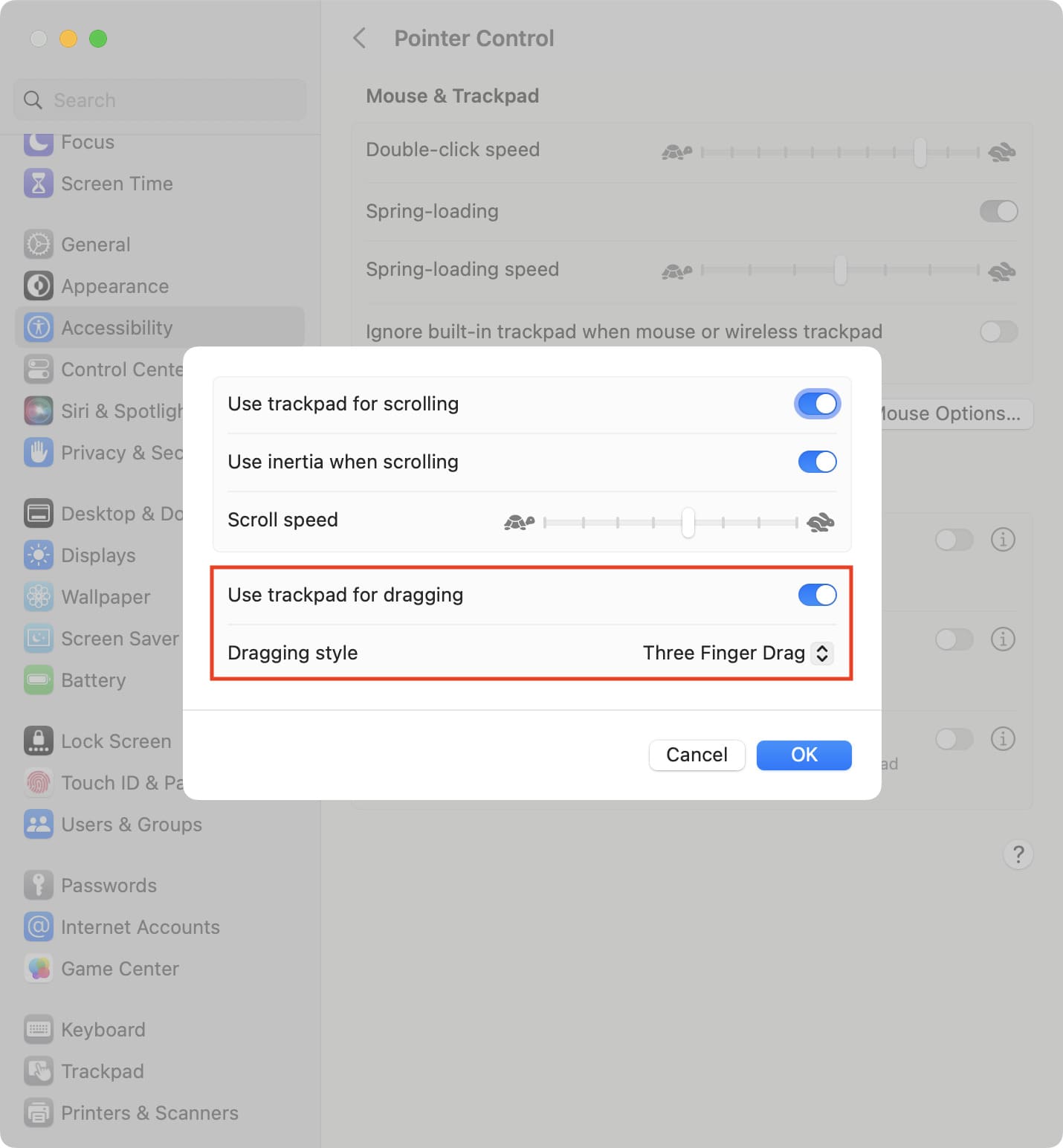
    Set Dragging style to three finger drag for Mac trackpad

    Draw in Freeform board on Mac

    1) Update your Mac to macOS 27 Golden Gate or install it on a partition.

    2) Open the Freeform app and select your board or create a new one.

    3) Click the new markup button in the top toolbar to enable drawing mode.
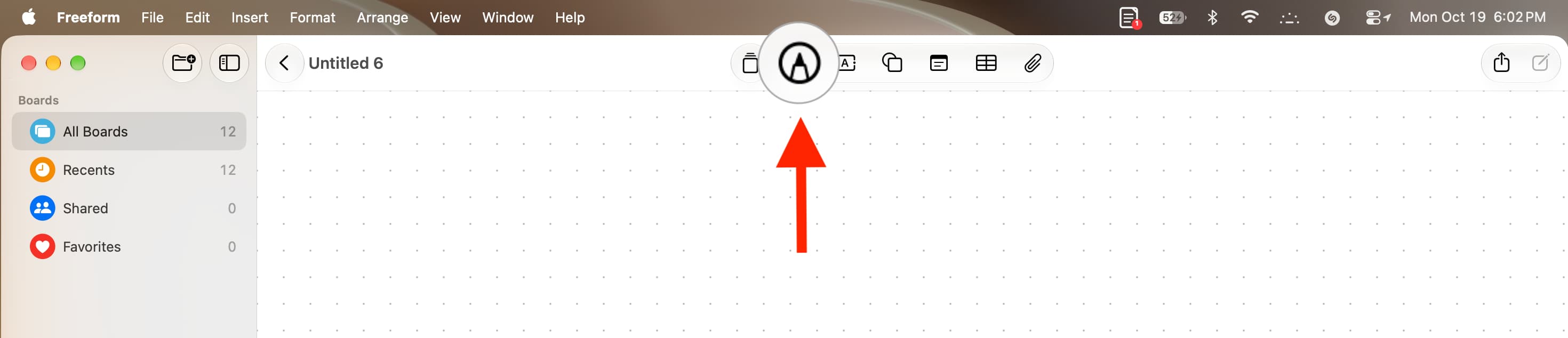
    Drawing button in Freeform in macOS 27 Golden Gate

    4) Now, select your preferred drawing tool by clicking the little arrow next to the pencil icon at the bottom:

    • Pen
    • Monoline
    • Marker
    • Pencil
    • Crayon
    • Fountain Pen
    • Reed
    • Watercolor
    • Fill
    • Eraser

    After selecting a tool, choose its thickness, then pick a color using the circular dot at the bottom.
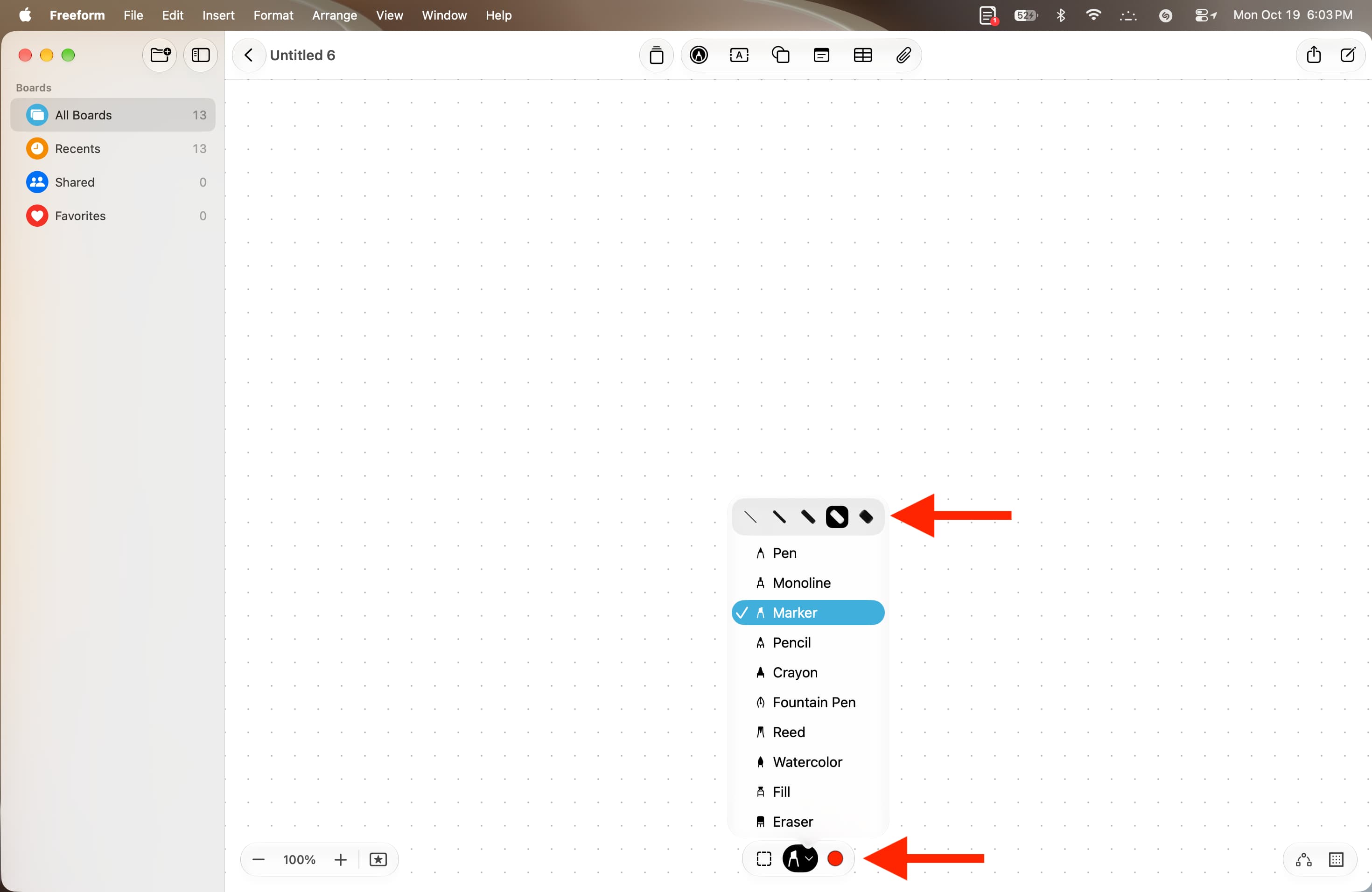
    Selecting drawing tool in Freeform on macOS 27

    5) Now use the board to unleash your creativity. Press and drag on the trackpad, or drag with three fingers (if you have enabled it).

    Use the Edit menu from the top or press Command
    + Z
    to undo and Shift
    + Command
    + Z
    to redo.
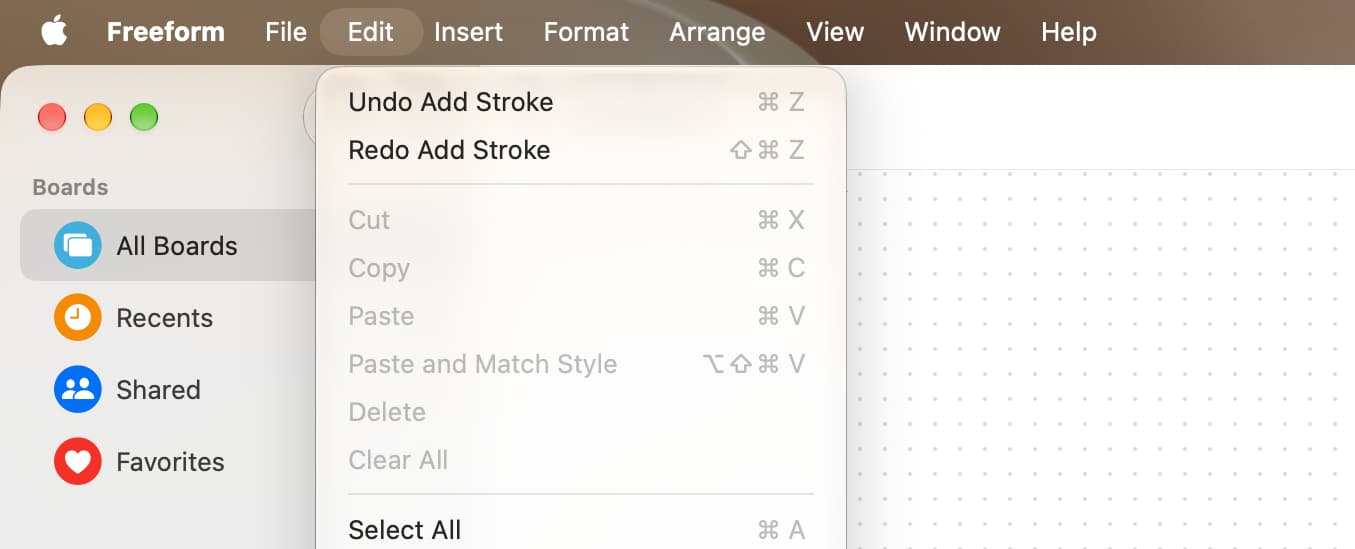
    undo and redo in Freeform on macOS 27

    6) If you want to move a drawing elsewhere, click the selection tool icon at the bottom. Then drag around the drawing to create a dotted border which selects it.
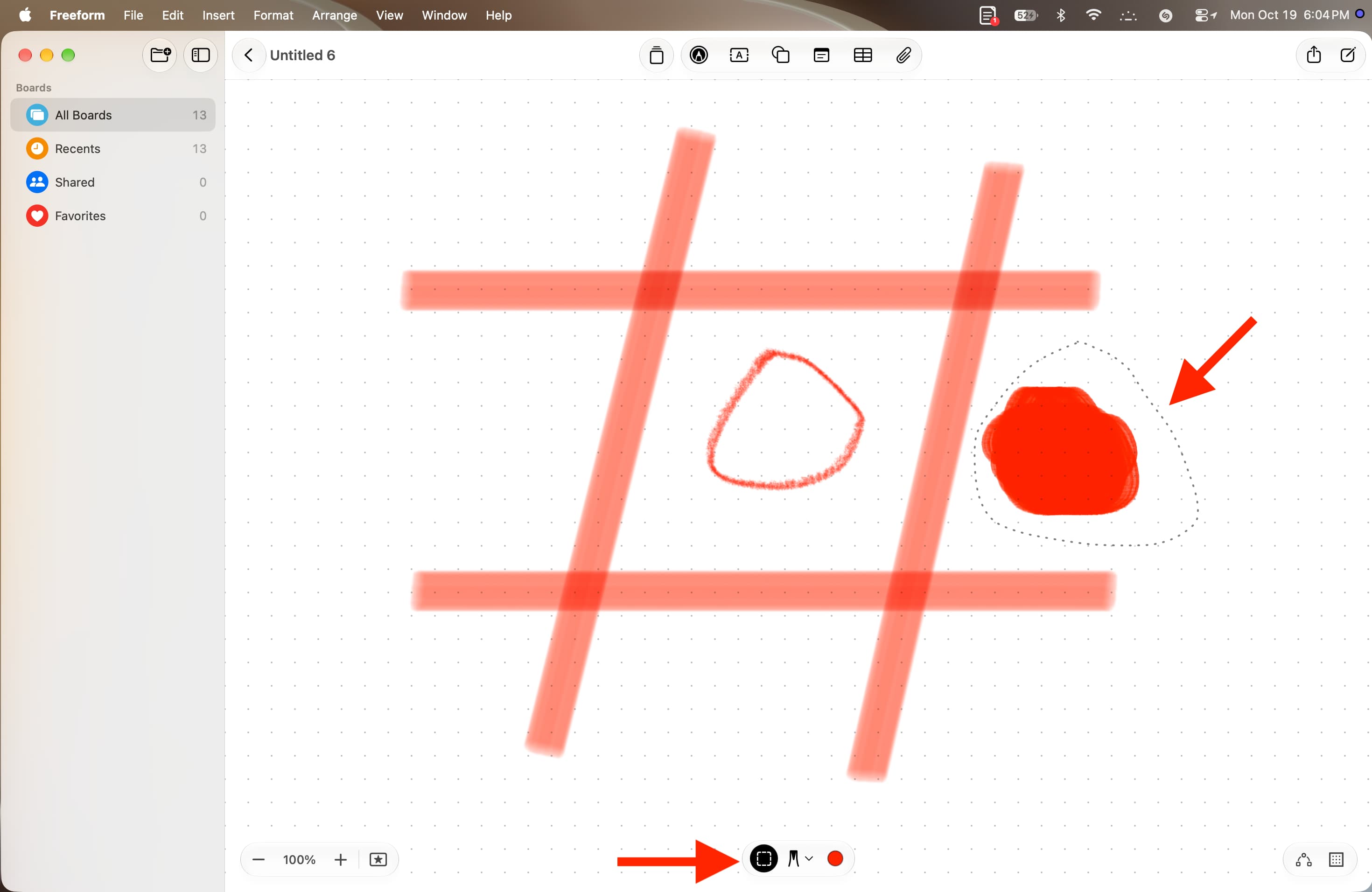
    Selecting drawing in Freeform on macOS Golden Gate

    Then drag to move it to another spot. You can also change the drawing’s color when it’s still selected.
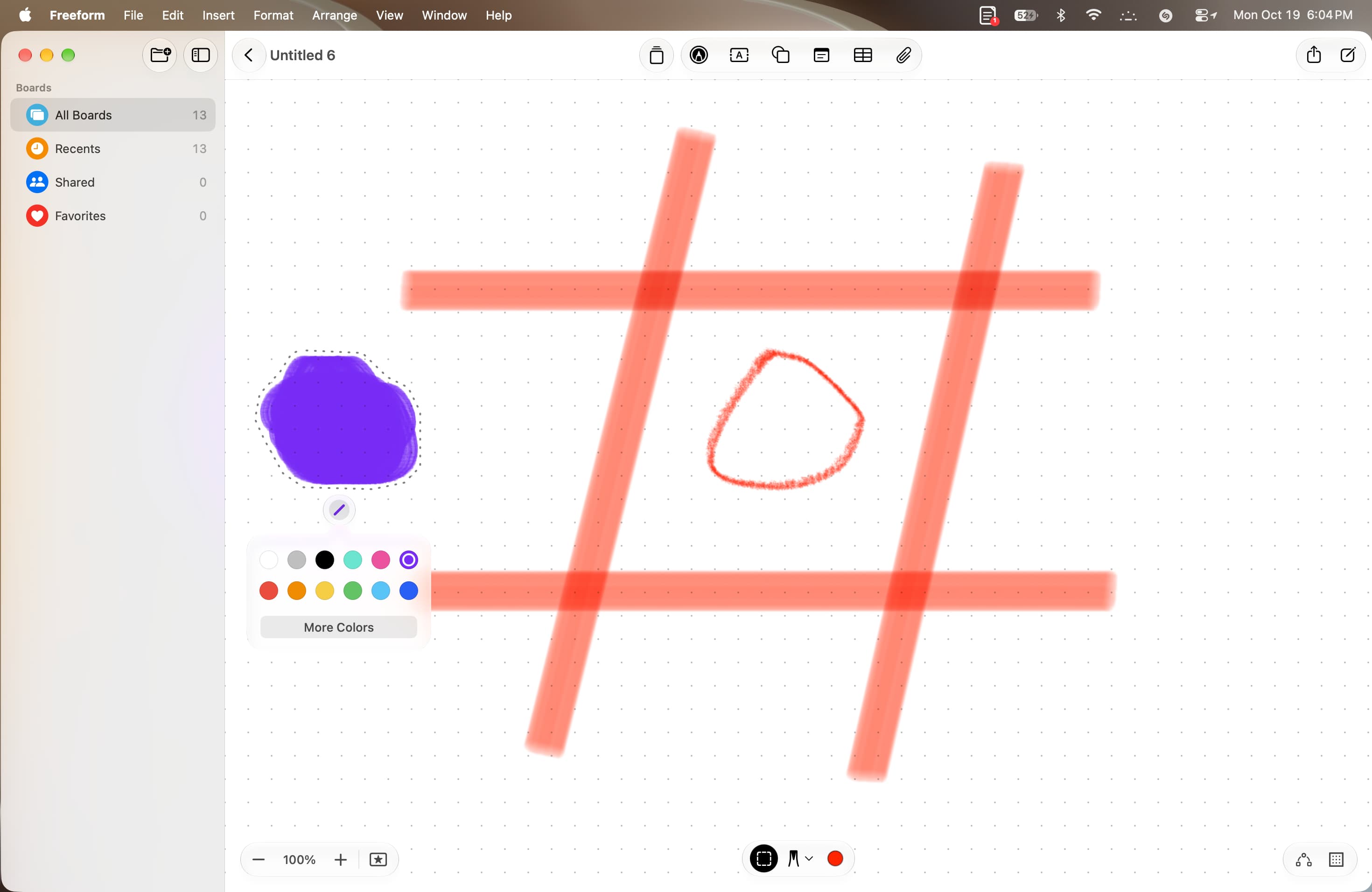
    Changing color and location of selected drawing in Freeform on macOS 27

    Freeform boards constantly save everything as you work. When you have finished drawing, click the same markup icon at the top to exit sketching mode. You can now use text, shape, and other tools on this same board, as needed.

    You can also drag and select the entire drawing.

    Then, use the four corner dots to change the size (hold the Option
    key to scale proportionally on all sides). You can also use the arrow keys on the keyboard to move the selected drawing precisely.

    Extra info: The Freeform app on macOS 27 now supports Dark Mode and folders. To enable Dark Mode, turn it on in macOS Control Center. And to create a new folder to organize your boards, click the icon at the top of the left sidebar.

    Also, check out: How to quickly insert emojis in macOS 27 with this colon trick

    Featured Freeform How to Mac macOS 27 News Push Tutorial Tutorials
    Follow on Google News Follow on Flipboard
    Share. Facebook Twitter Pinterest LinkedIn Tumblr Email Copy Link
    myappsplus
    • Website

    Related Posts

    This magnetic accessory brings true flash back to phones

    October 19, 2026

    Third RCs for macOS Sequoia 15.8.2 and macOS Tahoe 26.7.2 rolling out

    October 19, 2026

    Google TV shows off its ‘new’ features in fullscreen roundup when you turn on your TV [Gallery]

    October 19, 2026
    Add A Comment
    Leave A Reply Cancel Reply

    Top Posts

    Cathay Pacific tests Google AI that dramatically cuts airplane contrails — tiny altitude shifts slash environmental impact by 40% in early trials

    September 8, 202684 Views

    Pricing, Benchmarks vs Claude 5.5

    October 12, 202612 Views

    What was the PSX? The souped-up PS2 rarely sold outside of Japan

    September 14, 202610 Views
    Latest Reviews

    RB Global stock steady as new stake and mobile app launch highlight digital auction focus

    myappsplusAugust 30, 2026

    How to adjust the audio settings for your AirPods (and why you should)

    myappsplusAugust 30, 2026

    If Artificial Intelligence (AI) Leads to Unprecedented Economic Growth, These 2 S&P 500 Stocks Are Once-in-a-Decade Buying Opportunities Right Now

    myappsplusAugust 30, 2026
    Stay In Touch
    • Facebook
    • YouTube
    • TikTok
    • WhatsApp
    • Twitter
    • Instagram

    Subscribe to Updates

    Get the latest tech news from FooBar about tech, design and biz.

    Most Popular

    RB Global stock steady as new stake and mobile app launch highlight digital auction focus

    August 30, 20260 Views

    How to watch US Open Day 1 2026: FREE live streams of Venus Williams, Novak Djokovic, Jessica Pegula and more

    August 30, 20260 Views

    NASA’s Nancy Grace Roman Space Telescope is now on its way to study the ‘dark universe’

    August 30, 20260 Views
    Our Picks

    This magnetic accessory brings true flash back to phones

    October 19, 2026

    Best smartphones reviewed by Notebookcheck

    October 19, 2026

    Galaxy Z Fold 8 up to $570 off, Galaxy Tab S12 + FREE $200 gift card, Sony 1000XM6 buds, more

    October 19, 2026

    Subscribe to Updates

    Subscribe to our newsletter and get the latest tech news, app updates, AI trends, smartphone reviews, and exclusive deals delivered straight to your inbox.

    Facebook X (Twitter) Instagram Pinterest
    • About Us
    • Get In Touch
    • Disclaimer
    • Privacy Policy
    • Terms & Conditions
    © 2026 MyAppsPlus. All Rights Reserved.

    Type above and press Enter to search. Press Esc to cancel.