Close Menu
MyAppsPlus

    Subscribe to Updates

    Get the latest creative news from FooBar about art, design and business.

    What's Hot

    Today I learned the world’s first mass-produced drone was built by a Hollywood actor

    November 11, 2026

    How to create reminder list groups on iPhone, iPad, Mac

    November 11, 2026

    New York is forcing T-Mobile to stop putting data caps on low-income home internet plans

    November 11, 2026
    Facebook X (Twitter) Instagram
    Facebook X (Twitter) Instagram
    MyAppsPlusMyAppsPlus
    Wednesday, November 11
    • Home
    • Breaking Tech
    • Apps & Software
    • AI & Automation
    • Android
    • iPhone & iOS
    • More
      • Reviews
      • How-To Guides
      • Deals & Discounts
      • Shop
    MyAppsPlus
    Home»iPhone & iOS»How to create reminder list groups on iPhone, iPad, Mac
    iPhone & iOS

    How to create reminder list groups on iPhone, iPad, Mac

    myappsplusBy myappsplusNovember 11, 2026004 Mins Read
    Share Facebook Twitter Pinterest Copy Link LinkedIn Tumblr Email Telegram WhatsApp
    Follow Us
    Google News Flipboard
    How to create reminder list groups on iPhone, iPad, Mac
    Share
    Facebook Twitter LinkedIn Pinterest Email Copy Link

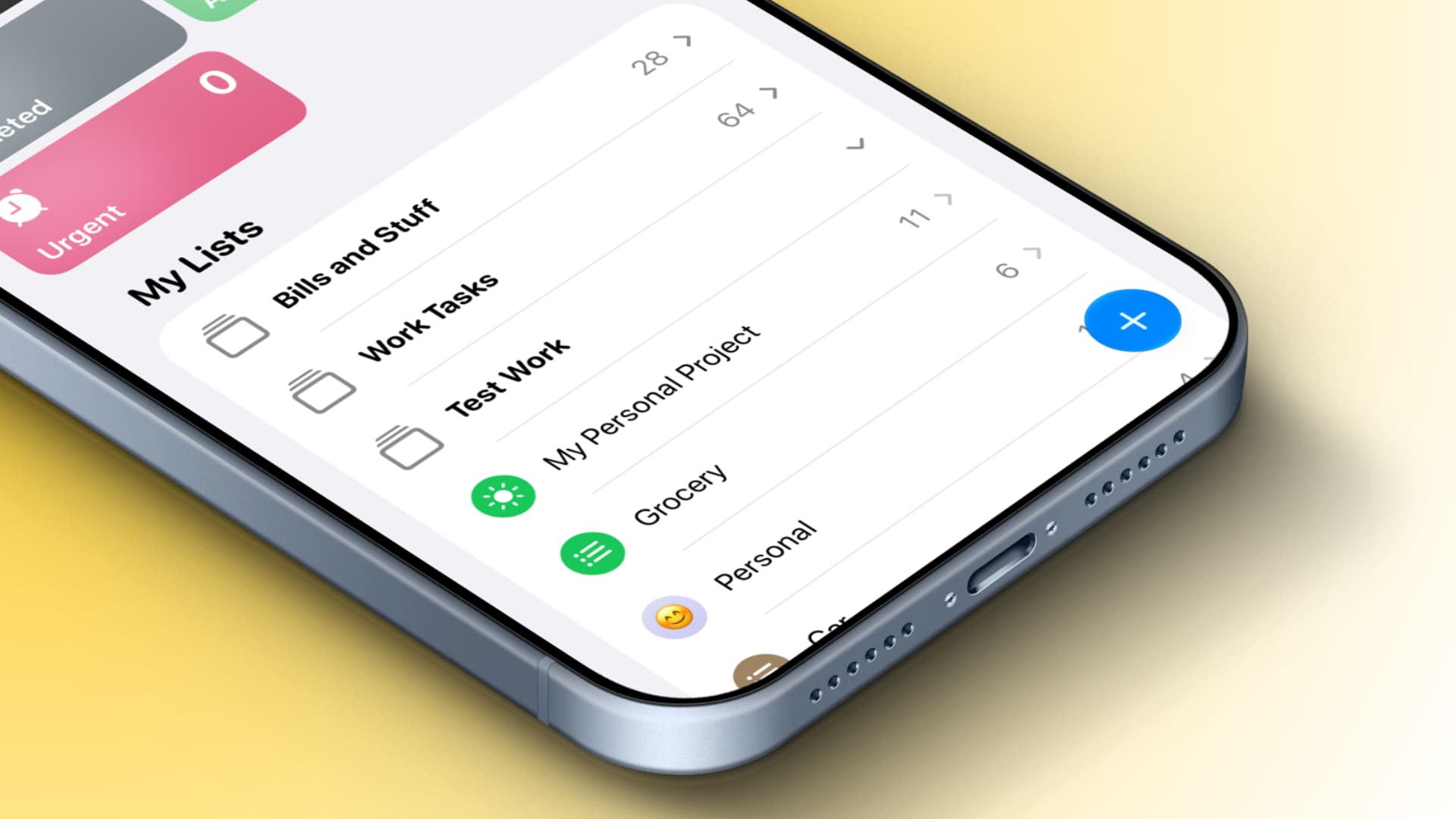
    Learn how to group reminder lists to see tasks from multiple lists in one place and to better organize and streamline the Apple Reminders app on your iPhone, iPad, and Mac.

    You can create several reminder lists to better organize your to-dos instead of having them all in one list. But if you create too many reminder lists, you can group them for better management.

    For instance, if you have separate reminder lists for your three kids’ homework, you can put them all in one group called ‘Kids Homework.’

    Similarly, if you have grocery lists, shopping lists, Christmas gift lists, and more, you can bundle them into a group you can call ‘Shopping.’ You get the idea…

    When you tap a reminder group, it shows all tasks from all its lists on one scrollable screen; you don’t have to go back and forth.

    The reminder group feature is similar to how, if you have too many photo albums or music playlists, you can further organize them into album folders and playlist folders in the Apple Photos and Music app.

    Like reminder lists, your reminder groups also sync

    Drag and drop to create reminder list groups

    You can drag one reminder list and drop it over another to automatically create a group. Then name your group, and you’re all set. This works on iOS, iPadOS, and macOS.

    But remember that you can only drag and drop one list at a time. If you want to add several lists to a group at once, follow the next method on your iPhone or iPad.

    Create reminder groups the other way

    1) Open the Reminders app on your iPhone or iPad.

    2) Tap the three dots icon at the top and select Edit Lists.
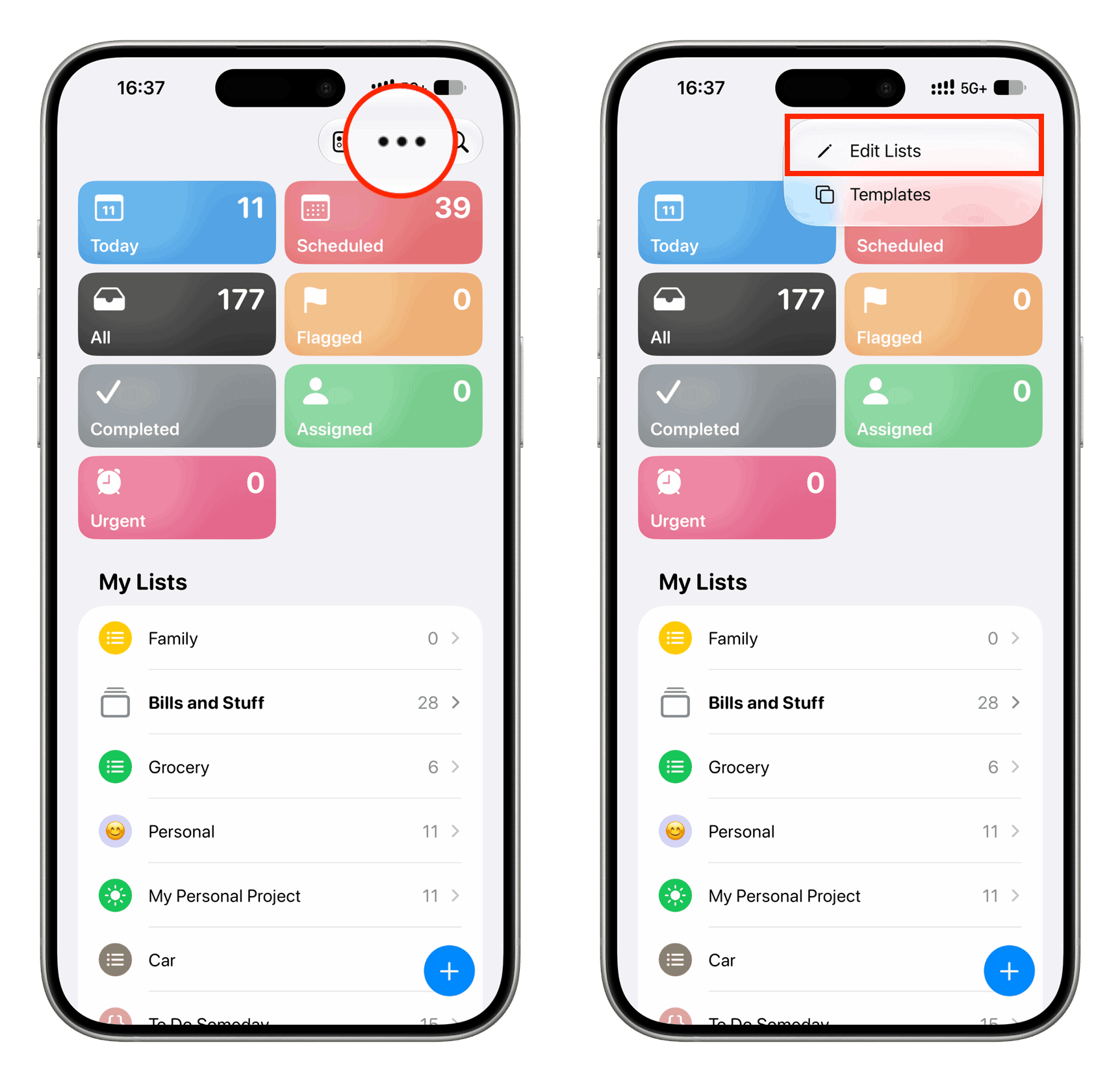
    Tap three dots icon and select Edit Lists in iOS Reminders app

    3) Tap the new folder icon.

    4) Give a name to your folder. Then tap Include to see a list of all your reminder lists.

    5) Tap the green plus button for each list you want to add to this group. Then, tap the back button.

    6) Tap the checkmark icon here and once again on the next screen to finish creating your reminder group.

    macOS

    1) Open the Reminders app and select a reminder list.

    2) Click File in the top menu bar and select New Group.
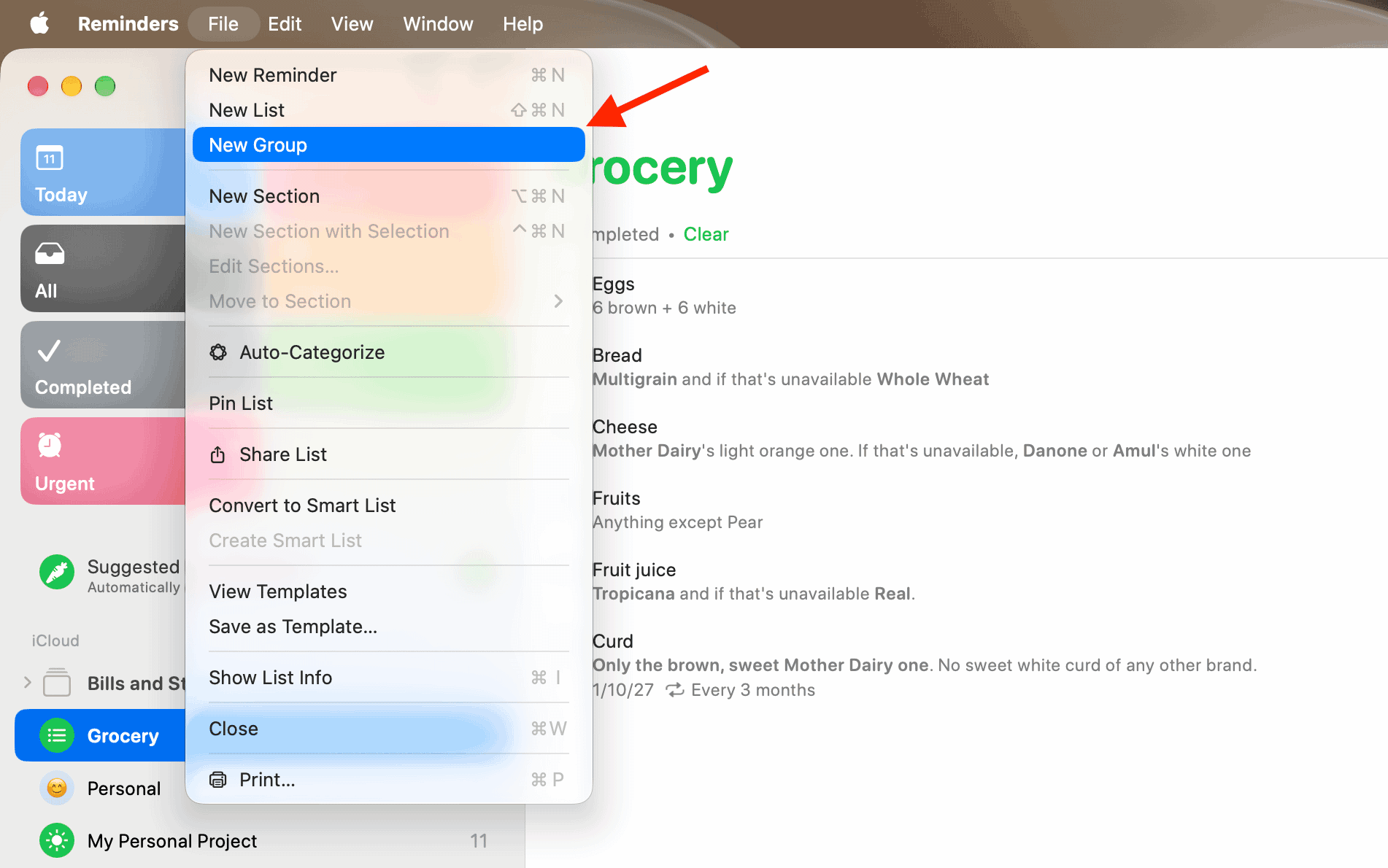
    New Group in Apple Reminders on Mac

    3) Give your group a name and press the return
    / enter
    key.
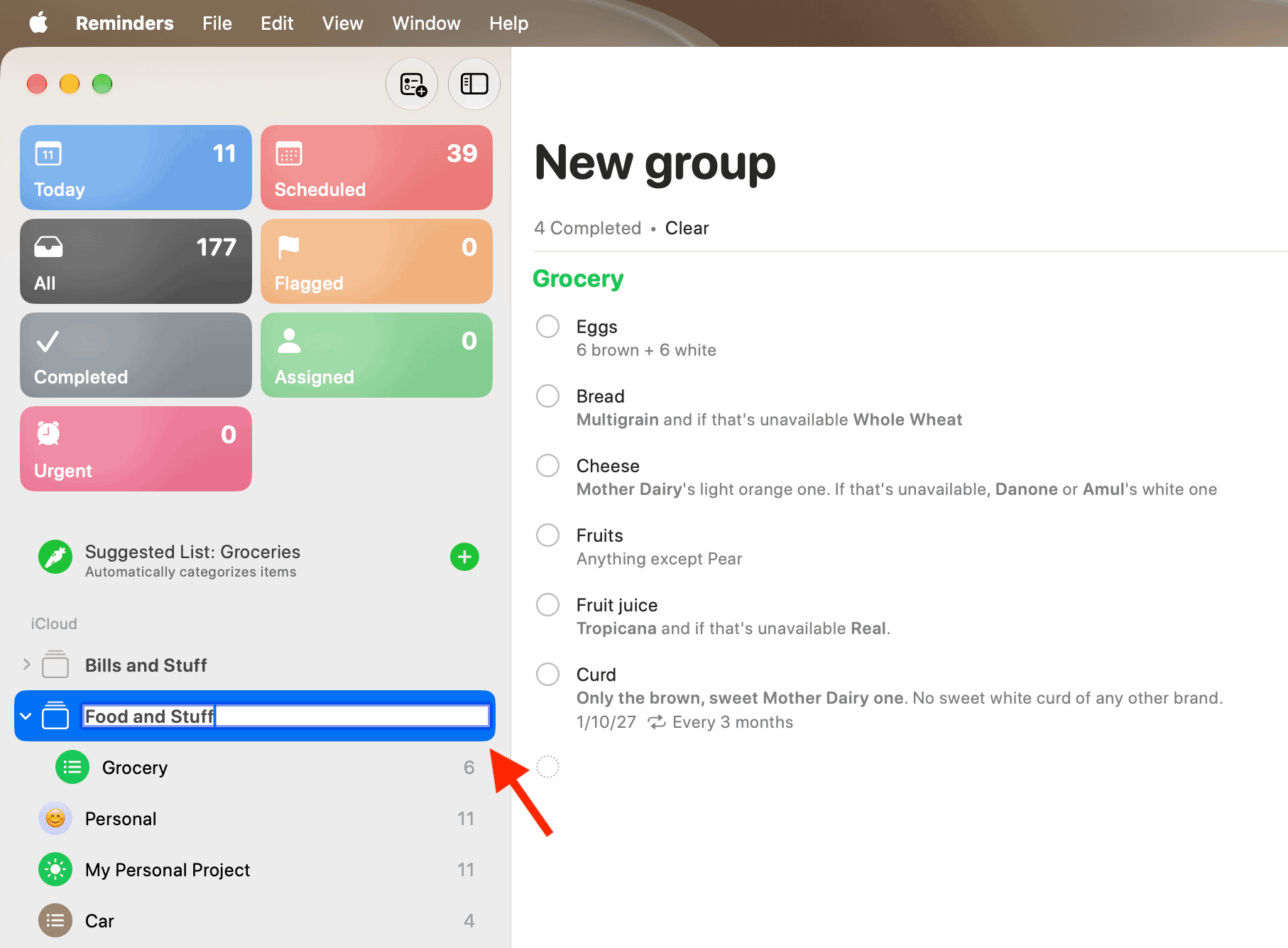
    Giving a name to Reminder group on Mac

    4)Control
    -click or right-click on other lists and add them to the group. Unlike iOS, the Reminders app on macOS doesn’t offer an easy way to add many lists to a group at once.
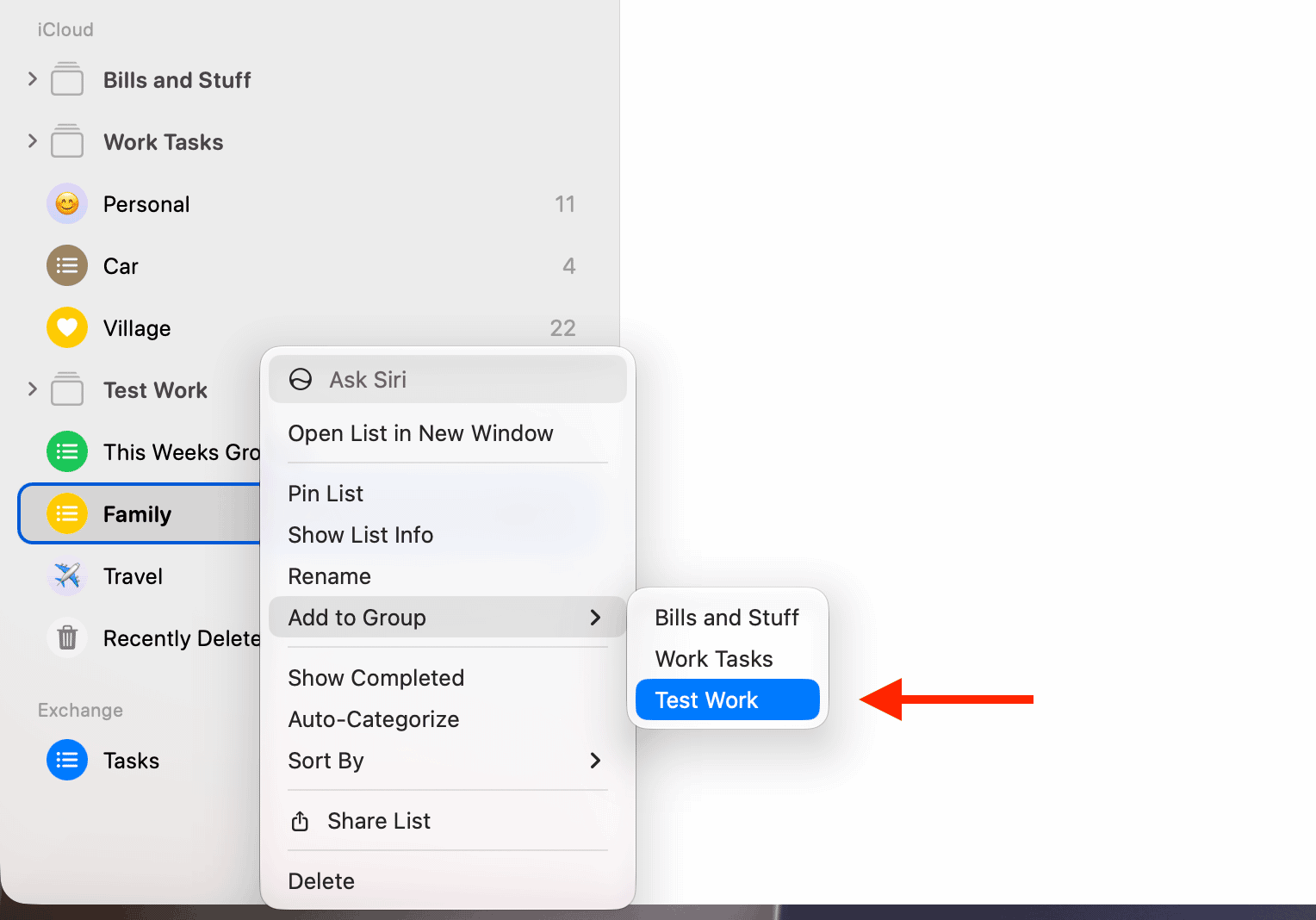
    Adding reminder list to group on Mac

    Using reminder group

    Tap/click a group to see all tasks from all lists that are added to this group.

    Or, tap/click the arrow to see all lists and go inside one to see only its tasks.

    Rename, add, or remove lists from a group

    You can use drag and drop to add or remove lists to and from a group. You can also right-click on a list on Mac and add it to an existing group.

    On iOS, there is yet another way to add or remove lists or rename the group, as explained below:

    1. Open the Reminders app.
    2. Touch and hold a group and select Show Group Info.
    3. Rename the group here if needed.
    4. Tap Include, and use the green plus button next to the list you want to add. Use the red minus button to remove a list. Then go back and save the new changes by tapping the checkmark icon.
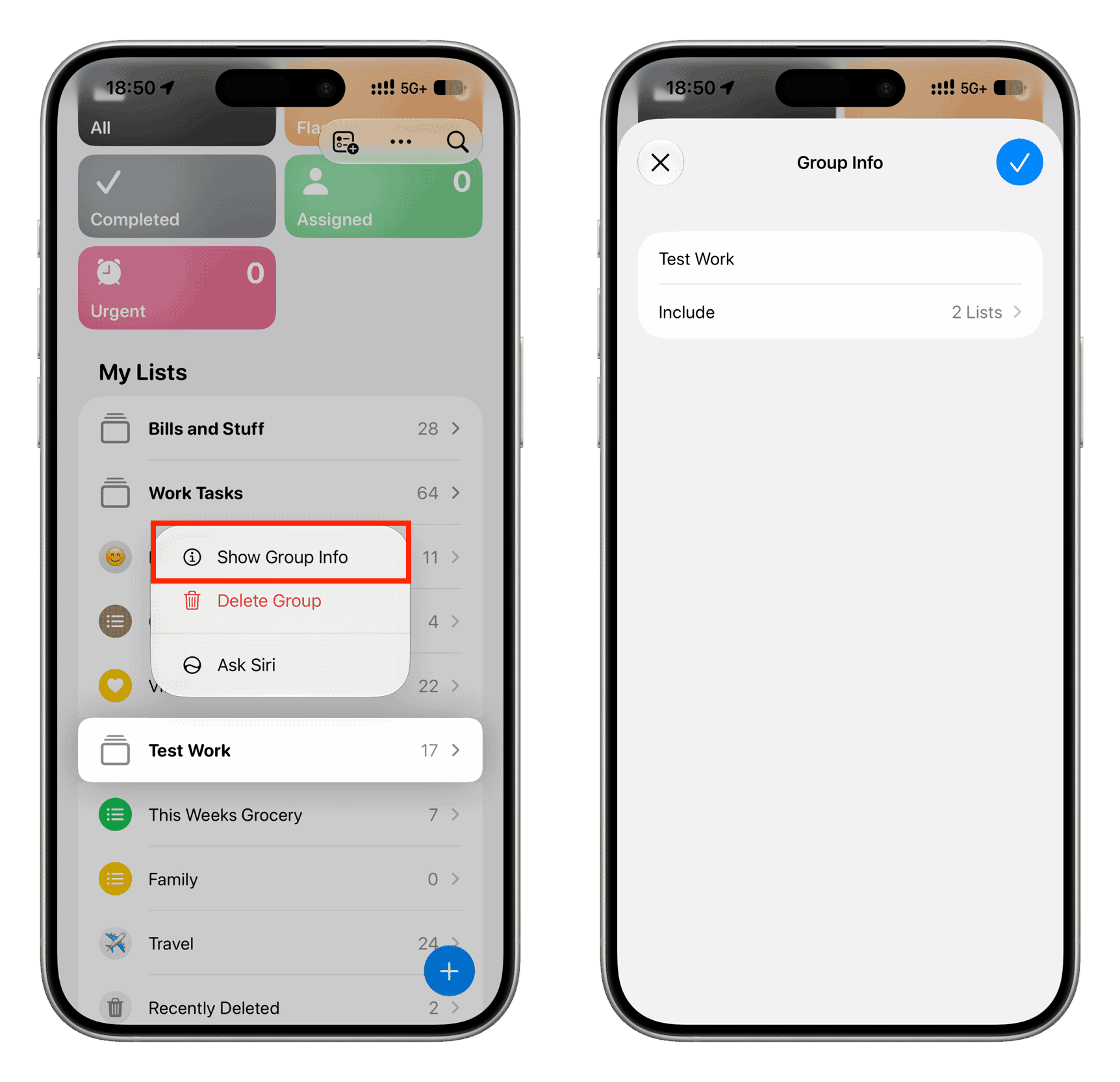
    Reorganize where the groups appear

    Touch and hold a reminder group, then drag it to another spot in the list.
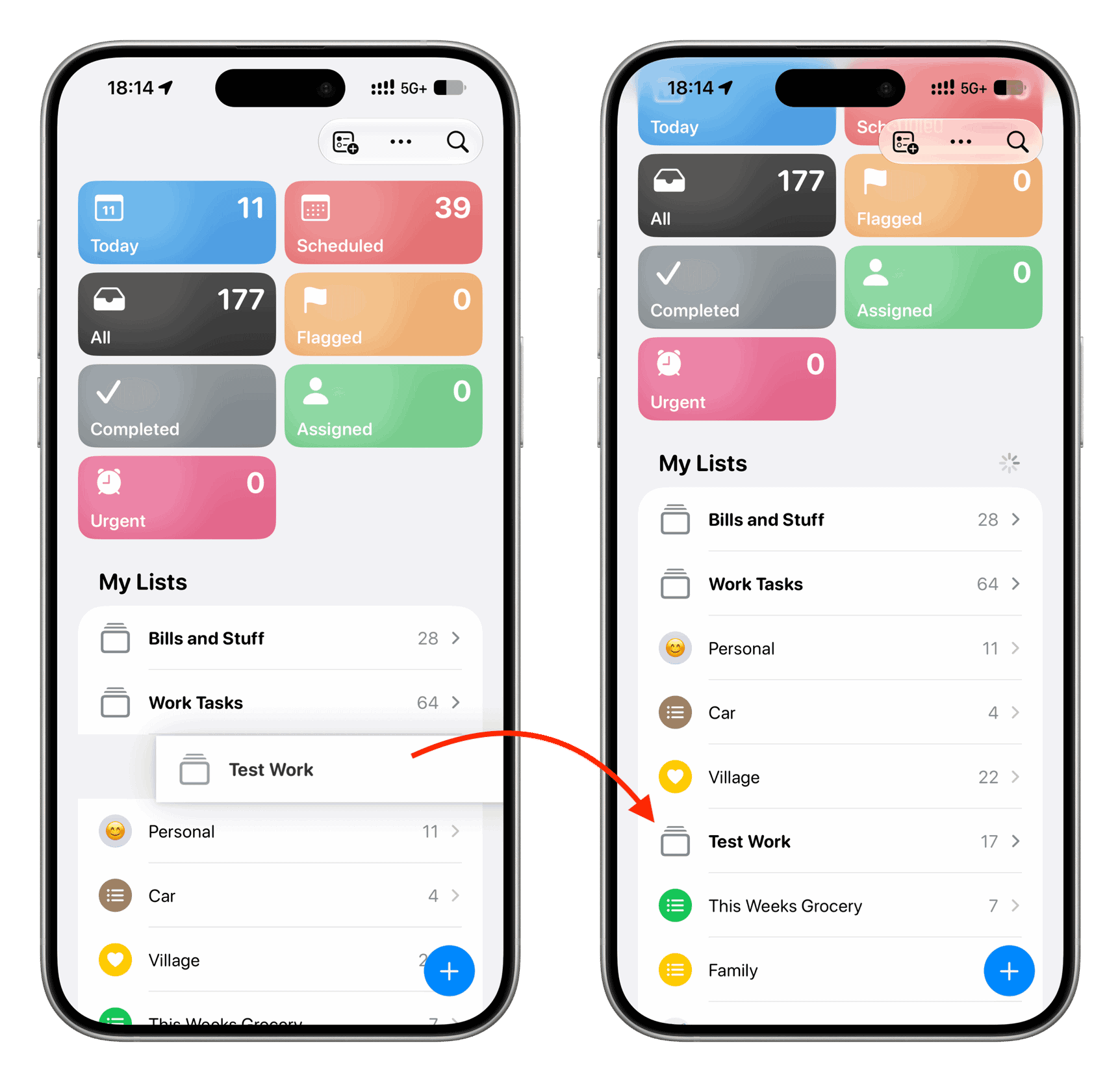
    Reorganize how reminder groups appear

    Delete reminder group

    Touch and hold a reminder group on iOS or right-click on macOS, then choose Delete. If the group has lists with tasks, you’ll see the option to delete only the group (while keeping the list) or delete the group and the lists in it.

    What do you think of reminder groups? Will you be using it?

    Also, check out: How to use templates in the Reminders app on iPhone, iPad, Mac

    Featured How to iPad iPhone Mac News Push reminders Tips Tutorial Tutorials
    Follow on Google News Follow on Flipboard
    Share. Facebook Twitter Pinterest LinkedIn Tumblr Email Copy Link
    myappsplus
    • Website

    Related Posts

    Binance warns iPhone crypto holders of security flaw

    November 11, 2026

    Google Voice web app overhaul introduces new look, grouped chats, and more

    November 11, 2026

    Google Home brings back sounds for Gemini, and I’m both elated and irritated [Video]

    November 11, 2026
    Add A Comment
    Leave A Reply Cancel Reply

    Top Posts

    Cathay Pacific tests Google AI that dramatically cuts airplane contrails — tiny altitude shifts slash environmental impact by 40% in early trials

    September 8, 2026138 Views

    Save on your groceries, gas, and holiday shopping with this $15 BJ’s membership (Reg. $60) 

    November 4, 202627 Views

    Apple is making Creator Studio an even better deal with new AI features and creative tools

    October 28, 202622 Views
    Latest Reviews

    Zelda 40th Anniversary Nintendo Direct: Ocarina of Time release date, all-new title, SE Switch 2, Twilight Princess, more

    myappsplusSeptember 7, 2026

    Your old phones may be worth more than you think through Google Store trade-in

    myappsplusSeptember 7, 2026

    The tiny Geekom A5 Ryzen 5 mini PC packs 16GB RAM and 1TB storage, and it’s cheaper at Best Buy than Amazon for Labor Day — but you’ll need to act fast

    myappsplusSeptember 7, 2026
    Stay In Touch
    • Facebook
    • YouTube
    • TikTok
    • WhatsApp
    • Twitter
    • Instagram

    Subscribe to Updates

    Get the latest tech news from FooBar about tech, design and biz.

    Most Popular

    Zelda 40th Anniversary Nintendo Direct: Ocarina of Time release date, all-new title, SE Switch 2, Twilight Princess, more

    September 7, 20260 Views

    How to split bills and customize passes in Apple Wallet with iOS 27 Update

    September 7, 20260 Views

    OpenAI hid AI agent hijacking of German wiki forum for weeks — because its model did the exact same thing in the Hugging Face attack

    September 7, 20260 Views
    Our Picks

    Today I learned the world’s first mass-produced drone was built by a Hollywood actor

    November 11, 2026

    How to create reminder list groups on iPhone, iPad, Mac

    November 11, 2026

    New York is forcing T-Mobile to stop putting data caps on low-income home internet plans

    November 11, 2026

    Subscribe to Updates

    Subscribe to our newsletter and get the latest tech news, app updates, AI trends, smartphone reviews, and exclusive deals delivered straight to your inbox.

    Facebook X (Twitter) Instagram Pinterest
    • About Us
    • Get In Touch
    • Disclaimer
    • Privacy Policy
    • Terms & Conditions
    © 2026 MyAppsPlus. All Rights Reserved.

    Type above and press Enter to search. Press Esc to cancel.