Close Menu
MyAppsPlus

    Subscribe to Updates

    Get the latest creative news from FooBar about art, design and business.

    What's Hot

    Italy’s Garante fines Meta €805 million over Facebook’s Android gallery photo suggestions

    November 15, 2026

    Quad-Curved Glass, Larger Screens, and a Radical New Look

    November 15, 2026

    How to clear the cache on your Xbox Series X

    November 15, 2026
    Facebook X (Twitter) Instagram
    Facebook X (Twitter) Instagram
    MyAppsPlusMyAppsPlus
    Sunday, November 15
    • Home
    • Breaking Tech
    • Apps & Software
    • AI & Automation
    • Android
    • iPhone & iOS
    • More
      • Reviews
      • How-To Guides
      • Deals & Discounts
      • Shop
    MyAppsPlus
    Home»Breaking Tech»How to clear the cache on your Xbox Series X
    Breaking Tech

    How to clear the cache on your Xbox Series X

    myappsplusBy myappsplusNovember 15, 2026014 Mins Read
    Share Facebook Twitter Pinterest Copy Link LinkedIn Tumblr Email Telegram WhatsApp
    Follow Us
    Google News Flipboard
    How to clear the cache on your Xbox Series X
    Share
    Facebook Twitter LinkedIn Pinterest Email Copy Link

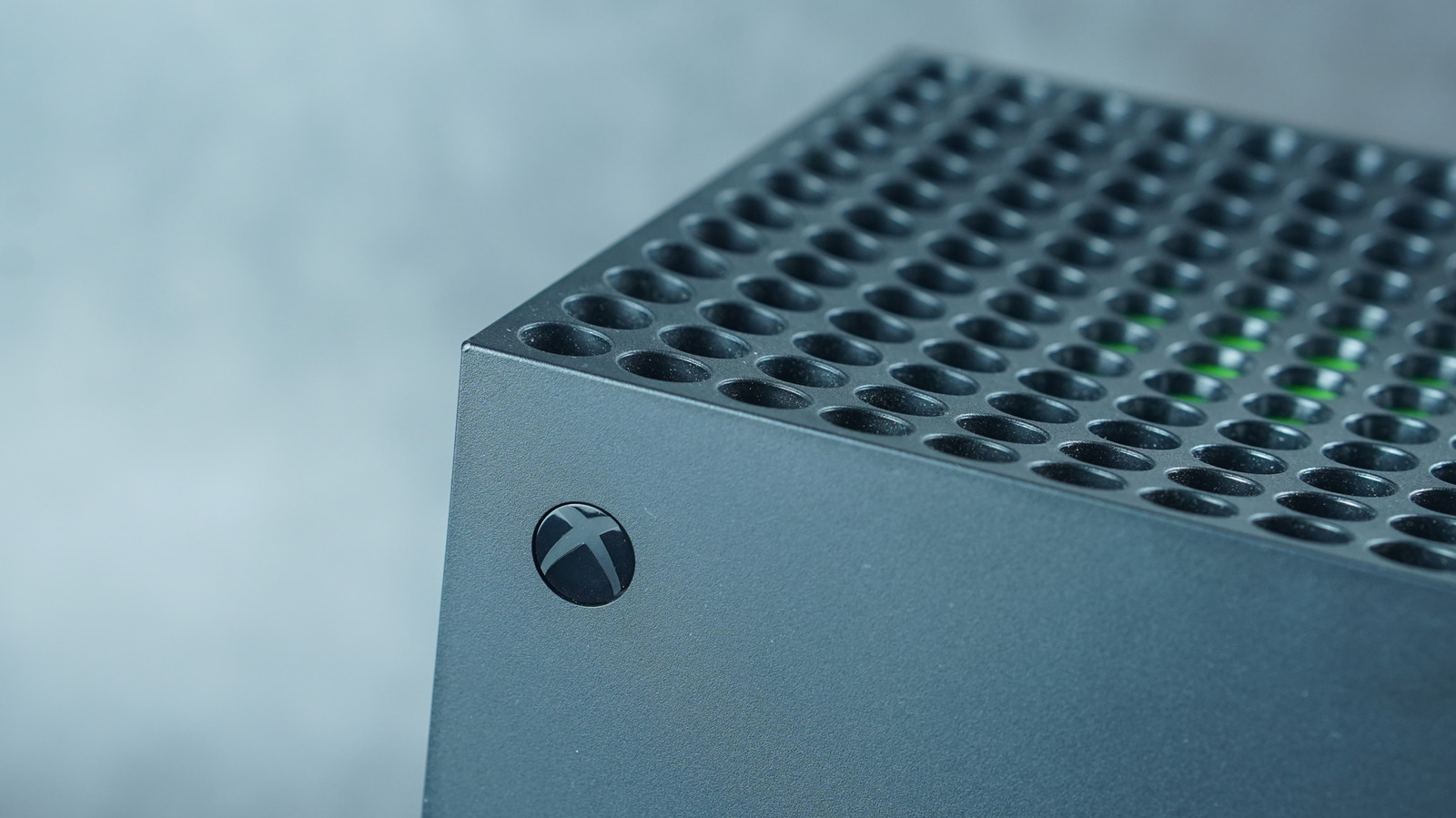
    Keep your Xbox Series X feeling like new by keeping your cache clear, and if that doesn’t help, a reset is in order.

    If you secured your Xbox Series X years before the RAM crisis made consumer tech prices skyrocket (in case you were wondering why RAM prices are so high right now), chances are it’s not as lag-free as it once was. Over time, temporary files can build up in the system, leading to slowdowns and glitches. When the classic restart option doesn’t suffice, consider clearing the console’s cache.

    Just like clearing the cache on a phone or web browser, doing so on your Xbox once in a while can help its performance while navigating between menus. Clear the cache by turning off and unplugging your Xbox Series X for two minutes, then pressing the power button multiple times before reconnecting its power cord to power-cycle the console. Power it back on, and you should be good to go.

    Clearing your cache is a trick worth trying when you run into excessive loading errors or connectivity issues in your games. For instance, Epic Games notes directly on its support site that clearing the cache on an Xbox Series X can help with load failure errors in its game Rocket League.

    What to expect after clearing your Xbox Series X’s cache

    Person holding Xbox controller in front of menu of games.

    Clearing your cache can help resolve issues if a simple restart doesn’t, since this action removes files stored on the console that may have been corrupted. Other ways to help reach the expected lifespan of your Xbox Series X are to routinely clean its vents for efficient heat management and keep the console in an open area so the fan can do its job.

    The console’s cache is supposed to store data over time to make common routines faster by reducing the need to repeatedly load the same elements. So while it’s a design choice that’s supposed to help, files can still build up over months and years, clogging things up. Rest assured that clearing your cache won’t affect your games or save data.

    One sign that you cleared your cache correctly is when you spot the Xbox logo on the screen and the full boot process occurs. However, a Reddit user wrote that clearing the cache could temporarily increase loading times in Microsoft Flight Simulator. Then again, a user also reported quicker boot times after clearing the cache, so your experience may vary.

    Consider resetting your console if issues persist
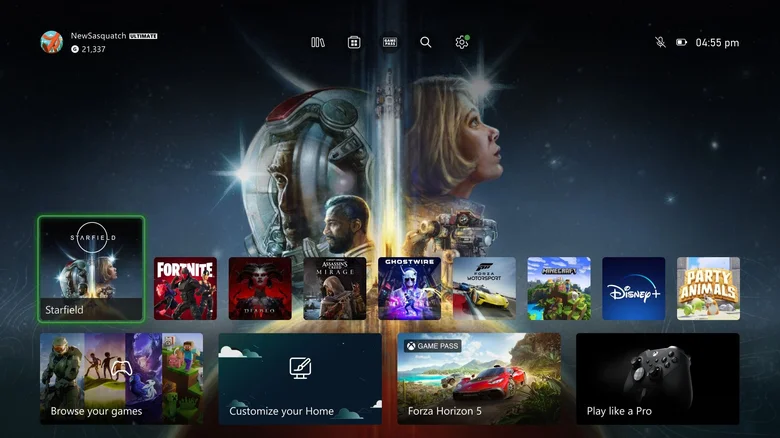
    Xbox home screen showing games.

    While it’s a good practice to clear your console’s cache once in a while, there’s no specific schedule you need to maintain. Simply doing so whenever your Xbox Series X feels sluggish should do the trick. 

    If your current experience is abysmal, you may even want to perform a reset. Before resetting, connect your console to the internet and let your save data sync to the Xbox network. To reset the console, go to Settings > System > Console info > Reset console. You can also select the option Reset and keep my games & apps to save yourself the hassle of redownloading everything, though you’ll still need to sign back into your accounts afterward.

    If your console still doesn’t feel as snappy as you’d like or if your games don’t run as expected after wiping its cache, consider a factory reset by choosing the option Reset and remove everything in the settings. While starting fresh with a factory reset can feel like a chore since it wipes everything on the console with all unsynced data lost (considering the wait time to redownload everything, along with the other drawbacks you should know before buying an Xbox Series X), it could get your games to run smoothly so you can once again enjoy your Xbox couch sessions.

    cache Clear series Xbox Your
    Follow on Google News Follow on Flipboard
    Share. Facebook Twitter Pinterest LinkedIn Tumblr Email Copy Link
    myappsplus
    • Website

    Related Posts

    how AI’s smartest man fell for the world’s oldest trick

    November 15, 2026

    How to clear the cache on your Samsung TV

    November 15, 2026

    Dabo Swinney reacts after Clemson hits latest low with upset loss to Georgia Tech: ‘Nobody coming to save us’

    November 15, 2026
    Add A Comment
    Leave A Reply Cancel Reply

    Top Posts

    Save on your groceries, gas, and holiday shopping with this $15 BJ’s membership (Reg. $60) 

    November 4, 202629 Views

    Google’s new AI shopping cart tracks deals across stores

    October 25, 202627 Views

    Apple is making Creator Studio an even better deal with new AI features and creative tools

    October 28, 202623 Views
    Latest Reviews

    Apple faces new UK rules over nude images on children’s iPhones

    myappsplusSeptember 8, 2026

    Everything revealed at Zelda Direct: Ocarina of Time pre-order deal, release date, new Switch 2, more

    myappsplusSeptember 8, 2026

    Google has deployed a fix for YouTube’s blank screen problems

    myappsplusSeptember 8, 2026
    Stay In Touch
    • Facebook
    • YouTube
    • TikTok
    • WhatsApp
    • Twitter
    • Instagram

    Subscribe to Updates

    Get the latest tech news from FooBar about tech, design and biz.

    Most Popular

    Apple faces new UK rules over nude images on children’s iPhones

    September 8, 20260 Views

    GL.iNet Beryl 7 review: This Wi-Fi 7 travel router saved my holiday connecting 5 iPads, a laptop, and a couple of phones

    September 8, 20260 Views

    69% of Americans oppose local AI data centers in 2026 poll — Trump blasts blocking communities on Truth Social for choosing poverty over server farms, throwing off ‘tremendous amounts of money’

    September 8, 20260 Views
    Our Picks

    Italy’s Garante fines Meta €805 million over Facebook’s Android gallery photo suggestions

    November 15, 2026

    Quad-Curved Glass, Larger Screens, and a Radical New Look

    November 15, 2026

    How to clear the cache on your Xbox Series X

    November 15, 2026

    Subscribe to Updates

    Subscribe to our newsletter and get the latest tech news, app updates, AI trends, smartphone reviews, and exclusive deals delivered straight to your inbox.

    Facebook X (Twitter) Instagram Pinterest
    • About Us
    • Get In Touch
    • Disclaimer
    • Privacy Policy
    • Terms & Conditions
    © 2026 MyAppsPlus. All Rights Reserved.

    Type above and press Enter to search. Press Esc to cancel.