

Affiliate links on Android Authority may earn us a commission. Learn more.
How I freed up 36GB on my Android phone without deleting a single photo
•
•
Pankil Shah / Android Authority
Add Android Authority on Google:
Preferred SourceGoogle Discover
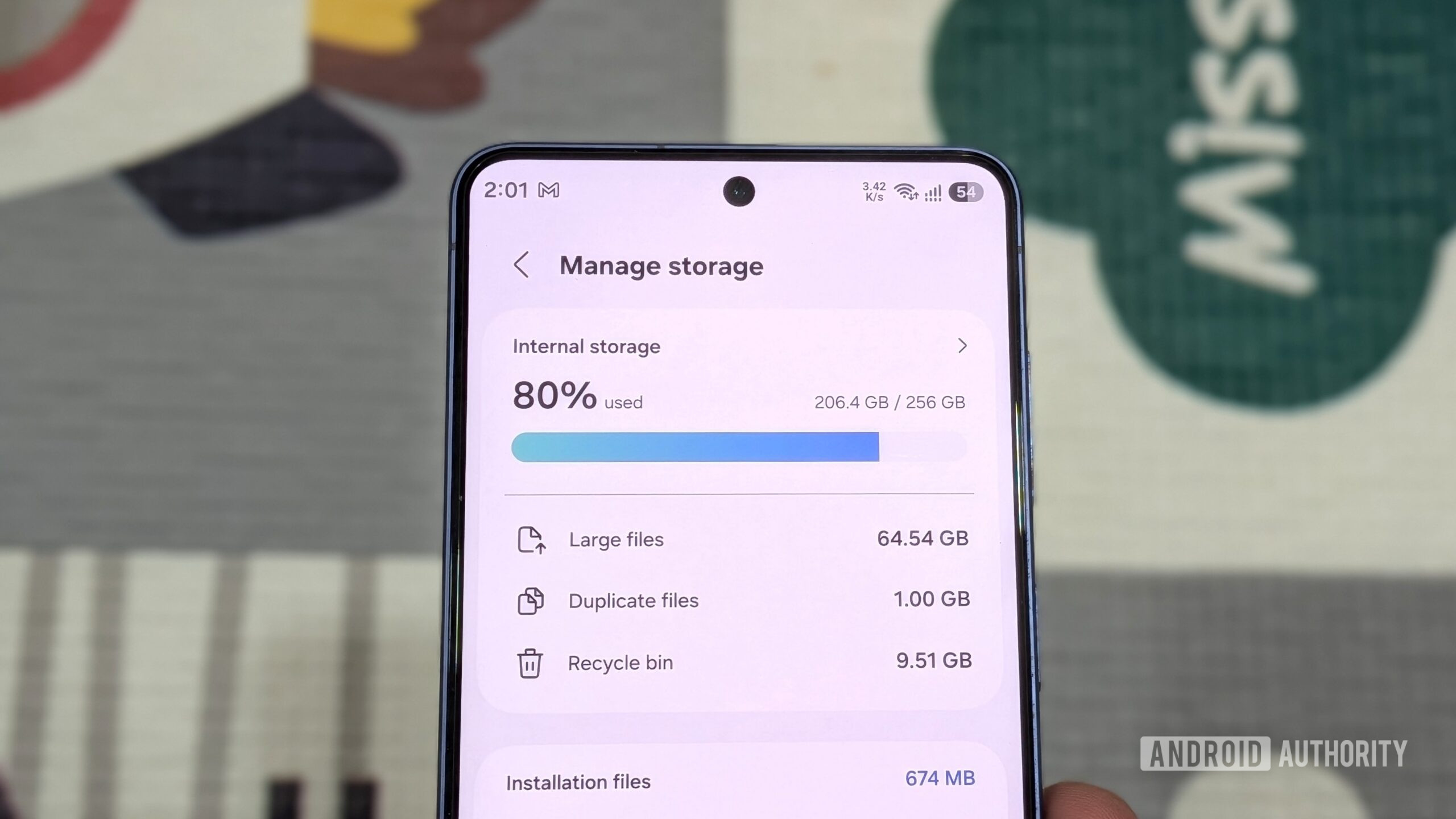
My Galaxy S26 only has 256GB of internal storage, and there’s no SD card slot to expand it. So yes, storage is a constant struggle for me, especially with a camera this good that I just can’t stop using. But I wasn’t about to sacrifice my precious photos to free up space, so I went looking for other ways to do it.
I went through forgotten apps, bloated caches, offline downloads, and old files I didn’t need anymore. It helped free up 36GB of storage, and more importantly, it wasn’t anywhere near as tedious as I kept assuming it would be.
What’s eating the most storage on your phone right now?
Remove or archive unwanted apps
Pankil Shah / Android Authority
This one’s pretty obvious, but some of the Android apps and games can just keep growing and eat up a ton of storage. So I started with the easy part: getting rid of apps I wasn’t using. There were close to a dozen apps, including a video editor I had only used twice, some random games I’d stopped playing, and a couple of browsers I had installed just for testing. It took a while to delete all of these one by one, but it freed up close to 4GB.
There were also some apps I didn’t use daily but couldn’t bring myself to delete. So, I archived those. Archiving apps is a nice middle ground since it doesn’t remove an app completely but still frees up storage by deleting most of the core app files and temporary data. It’s also quick. Go to Settings > Apps > [App Name] and choose Archive. It roughly reduces the app size by 60% to 90%, and when you want it back, you simply have to tap the app icon, and your phone redownloads the missing app files from the Play Store.
The main benefit here is that you don’t have to log in and do any kind of setup when you restore an app — it almost feels like the app was never gone. You can also automate the app archiving process by heading to Play Store Settings > General and turning on Automatically archive apps. This lets Android archive unused apps automatically when the storage runs low.
Clear the cache of the biggest storage hogs
I didn’t stop at the apps I wasn’t using. Some of the apps I rely on daily — Chrome, Instagram, WhatsApp, Spotify, YouTube, and Maps — were also taking up an absurd amount of space that I just couldn’t ignore. Most of it was due to the cache data these apps had collected over time. Cache is important for performance, sure, but if you’re tight on storage, there’s no harm in clearing it out.
Sadly, Android doesn’t give you a simple, one-click option to clear the cache for all apps at once (it used to, and I genuinely miss it sometimes). So, your best bet is to head to Settings > Apps and sort apps by storage. Here, you’ll see some of the biggest offenders on your phone. Tap on these apps one by one, go to Storageand hit the Clear cache option. I went through my top 10 storage hogs this way and ended up freeing close to 6GB, which is a lot.
Run Files by Google cleanup tool
Unlike apps, Android doesn’t offer an option to find large files and photos inside the Settings app, so I had to rely on the Files by Google app. It has a dedicated Clean tab that shows all the junk files, duplicates, old screenshots, blurry photos, and large files in one place, which made it easy to spot exactly what I didn’t need. I simply went through each category one by one and deleted whatever looked useless. I found dozens of leftover APKs, random screenshots, large videos, and a few old ZIP files. All of this together freed up close to 4GB.
Files by Google also show thumbnails for everything, so I didn’t have to open a single file manually to know what it was. I could preview, select whatever wasn’t useful, and delete it in bulk. One quick note, though: anything deleted through these suggestions goes to Trash, where it stays for 30 days. So once you’re done, make sure to open the Trash tab and empty it to actually reclaim that space.
Delete offline downloads hiding in your apps
Most streaming apps like Spotify, Netflix, YouTube, and Prime Video let you download content for offline use. I have a habit of stacking up content before a holiday or a long flight, but I almost never remember to go back and delete it once I’m done. These offline files can easily take up several gigabytes of storage space.
I went through all these apps and ended up deleting playlists, TV shows, movies, and videos I no longer needed. Each app handles offline downloads a bit differently, so it took some time going through all of them one by one, but it was worth it because it got me back close to 8GB of storage. I don’t personally use offline maps, but if you do, it’s worth checking Google Maps too, since saved map data for entire cities or regions can be huge.
Move large files to the external storage
At this point, I already had enough free storage space on my phone, but I still wanted to make more room so I didn’t have to go through this whole dance again anytime soon. Most Android phones don’t have an SD card slot anymore, but that doesn’t mean cloud storage is your only option. With that USB-C port on your phone, it’s actually pretty easy to connect a flash drive or SSD and move all your large files over to it. You can even use an SD card for this with a USB-C card reader.
I had a bunch of large 4K videos and old photos sitting around that I didn’t need on hand. All I did was move them to my SSD using the Files app, and it helped me free up close to 12GB. Using external storage obviously isn’t as convenient as a built-in SD card slot. Still, if you’re trying to free up space on your phone without deleting anything, it’s genuinely your best bet.
And just like that, my phone had 36GB of free storage back, and I didn’t have to delete a single photo or video. It won’t last forever, of course, but that’s fine. Whenever my storage starts creeping up again, I know exactly which drawers to check first.
