

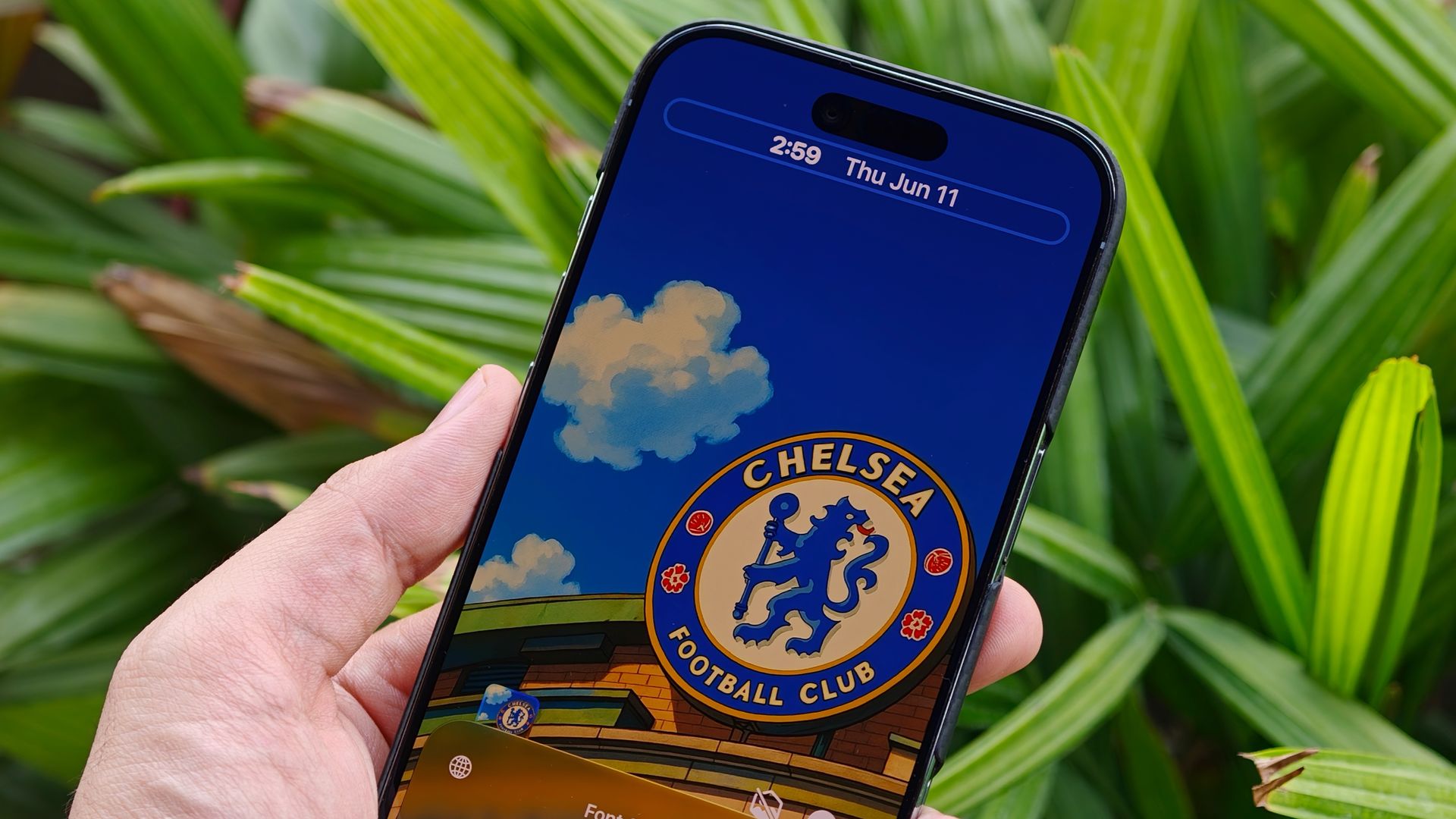
For years, your iPhone’s lock screen was designed around Apple’s rigid aesthetic rules rather than your personal taste.
With the release of iOS 27, Apple has finally handed full visual control back to users. Alongside system-wide refinements to the frosted Liquid Glass interface, the update introduces five key settings that let you strip away visual clutter, resize UI elements, and shape your display to look like you designed it yourself.
If your iPhone is running iOS 27, taking a few minutes to tweak these controls will completely change how your phone looks every time you pick it up.
5 new lock screen tools in iOS 27
Fine-tune transparency with the Liquid Glass slider
(Image: © Tom’s Guide)
When Apple introduced the frosted Liquid Glass aesthetic, users were limited to basic “Clear” or “Tinted” presets. In iOS 27, those rigid toggles have been replaced with a smooth, continuous opacity slider.
To adjust it, open Settings, tap Appearance, and select Liquid Glass.
Dragging the slider to the left increases transparency for a completely clear view of your wallpaper beneath menus and widgets.
Sliding to the right deepens the tint, improving text contrast and readability. Because the preview updates in real time, you can dial in the exact balance before exiting.
Shrink or relocate the oversized clock
(Image: © Tom’s Guide)
The massive digital clock centered at the top of the lock screen has long dominated precious wallpaper real estate. iOS 27 allows you to shrink it or move it out of the way entirely.
Press and hold your lock screen, tap Customize, and select the clock frame. From here, you can reduce the font size or shift the clock up into the top widget row. Keeping photos of family, pets, or landscapes from competing with the time and date display.
Expand wallpapers with Apple Intelligence
(Image: © Tom’s Guide)
Setting a favorite photo as your wallpaper often results in awkward cropping, cut-off heads, or exposed black bars if the image ratio does not match your screen.
iOS 27 solves this with Extend, an Apple Intelligence tool that generates new background detail around image edges.
Go to Settings, tap Wallpaper, select Add New Wallpaper, and pick your photo. Then tap the three dots in the bottom corner and select Extend Wallpaper.
The system automatically generates matching sky, scenery, or texture to fill the gaps, while simultaneously leveling out slightly tilted horizons.
Dismiss the Now Playing widget without stopping playback
(Image: © Tom’s Guide)
In previous versions of iOS, playing music, podcasts, or audiobooks forced a massive “Now Playing” widget onto your lock screen until playback stopped completely.
In iOS 27, you can dismiss the media controller whenever you want a clean view of your background. When the widget appears on your lock screen,simply swipe left across the playback controls.
This instantly hides the card and clears its status indicator from the Dynamic Island while your audio continues playing uninterrupted in the background.
Generate custom wallpapers using Image Playground
(Image: © Tom’s Guide)
If you cannot find the right photo in your camera roll, you can generate custom high-resolution backgrounds directly from the wallpaper menu.
While customizing a new wallpaper, select Image Playground from the menu options. Type a quick description of the sceneyou want to create, then select a visual style—such as Animation, Illustration, or Sketch.
Apple Intelligence will generate a unique background on the spot, allowing you to tweak elements or apply matching color filters before setting it to your lock screen.
- iOS 27 finally fixes the most annoying iPhone workaround we all use
- How to disable iOS 27’s auto-subtitles for good
- I’ve been testing Siri AI in iOS 27 for 3 weeks: 7 things to try first (and the feature that won me over)
