

The messaging app’s default settings aren’t necessarily the best.
Ten years ago, one of the best ways to upgrade your Android phone was to install a third-party texting app. The apps that came with your phone were rarely any good, and most were downright awful. Third-party apps let you schedule messages, customize each chat’s appearance and notifications, and organize your messages, among others.
Then Google did two genuinely awesome things: It pushed hard for RCS chats as a universal messaging standard and made its own texting app, Google Messages, way better than it had any right to be. Throughout the 2010s, Google’s haphazard mess of messaging apps became a punchline among tech enthusiasts, but these developments marked a sea change. Eventually, even Samsung threw in the towel, and the king of shipping duplicate apps deprecated its Samsung Messages app in favor of Google’s solution. Today, I would never recommend a third-party texting app to most people.
What I would recommend, though, is changing some of Google Messages’ default behaviors. However great it may be, there are a handful of settings that make it a lot worse. From annoying notifications to useless AI features, here are five settings you might want to disable to improve your Google Messages experience.
RCS read receipts create too many awkward situations
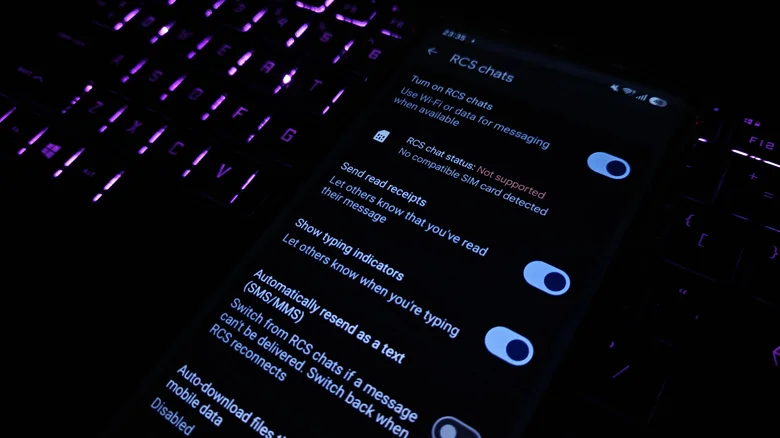
Read receipts are the small visual indicators that indicate when the other person has read your messages, and they are ubiquitous across messaging apps. When a platform enforces them, they create a mutual exchange of information between conversants; allowing one party to disable them, though, locks both in a digital prisoner’s dilemma. Leave read receipts on, and you’ve traded away plausible deniability for your failure to reply without any guarantee your interlocutor will repay the favor. Turn them off, and you’ve made it more beneficial for the other party to do so as well, leaving you both less informed about the state of the conversation.
Maybe it makes me a political realist, but the first thing I do when setting up Google Messages on a new phone is disable read receipts. Think of it this way: would we ever have used a feature that let someone know when we had opened a letter they sent us by old-fashioned mail? Of course not. Such a thing would only cause interpersonal distrust and frustration, which is why we only use analog equivalents like USPS Return Receipts for the most consequential pieces of certified mail. You can turn RCS read receipts off in Google Messages by tapping your profile picture in the top right of the app’s home screen, selecting RCS chats, and toggling off read receipts.
Outgoing and incoming message sounds are obnoxious
Modern operating system designers have grown far too comfortable putting little sounds everywhere. Having my phone beeping and booping constantly is bad enough, but my other gripe is this: why do all the auditory flourishes need to sound so… wet? Google Messages has sounds that trigger when you send or receive a message while the app is open, and they are among the worst offenders. By default, a rapid conversation sounds like a marmot having a bubble bath.
Obviously, this is down to personal preference. But even if you don’t find these sounds unpleasant, people around you may. The only worse sounds a phone can make are those from the keyboard itself. Frankly, this has been a problem ever since the famous “tap dancing ants” sound made by iPod click wheels, but we can put a stop to it one annoying sound effect at a time. Or, in this case, two.
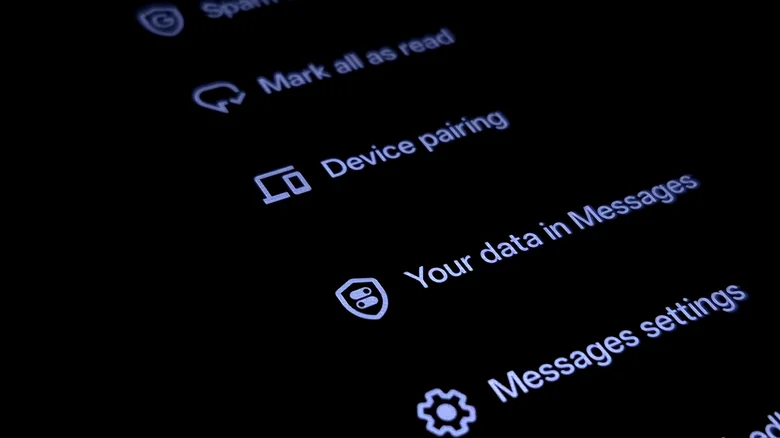
To turn off these sound effects, tap your Google profile picture in the top right corner of the app’s home screen, then tap Settings. You’ll see a toggle a few entries down labeled Hear outgoing and incoming message sounds. Slide it to the left and enjoy a silent Messages experience.
Bubbles aren’t everyone’s cup of tea
Google introduced bubble chats with Android 10 back in 2019. If you’ve ever been talking to someone in a chat app and had the chat collapse into a small circle pinned onscreen while you navigate other apps, that’s a bubble chat. The idea was actually cribbed from Meta, which introduced bubbles to Facebook Messenger in 2013 as part of its failed Facebook Home product line.
Unfortunately, it’s a very annoying feature. I’m rarely so engrossed in a conversation that I need it a tap away. Even on the rare occasions when I am, that’s what notifications are for. Moreover, they don’t offer any tangible benefits. The conversation still takes over your entire screen when you open it, and you will have a bubble taking up screen space, too. As a result, you can actually see less of the conversation in bubble view than you can when you enter the conversation normally. It’s much easier to reply by tapping the Reply shortcut on a Messages notification and writing your response inside the notification.
Bubble chats might be more useful on a larger display like a tablet or foldable phone, but on a traditional slab phone, I make sure they stay turned off. To do so yourself, head to the Settings section of Messages by tapping your Google profile photo in the top right of the main messages list, then tapping Settings > Bubbles and selecting None.
Gemini in Messages is a useless privacy nightmare
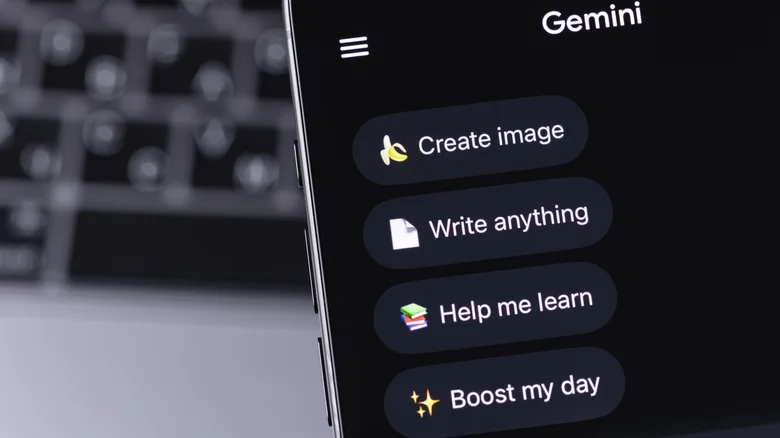
Google has wasted no time cramming its Gemini chatbot into every one of its products. Opening Google Drive or Docs is now a crash course in avoiding dark patterns designed to get you talking to Google’s omnipresent LLM. Unfortunately, the same applies to Google Messages.
On its face, Gemini in Messages is pretty useless. All it really does is let you chat with Gemini inside the Messages app. If you’re using the app, you already own an Android phone, which means the more fully-featured Gemini app is never more than a button press away. But even if you somehow, inexplicably, find a second chat surface for Gemini shoehorned into your texting app useful, privacy is still a major concern.
Even compared to other AI giants, Google has proven itself incredibly thirsty for your data. It has also mastered the art of obfuscating what data it collects, making it hard to figure out whether using a particular product entitles the company to train Gemini on your data. Google now uses a patchwork of different privacy policies, and identifying which one applies to any particular feature is a nightmare. You can be totally protected under one policy up until you enable a Gemini feature, at which point you’re subject to a completely different policy that lets Google gorge itself on your files. If you care about AI privacy, leaving such features turned off is never a bad idea. Head to Settings, look for Gemini in Messages, and disable it.
Nudges are more of a nuisance
I always put off messages, either because I’m busy or because I don’t have the mental bandwidth to deal with them at a particular moment. I tell myself I’m waiting to give the other person my undivided attention, rationalizing my rudeness as politeness. But at least I’m not the only one. If I were, Google would not have implemented the annoying Nudges feature, which tells you how long it’s been since you replied and suggests you follow up.
I am no more likely to see a nudge at an opportune time to reply than when the message was originally sent. It’s just more clutter on a smartphone that already bombards me with seemingly endless notifications no matter how many I disable. On top of that, my beleaguered conscience is already nudging me with far more guilt than Google could ever hope to engender.
The other thing Nudges does is remind you of people’s birthdays. This is considerably less annoying, and has actually helped me to remember a birthday or two. Thankfully, you can choose to turn off message reminder nudges without turning off birthday reminder nudges.
To turn off Nudges, go to Messages settings by tapping your profile picture at the top of your main list of messages, and tap Settings > Suggestions & Actions > Nudges. Toggle off reply and birthday reminders on the next screen according to your preferences.
