

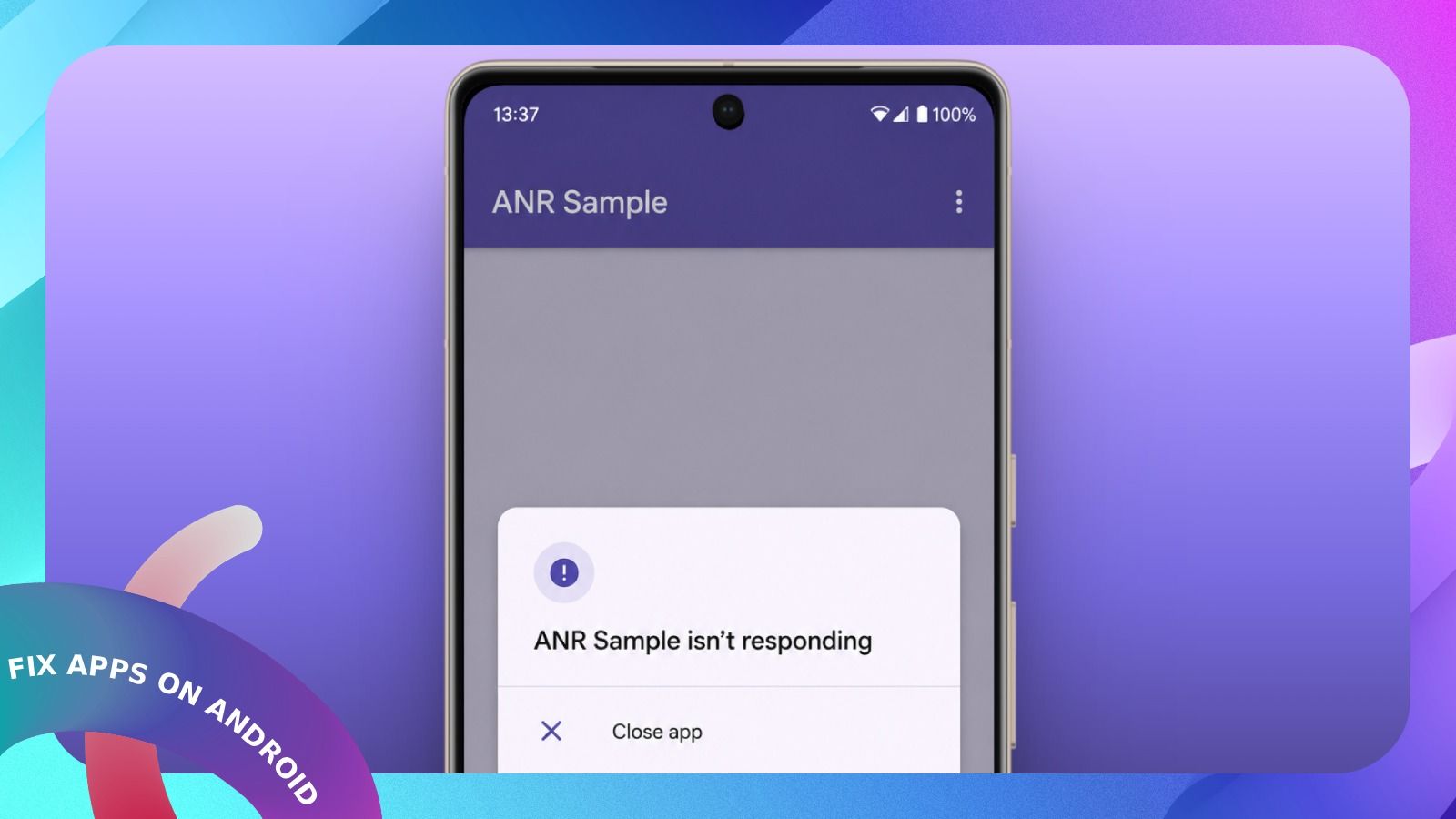
Apps not responding is one of the common errors on Android phones. It usually shows up while opening an app or the pop-up appears out of nowhere. The good news is that it’s a software issue and you can fix it yourself in a few minutes. In this guide, I have explained why Android apps stop responding and listed 14 fixes, starting from the basic to advanced one. So go ahead and follow the solutions in order.
Why Do Apps Stop Responding on Android?
Every Android app has a main thread (also called the UI thread) that draws the screen and registers your taps and swipes. When that thread gets stuck on a long task, the app can’t react to your interactions. Google’s Android Developers documentation says that if an app fails to react to a tap or key press for 5 seconds, Android flags it as an Application Not Responding (ANR).
If the stuck app is active, Android shows a dialog saying the app “isn’t responding” and gives you the option to close it. Here are the most common reasons why this happens.
- A bug in the app, where it reads files or does long calculations or waits on another process on its main thread.
- Corrupted cache files that the app keeps loading every time.
- Low internal storage, which leaves no room for the app to write temporary files.
- A faulty update to the app or to a system component like Android System WebView.
- Outdated software on your phone or an app that is no longer compatible with your Android version.
- A conflicting third-party app such as a launcher, cleaner or overlay app that interferes with other apps.
- Too many heavy apps running at once on a phone with limited RAM.
Now that you know the causes, let us learn about the fixes.
