
Close Menu
MyAppsPlus

    Subscribe to Updates

    Get the latest creative news from FooBar about art, design and business.

    What's Hot

    10 iPad widgets you probably didn’t realize existed

    November 2, 2026

    Apple might be turning its HomeView into a security camera, and it makes perfect sense

    November 2, 2026

    How to add and rearrange apps on your Samsung smart TV

    November 2, 2026
    Facebook X (Twitter) Instagram
    Facebook X (Twitter) Instagram
    MyAppsPlusMyAppsPlus
    Monday, November 2
    • Home
    • Breaking Tech
    • Apps & Software
    • AI & Automation
    • Android
    • iPhone & iOS
    • More
      • Reviews
      • How-To Guides
      • Deals & Discounts
      • Shop
    MyAppsPlus
    Home»Breaking Tech»How to add and rearrange apps on your Samsung smart TV
    Breaking Tech

    How to add and rearrange apps on your Samsung smart TV

    myappsplusBy myappsplusNovember 2, 2026003 Mins Read
    Share Facebook Twitter Pinterest Copy Link LinkedIn Tumblr Email Telegram WhatsApp
    Follow Us
    Google News Flipboard
    How to add and rearrange apps on your Samsung smart TV
    Share
    Facebook Twitter LinkedIn Pinterest Email Copy Link

    It’s a snap to reorganize your Samsung TV home screen.

    Smart TVs make it easy to access streaming services as well as self-hosted media servers, such as Plex, without needing to buy an extra device like a streaming stick (though there are other reasons to buy a streaming device when you have a smart TV). But even if you have a smart TV, you might not be taking full advantage of it. Fortunately, it’s easy to add new apps to a Samsung smart TV if the ones you want aren’t already included when you first set it up.

    If you only need the most popular streaming services, you might not need to do anything to get them running. Samsung smart TVs usually come pre-loaded with the Netflix, YouTube, Disney+, Prime Video and Apple TV apps, though that list can change depending on which apps are available in your particular region. For anything else (like these free channels for your smart TV), you’ll have to download a new app from a built-in search feature on your TV. And after downloading those apps, you’ll probably want to do some rearranging on your home screen.

    How to install new apps and organize your home screen
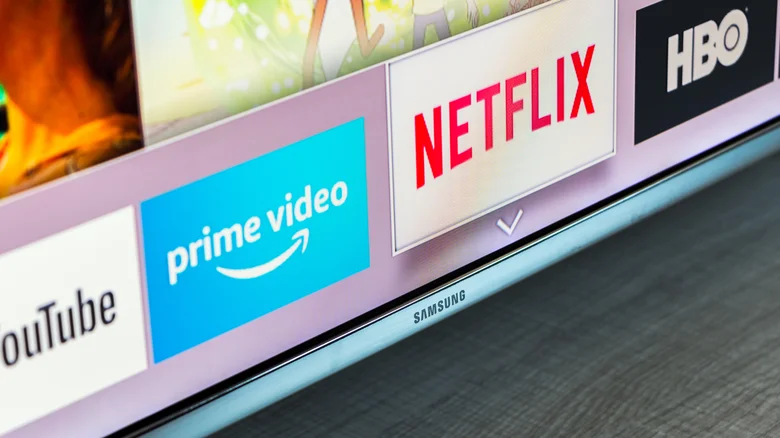
    Close up shot of a Samsung TV with streaming app icons displayed.

    To add new apps, first pull up the TV’s home screen. Use your remote to select the search bar at the top of the screen and type in the name of the app you want to download. If you search for something that doesn’t show up, it may not be available in your region or might not be supported by Samsung smart TVs at all — Samsung has even publicly banned some smart TV apps. Otherwise, you can just select the app’s icon with your remote to install it. If you don’t have a specific app in mind but want to see what options are available, you can also find a selection of what’s available, sorted by category, in your TV’s apps menu.

    Once an app is finished installing, a button to add it to the home screen should appear. If you’ve already navigated away and want to pin an app later, you can still find everything you have in the apps menu on the home screen. Just press and hold on the one you want to pin to the home screen, and the option to add to home will appear.

    You can also rearrange apps once they’re on the home screen to sort them in whatever order works best for you. On the home screen, use the remote to select whichever app you want to move, and press and hold the select button to open a menu. For older TV models, you might need to use a different command to open the menu, such as pressing the down key. Then select the move setting, and you can slide individual apps left and right. If you want to remove an app from the home screen or delete it entirely, you can do so from this same menu.

    apps rearrange Samsung Streaming Your
    Follow on Google News Follow on Flipboard
    Share. Facebook Twitter Pinterest LinkedIn Tumblr Email Copy Link
    myappsplus
    • Website

    Related Posts

    10 iPad widgets you probably didn’t realize existed

    November 2, 2026

    How long is a new Apple TV actually supposed to last?

    November 2, 2026

    6 Google Maps features that work better on Android Auto vs. CarPlay

    November 2, 2026
    Add A Comment
    Leave A Reply Cancel Reply

    Top Posts

    Cathay Pacific tests Google AI that dramatically cuts airplane contrails — tiny altitude shifts slash environmental impact by 40% in early trials

    September 8, 2026137 Views

    What was the PSX? The souped-up PS2 rarely sold outside of Japan

    September 14, 202617 Views

    Apple is making Creator Studio an even better deal with new AI features and creative tools

    October 28, 202616 Views
    Latest Reviews

    Oura files to go public

    myappsplusSeptember 3, 2026

    Bring good fortune to your home with LEGO’s Lucky Cat figure down at $20

    myappsplusSeptember 3, 2026

    How to watch ‘The Terror: Devil in Silver’ online — stream the Dan Stevens horror series from anywhere

    myappsplusSeptember 3, 2026
    Stay In Touch
    • Facebook
    • YouTube
    • TikTok
    • WhatsApp
    • Twitter
    • Instagram

    Subscribe to Updates

    Get the latest tech news from FooBar about tech, design and biz.

    Most Popular

    Oura files to go public

    September 3, 20260 Views

    How to watch ‘The Terror: Devil in Silver’ online — stream the Dan Stevens horror series from anywhere

    September 3, 20260 Views

    Audacity’s new look is finally here, along with its largest feature update in years

    September 3, 20260 Views
    Our Picks

    10 iPad widgets you probably didn’t realize existed

    November 2, 2026

    Apple might be turning its HomeView into a security camera, and it makes perfect sense

    November 2, 2026

    How to add and rearrange apps on your Samsung smart TV

    November 2, 2026

    Subscribe to Updates

    Subscribe to our newsletter and get the latest tech news, app updates, AI trends, smartphone reviews, and exclusive deals delivered straight to your inbox.

    Facebook X (Twitter) Instagram Pinterest
    • About Us
    • Get In Touch
    • Disclaimer
    • Privacy Policy
    • Terms & Conditions
    © 2026 MyAppsPlus. All Rights Reserved.

    Type above and press Enter to search. Press Esc to cancel.