Close Menu
MyAppsPlus

    Subscribe to Updates

    Get the latest creative news from FooBar about art, design and business.

    What's Hot

    See the ad and early deals already live

    November 9, 2026

    Samsung’s paid Galaxy AI plan leaks for $5/month, but will you pay?

    November 9, 2026

    Meta expands Instagram’s AI age-guessing tech globally

    November 9, 2026
    Facebook X (Twitter) Instagram
    Facebook X (Twitter) Instagram
    MyAppsPlusMyAppsPlus
    Monday, November 9
    • Home
    • Breaking Tech
    • Apps & Software
    • AI & Automation
    • Android
    • iPhone & iOS
    • More
      • Reviews
      • How-To Guides
      • Deals & Discounts
      • Shop
    MyAppsPlus
    Home»iPhone & iOS»Create a Custom Pass in the Wallet App on iPhone
    iPhone & iOS

    Create a Custom Pass in the Wallet App on iPhone

    myappsplusBy myappsplusSeptember 25, 2026012 Mins Read
    Share Facebook Twitter Pinterest Copy Link LinkedIn Tumblr Email Telegram WhatsApp
    Follow Us
    Google News Flipboard
    Create a Custom Pass in the Wallet App on iPhone
    Share
    Facebook Twitter LinkedIn Pinterest Email Copy Link

    In iOS 27, Apple’s Wallet app lets you create custom passes for things like event tickets, gift cards, loyalty cards, and more. Here’s how it works.

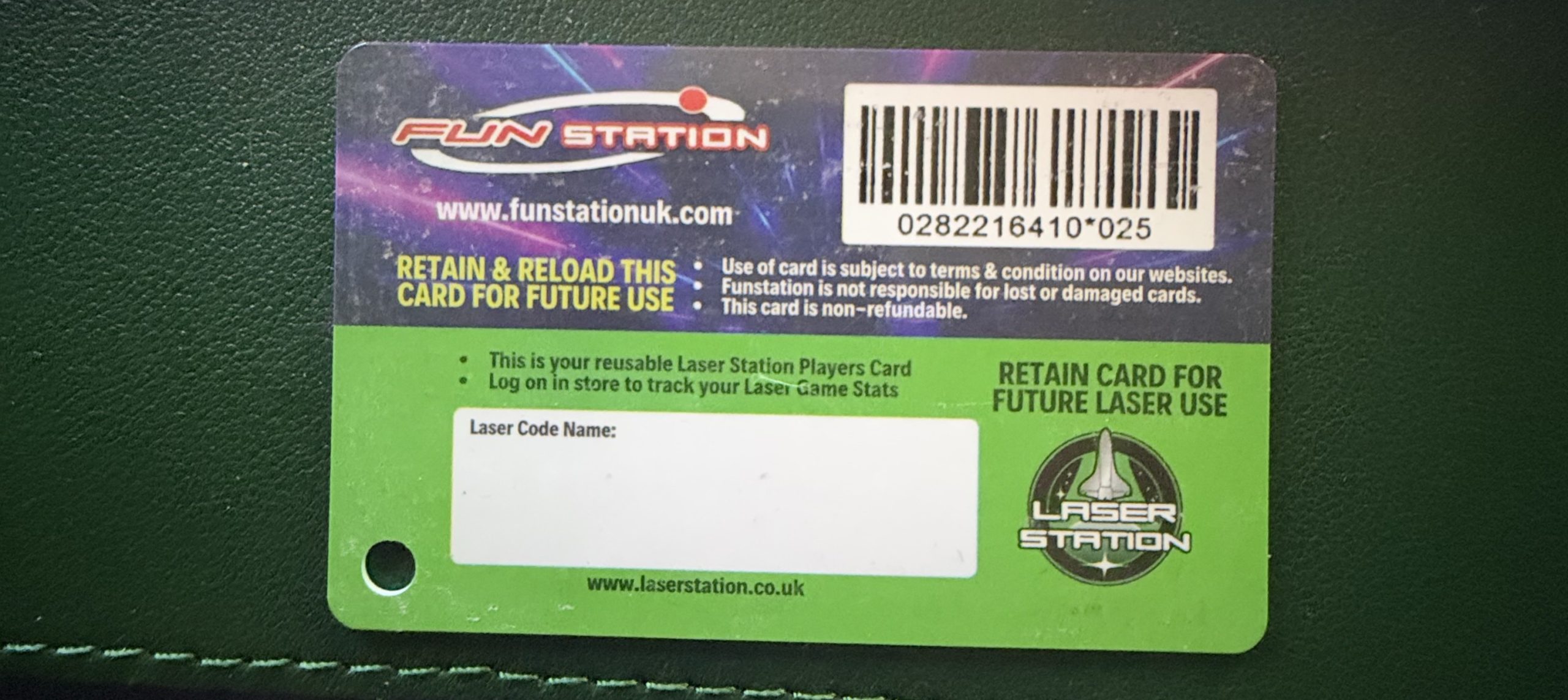
    If you have a ticket for an event and there’s not a digital version available for the Wallet app, you can create one using the physical pass you have. The same goes for other cards, like a membership card, for example.

    The Wallet app can use ‌Visual Intelligence‌ to scan your card, and it will match it to a template with corresponding fields that you can tweak before adding it to your Wallet.

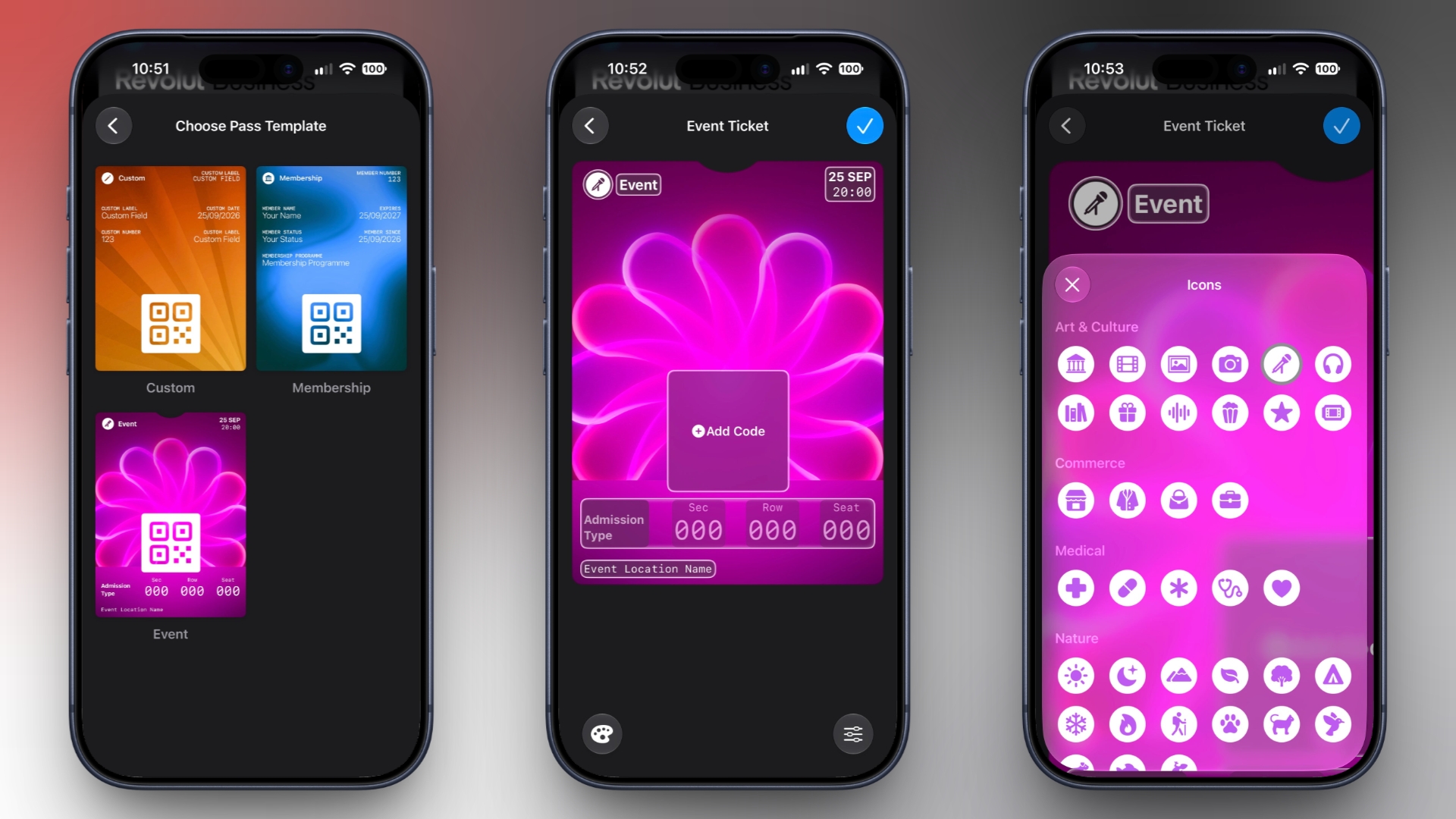
    Alternatively, you can create the pass manually, choose a template (“Membership,” “Event,” or “Custom”) and then adjust the color and other details. All you need to do then is scan the barcode or QR code from your physical pass.

    Each template includes relevant information like name, location, or admission type. There are 12 background colors to choose from, or seven custom backgrounds for categories like theater, music, sports, and movies.

    Fields can be added or removed when creating a custom pass, with options like label, date, membership, contact, coupon code, VIN, insurance, and more, so most physical cards should be able to be stored digitally.

    Here’s how you create a pass with ‌Visual Intelligence‌:

    1. Open the Wallet app on your iPhone and tap the + button at the top.
    2. Choose Create a Pass.
    3. To let Visual Intelligence scan the pass, tap Continue, then take a photo of it in the next screen.

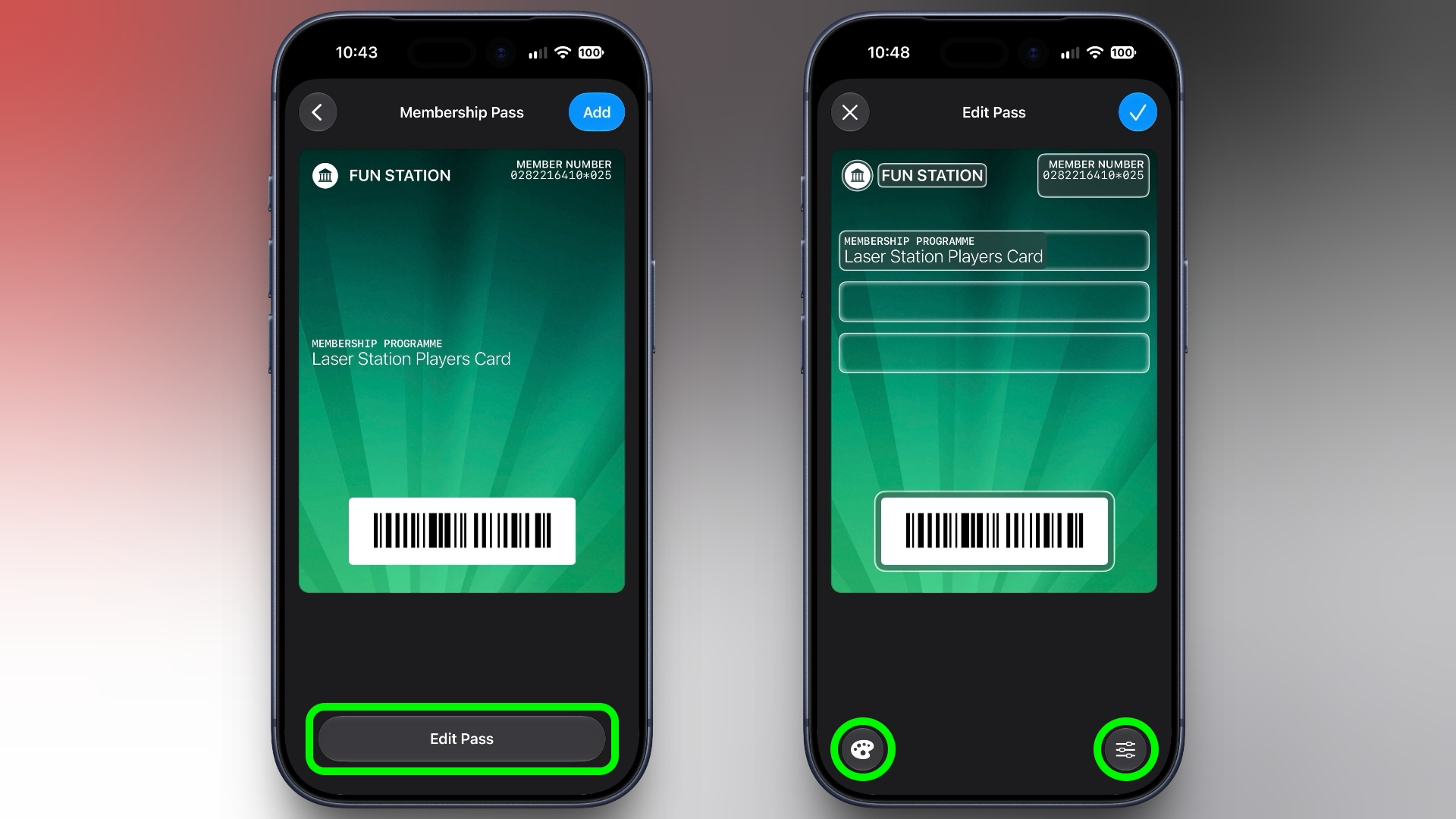
    4. After Visual Intelligence matches the pass to a template, tap Edit Pass.
    5. Use the palette icon in the bottom-left corner to change the look of the pass – you can the background colour, or use an image from your Photos library. Tap the icon in the bottom-right corner to add or remove fields.
      wallet
    6. Tap the blue checkmark at the top when you’re done.

    Your custom pass will now be added to your Wallet, ready for use. To edit it at any time, simply select it in Wallet, tap the three dots in the top-right corner of the screen, then tap Edit Pass.Tag: Apple Wallet

    This article, “Create a Custom Pass in the Wallet App on iPhone” first appeared on MacRumors.com

    Discuss this article in our forums

    Apple Wallet create custom pass Wallet
    Follow on Google News Follow on Flipboard
    Share. Facebook Twitter Pinterest LinkedIn Tumblr Email Copy Link
    myappsplus
    • Website

    Related Posts

    Leak reveals details for more iPhone 18 models launching early 2027

    November 9, 2026

    Leaker Envisions a Shorter iPhone With a New iOS Layout

    November 9, 2026

    Apple’s Siri Boss May Leave – Here’s Who Could Take Over

    November 9, 2026
    Add A Comment
    Leave A Reply Cancel Reply

    Top Posts

    Cathay Pacific tests Google AI that dramatically cuts airplane contrails — tiny altitude shifts slash environmental impact by 40% in early trials

    September 8, 2026138 Views

    Save on your groceries, gas, and holiday shopping with this $15 BJ’s membership (Reg. $60) 

    November 4, 202627 Views

    Apple is making Creator Studio an even better deal with new AI features and creative tools

    October 28, 202621 Views
    Latest Reviews

    OpenAI says it reached its goal of creating an automated research intern

    myappsplusSeptember 6, 2026

    Will the iPhone Ultra really be ‘Ultra’? 5 features the foldable could surprisingly ditch, from Face ID to MagSafe

    myappsplusSeptember 6, 2026

    Best TVs of 2026: Expert Tested, Compared and Reviewed

    myappsplusSeptember 6, 2026
    Stay In Touch
    • Facebook
    • YouTube
    • TikTok
    • WhatsApp
    • Twitter
    • Instagram

    Subscribe to Updates

    Get the latest tech news from FooBar about tech, design and biz.

    Most Popular

    Microsoft is ending Windows 11’s web app slop era, and AI now writes native apps in 30 minutes

    September 6, 20260 Views

    Is it safe to buy a refurbished iPhone from Walmart?

    September 7, 20260 Views

    Amazon cargo plane crashes at Miami International Airport, kills 5: Here’s the latest update shared by the company

    September 7, 20260 Views
    Our Picks

    See the ad and early deals already live

    November 9, 2026

    Samsung’s paid Galaxy AI plan leaks for $5/month, but will you pay?

    November 9, 2026

    Meta expands Instagram’s AI age-guessing tech globally

    November 9, 2026

    Subscribe to Updates

    Subscribe to our newsletter and get the latest tech news, app updates, AI trends, smartphone reviews, and exclusive deals delivered straight to your inbox.

    Facebook X (Twitter) Instagram Pinterest
    • About Us
    • Get In Touch
    • Disclaimer
    • Privacy Policy
    • Terms & Conditions
    © 2026 MyAppsPlus. All Rights Reserved.

    Type above and press Enter to search. Press Esc to cancel.