

When it comes to software services, there is often a healthy variety no matter which platform you use. Certain products, however, enjoy a monopoly of sorts and become the default option for many. Google Maps is a good example of a service that has become synonymous with navigation, despite the presence of worthy alternatives like Apple Maps and Waze. One possibly underappreciated navigation service is MapQuest, which has a long history and predates Google Maps by over a decade.
MapQuest launched in 1996 and was the first commercially available web mapping service. Its September 2026 decision to retain Lake Ontario’s name put it back in the spotlight, with a surge of popularity pushing it to number one on the App Store. The app is also available on Android, but it’s only started supporting Android Auto in the wake of its viral popularity. If the lack of Android Auto support has kept you from using it for navigation, this might be just what you’ve been waiting for.
The Android Auto build is still in beta, so expect some bugs and visual glitches. Incident reporting is also present, and the feature lets you report and view alerts for road closures, crashes, and other incidents. All you really need to do is download MapQuest from the Google Play Store. If you already have it installed, make sure you’re on the latest version, and you should be good to go.
Using MapQuest on Android Auto
If you have Android Auto already set up and running, you don’t need to do anything extra to get the MapQuest app to show up on your car’s infotainment screen. If you’ve not used Android Auto before, setting it up is pretty simple. It’s a great way to use navigation and music apps on the road without glancing at your phone and potentially putting yourself and other road users at risk.
You can connect to Android Auto using a USB cable or wirelessly if your car supports it. If you’re using a cable, plug in your phone, and you should see instructions to set up Android Auto. For wireless Android Auto, you will have to first pair your phone to your car car’s infotainment screen. As long as you have updated MapQuest, you should see its app icon appear on Android Auto
With a destination set, you should see turn-by-turn navigation, live traffic data, and other useful information on your car’s display. If you can’t find MapQuest on Android Auto, it might be hidden. On your Android phone, navigate to Settings > Connected devices > Android Auto > Customize launcher. Here, make sure the MapQuest app is checked.
Other navigation apps on Android Auto
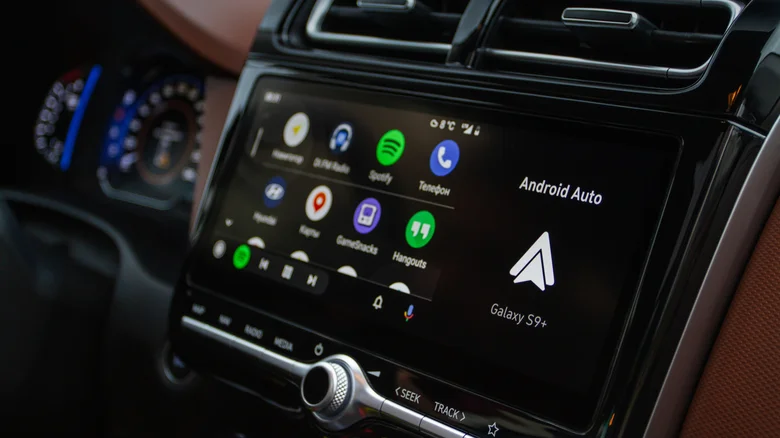
MapQuest’s feature set isn’t as rich as Google Maps, but it does have a pretty modern user interface. Early adopters of the Android Auto version have noted that the experience still needs a bit of polishing; most notably, the interface occasionally mentions “CarPlay,” suggesting that MapQuest may have rushed the Android Auto release to capitalize on its surge in popularity.
Interface bugs should be ironed out eventually, but the biggest issue is that MapQuest’s navigational services are currently limited to the United States and Canada, so it isn’t really an option for overseas drivers. Android users who want an alternative to Google Maps will likely have to turn to Waze, which is often considered the best alternative to Google Maps. It has a range of useful features that make its navigation experience superior in some ways: You can customize your avatar, choose different navigation voices, and even benefit from crowdsourced data that warns you about hazards, speed bumps, and red lights.
Other popular Android Auto map apps include Sygic and TomTom Go. While you can use Apple Maps on an Android phone by using the web version in a browser, that sadly doesn’t extend to the Android Auto experience.
