

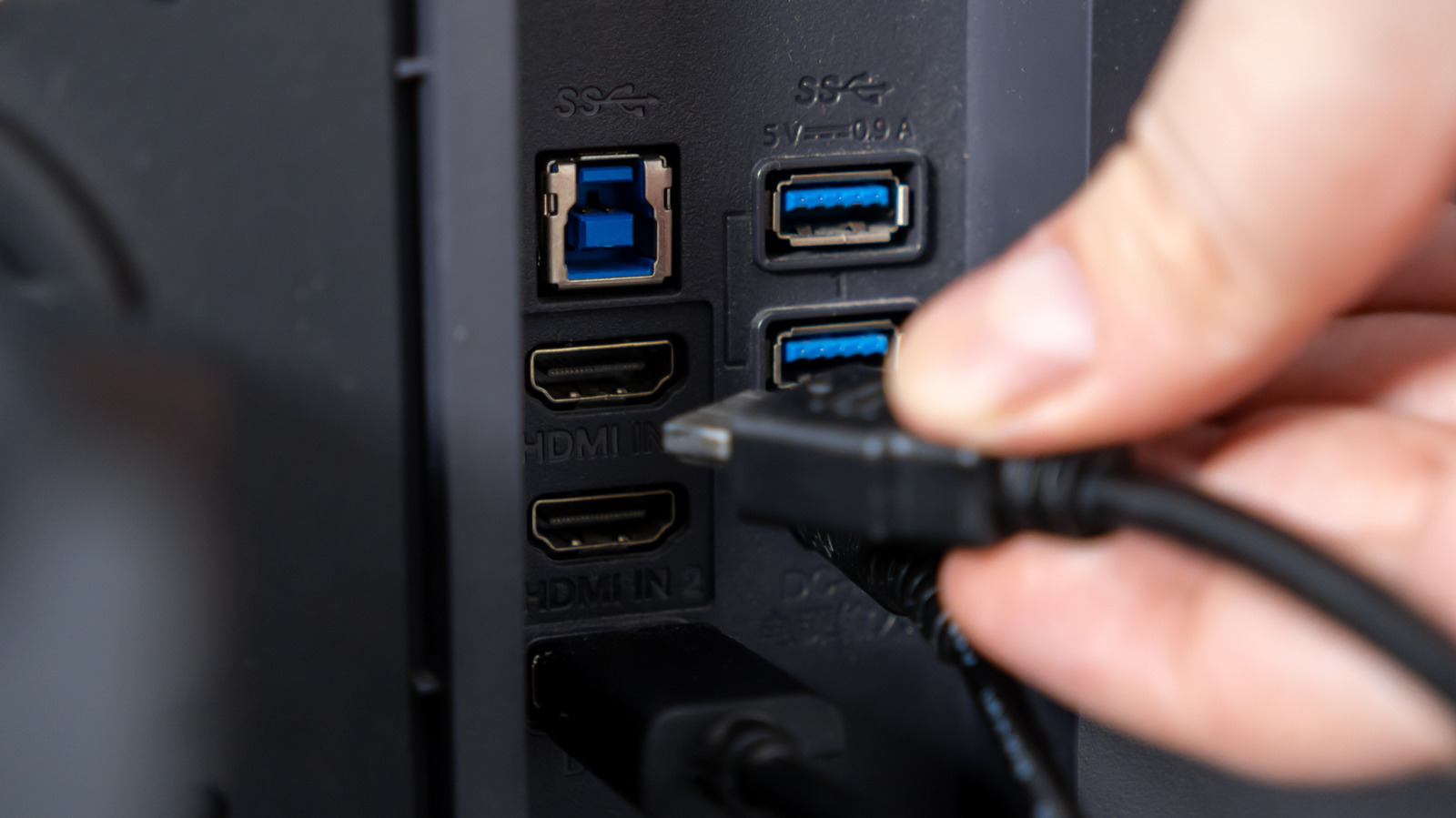
Your monitor’s USB ports have many uses, but they don’t all have the same capabilities.
If your monitor has a couple of USB ports tucked along its back or side, they’re likely there for your computer rather than the display itself. On monitors with this built-in USB hub, you can connect a keyboard, mouse, webcam, flash drive or other accessory to the monitor and have it communicate with your PC through the USB connection.
The exact way the ports work depends on the monitor. On some models, the video connection and the USB hub are separate, so you might use HDMI or DisplayPort for the picture and another USB cable to make the monitor’s USB ports work with your computer. On supported USB-C monitors, one cable can handle both jobs. You can plug a keyboard or mouse into the monitor, then connect the monitor to your laptop with USB-C, and that one USB-C cable will both send the laptop’s picture to the screen and carry the accessory data to the laptop. Some monitors can also charge the laptop through the same USB-C connection.
Why your monitor has (multiple) USB ports
A monitor with a USB hub has two sides to the connection. The upstream port, which sends data from the monitor to your computer, connects the hub to the PC. The downstream ports, which send data from connected devices into the hub, are where you plug in accessories such as a mouse, keyboard or flash drive. Data from those devices travels through the monitor and then reaches the computer over the upstream connection.
There’s no rule that a monitor with two visible USB ports must have one upstream and one downstream port. For example, a model might have two downstream USB-A ports and a separate USB-B upstream port, while another may use USB-C for its upstream connection. The labels or manual should show how the ports on a given monitor are assigned.
That upstream connection is easy to overlook if the monitor connects over HDMI or DisplayPort. A standard HDMI or DisplayPort cable doesn’t provide the USB data path that the hub needs, so monitors that use those video connections need a separate USB upstream cable for their downstream ports to work.
USB-C can combine those jobs when the hardware supports it. DisplayPort Alt Mode allows a compatible USB-C connection to carry video alongside data, while USB Power Delivery can add laptop charging. USB-C itself only describes the connector, however. Support for standards such as USB 3.2, USB4 and USB Power Delivery varies by device. That’s one reason the differences between HDMI, USB-C and DisplayPort extend beyond which connector fits your computer.
The best ways to use your monitor’s USB ports
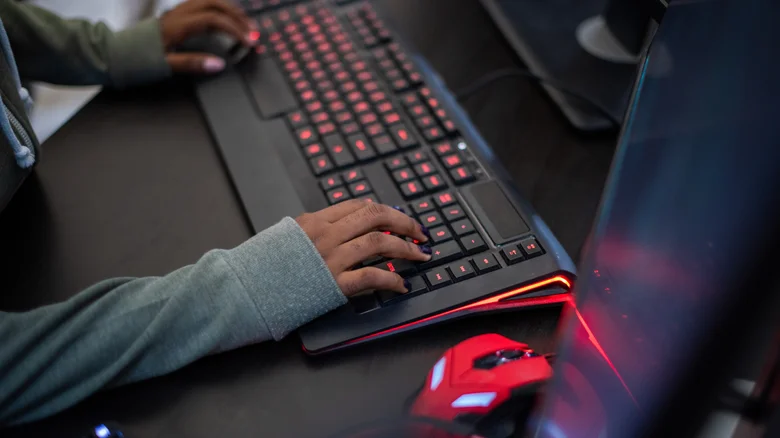
The simplest option is to leave permanent desk accessories connected to the monitor, especially those that aren’t speed-dependent. A keyboard, mouse, wireless receiver or webcam can stay plugged in there instead of occupying ports on your laptop or desktop. If you regularly take a laptop away from your desk, reconnecting the monitor’s upstream link reconnects all those USB accessories at once.
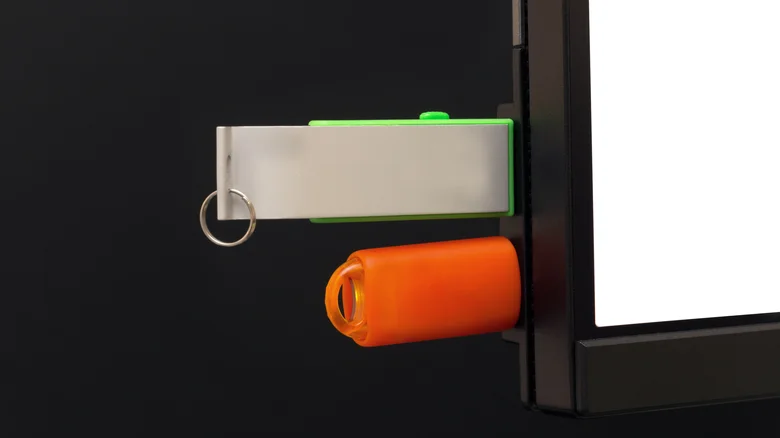
Monitor ports can also be a convenient place for temporary storage. A side-mounted port is easier to reach than the back of many desktop PCs, so it makes sense for flash drives and external drives you connect occasionally. There’s a speed consideration, though: the monitor’s downstream ports share the bandwidth of its upstream USB connection. If that connection is slower than your external storage, the hub becomes the bottleneck. Thus, this solution is usually better for quick file transfers rather than moving hundreds of gigabytes.
Some downstream ports can charge USB devices as well. Whether they continue supplying power while the display is in standby depends on the monitor and its settings. Dell, for example, has monitors with an “Other USB Charging” setting that controls whether downstream USB ports remain powered in standby.
A USB-C monitor can make the arrangement especially tidy for laptop use. With the right monitor and computer, one cable can carry the image to the screen, connect the monitor’s USB accessories back to the laptop and provide power to the laptop. The same single-cable approach appears on some portable monitors, where reducing the number of cables and adapters is particularly useful.
A less common but still-useful option is a monitor with a built-in KVM (keyboard, video and mouse) switch. On supported models, two computers share the connected monitor, keyboard and mouse, so you can switch between a work laptop and a personal computer without moving those peripherals.
Check what your monitor’s USB port actually supports

As mentioned above, identical-looking USB-C ports don’t necessarily have identical capabilities. One may support video and laptop charging, while another is intended for downstream USB devices. Transfer speeds can vary too, so the port labels and monitor manual are more reliable than connector shape alone.
Bandwidth can become another limitation on USB-C monitors. Some displays let you prioritize either display bandwidth or USB data speed, since both share the same connection. Dell’s U3223QZ is one example: its High Resolution setting reduces USB data to USB 2.0 speeds, while High Data Speed enables USB 3.0 bandwidth. On that model, the difference can also determine whether its built-in webcam can capture 4K video. If a fast external drive or high-resolution webcam seems unusually slow through a monitor, its USB-C configuration is worth checking.
The built-in hub also doesn’t have to handle everything. If you need more ports, or specific connections the monitor lacks (like Ethernet or an SD card reader), a dedicated USB-C hub can add them. For the keyboard, mouse, flash drive and other accessories already living on your desk, though, the USB ports on the monitor might save you from adding another box and set of cables.
