

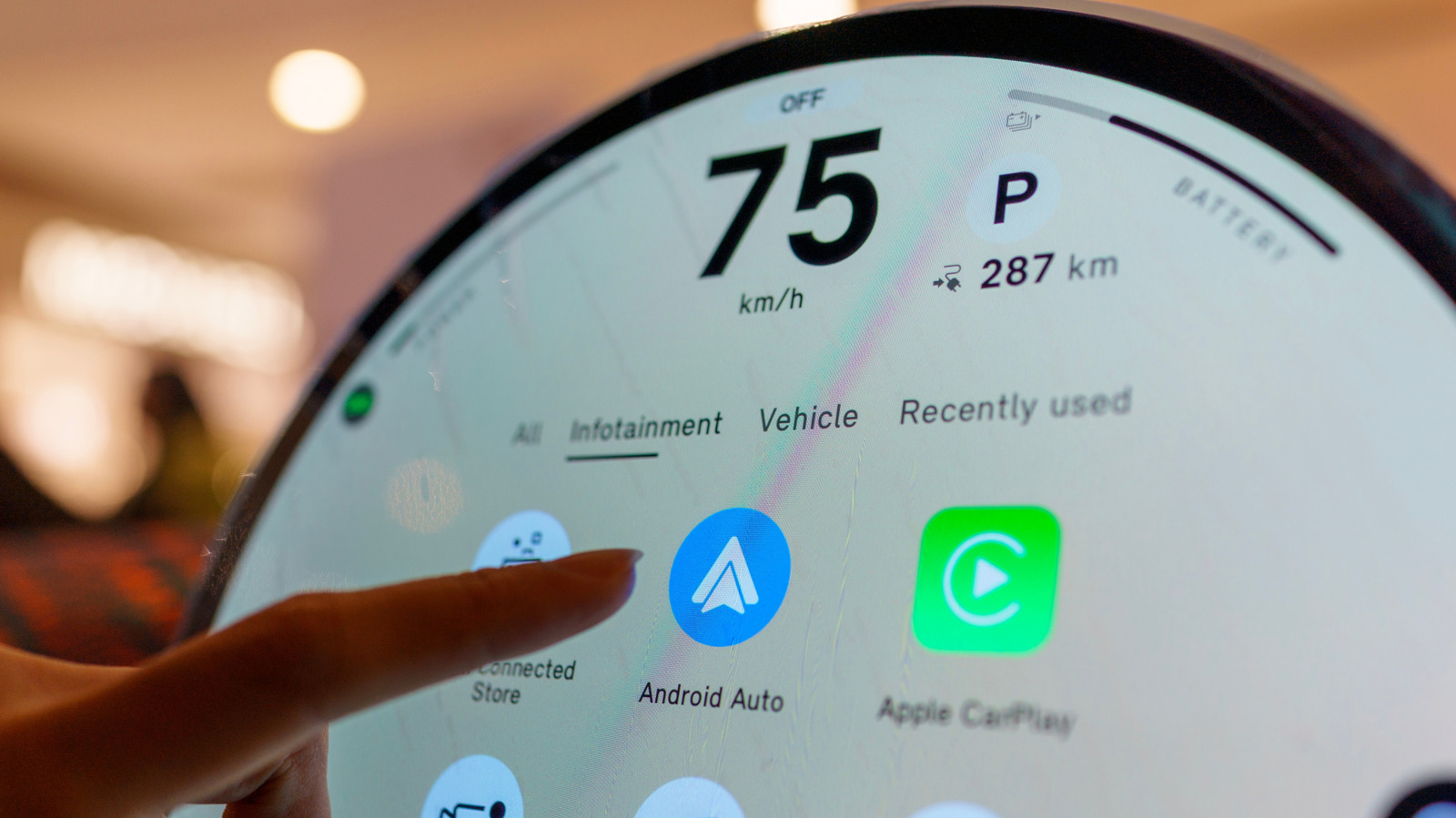
The app lives in the Play Store, so start there if you want to update.
Even though Android Auto appears on your car’s infotainment display, all of its features are powered directly by your smartphone. And like most things on your phone, it can receive regular updates over the internet to fix bugs and add new functionality. We’ve seen Google add its Gemini voice assistant, support for widgets and even overhaul the visual look of the platform to better match the modern Android identity of late.
While Android Auto should keep itself up to date in most cases, you can also update it manually if you’re running into issues or are anticipating a particular feature.
How to update Android Auto and does it update automatically?
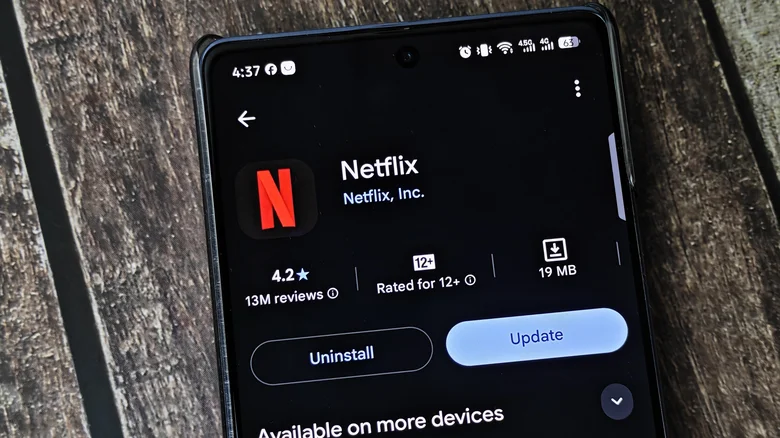
The Google Play Store is responsible for keeping Android Auto up-to-date. This is because Android Auto is packaged as a regular app rather than a core system component. The latter would mean only getting updates
In practical terms, this means that Android Auto should be updated automatically in the background like any other app on your phone. These updates can fail sometimes, though, or be delayed indefinitely if your phone doesn’t detect a Wi-Fi network. By default, the Play Store won’t use cellular data to automatically update apps in the background.
Luckily, you can easily check whether you’re on the latest version of the app by heading into the Play Store and searching for Android Auto. This is where you’d see an option to manually update the app, as pictured above. If you simply see the Uninstall button here, it means you’re already on the latest version available for your device. As a sanity check, click on the three-dot menu to the top-right and ensure that the Enable auto update option is selected.
If you’re using Android Auto on an older phone, keep in mind that you need Android 9.0 or higher to receive the latest updates. That said, Android 9.0 was released all the way back in 2018 so it’s not a problem for most devices.
How to force an Android Auto update
If the Google Play Store doesn’t allow you to update Android Auto, you may already have the latest version installed. However, if you’re experiencing glitches or other issues, you can try resetting the app.
Within the Settings app on your phone, navigate to Apps > See all apps > Android Auto > Storage and cache. Finally, tap Clear storage. This will reset any preferences you’ve saved within the Android Auto interface, but it won’t delete any data stored within other apps like Google Maps or Spotify. Simply reconnect your phone to your car and check whether the issue has been resolved.
If you’re still dealing with bugs, you can also go one step further and try the oldest version of Android Auto available on your phone. To do this, navigate to Apps > See all apps > Android Auto again but this time look for the three-dot menu to the top-right corner of your screen. You should see an Uninstall updates button here. Tap it and your phone will roll back to the earliest version included with your phone.
You can try using this older version of Android Auto to begin with. If it offers a more stable experience, you can temporarily disable auto-updates within the Play Store and hope that a future update fixes the problem. Alternatively, you can try updating to the latest version and check if the fresh installation offers a noticeable improvement.
