Close Menu
MyAppsPlus

    Subscribe to Updates

    Get the latest creative news from FooBar about art, design and business.

    What's Hot

    Giant Nintendo Sale now live from $7: Loads of Switch games, amiibo, Alarmo, controllers, more

    September 13, 2026

    3 best psychological thriller movies on Prime Video you (probably) haven’t seen

    September 13, 2026

    New Target ad delivers look at upcoming deals in one of Nintendo’s ‘largest promotions ever’

    September 13, 2026
    Facebook X (Twitter) Instagram
    Facebook X (Twitter) Instagram
    MyAppsPlusMyAppsPlus
    Sunday, September 13
    • Home
    • Breaking Tech
    • Apps & Software
    • AI & Automation
    • Android
    • iPhone & iOS
    • More
      • Reviews
      • How-To Guides
      • Deals & Discounts
      • Shop
    MyAppsPlus
    Home»Reviews»4 Ways to Fix a BitLocker Recovery Screen Without Losing Your Files
    Reviews

    4 Ways to Fix a BitLocker Recovery Screen Without Losing Your Files

    myappsplusBy myappsplusAugust 19, 2026003 Mins Read
    Share Facebook Twitter Pinterest Copy Link LinkedIn Tumblr Email Telegram WhatsApp
    Follow Us
    Google News Flipboard
    4 Ways to Fix a BitLocker Recovery Screen Without Losing Your Files
    Share
    Facebook Twitter LinkedIn Pinterest Email Copy Link

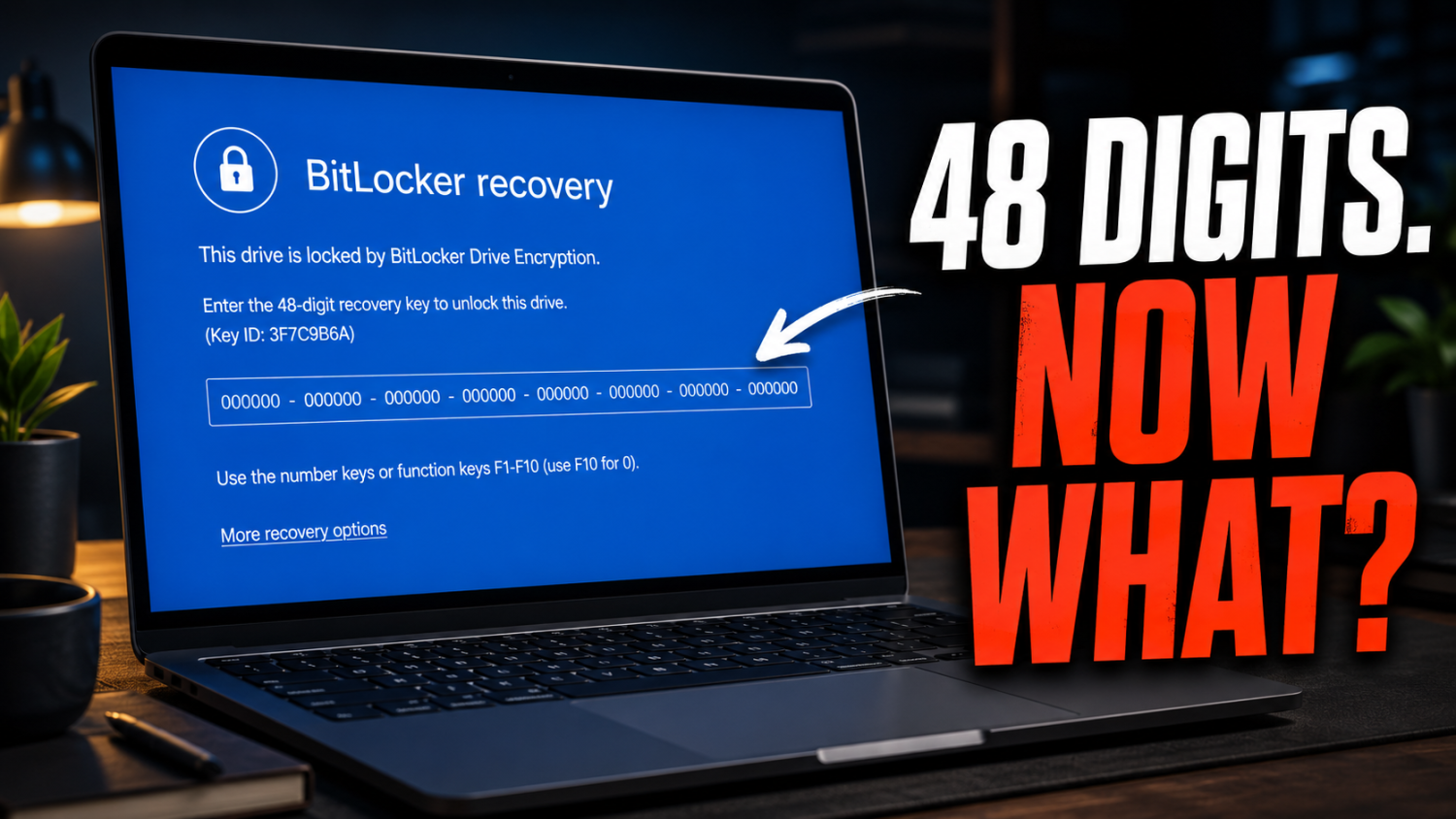
    A blue screen shows up out of nowhere, asking for a 48-digit recovery key most people didn’t know they had. It happens after a routine update, a BIOS change, or a new motherboard, and the drive itself is usually fine. Windows just doesn’t trust the hardware anymore, so it locks everything until someone proves they’re allowed in.

    BitLocker is Microsoft’s built-in encryption tool, and it works well at the one job it’s built for. It scrambles an entire drive so a lost or stolen laptop doesn’t hand over every file to whoever finds it. The tradeoff shows up the moment something unexpected trips the system: a TPM reset, a secure boot change, even a routine firmware update can trigger recovery mode, and getting back in isn’t always obvious.

    Here’s what actually works.

    1. Find the Recovery Key Windows Already Saved

    Every BitLocker setup generates a recovery key, and it usually gets saved somewhere the person doing the setup never thought to check again. A Microsoft account, a printed copy, a USB drive, or an organization’s IT system are the most common spots. Signing into a Microsoft account online and checking the BitLocker recovery keys page recovers a lost key more often than people expect.

    2. Use Windows’ Built-In Tools for Basic Management

    Control Panel and Settings handle the everyday BitLocker tasks: turning encryption on or off, checking status, managing a password. For more advanced operations, Command Prompt’s manage-bde tool and PowerShell give full control, though both require knowing the right commands. Windows’ native tools are free, reliable, and fully built into the operating system, and they remain the right call for anyone comfortable working in a command-line environment.

    3. Boot Into a Recovery Environment When Windows Won’t Start
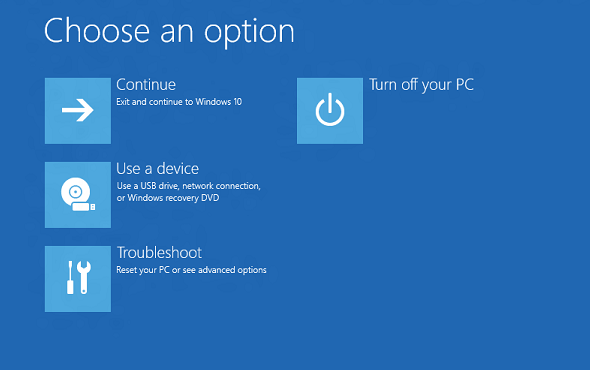
    Image: Microsoft

    Sometimes the system drive stays locked, and Windows never gets far enough to ask for anything. That calls for a WinPE-based recovery environment, a separate, bootable version of Windows that runs from a USB drive instead of the installed system. EaseUS Partition Master builds one of these directly: connect a USB drive to a working PC, create the bootable media, then boot the locked computer from it. The tool detects the encrypted partition automatically and unlocks it or turns off BitLocker from there, without ever loading the original operating system.

    4. Manage Everything From One Screen Instead of Four

    BitLocker’s native tools are scattered across Control Panel, Settings, Command Prompt, and PowerShell, and switching between all four for routine tasks slows things down fast. EaseUS Partition Master consolidates enabling, disabling, locking, and unlocking drives into a single interface. It also covers a spot that’s tripped up plenty of Windows Home users: BitLocker management on Home editions has historically been limited, and Partition Master extends support to newer Windows 11 Home builds, letting users decrypt drives and turn off encryption without hunting for workarounds.

    Save the Key Before It Becomes a Problem

    The best fix is the one that happens before any of this. Saving the recovery key to a Microsoft account, printing a copy, or storing it on a separate USB drive the moment encryption gets turned on means the blue screen never turns into a real emergency. A locked drive with a saved key is an inconvenience. A locked drive without one is a much longer afternoon.

    BitLocker Recovery screen ways without
    Follow on Google News Follow on Flipboard
    Share. Facebook Twitter Pinterest LinkedIn Tumblr Email Copy Link
    myappsplus
    • Website

    Related Posts

    3 best psychological thriller movies on Prime Video you (probably) haven’t seen

    September 13, 2026

    Google Health’s mistakes are a grave warning for Apple’s new AI-powered Health app

    September 13, 2026

    Austin Butler’s bedtime routine helped me fall asleep in minutes — a doctor explains why it works so fast

    September 13, 2026
    Add A Comment
    Leave A Reply Cancel Reply

    Top Posts

    The 6 AI-free Linux distros I recommend most

    August 19, 20264 Views

    AI, automation, robot dogs ensure on-site nuclear safety

    September 7, 20262 Views

    This tiny AI box could save me from upgrading my perfectly good laptop

    September 6, 20262 Views
    Latest Reviews

    Why Fluper is the No.1 Mobile App Development Company in the UAE, Saudi Arabia, and the Middle East.

    myappsplusAugust 18, 2026

    How New Kuwait And Indonesia Tech Deals At Baker Hughes (BKR) Have Changed Its Investment Story

    myappsplusAugust 18, 2026

    Google is reportedly planning to move all Pixel production out of China

    myappsplusAugust 18, 2026
    Stay In Touch
    • Facebook
    • YouTube
    • TikTok
    • WhatsApp
    • Twitter
    • Instagram

    Subscribe to Updates

    Get the latest tech news from FooBar about tech, design and biz.

    Most Popular

    Why Fluper is the No.1 Mobile App Development Company in the UAE, Saudi Arabia, and the Middle East.

    August 18, 20260 Views

    How New Kuwait And Indonesia Tech Deals At Baker Hughes (BKR) Have Changed Its Investment Story

    August 18, 20260 Views

    Google is reportedly planning to move all Pixel production out of China

    August 18, 20260 Views
    Our Picks

    Giant Nintendo Sale now live from $7: Loads of Switch games, amiibo, Alarmo, controllers, more

    September 13, 2026

    3 best psychological thriller movies on Prime Video you (probably) haven’t seen

    September 13, 2026

    New Target ad delivers look at upcoming deals in one of Nintendo’s ‘largest promotions ever’

    September 13, 2026

    Subscribe to Updates

    Subscribe to our newsletter and get the latest tech news, app updates, AI trends, smartphone reviews, and exclusive deals delivered straight to your inbox.

    Facebook X (Twitter) Instagram Pinterest
    • About Us
    • Get In Touch
    • Disclaimer
    • Privacy Policy
    • Terms & Conditions
    © 2026 MyAppsPlus. All Rights Reserved.

    Type above and press Enter to search. Press Esc to cancel.