

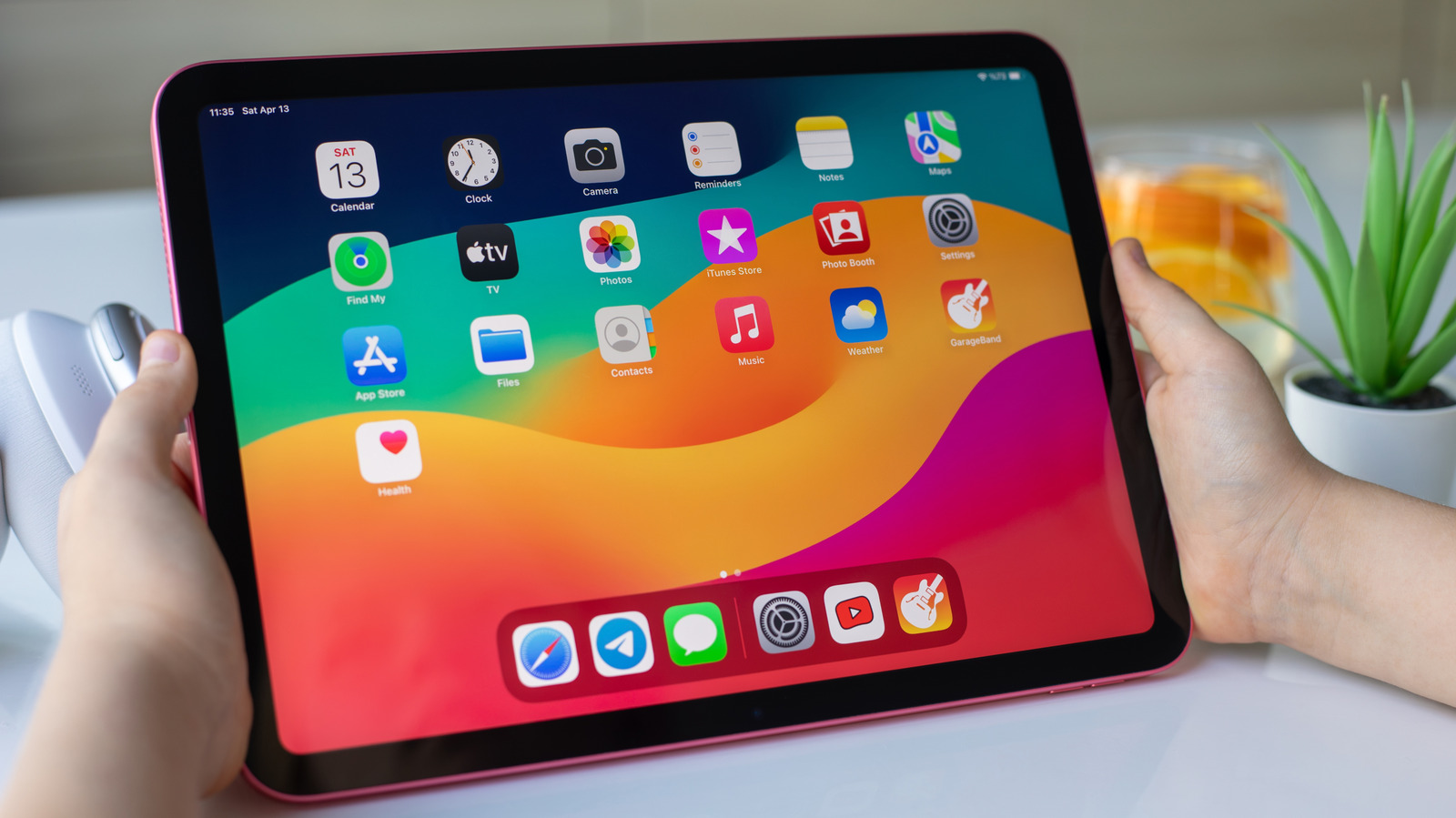
Your old iPad can replace gadgets that cost hundreds, if you give it the right job.
That old iPad in your drawer sitting around doing nothing can stand in for gadgets that cost $150 to $300, from smart displays and sunrise alarms to photo frames and drawing tablets. Apple’s new HomeView, for instance, costs $299 for a 7-inch screen, but an iPad you already own can cover a good chunk of what it does.
A few settings will help improve most of these uses: set Auto-Lock to Never (under Settings > Display & Brightness), keep the iPad plugged in and use Guided Access to lock it into a single app. Head to Settings > Accessibility > Guided Access to enable this, then triple-press the power button with an app open to activate Guided Access.
Also, it’s important to check if your iPad still gets updates. iPadOS 27 only supports the iPad (9th gen), iPad mini (6th gen), iPad Air (4th gen), 11-inch iPad Pro (2nd gen), 12.9-inch iPad Pro (4th gen) and newer models. Older iPads get occasional security patches, but those have an unpredictable schedule. If yours is out of support, stick to the offline ideas below and keep it away from banking, passwords and shopping.
1. Make it a countertop display instead of buying a HomeView
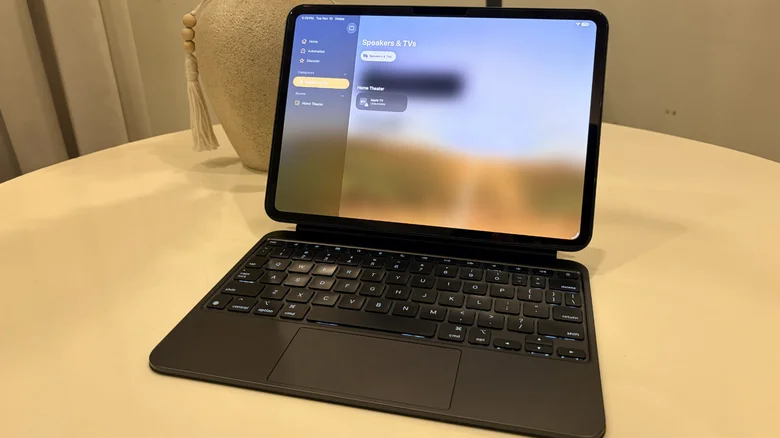
Apple’s HomeView has a 7-inch smart display that recognizes faces to show each person their own setup, plus it uses Siri AI with context from your iPhone. It also has a Safari recipe mode with inline timers, and the tabletop stand adds speakers for calls and other purposes.
An old iPad on a kitchen stand covers the basics of the HomeView. The Home app controls your lights, cameras and thermostats. You can pull up recipes, ask Siri for a timer while your hands are messy and take FaceTime calls without hunting for your phone. Keep it plugged in and use Guided Access to limit visitors to the Home app. It can’t do profilesontext, but that’s a fair trade for $299
There’s a catch, though, as the iPad can’t act as a Home hub on the latest version of Apple Home, so remote control and automations still need a HomePod or Apple TV. The same goes for Matter-based accessories, which can’t be added without a home hub. But if you do have a compatible device, an iPad can take the place of a HomeView.
2. Turn it into a bedside sound machine and sunrise alarm
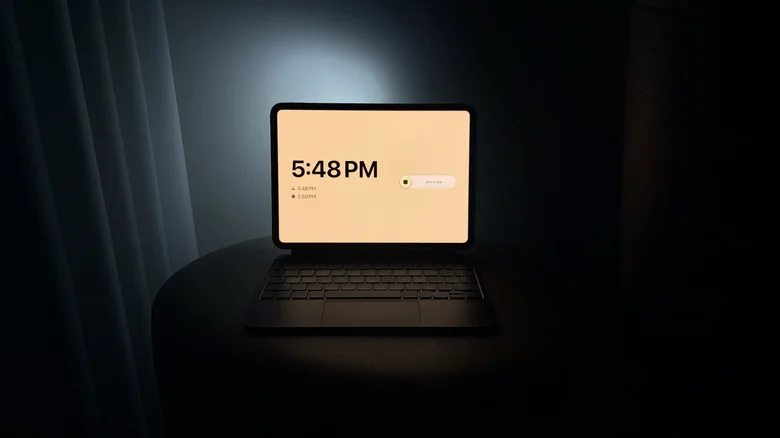
iPadOS 15 and later include free Background Sounds under Settings > Accessibility > Audio & Visual. You’ll find options like Balanced, Bright and Dark Noise, plus Ocean, Rain and Stream. Of course, the Clock app handles alarms. For convenience, add the Hearing option to Control Center to start and stop sounds without digging through Settings.
Out of the box, the iPad lacks a sunrise light, which slowly brightens the room to wake you up. But a couple of third-party apps can easily tackle that.
Glow Alarm uses the tablet’s screen, gradually brightening it before your alarm goes off, while its Pro tier adds a red-to-orange sunrise effect. It’s free with optional Pro tiers and requires iPadOS 26, which rules out iPads older than the 8th gen. The app has to stay open on its Sleep screen overnight, or you’ll get the alarm without the light.
If you have HomeKit smart bulbs, Wake Up Light instead creates Home automations that brighten your bulbs over 30 to 60 minutes. It’s free with optional upgrades and needs at least iPadOS 17 to run, but these automations require a home hub.
With this approach, your old iPad can cover nearly everything a dedicated product like the Hatch Restore 3 does. That costs $169.99, and its full sound library sits behind a $49.99 annual subscription.
3. Use it as a digital photo frame
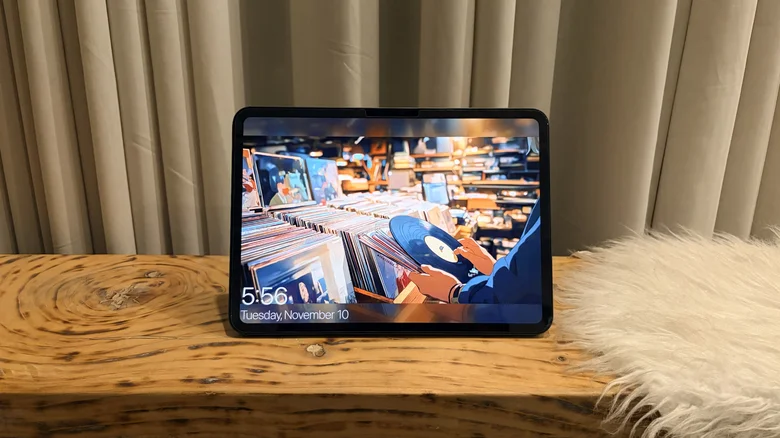
Most smart digital frames top out at 1,280 x 800 pixels, while even the 2021 iPad (9th gen) has a 2,160 x 1,620 display. A decent dedicated digital frame costs around $100, but you can turn your old iPad into a photo frame with just an app and a stand.
Synced Photo Frame by Re-Frame costs about $10 for lifetime Pro access, needs at least iOS 12 and pulls from shared iCloud albums, so new photos appear automatically. It also has a sleep schedule and automatic dimming, so it won’t light up the room at night.
For much older iPads, LiveFrame runs on iOS 9.3.5 or later and supports Google Photos and Dropbox, though it hasn’t been updated since January 2021. If you’d rather skip a third-party app entirely, the Photos app can play any album as a slideshow, though it plays as a Memory with music and can’t shuffle your photos.
4. Hang it up as a family calendar
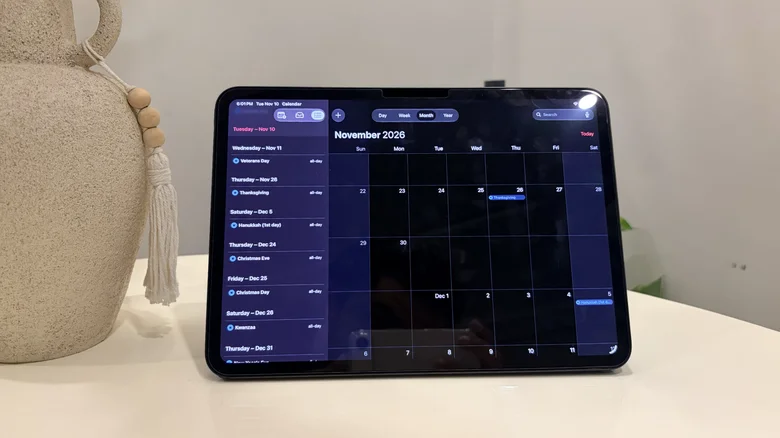
The 15-inch Skylight Calendar costs $299.99, and meal planning requires Skylight’s Calendar Plus plan, which adds another $79 a year. But if you have an old iPad, just put it on a wall mount and it does the same job for free.
Create a shared iCloud calendar, invite family using Add Person and control changes with Allow Editing, or share a read-only Public Calendar link. Everyone can add events from their own iPhone while the iPad shows the full picture. Lock it into the Calendar app with the help of Guided Access and the kids can check the schedule without wandering into games. For chores and groceries, a shared list in Reminders works the same way. On iPadOS 17 and newer versions, grocery lists automatically sort items into sections like produce and dairy.
If you want something closer to the Skylight experience, Cozi Family Organizer is free but requires at least iPadOS 17, and it has a 4.8-star rating from more than 400,000 reviews. It pairs a color-coded calendar with shared grocery and to-do lists, plus a recipe box for scheduling meals, which is essentially the same as Skylight’s paid meal planning.
The free version only lets you add and view events up to 30 days ahead. Cozi Gold, which costs $39/year, removes that limit while unlocking an ad-free experience, a month view and more reminders.
5. Read free library books on it
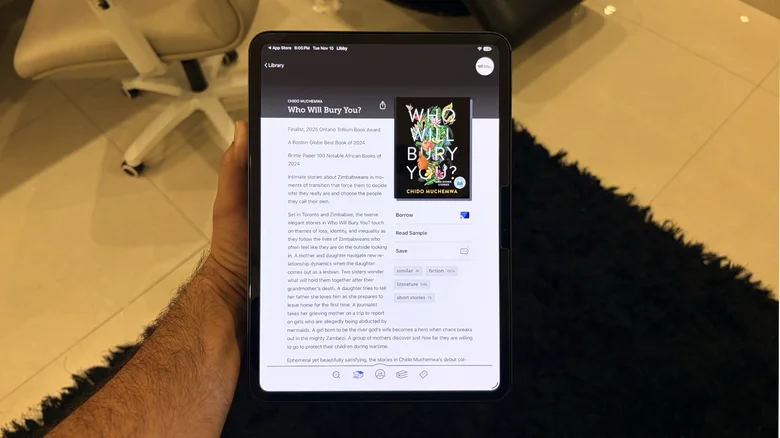
With a library card, Libby lets you borrow ebooks, audiobooks and magazines for free. It runs on iPadOS 13 or later, so even years-old iPads qualify. Audiobooks get a sleep timer, making it a handy bedside companion. You can download borrowed titles to read offline, which is a good fit for iPads that no longer get updates. The Kindle app, meanwhile, needs iPadOS 17.
Compared with a $200 Kindle Paperwhite, the iPad has a backlit LCD instead of E Ink, so it’s tougher to read in direct sunlight. It’s also heavier, and its battery runs down faster. For a few chapters at a time near a charger, though, it’s a capable ereader that costs nothing extra.
6. Use it as a second screen for your Mac or PC
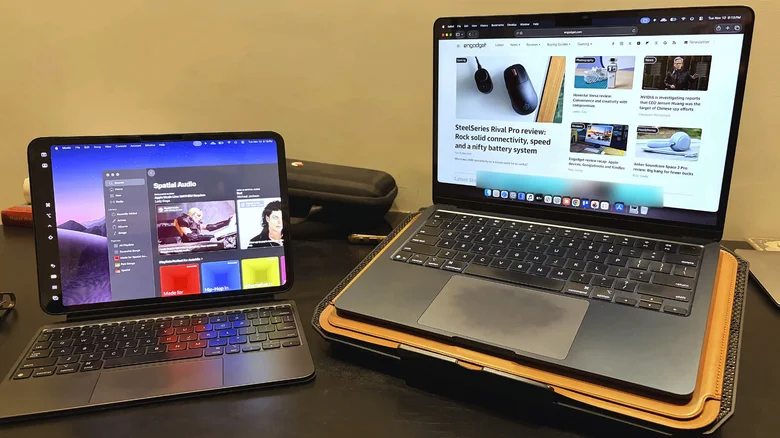
You can easily use your old iPad as a second screen with your Mac, as Sidecar is built into macOS. It works with every iPad Pro, the 6th-gen iPad and newer, 5th-gen iPad mini and newer, and the 3rd-gen iPad Air and newer. The iPad must run iPadOS 13 or later, and you’ll need to sign into the same Apple Account on both devices. You choose the iPad in your Mac’s Displays settings to extend your screen, or pick it from Screen Mirroring in Control Center to mirror it.
Sidecar doesn’t work with Windows, so on a PC, you’ll need a third-party app to use your iPad as a second screen. Duet Display is one of the most popular options, while Luna Display uses an $89.99 dongle and works with both Mac and Windows.
If you’d rather keep the iPad running its own apps next to your Mac, Apple’s Universal Control feature is another free option. It supports using a single keyboard and mouse between the two, so you can keep Slack or a music player open on the iPad while you work.
7. Draw on it like a pen display
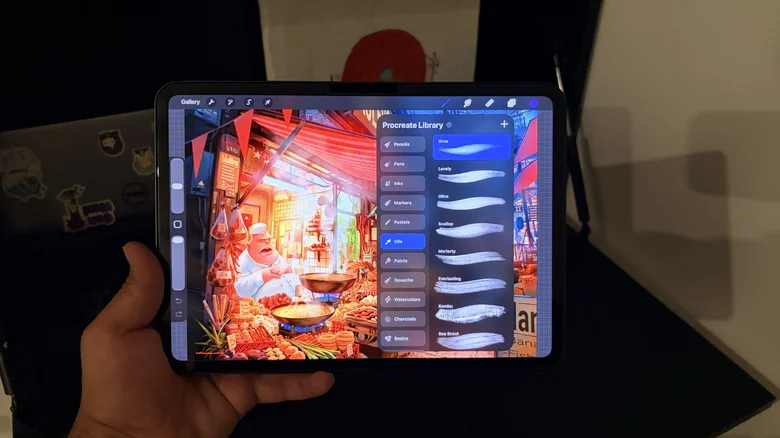
The Wacom One 14 pen display costs $299.95 for the display and pen, with a stand adding another $99.95. If you have an Apple Pencil-compatible iPad, Astropad Studio will turn it into a drawing tablet for your Mac or Windows computer instead. It mirrors your desktop to the iPad so you can draw directly in apps like Photoshop with the Pencil’s pressure sensitivity, which is a major plus for artists and animators. After a free trial, a subscription costs $99.99/year (or a $179.99 one-time purchase).
The Apple Pencil lineup is confusing, so make sure you have a compatible setup before jumping in. For instance, the first-gen Apple Pencil works with the standard iPad between the 6th-gen and 9th-gen models, along with the iPad Air (3rd gen), iPad mini (5th gen) and early iPad Pro models.
If you have a Mac, there’s also a free option: Sidecar supports Apple Pencil, letting you draw directly in Mac apps without a subscription. Astropad Studio adds more pro features on top of this, and it’s the best option if you use Windows. Either way, if your iPad supports the Apple Pencil, this is an affordable way to try digital art before spending hundreds of dollars on a dedicated display.
8. Play retro games on the big screen
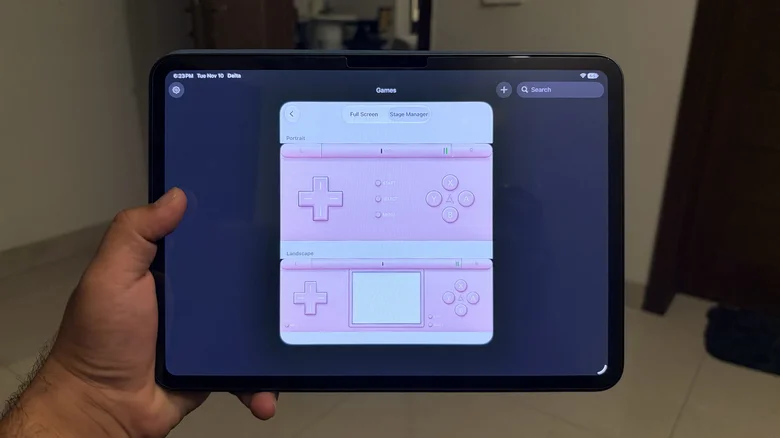
Delta is a free emulator that supports the NES, SNES, Nintendo 64, Game Boy Advance, Nintendo DS and Sega Genesis. It’s been available on the App Store since 2024, when Apple started allowing retro game emulators, so there’s no sideloading required. It needs iPadOS 17.4 or later, meaning it works on the iPad (6th gen) and newer models.
It includes save states, fast-forward and custom controller skins, plus it syncs your saves through Google Drive or Dropbox. The on-screen controls work, but retro gaming is more fun with a physical controller. It supports the controllers for PS4 and PS5, Xbox Series X|S and Nintendo Switch, plus Bluetooth or wired keyboards. Paired with an iPad on a stand, it will rival a dedicated retro gaming handheld, some of which cost more than $200.
9. Turn it into a backseat movie screen
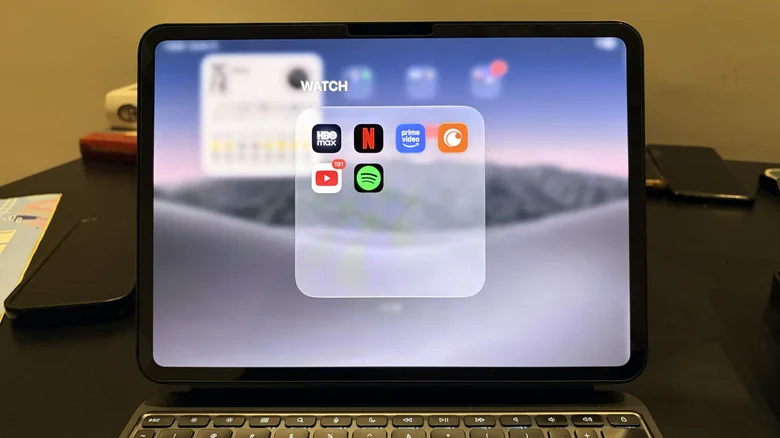
An iPad can’t run CarPlay, so it won’t replace your car’s dashboard display. On a headrest mount, though, it makes a good backseat screen for passengers on long drives, without paying for a dedicated in-car display. Load it with downloaded shows before you leave, since you can’t count on a reliable connection on the highway.
For example, Netflix’s ad-supported plan allows 15 downloads per device each month. The Netflix app requires iPadOS 26, so older iPads are limited to videos you own (like those in the TV app) or other apps with offline playback. YouTube Premium also provides download functionality if that’s more your speed.
10. Make it a dedicated music player
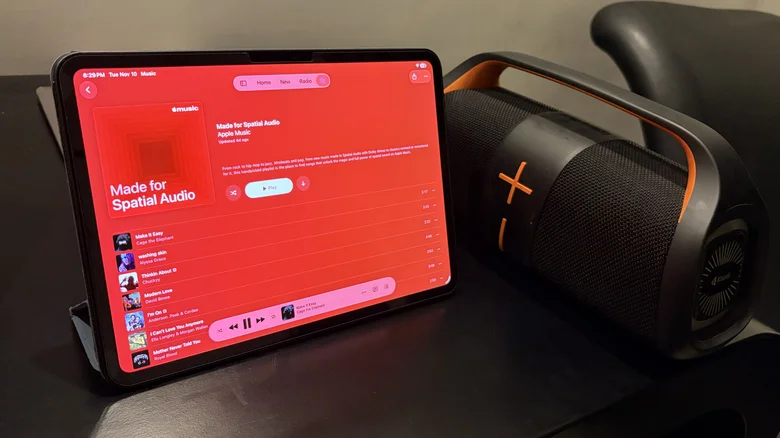
A dedicated music player keeps your phone free for calls and messages, plus the big screen is great for lyrics or music videos. You can stream music, of course — download some playlists for offline listening to keep the music playing even if your connection drops.
If you prefer, sync your own music library from a computer. On a Mac with macOS Catalina or later, this happens through Finder. On Windows, you’ll instead use the Apple Devices app over USB or Wi-Fi, which requires the Apple Music app on your PC.
For better sound, AirPlay to a HomePod or any AirPlay-compatible speaker, or pair your iPad with a Bluetooth speaker. For wired headphones, a USB DAC helps. USB-C iPads accept a USB-C DAC directly. Lightning iPads need Apple’s $39 Lightning to USB 3 Camera Adapter, which Apple says supports audio interfaces. Older iPads, like the iPad (9th gen), have a 3.5mm headphone jack to connect straight into powered speakers or a stereo.
11. Sell it, trade it in or hand it down
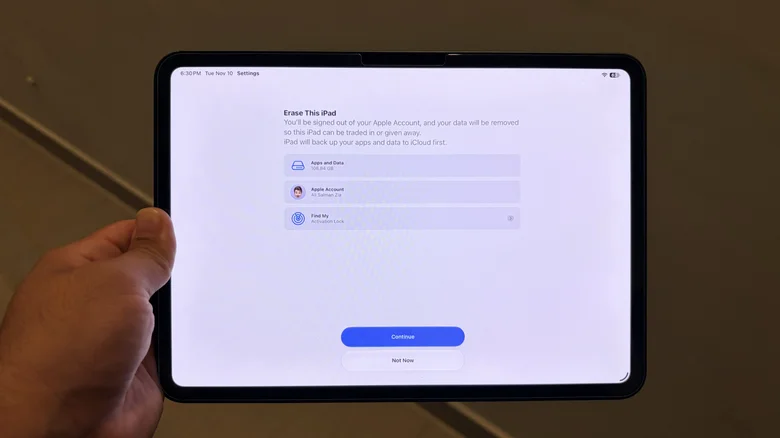
When it comes to trading in vs. selling, trading in is easier but pays less, usually as store credit or a discount. Selling your iPad on Facebook Marketplace or eBay gets you more money, but requires more effort.
Apple Trade In offers $45 to $915 for an iPad, depending on the model and condition of the tablet. You can take the value as credit toward a purchase or an Apple gift card, while the company will recycle ineligible iPads for free.
Either way, prepare the device first. Back it up, unpair any accessories and sign out of your Apple Account, then erase it under Settings > General > Transfer or Reset iPad > Erase All Content and Settings. According to Apple, erasing the iPad turns off Find My and Activation Lock.
Handing it down works the same way, so the new owner can sign in with their own Apple Account. If you’re setting up an iPad for a child, take advantage of Screen Time to manage app limits and content restrictions.
