Close Menu
MyAppsPlus

    Subscribe to Updates

    Get the latest creative news from FooBar about art, design and business.

    What's Hot

    How to watch Bills vs Rams: live stream NFL 2026 Week 5 game from anywhere

    October 12, 2026

    How to use Google Gemini to automate tasks

    October 12, 2026

    Quote of the day by iRobot co-founder Rodney Brooks: “The world is its own best model”

    October 12, 2026
    Facebook X (Twitter) Instagram
    Facebook X (Twitter) Instagram
    MyAppsPlusMyAppsPlus
    Monday, October 12
    • Home
    • Breaking Tech
    • Apps & Software
    • AI & Automation
    • Android
    • iPhone & iOS
    • More
      • Reviews
      • How-To Guides
      • Deals & Discounts
      • Shop
    MyAppsPlus
    Home»Breaking Tech»Why are your iPhone photos so blurry (and how to improve it)
    Breaking Tech

    Why are your iPhone photos so blurry (and how to improve it)

    myappsplusBy myappsplusOctober 12, 2026004 Mins Read
    Share Facebook Twitter Pinterest Copy Link LinkedIn Tumblr Email Telegram WhatsApp
    Follow Us
    Google News Flipboard
    Why are your iPhone photos so blurry (and how to improve it)
    Share
    Facebook Twitter LinkedIn Pinterest Email Copy Link

    Blurry photos usually go deeper than a little grease on your lens.

    Phone cameras are a modern convenience that’s all too often taken for granted, making casual photography accessible to millions in a lightweight package. While your phone’s camera probably won’t beat out a device designed exclusively for taking photos and video, there are ways to take some especially pretty pictures with just your smartphone. That makes it all the more cumbersome when those pictures come out blurry — an all-too-common problem for iPhone users.

    While any phone can take a blurry photo, the proliferation of the iPhone has led most complaints of this sort to center on it. Luckily, the iPhone has an incredible number of camera settings, including a whole host of ways to avoid blurry pictures — and you won’t even need the fancy AI Clean Up tools from iOS 27 for great results. Whether it’s making sure your lens is clean or turning on the right toggles for dark video, blurry photos are easy to fix.

    Why your iPhone photos might be blurry
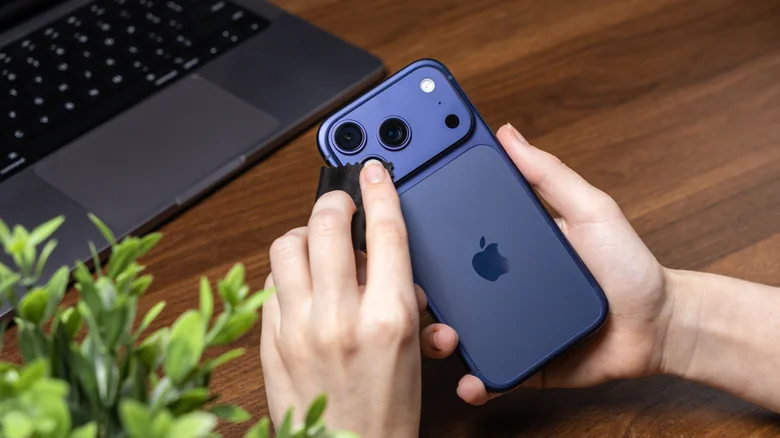
    Person cleaning iPhone 17 camera lens.

    Before messing with any settings, you’ll want to make sure your camera lens isn’t what’s causing the issue. If your lens is smudged up, don’t just dab it with tissue paper or the end of your shirt; take off the case, grab a microfiber cloth, and wipe the lens down. If marks are persistent, add a very light dab of distilled water to the cloth (not right on the lens!) and wipe gently.

    That’s just the tip of the iceberg, though, as a lot of iPhone footage and photos can still turn out blocky or blurry, lacking the crispness you might be looking for. The next issue you want to look at is the light level you’re working with, which is a prime culprit behind so many blurry shots. Low light levels make it harder for cameras to focus reliably, often require slower shutter speeds, and can introduce more noise — all of which can leave photos and videos looking blurry, grainy, or blocky after compression. If you want to improve your smartphone photography, you’ll need to deal with low-light conditions.

    Which settings to change for less blurry photos and videos
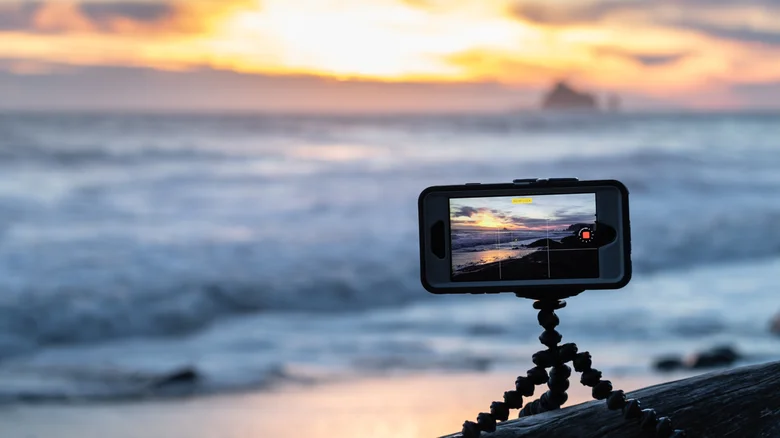
    iPhone on a tripod at the beach.

    A good start is the camera settings on your iPhone (Settings > Camera), where you can change the resolution at the top (there are different frame rates and resolution settings here, but anything above 720p will generally produce crisper image quality). However, some of the more helpful features are in the camera itself, such as locking focus: Instead of letting your camera shift focus all over the place, you can tap the image and hold on the area you want to focus on until the “AE/AF LOCK” prompt appears on-screen. On models iPhone 11 and newer, you can also turn on Night Mode (signified by the moon icon at the top of the camera interface), though it will turn on automatically if you’re in low light. Night Mode will automatically brighten and capture low-light images with more detail.

    When it comes to adjusting shutter speeds and changing your ISO settings — slower shutter speeds can introduce motion blur, while higher ISO settings can increase visible noise and reduce image quality — you’ll need a third-party app like Camera+. Apps like these let you dig into the minute controls of your camera and give you a leg up if you’re on an older device. In addition to digital tools, you should consider getting a tripod to stabilize your shots if you’re serious about avoiding blur. A tripod keeps the iPhone still during longer exposures, reducing camera shake that can otherwise turn small movements into visible blur — especially in low light.

    Apple iPhone Photos Smartphones Your
    Follow on Google News Follow on Flipboard
    Share. Facebook Twitter Pinterest LinkedIn Tumblr Email Copy Link
    myappsplus
    • Website

    Related Posts

    How to use Google Gemini to automate tasks

    October 12, 2026

    October 12, 2026 – Last-minute Apple event rumors

    October 12, 2026

    Imperial visits San Francisco to showcase quantum and deep tech expertise

    October 12, 2026
    Add A Comment
    Leave A Reply Cancel Reply

    Top Posts

    What was the PSX? The souped-up PS2 rarely sold outside of Japan

    September 14, 202610 Views

    Can reviews settle disputes that marked first two seasons?

    September 21, 20268 Views

    Experts call for leveraging AI, breaking key tech bottlenecks to propel advanced manufacturing

    September 19, 20268 Views
    Latest Reviews

    Rivian Loses the CFO Who Kept the Lights On

    myappsplusAugust 28, 2026

    Evaluate any agent framework with Amazon Bedrock AgentCore Evaluations

    myappsplusAugust 28, 2026

    Amazon Labor Day sale, AirPods Pro 3, M6 Mac mini, more 9to5Mac

    myappsplusAugust 28, 2026
    Stay In Touch
    • Facebook
    • YouTube
    • TikTok
    • WhatsApp
    • Twitter
    • Instagram

    Subscribe to Updates

    Get the latest tech news from FooBar about tech, design and biz.

    Most Popular

    Up to 45% off Amazon Essentials menswear, deals from $9

    August 28, 20260 Views

    Panasonic Lumix L10 review: A stylish and capable compact camera

    August 28, 20260 Views

    ‘The writing tablet of my dreams’: I love my reMarkable devices more than my Moleskine collection — and Amazon just cut up to £100 off all of them

    August 28, 20260 Views
    Our Picks

    How to watch Bills vs Rams: live stream NFL 2026 Week 5 game from anywhere

    October 12, 2026

    How to use Google Gemini to automate tasks

    October 12, 2026

    Quote of the day by iRobot co-founder Rodney Brooks: “The world is its own best model”

    October 12, 2026

    Subscribe to Updates

    Subscribe to our newsletter and get the latest tech news, app updates, AI trends, smartphone reviews, and exclusive deals delivered straight to your inbox.

    Facebook X (Twitter) Instagram Pinterest
    • About Us
    • Get In Touch
    • Disclaimer
    • Privacy Policy
    • Terms & Conditions
    © 2026 MyAppsPlus. All Rights Reserved.

    Type above and press Enter to search. Press Esc to cancel.