

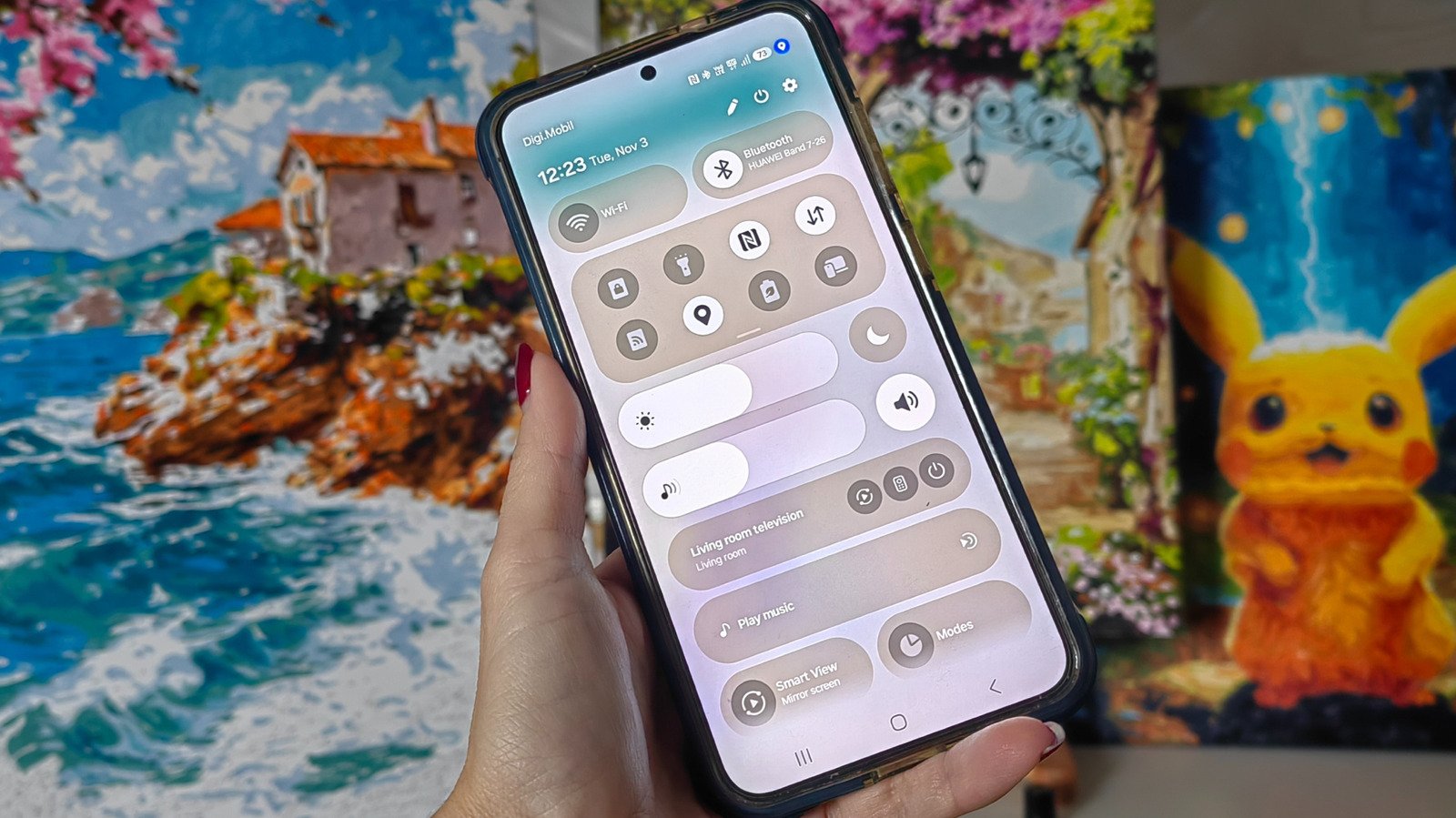
An app just checked your location.
You’re scrolling through your phone when you spot it: a small blue dot sitting quietly near your battery icon. It wasn’t there a minute ago, and now it’s gone again just as fast. If you’ve wondered if it’s a glitch, don’t worry — we all have. It’s not a notification you missed or even a problem or a bug. The blue dot is actually one of Android’s built-in security features designed to keep you informed about what’s happening on your device in real time. More specifically, it tells you when an app is accessing your location data.
Rather than burying this information in a settings menu you’d have to dig through, Android makes it easy to see right alongside all your other notification icons. The blue dot matters more than it might seem because location data is some of the most sensitive information your phone collects. It can reveal where you live, work, buy your groceries and spend your free time. Apps access this data for legitimate reasons, like turn-by-turn directions for your driving companion or local weather. But if you see the dot flashing on and off when you haven’t opened a navigation app, you may want to do a bit of sleuthing.
What does the blue dot actually mean on Android?
Screenshot by Gabriela Vatu for Engadget
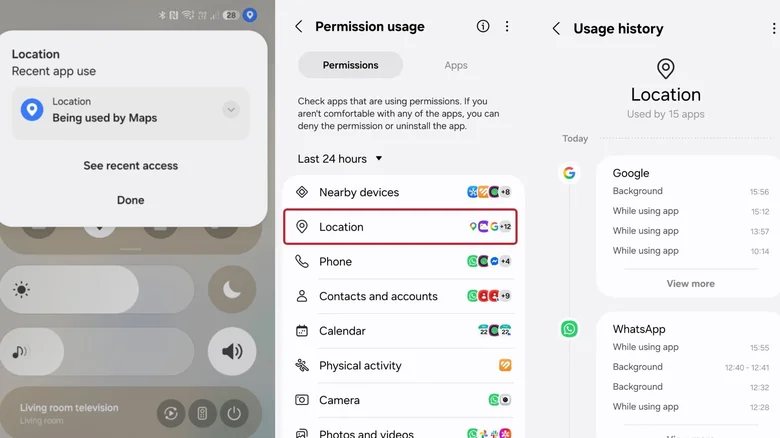
The blue dot is Android’s visual indicator that an app is actively tracking your device’s location. It typically pops up in the top-right corner of your screen beside other status icons like Wi-Fi, battery and signal bars. When it shows up, an app on your phone is pulling location data through GPS, Wi-Fi signals or nearby cellular towers to figure out where you are.
This indicator is part of a broader push from Google to make privacy more transparent. A tiny green dot, for instance, indicates some app has accessed your camera or your microphone. Older Android versions kept location permissions tucked away in settings menus where most people rarely checked them, but the current system switches things around to make such sensitive information easier to find. Android’s developer documentation shows the indicator is tied to active app behavior on Android 17 and newer, with the location dot reflecting usage that’s either currently running or occurred within the last 10 seconds, specifically for apps operating in the foreground.
Basically, the dot isn’t meant to track every historical instance of location access, but rather to flag what’s happening right now or what just happened moments ago. If you spot the dot while you’re using a maps app, that’s perfectly expected. If it pops up when you haven’t touched an app or website that should need your location, it’s time to dig more.
Swiping down from the top of your screen and tapping the indicator typically reveals which app triggered it, giving you an immediate answer without having to guess.
One small mention here — older One UI versions on Samsung phones only displayed a location pin icon in the status bar. Starting with One UI 9, however, the brand adopted the same blue pin the Pixel gets.
How to manage location permissions and app access
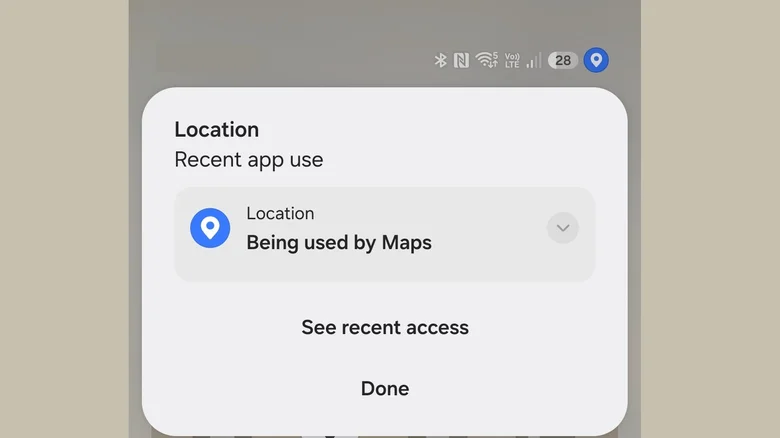
Noticing the indicator is the first step; knowing how to act on it is what actually protects your privacy. Android makes it pretty straightforward to review and adjust which apps can access your location.
If you “catch” the notification, it will tell you which apps are using your location right that instant. If you tap on See recent access and then choose Location, you’ll get a much more extensive usage history, telling you what time your location was checked and whether this was done when you were using the app or while working in the background. Tapping on any of the entries will take you directly to that app’s location permission settings so you can choose in which circumstances, if at all, you want to allow it to check up on you. Alternatively, you could take the long way and go to Settings > Security and privacy (or Privacy Controls) > Privacy > Permissions used in last 24 hours > Location.
For apps that genuinely need location to function well, like weather services or navigation tools, setting permissions to “allow only while using the app” seems reasonable as you’ll still get accurate directions or local forecasts. The app won’t be able to track your movements once you close it, and that’s reassuring.
