Close Menu
MyAppsPlus

    Subscribe to Updates

    Get the latest creative news from FooBar about art, design and business.

    What's Hot

    Netflix top 10 movies — here’s the 3 worth watching right now (Oct. 31-Nov. 1)

    October 31, 2026

    Why Kenyan banks are ripping out the payment pipes behind their mobile apps.

    October 31, 2026

    I’d choose these earbuds over the Pixel Buds Pro 2 every time, for one simple reason

    October 31, 2026
    Facebook X (Twitter) Instagram
    Facebook X (Twitter) Instagram
    MyAppsPlusMyAppsPlus
    Saturday, October 31
    • Home
    • Breaking Tech
    • Apps & Software
    • AI & Automation
    • Android
    • iPhone & iOS
    • More
      • Reviews
      • How-To Guides
      • Deals & Discounts
      • Shop
    MyAppsPlus
    Home»Breaking Tech»What is the purpose of reposting on Instagram and how do you do it?
    Breaking Tech

    What is the purpose of reposting on Instagram and how do you do it?

    myappsplusBy myappsplusOctober 31, 2026004 Mins Read
    Share Facebook Twitter Pinterest Copy Link LinkedIn Tumblr Email Telegram WhatsApp
    Follow Us
    Google News Flipboard
    What is the purpose of reposting on Instagram and how do you do it?
    Share
    Facebook Twitter LinkedIn Pinterest Email Copy Link

    Curate your own corner of Instagram with a single tap.

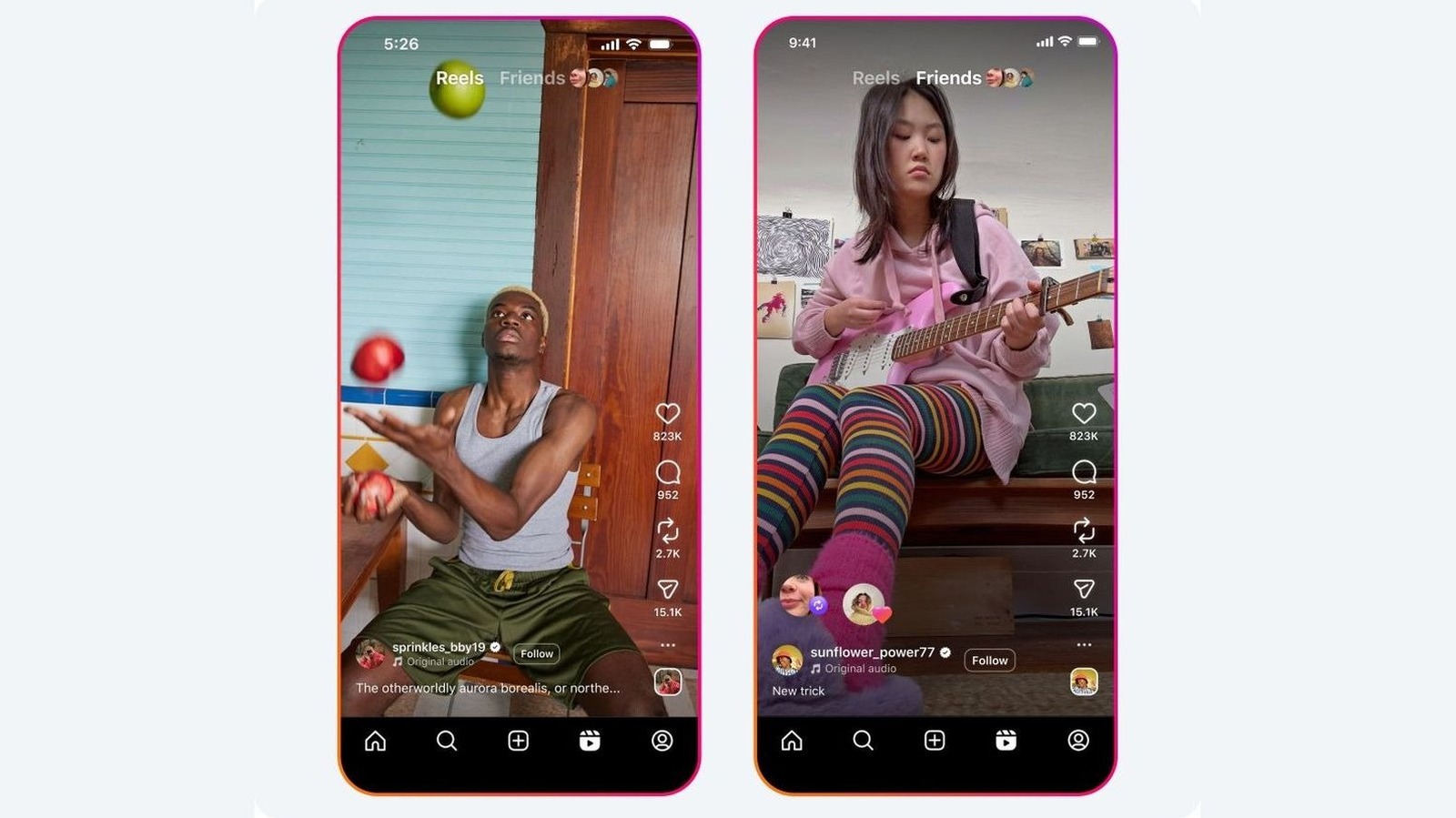
    If you spend any amount of time on Instagram, then you’ve likely seen the small icon under each post and reel looking like two curved arrows. Coming in right after the heart for likes and the comments bubble, that third icon is for reposting. It’s one of simplest ways to share content from other creators without copying it into your Stories or sending it in a DM to each and every friend you have.

    Unlike some older sharing workarounds, reposting keeps a direct line back to whoever made the original post. That’s a win for creators because they get credited for their work and their content may reach a bigger audience. For you, the best part is that you get to curate a little corner of your profile with content that isn’t your own. Reposts show up in your followers’ feed and land in the Friends tab within Reels. They also pile up in their own dedicated tab on your profile so they’re easy to browse whenever you want.

    Let’s dive into what exactly reposting does, how to turn on the feature so others can repost your content and how to repost content step-by-step. Also quite importantly, we’ll also learn how to undo any accidental repost.

    What does reposting on Instagram actually do?
    Instagram app displayed on a phone and the logo on the background.

    On Insta, the repost feature lets you reshare a public post or reel from another account directly to your own followers. All of this reposted content shows up in a dedicated tab on your profile. You can check it out by tapping on your Profile pic and then on the repost icon (two circling arrows). It’s the same for any profile you visit.

    A repost isn’t exactly the same as a regular post because this isn’t new content you’ve created. It is, however, existing public content that you’re amplifying. It will always stay tied to the original creator rather than showing up as if it’s your own work. Plus, unlike when you put it up in your Stories, this one will be available for more than 24 hours. One important thing to know is that you can only repost content if the original creator has allowed it. The reverse is also valid and you have to give permission for your content to be reposted.

    But thanks to where the repost button is placed, it’s pretty easy to accidentally press it, causing unintentional reposts. If you want to delete any of the reposts you made, you have a few options. First, go back to the post and simply tap the repost button again to undo the action. You can also long-press on the post itself and choose Delete repost from the options there. Or, go back to the video, to tap on the bubble with your profile pic and then opt for Delete. 

    For a more comprehensive cleanup operation, you can head to your Profile > Your activity > Reposts and tap on Select in the corner before going through each post you want to remove. When you’re done, just tap Delete at the bottom. The process is pretty much the same on the browser as it is on the mobile app.

    How do you enable and use the repost feature?
    Woman enjoying content on her phone.

    There’s an easy way to control whether others can repost your content. You just have to head to your profile, tap the menu button up top, then go to Sharing and reuse. Under Allow people to share your posts and reels, you have to flip the toggle on for Reposts on posts and reels.

    Reposting itself is a lot simpler than that. Simply find a public post or reel you want to share and tap on the repost icon with the two curved arrows. You can add a short note if you want by using the thought-bubble icon that appears. Tap Save and you’re done. It’s a nice way to save up a collection of reels and posts you enjoy. Just remember the posts are visible to all your followers.

    Instagram purpose reposting Social Media What
    Follow on Google News Follow on Flipboard
    Share. Facebook Twitter Pinterest LinkedIn Tumblr Email Copy Link
    myappsplus
    • Website

    Related Posts

    From restaurant guides to payments, here’s how TikTok is building a super app

    October 31, 2026

    5 Samsung One UI features you won’t get with other Android phones

    October 31, 2026

    I took two iPhones on vacation. The Duo won me over.

    October 31, 2026
    Add A Comment
    Leave A Reply Cancel Reply

    Top Posts

    Cathay Pacific tests Google AI that dramatically cuts airplane contrails — tiny altitude shifts slash environmental impact by 40% in early trials

    September 8, 2026137 Views

    What was the PSX? The souped-up PS2 rarely sold outside of Japan

    September 14, 202616 Views

    Keep running out of mobile data? This new unlimited plan gets you up to 80Mbps 5G speeds for just AU$50/m

    October 8, 202615 Views
    Latest Reviews

    Google’s latest AI weather model gives you no excuse to forget your umbrella

    myappsplusSeptember 3, 2026

    Beyerdynamic is back with affordable Aventho Y wireless headphones — and the 90-hour stamina alone can be my ‘why’

    myappsplusSeptember 3, 2026

    Amazon drops the Razer Huntsman V3 Pro TKL back to its all-time low at $124.99

    myappsplusSeptember 3, 2026
    Stay In Touch
    • Facebook
    • YouTube
    • TikTok
    • WhatsApp
    • Twitter
    • Instagram

    Subscribe to Updates

    Get the latest tech news from FooBar about tech, design and biz.

    Most Popular

    Beyerdynamic is back with affordable Aventho Y wireless headphones — and the 90-hour stamina alone can be my ‘why’

    September 3, 20260 Views

    Amazon drops the Razer Huntsman V3 Pro TKL back to its all-time low at $124.99

    September 3, 20260 Views

    Everything announced during the PlayStation State of Play double header

    September 3, 20260 Views
    Our Picks

    Netflix top 10 movies — here’s the 3 worth watching right now (Oct. 31-Nov. 1)

    October 31, 2026

    Why Kenyan banks are ripping out the payment pipes behind their mobile apps.

    October 31, 2026

    I’d choose these earbuds over the Pixel Buds Pro 2 every time, for one simple reason

    October 31, 2026

    Subscribe to Updates

    Subscribe to our newsletter and get the latest tech news, app updates, AI trends, smartphone reviews, and exclusive deals delivered straight to your inbox.

    Facebook X (Twitter) Instagram Pinterest
    • About Us
    • Get In Touch
    • Disclaimer
    • Privacy Policy
    • Terms & Conditions
    © 2026 MyAppsPlus. All Rights Reserved.

    Type above and press Enter to search. Press Esc to cancel.