

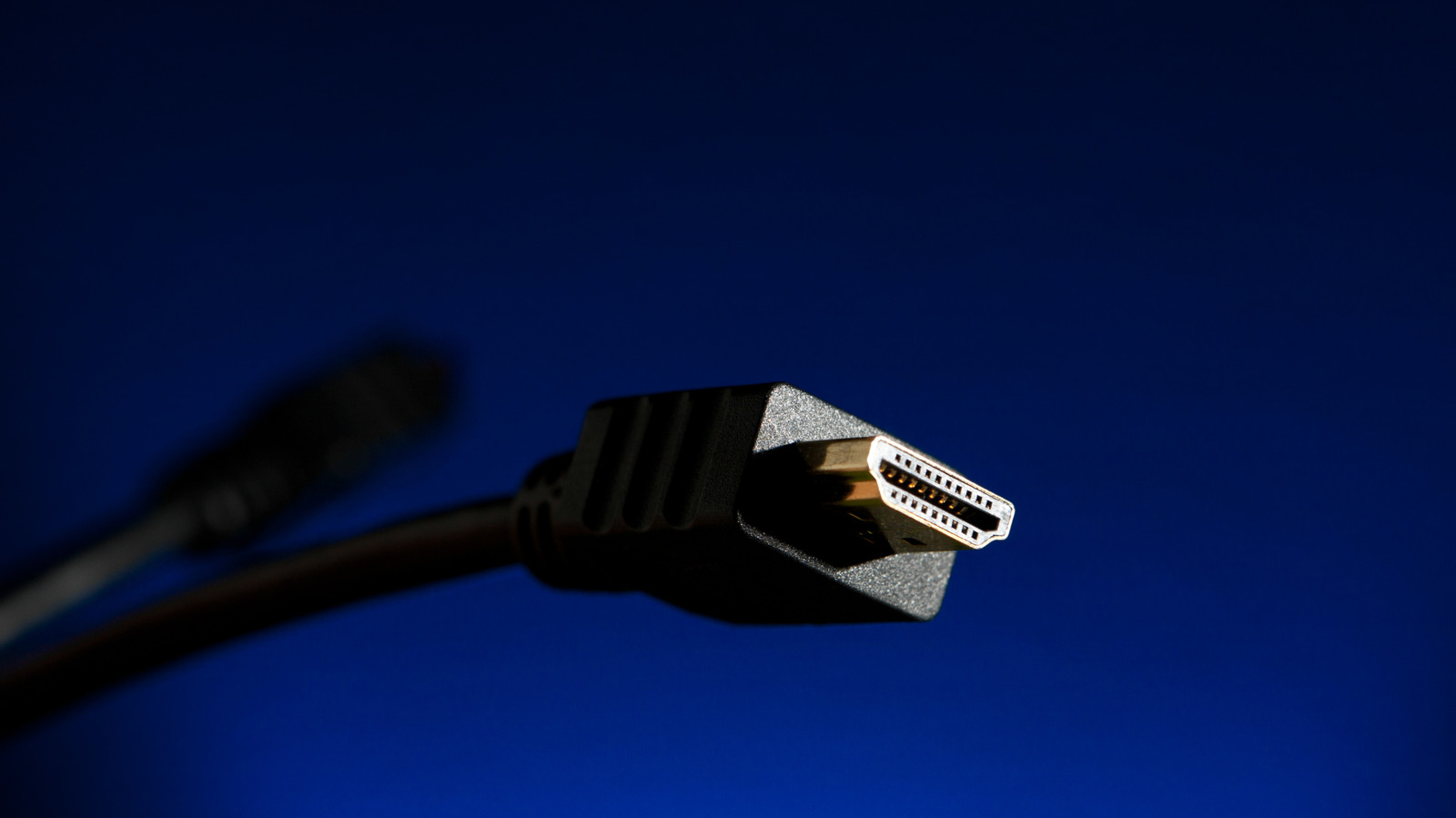
Need to send an HDMI signal further than one cable can handle? Try these options.
One of the most frustrating aspects of any entertainment setup is organizing your space. If you’re looking to carry media signals across a large space, multiple rooms or even between floors, you may run into the problem of signal degradation. Due to a phenomenon known as attenuation, HDMI signals weaken as they travel. This is particularly noticeable if you run cables further than 25 feet, with long-distance HDMI setups commonly suffering from flickering or pixelated imagery and audio loss. In some cases, your signal can drop altogether.
Luckily, most home setups can comfortably get by without any risk of signal loss by using shorter, high quality cables. However, if you want to set up multiple screens, hook up a television on the back porch or broadcast meetings between conference rooms, you’ll likely need to get creative with your HDMI cables to avoid degradation. Whether you’re looking to upgrade your home theater setup or link multiple offices together, you can address these problems through a series of low-cost, easy-to-assemble HDMI accessories.
Using an HDMI coupler to extend your setup
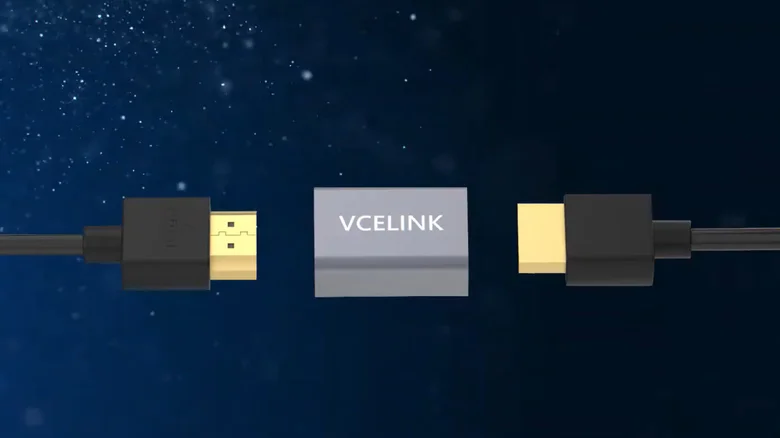
Let’s start with HDMI couplers, which extend your setup by linking two HDMI cables together. These adapters look like a small box with two HDMI ports, or “female” sockets, on either end. To use a coupler, plug the “male” connector ends of two HDMI cables into the device’s female sockets. Once connected, the HDMI coupler seamlessly carries your signal from one cord to the other.
HDMI couplers extend the reach of your HDMI connection without much data loss. They’re less expensive than most long-distance cables, and many support 8K video and up to 48 Gbps of bandwidth — roughly the same specifications as HDMI 2.1. This option has been a godsend for my family’s outdoor movie nights when I’ve needed to extend my outdoor projector’s HDMI connection.
Unfortunately, couplers aren’t infallible. Because HDMI signals weaken as they travel, relying on a coupler to relay a string of HDMI cables beyond 25 feet can still cause signal degradation. Replacing older HDMI cables with newer Ultra High Speed alternatives can create additional issues here, since newer cable standards have a shorter effective length and the coupler must support the newer standard. Thus, an HDMI coupler may be impractical if you prioritize speed and maximum quality.
HDMI signal repeaters
If you’re looking to extend your signal beyond the reach of a coupler, you may want to invest in a signal repeater. Like a coupler, a repeater is a small box with two female HDMI ports that you use to link two cables together. However, rather than simply carrying the same signal over to the next cable, the repeater refreshes the signal. In effect, it’s as if the signal were created anew.
A typical repeater can extend an HDMI signal to around 100 feet. And although long chains may not be aesthetically pleasing, linking several HDMI cables togetherom or outdoor patio
The greatest downside is price. Although a single repeater can cost as low as $20, stringing multiple together can quickly increase the cost of your setup. So while a repeater may not be ideal if you need to link multiple rooms, using two or three repeaters could still reduce your total expenses in comparison to more advanced accessories.
Switching to active cables
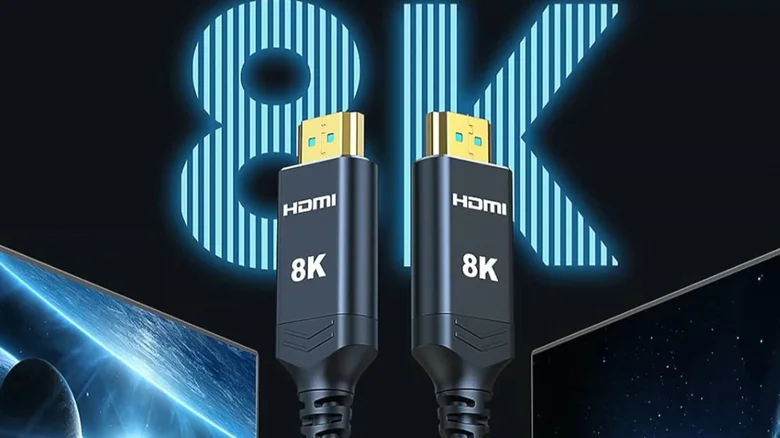
Unfortunately, the latest HDMI cables are more susceptible to signal degradation, with many seeing signal attenuation after 9 feet. One solution is to switch to an active cable, which contains small chips within the wiring to boost the signal.
There are two major forms of active HDMI cables: copper and fiber optic. The former use signal repeaters within the wiring to carry feeds, sometimes reaching over 100 feet. Fiber optic cables, meanwhile, contain thin glass fibers that transmit signalsme internet. Fiber optic HDMI cables are ideal for transmitting signals across large spaces, with some reaching over 300 feet
One downside is that you have to be more intentional in your display setup. While passive cables can send signals in either direction, active cables can only carry signals unidirectionally. Moreover, active cables aren’t compatible with all devices. Because some Ultra High Speed cables contain their own internal power systems, you’ll need to confirm your device supports HDMI cable power before investing in an active HDMI option.
Another downside is cost. Copper cables can cost between $35 and $80, depending on the length and brand. Fiber optic cables, meanwhile, might cost between $40 and $120. And while most situations don’t warrant fancy HDMI prices, investing in an active cable can save you from purchasing an ever-mounting pile of additional accessories.
Using a wireless HDMI extender
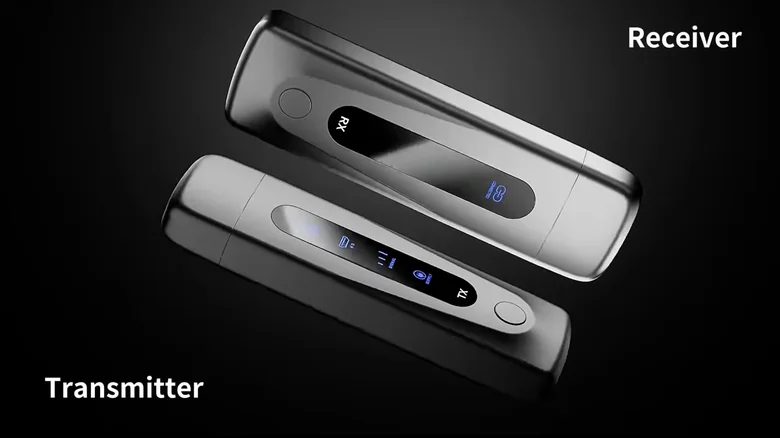
You should consider a wireless extender if you need to boost your HDMI connection across several rooms or floors. Also known as video transmitters, these devices are ideal for corporate settings or homes in need of multi-room transmissions.
Wireless extenders consist of two parts: a transmitter and a receiver. The transmitter, which you plug directly into your device, converts the HDMI feed into a wireless signal. This signal is picked up by the receiver, which you plug into your display. Some receivers can even receive multiple HDMI connections, which is great in settings where several people need to broadcast to one display. Extenders’ ranges can vary widely, with some models stretching feeds over 1,300 feet.
Unfortunately, HDMI transmitters aren’t a universal solution. They can incur a slight delay, meaning they aren’t ideal for broadcasting live sports or playing PC games on the TV in another room. While some can transmit 4K resolution, transmitters are unable to achieve high dynamic range video.
Prices vary according to range, resolution and brand. On Amazon, wireless extenders cost between $45 and $190. Be sure to check the accessory’s latency statistics and refresh rates if you plan to watch anything fast-paced.
Hooking your HDMI signal up to Ethernet
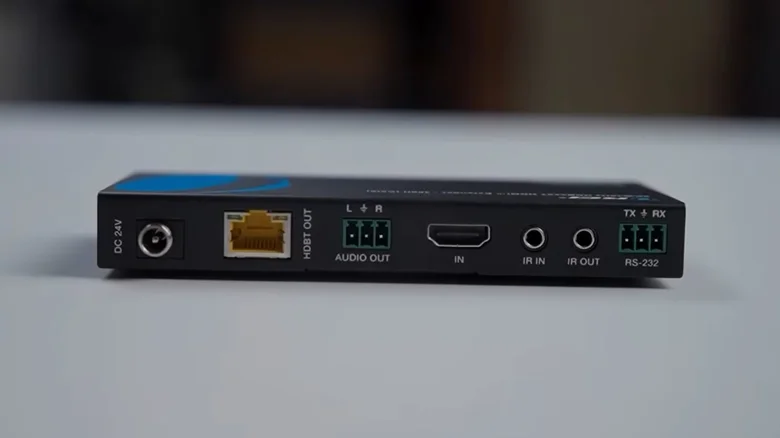
You can also use an Ethernet connection to extend your HDMI signal by hundreds of feet. Ideal for home theaters, multi-room displays and entertainment settings, HDMI ethernet setups allow you to bridge large spaces without losing signal quality.
Although setup is more intensive than most of the above, extending your HDMI signal via Ethernet cables is still relatively straightforward. Typically, extenders consist of a transmitter and receiver. The transmitter, which you hook up to your output device, captures your signal and transforms it into one that an Ethernet cable can carry. The receiver, meanwhile, hooks up to your display and delivers the content through its HDMI input. For the most part, all you need is a standard HDMI cable and compatible Ethernet cables, likely CAT5e, CAT6 or CAT6a.
As it stands, there are two main types of HDMI-to-Ethernet connections. The first converts your HDMI data into a network signal that’s carried across long distances with a dedicated Ethernet cable (ideal for more intensive feeds). For a more high-end experience, you can opt for an IP extension, which converts your HDMI input into an Internet Protocol signal that’s carried over your home network like all the rest of the traffic.
Those looking to broadcast to multiple screens can invest in a dual-purpose extender over Ethernet. Also functioning as a splitter, these extenders allow you to transmit your feed to multiple receivers without losing signal quality. Although more expensive, multi-display extenders can broaden your media options with fewer added units.
