

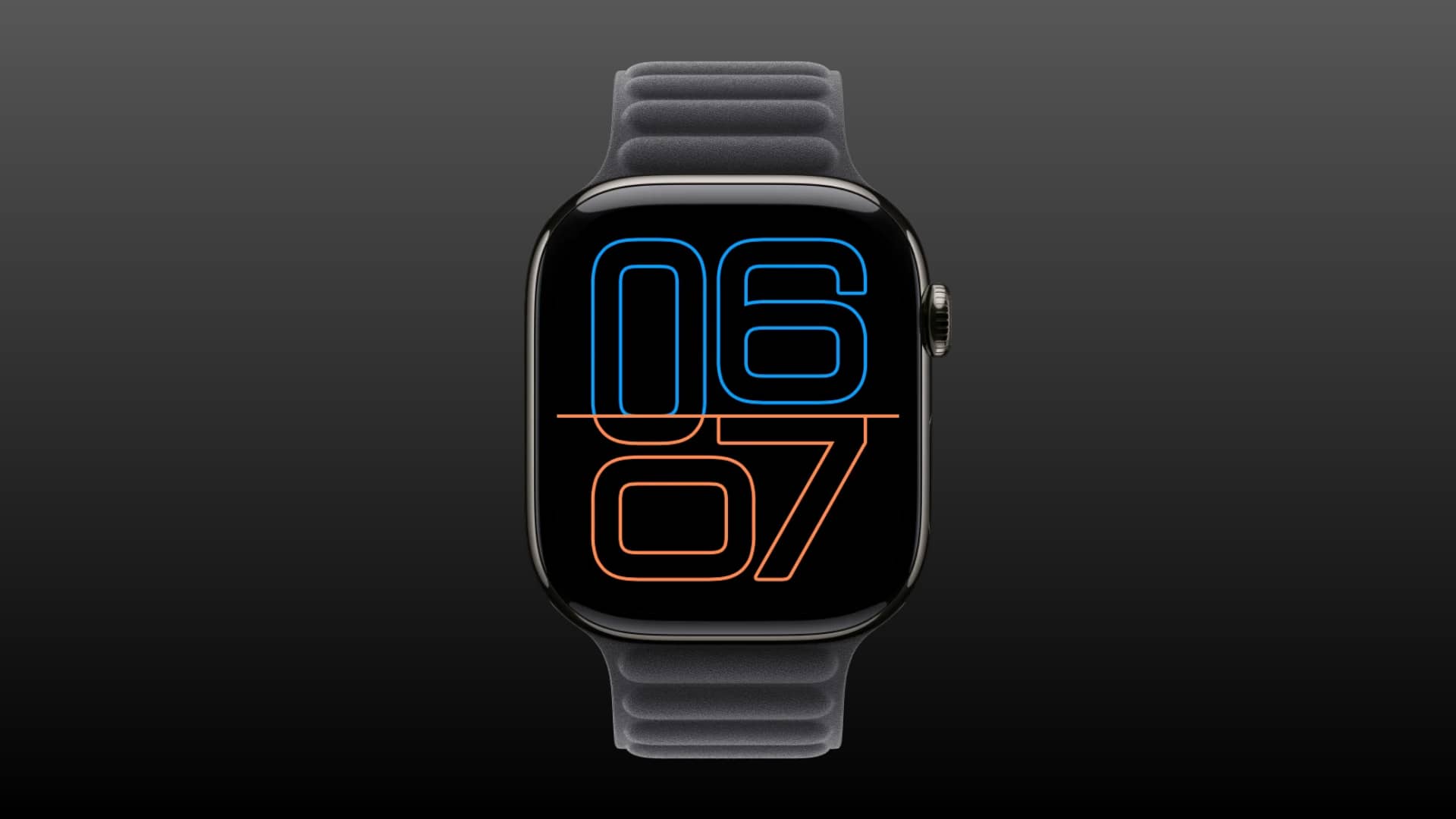
Learn how to fully disable the Always On display on your <a href="https://myappsplus.com/every-senior-with-an-apple-watch-should-set-up-these-5-health-alerts/” title=”Every senior with an Apple Watch should set up these 5 health alerts”>Apple Watch to save a lot of battery, or customize what’s shown and updated during Always On.
Like the iPhone, Always On display on Apple Watch keeps the watch face, along with things like complications and Live Activities, visible even when you put your wrist down.
While the Always On display refreshes occasionally, like every minute (or every second if you use a watch face with a second hand on newer models), it still eats up a lot of battery. So turning off Always On display is among the top three things you can do to extend battery life and get more use per charge.
If you like Always On display (since it’s cool and helps separate Apple Watch from cheaper wearables), customize it so only relevant apps and items show or refresh when your wrist is down.
Turning off Always On or preventing Live Activities from showing there can also help if you often record voice memos and don’t want others to see the recording running on your watch screen. This also applies to other apps like timers that show up on the Always On display.
Disable Always On display on Apple Watch
You can turn it off temporarily by enabling Low Power Mode or Theater Mode on your Apple Watch. Or follow these steps to turn it off permanently.
- Open the watchOS Settings app.
- Tap Display & Brightness.
- Scroll down and tap Always On.
- Turn the Always On switch off (or on).
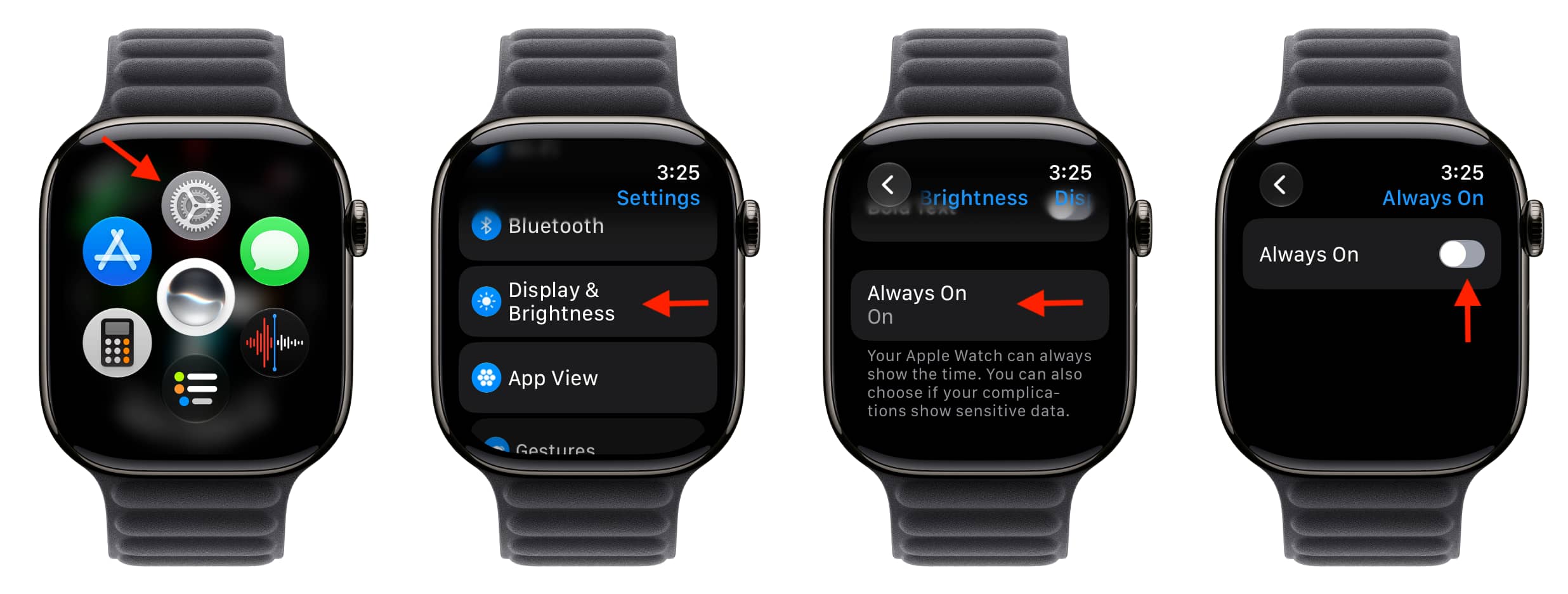
If you turned it off, put your wrist down, and now the entire screen will be fully black.
Customize Always On display
watchOS lets you manage what appears on the Always On screen when your wrist is down. You can choose to show or hide complication data, Live Activities, notifications, or apps.
You can also choose which apps in these four categories are allowed to show on the Always On screen. For instance, if you have the weather temperature complication on the watch face, it will show the current temperature even when your wrist is down. But if you go to Always On Complication settings and turn it off for Weather, the weather complication will still appear, but the temperature number won’t show on the Always On screen; it will just show “–”. Since no number is shown, that complication won’t refresh, saving you a bit of battery. But when you lift your wrist or your watch face wakes up, the temperature data will show and update there.
Apple says that the time and added complications on the watch face usually update once every minute on the Always On display. Furthermore:
- Complications that show live data, such as Compass and Noise, are not active.
- Stopwatch and Timer complications round up their displayed information to the next minute. On newer models like Series 10, Ultra 3, or later, certain things like the second hand of the watch face or stopwatch can update once every second.
- Calendar, Weather, third-party apps, and other complications refresh once per minute or as needed.
Follow these steps to manage what’s shown on your Apple Watch’s Always On screen:
- Open the Settings app.
- Tap Display & Brightness.
- Tap Always On and make sure it’s activated.
- Tap Show Complication Data, Live Activities, Notifications, or Apps under the Wrist Down heading.
- Use the master switch at the top to turn off that entire category or fine-tune it by turning off certain apps.
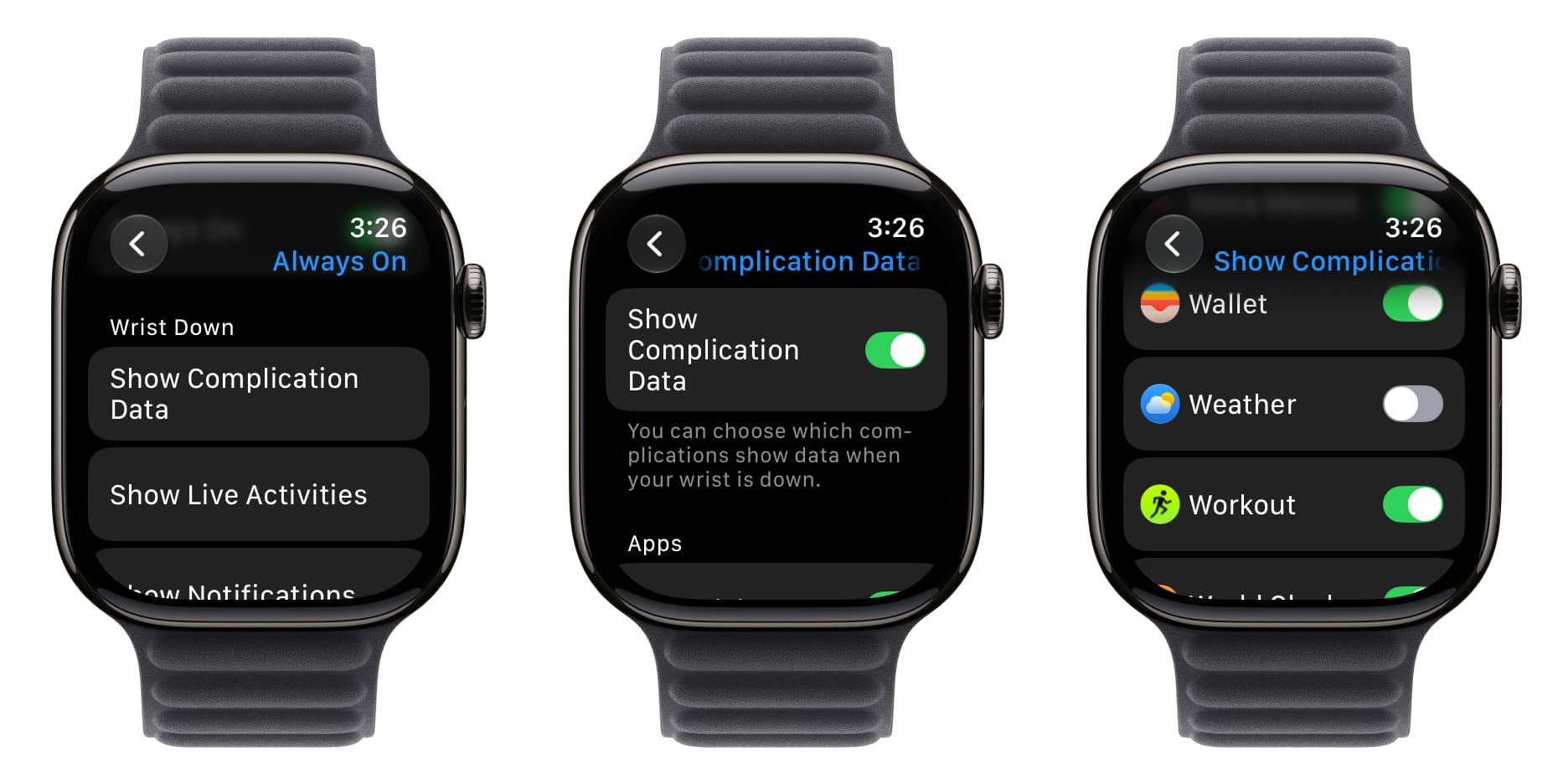
For instance, if you go to Show Notifications and turn off WhatsApp, future WhatsApp notifications will not show their content when your wrist is down and the Always On screen is active. But if your watch face is fully awake, or if you lift your hand, you’ll see the new notification on the full screen as normal.
- How to access App Switcher on Apple Watch in watchOS 27
- How to find your lost Apple Watch
