Close Menu
MyAppsPlus

    Subscribe to Updates

    Get the latest creative news from FooBar about art, design and business.

    What's Hot

    3 best new to Prime Video movies to binge-watch this weekend (Sept. 11-13) — including a steamy drama that should have won Margot Robbie an Oscar

    September 11, 2026

    It took way too long for someone to make USB-C cables that say what they can actually do [Gallery]

    September 11, 2026

    Apple’s most affordable 2026 Studio Display just hit its best price ever

    September 11, 2026
    Facebook X (Twitter) Instagram
    Facebook X (Twitter) Instagram
    MyAppsPlusMyAppsPlus
    Friday, September 11
    • Home
    • Breaking Tech
    • Apps & Software
    • AI & Automation
    • Android
    • iPhone & iOS
    • More
      • Reviews
      • How-To Guides
      • Deals & Discounts
      • Shop
    MyAppsPlus
    Home»Breaking Tech»How To Send High-Quality Images And Videos From Android To iPhone
    Breaking Tech

    How To Send High-Quality Images And Videos From Android To iPhone

    myappsplusBy myappsplusSeptember 6, 2026003 Mins Read
    Share Facebook Twitter Pinterest Copy Link LinkedIn Tumblr Email Telegram WhatsApp
    Follow Us
    Google News Flipboard
    How To Send High-Quality Images And Videos From Android To iPhone
    Share
    Facebook Twitter LinkedIn Pinterest Email Copy Link

    The age of sharing grainy, low-res photos is long behind us.

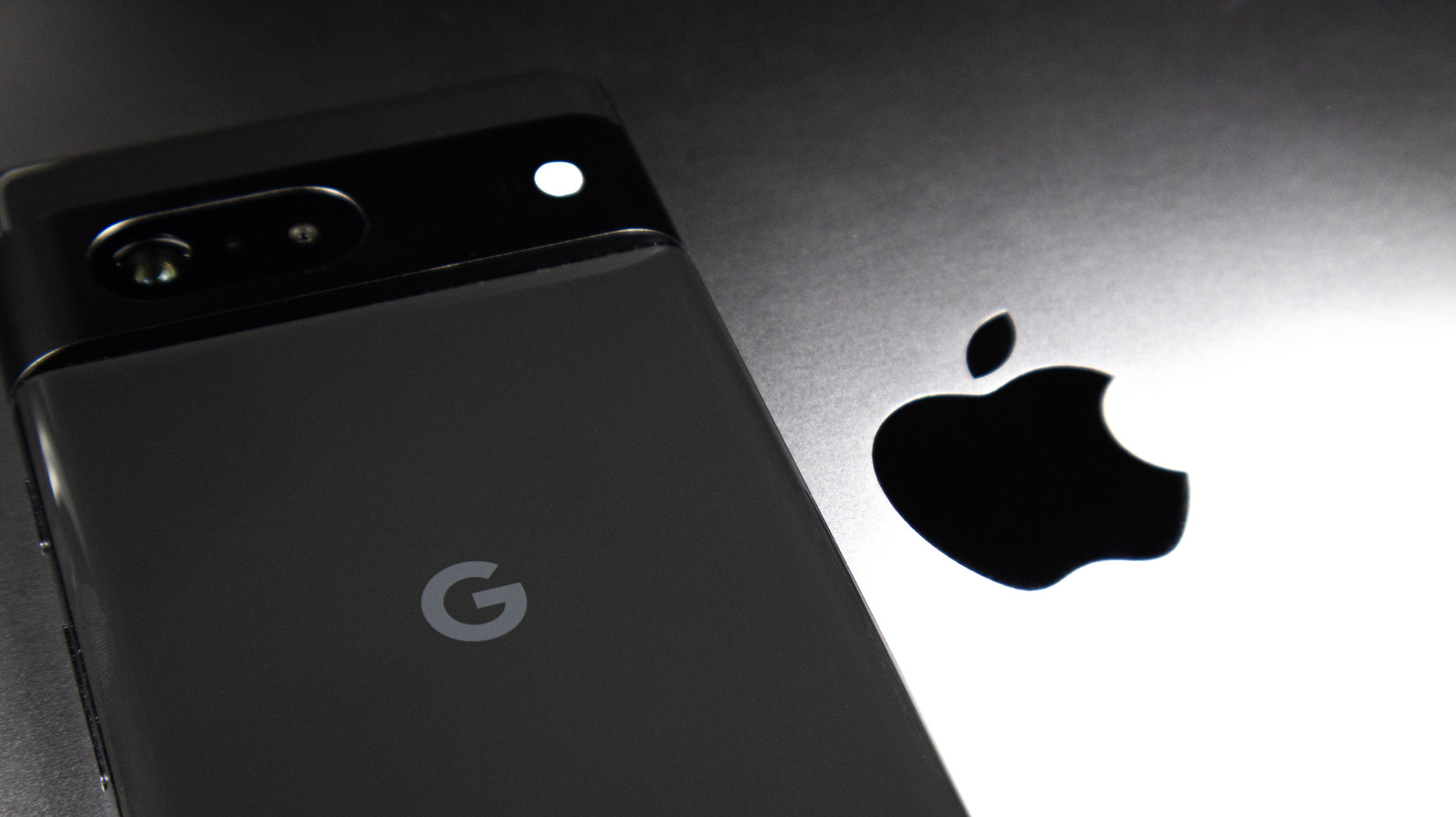
    Having friends or family with different phone brands than your own can lead to all manner of everyday nuisances, from attempts to help navigate unfamiliar settings to coming up short when you need a compatible charger. One such problem can arise when sharing photos and videos across these devices, especially between Android and Apple phones. While sharing media across brands has always been relatively intuitive, preserving quality hasn’t always been so clear-cut.

    For the longest time, sending a photo from an Android device to an iPhone typically took the quality down a few notches. This came down to the different messaging systems — with Apple using Short Message Service (SMS) texting and Android using Rich Communication Services (RCS). Fortunately, alongside embracing Apple Intelligence and deeper customization, iOS 18 ushered in RCS support on iPhone, which not only solved the discrepancy but also allowed iPhone users to access the higher image quality available via RCS.

    How to use RCS to send images from Android to iPhone

    Image of person texting.

    Naturally, if you’re an iPhone user and you want to preserve image quality across the board, you’ll want to make sure RCS is enabled. Fortunately, iOS 18 has RCS turned on by default, and you can easily check if it’s enabled if you want to be sure. Simply go to Settings > Apps > Messages on your iPhone, scroll down to RCS Messaging, and check that it’s toggled green.

    Of course, there’s more that can be done to guarantee quality. If you’re on the Android side of things, Google Messages will still send photos in a compressed form by default; to maintain quality, you’ll want to press the HD or HD+ button before sending. Here, simply make sure your media is set to “HD+ Original Quality” rather than “HD Optimized for Chat” to avoid compression and maintain the original file’s quality.

    Sending videos and larger images between Android and iPhone devices

    Image of AirDrop in use.

    There’s still the question of higher file sizes and videos, both of which can still fall victim to compression, not to mention the RCS attachment size limit of 100MB. There are a couple of options to make use of here, such as email or alternative messaging services, but Google Photos stands out as a simple option if sharing to an iPhone with Google Photos. Users with the Google Photos app, when sharing an image, can select “Send in Google Photos” and share with another user of the app. In that same respect, Google Drive is also a solid option for sharing large files between different brands.

    It’s also worth noting that Android Quick Share now supports AirDrop. This feature is available on Pixel phones from 8a and beyond, as well as a number of Samsung phones (including much of the Galaxy S family). If your Android phone isn’t compatible with AirDrop, though, you can instead tap the “Use QR Code” option in Quick Share (accessible through the same “Share” option when you select the content you wish to share) and have an iPhone user scan that code. While this is more range-limited, it does at least serve as a solid last resort.

    Apple Highquality images Samsung send
    Follow on Google News Follow on Flipboard
    Share. Facebook Twitter Pinterest LinkedIn Tumblr Email Copy Link
    myappsplus
    • Website

    Related Posts

    Washington students meet the meat industry

    September 11, 2026

    New images show a detailed view of Meta’s upcoming mixed reality headset

    September 11, 2026

    Nscale adds former OpenAI exec Fidji Simo to its board ahead of potential IPO

    September 11, 2026
    Add A Comment
    Leave A Reply Cancel Reply

    Top Posts

    The 6 AI-free Linux distros I recommend most

    August 19, 20263 Views

    AI, automation, robot dogs ensure on-site nuclear safety

    September 7, 20262 Views

    This tiny AI box could save me from upgrading my perfectly good laptop

    September 6, 20262 Views
    Latest Reviews

    Reddit begins testing a new audio and video experience, similar to popular TikTok videos

    myappsplusAugust 17, 2026

    Stop guessing which AI tool is best — this app tests them all for a one-time $40 (MSRP $499)

    myappsplusAugust 17, 2026

    The $119 MacBook Neo deal going viral on TikTok is a scam, and I almost fell for it — here’s where you can actually find it on sale

    myappsplusAugust 17, 2026
    Stay In Touch
    • Facebook
    • YouTube
    • TikTok
    • WhatsApp
    • Twitter
    • Instagram

    Subscribe to Updates

    Get the latest tech news from FooBar about tech, design and biz.

    Most Popular

    Reddit begins testing a new audio and video experience, similar to popular TikTok videos

    August 17, 20260 Views

    Stop guessing which AI tool is best — this app tests them all for a one-time $40 (MSRP $499)

    August 17, 20260 Views

    The $119 MacBook Neo deal going viral on TikTok is a scam, and I almost fell for it — here’s where you can actually find it on sale

    August 17, 20260 Views
    Our Picks

    3 best new to Prime Video movies to binge-watch this weekend (Sept. 11-13) — including a steamy drama that should have won Margot Robbie an Oscar

    September 11, 2026

    It took way too long for someone to make USB-C cables that say what they can actually do [Gallery]

    September 11, 2026

    Apple’s most affordable 2026 Studio Display just hit its best price ever

    September 11, 2026

    Subscribe to Updates

    Subscribe to our newsletter and get the latest tech news, app updates, AI trends, smartphone reviews, and exclusive deals delivered straight to your inbox.

    Facebook X (Twitter) Instagram Pinterest
    • About Us
    • Get In Touch
    • Disclaimer
    • Privacy Policy
    • Terms & Conditions
    © 2026 MyAppsPlus. All Rights Reserved.

    Type above and press Enter to search. Press Esc to cancel.